Sometimes, you need to share more than a single event with a group or even with the general public. Sharing a single event is easy: you can create an event web page, automatically, and share it easily. What if you need to share a series of events, an ongoing schedule, or an entire, regularly updated calendar?
You don’t want to allow people to make unauthorized changes to your calendar, but you do want to keep them informed. With Teamup Calendar, you can share a protected version of your calendar.
Create a secure calendar link
With Teamup Calendar, user accounts are the recommended way to give people access. For read-only access by a group, organization, or the public, you can share a customized, read-only calendar link.
Read-only permission
A read-only link provides security: people can view the calendar and events, but cannot modify or delete events on the calendar, or add anything new. The calendar administrator can deactivate or delete the shared calendar link at anytime, preventing continued access to the calendar.
Embed a calendar in your website
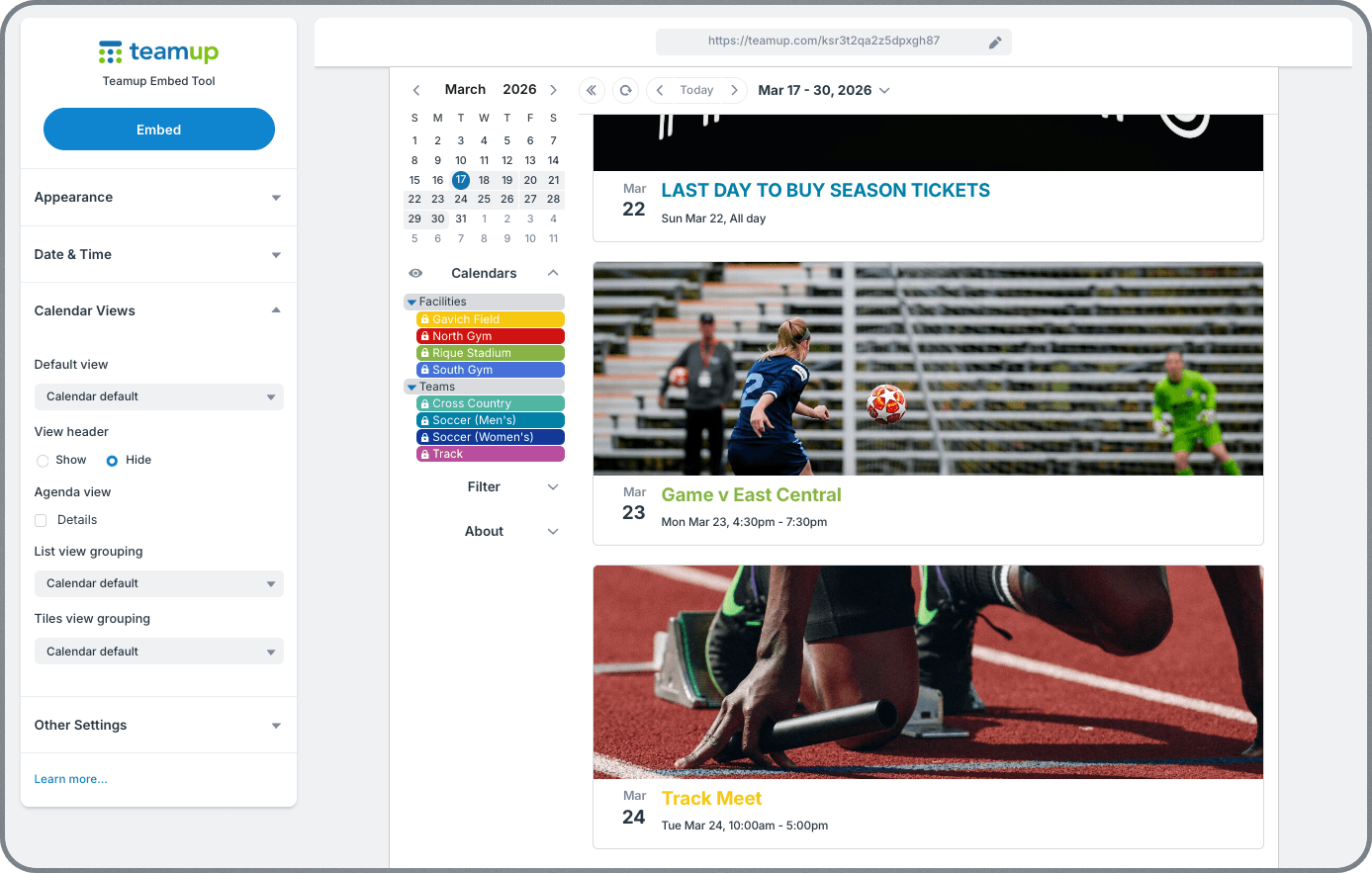
If you have your own personal or business website, you can embed a Teamup Calendar in your website. Then you can share the link to your website with anyone, and they’ll be able to see the embedded calendar.
→ Embedded Calendars to Share Public and Community Events
You’ll need to have access to the html editor of your website’s CMS (content management system). Most content management systems give access to an html editor when you are creating or editing a new post or page. If you are unsure how to do this, talk to your website administrator for help. You’ll add a short bit of iframe code to the post or page on which you want the Teamup Calendar to be embedded.
Customize the embedded calendar
You can use calendar link parameters to customize how an embedded calendar looks. Calendar link parameters are short key=value pairs that you add to the end of a calendar link. You can use a link parameter to hide the sidebar of a calendar, to remove the header, or to have the calendar show a particular calendar view or open on a specified date.
The embedded calendar above is customized with two link parameters: one disables the side panel, and one sets the calendar to display in Multi-week view.
Here’s the full list of calendar link parameters and how to use them.
Once you’ve created a secure calendar link, and embedded the calendar in your website, all you have to do is share it. And, at anytime, you can delete the calendar link you’re using for public or group access. When the link is deleted from your calendar’s settings, it will no longer work for anyone who tries to use it. If you only want to provide temporary public access to your calendar, create and share the link using the instructions above, then delete the link when the time is over. It’s that simple.
How could your group, organization, or business benefit from sharing a secure version of your calendar?
- Share a band’s schedule of gigs and events.
- Share booking availability with clients.
- Let parents see their children’s school schedule.
- Share a public calendar of community events.
- Promote special events and opportunities for your organization.
Letting people see a shared calendar can eliminate questions about scheduling and reduce the number of emails you have to answer. Try it for yourself and see how it improves efficiency in your life and work.