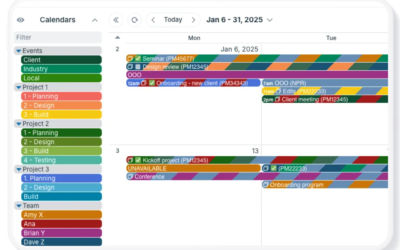
Trello cards with due dates can appear on a Teamup calendar through a one-way sync. Get the iCalendar feed URL from a Trello board, then add it to Teamup as an inbound iCalendar feed.
Get the iCalendar feed from Trello
- Open the Trello board menu and click Power-Ups.
- Add the Calendar Power-Up if it isn’t already on the board.
- Click the tools gear in the Calendar section, then click Enable sync.
- Copy the iCalendar feed URL.
Note: If the sync option doesn’t appear, a board admin needs to enable the iCalendar feed in the Power-Up settings.
Premium boards: In Trello’s Calendar view, select Sync to personal calendar, enable the URL from the 3-dot menu, then copy it.
Add the feed URL to Teamup
- Open the Teamup calendar in a browser with administrator access.
- Go to Settings > Calendars.
- Click New and choose Add iCalendar feed.
- Paste the feed URL into the Feed URL field.
- Set the name, color, and refresh interval, then click Save.
See cards from multiple Trello boards in one calendar
The Trello Calendar Power-Up shows one board at a time.
Teamup can combine cards from all boards in a single calendar view.
Repeat the steps above for each Trello board. Each board becomes its own sub-calendar, so you’ll get one calendar with multiple feeds, one from each Trello board you’ve added. You can still view one board at a time by toggling sub-calendars.