Manage and organize events with ease; use event signups to manage participants, export information, set signup deadlines, and more.
With Teamup Calendar, you can add signups to any event. If signups are enabled, calendar users can sign up for an event with their name and email address. The event organizer(s) can easily see who has signed up.
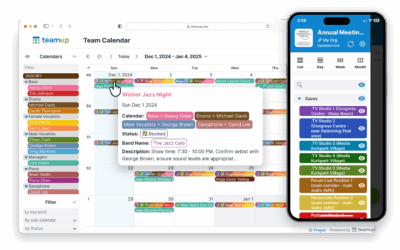
The event signups feature is fully functional on the Teamup mobile apps as well as in a web browser.
It’s easier to plan events when you know the number of people attending! Event signups also make it easier to communicate with event participants, both before and after events: you can export the signups from any event (or from all events), add email addresses to your mailing list, and keep participants informed about future opportunities.
Here are features and smart ideas you can put to work, and get more out of event signups.
Set signup limits
You can set both a maximum number of signups, and a deadline for signups. By default, the signup deadline is 24 hours before the event. However, you can adjust this deadline as needed.
To set both max number and deadline, use the options that appear when you enable signups on an event.
Prevent duplicate signups
When someone signs up for an event, they can enter a name, an email address, or both. To prevent duplicate signups, there is a requirement for unique signup information. If the participant uses an email address, the email address must be unique. If they use only a name, the name must be unique. This safeguard prevents an email address or name from creating duplicate signups, which may prevent other participants from joining the event.
If a family wishes to sign up for an event with one email address, one family member could input the email address. The rest of the family members could input only their names.
Get email notifications for signups
To get an email notification whenever someone signs up for an event, set up your notifications to be for All changes on the relevant sub-calendar.
Note that, if you have a very busy calendar, this may result in many notification emails. You can adjust the settings after the signup period is complete, so you’re not overwhelmed by calendar notifications.
Export signups for an individual event
To export the signups for a single event, open the event editor. An export link appears above the signup list.
You will be able to choose a file name and download the signup list as a CSV file.
Export signups for multiple events
You can also export the signups from multiple events, from all your sub-calendars, or from selected sub-calendars.
- Go to Settings > Export Events.
- In the Export Format, choose Comma Separated Values (.csv).
- Scroll to Advanced Options and click Show.
- Check the box to Export signups instead of events.
- Choose the calendars you wish to include.
- Set the date range as desired, then click Export.
See your own signups on events
If you are a read-only calendar user, you may not be able to see a list of signups. The event organizer can opt to hide the list of signed-up users from public view. You can check by opening the event on the calendar or by opening the event page.
If the event organizer has enabled all calendar users to see the list of signups, it will appear on the event information.
Use event pages with signup
With Teamup, you can easily view and share an event as a stand-alone webpage. Then you can share that event page link with anyone as an easy way to promote events and encourage signups. When you enable signups for an event, the Signup button will appear on the event page.
The signup deadline will appear below the Signup button. If you have enabled signups to be visible to All users, the list of signups (names only) will appear on the event page as well. If you change any of the event details on your calendar–such as the signup deadline, location, or time–the event page will automatically update.
Related resources: