Calendar events often need more than a title, date, and time. Events might include photos, contracts, maps, agendas, work orders, checklists, presentations, and other supporting documents.
Teamup makes it simple to keep files and images linked to the event so information stays organized right on the calendar. Team members can find what they need, work moves efficiently, and records stay complete. Plus, with Teamup, you can turn schedules into a visual display of the most important information, from a gallery of community events to attached visual instructions for field workers.
3 different ways to add images and files
Teamup offers several options for storing images and documents:
- Description field: Display images directly within the event details or link to uploaded files.
- Attachments field: Organize multiple documents, images, and reference files.
- Event comments: Let users upload files and photos in time-stamped comments, even with read-only access.
You don’t have to choose one way; use all three methods depending on the need, user visibility, and type of information. Here’s a closer look.
Add images to the Description field
The Description field is ideal when images should appear as part of the event itself. Photos can be displayed directly within the event details alongside formatted text, making it easy to create rich, visual event information. This works well for flyers, venue maps, property photos, equipment diagrams, classroom materials, promotional graphics, or screenshots.
If you’re sharing event pages, adding inline images to the Description field makes them more visual and appealing.
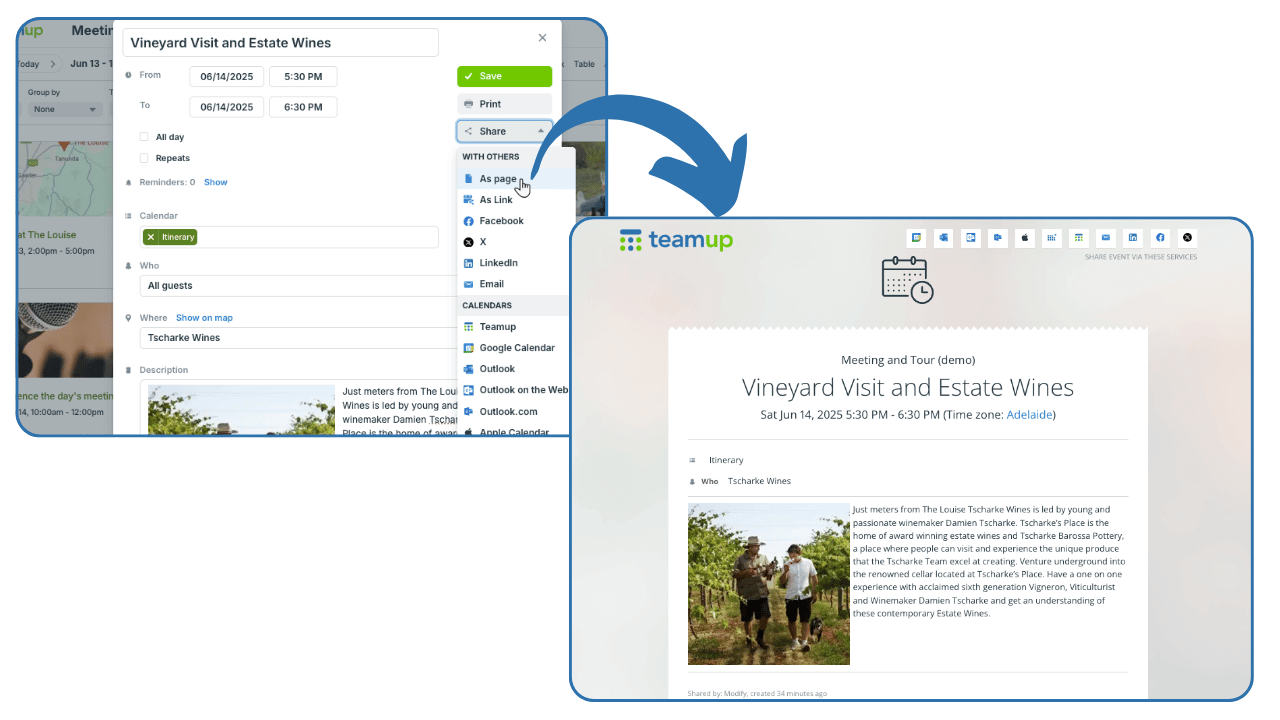
Because the images are embedded within the event description, anyone viewing the event or event page immediately sees the visual information without opening separate attachments.
You can also add any image as a link, instead of displayed inline, and upload and link to files as well.
Organize files in the Attachments field
When events require multiple supporting documents, the Attachments field provides a dedicated place to keep everything together.
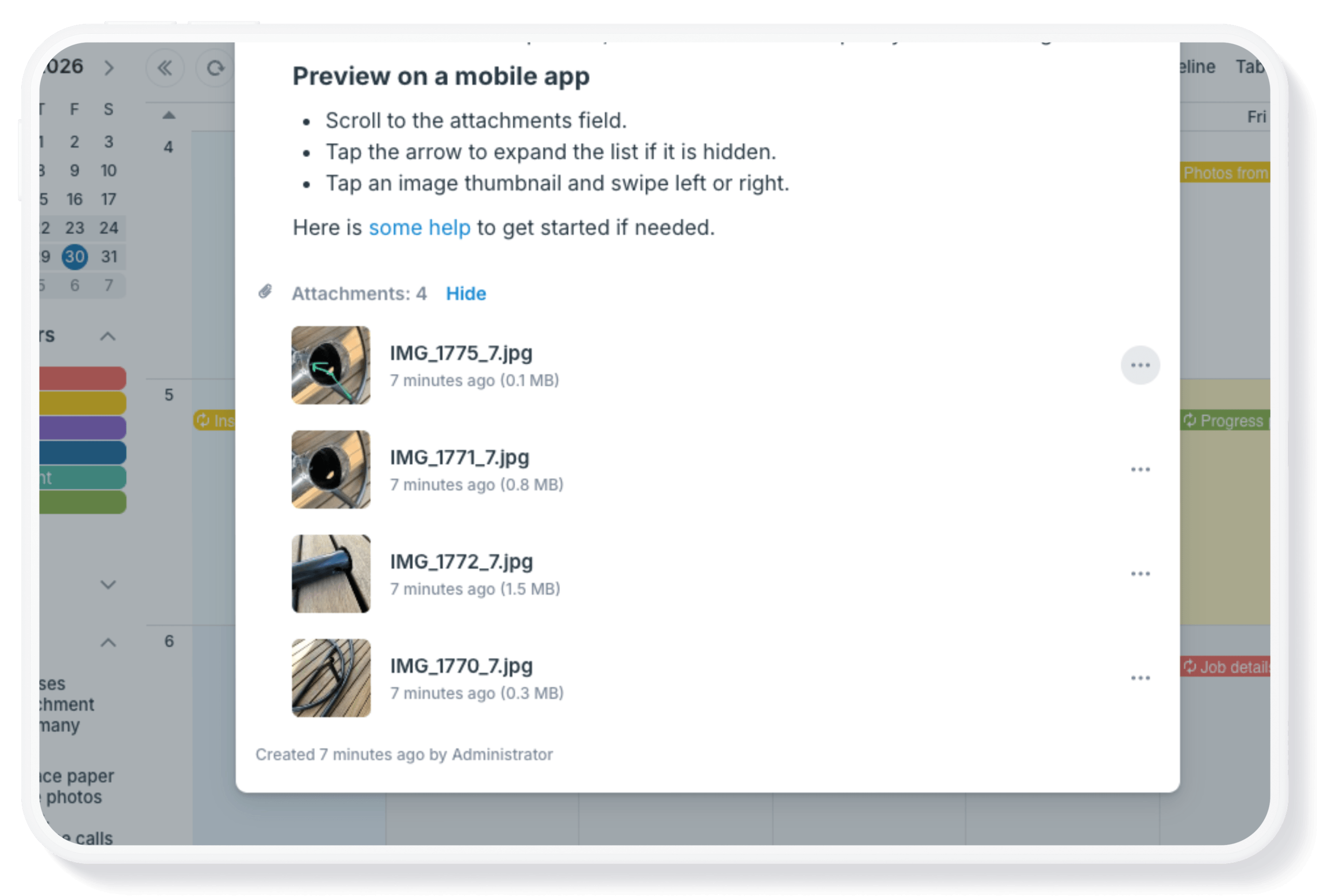
Upload PDFs, spreadsheets, presentations, contracts, checklists, photos, manuals, blueprints, or other files directly to the event. Multiple attachments can be stored together, making it easy to organize all related materials in one location. The field can be collapsed, so the list of files stays out of the way when it’s not needed.
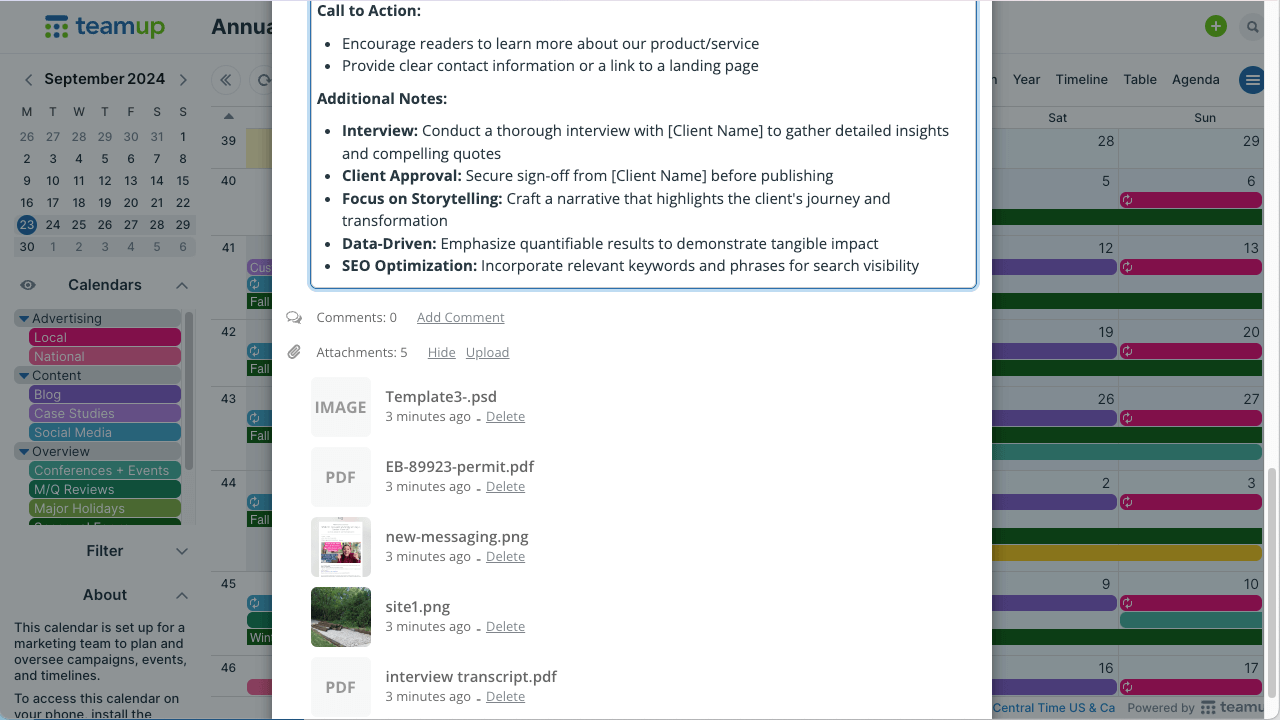
Click to enlarge: Attach documents, images, and files directly to the relevant event. Collapse the field to hide the list of files when not needed.
The Attachments field keeps files separate from the event description while remaining immediately accessible whenever someone opens the event. This approach works especially well for operational documents that need to stay connected to scheduled work. Users can preview attachments on the Teamup app to quickly reference information without having to download each file (details below).
Share photos and updates in comments
Sometimes files are added after an event has already been created. Event comments provide a collaborative way to share images, documents, and updates as work progresses.
Instead of replacing the original event information, comments create a running conversation attached to the event. Team members can upload progress photos, completed forms, inspection images, proof of delivery, or other supporting files while preserving the history of the work.
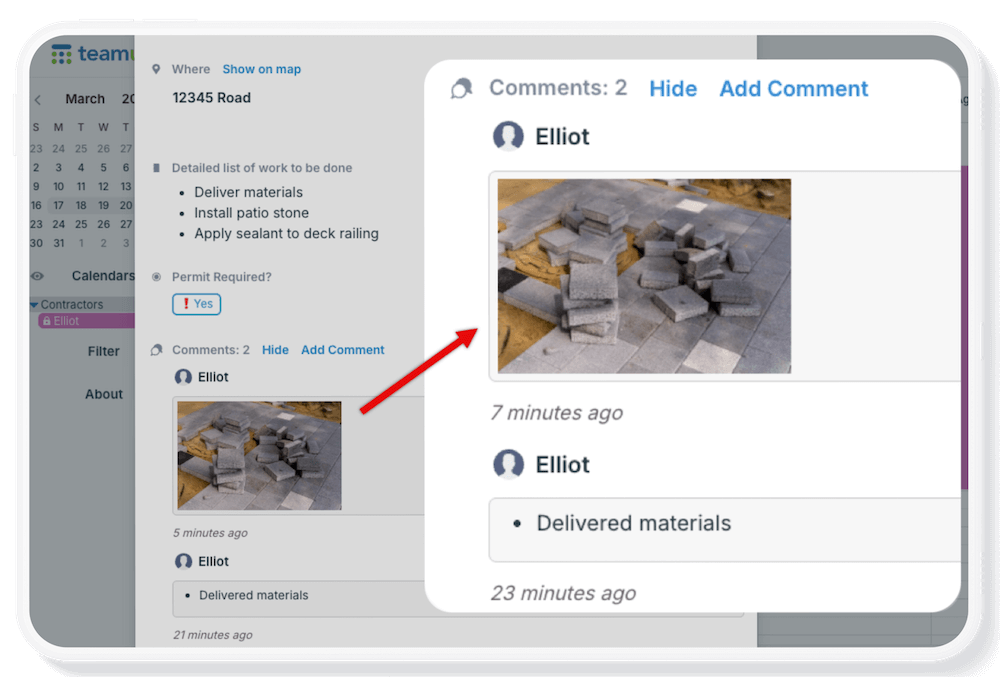
Event comments also provide a secure way for users with read-only access to add notes and upload files. The comments field can be enabled for all users, allowing anyone with access to add comments. But they can’t change any event information, so the schedule stays secure. This ability makes comments particularly useful for field service teams, project coordination, volunteer management, and community events.

Click to enlarge: Read-only users can use event comments on the Teamup app to provide real-time updates, document issues, share photos, and show work status.
Team members with read-only access can still provide updates and document work from the field by using time-stamped comments. Volunteers and community members can share photos and notes, while the events stay locked and secure.
Better scheduling with visual information
Preview attachments in the Teamup app
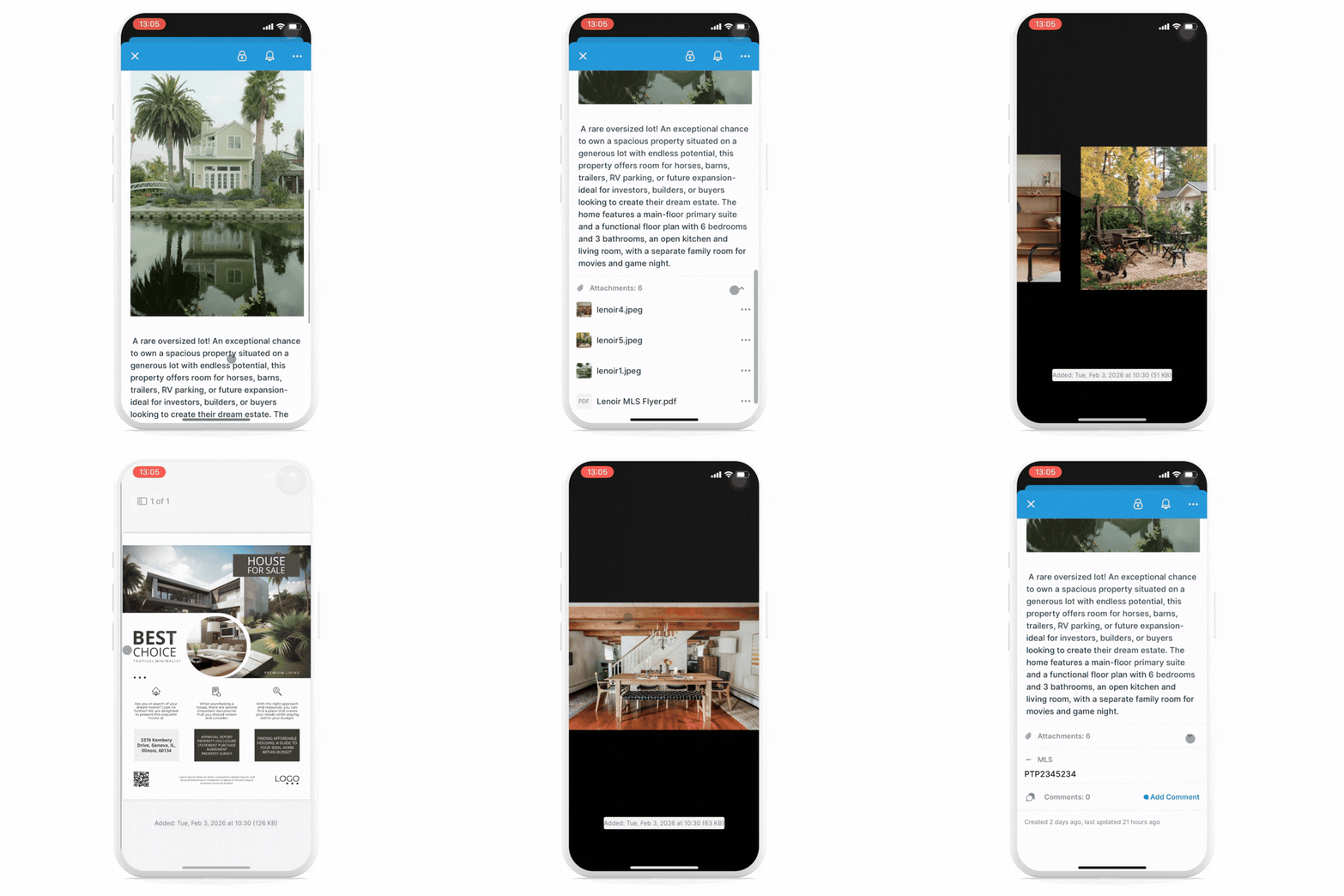
Click to enlarge: Users can quickly scroll through files in the Attachments field to preview images and PDFs.
Many teams rely on mobile devices while working in the field. Rather than downloading every attachment before viewing it, Teamup allows users to preview attached images and files directly within the app.
Simply tap an attachment to open a preview, then swipe between multiple images or documents attached to the same event. Users get fast access to reference materials and job details without leaving the calendar.
Events gallery with Tiles view
When events include images, Tiles view transforms a traditional calendar into a visual gallery. Available in both the Teamup browser interface and mobile app, Tiles view displays each event as its own tile with a cover image. On a browser, users can choose Small, Medium, or Large tile sizes. Tiles view is a great display option for embedded calendars, too.
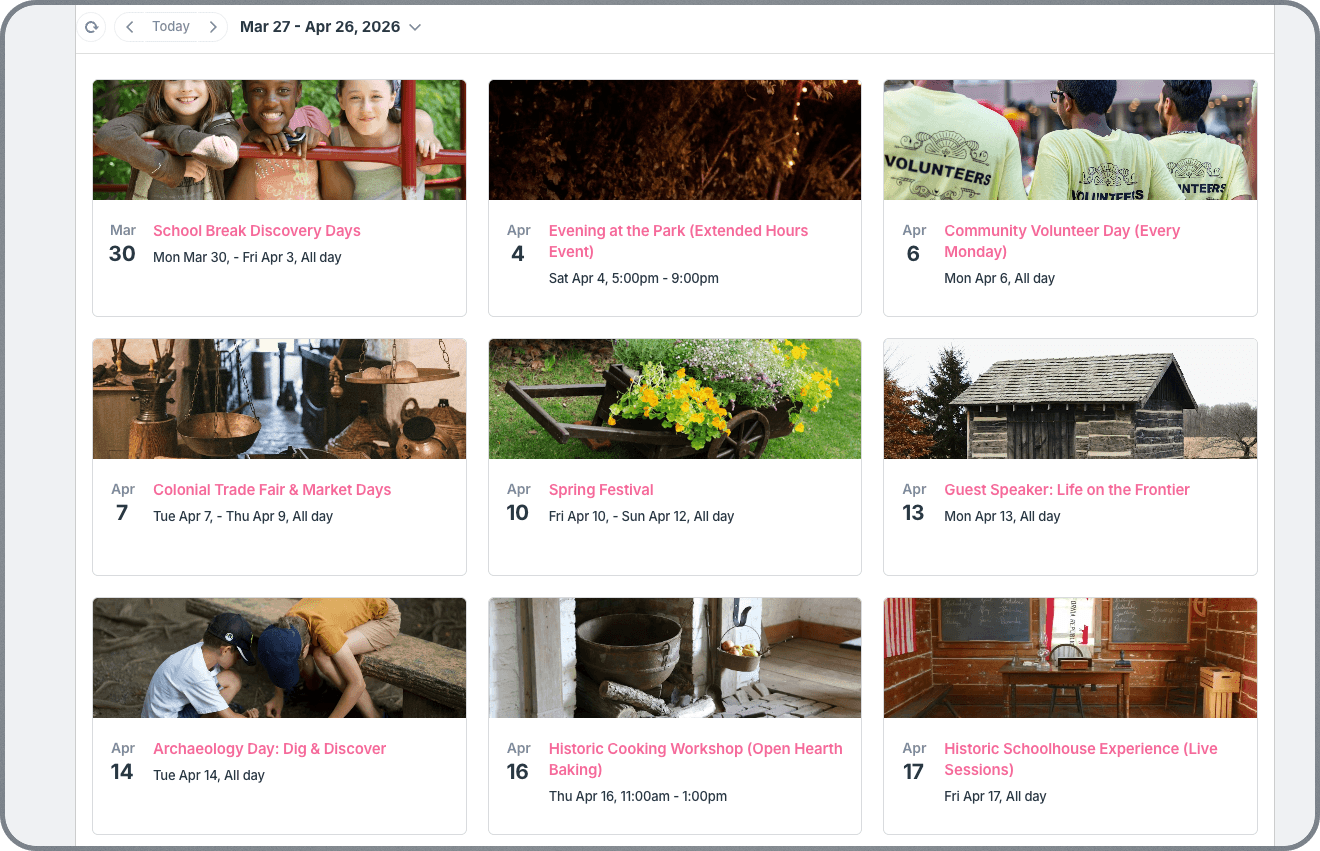
A public events calendar for an educational park; the calendar is embedded in Tiles view for a visual display of upcoming events.
Teamup automatically uses an image from the event to create the tile, making schedules much easier to browse visually. Events without images display a clean color banner based on their assigned sub-calendar. On the Teamup app, each tile displays a thumbnail of the cover image for an appealing, visual grid of events.
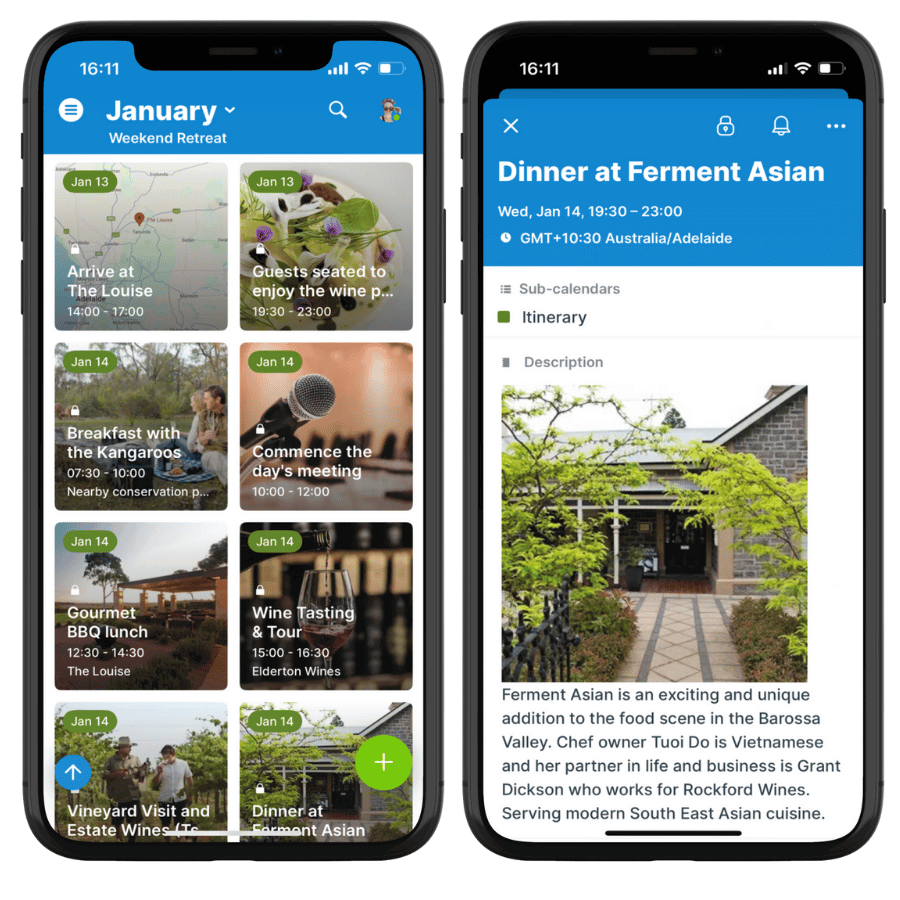
Click to enlarge: Tiles view on the Teamup app shows a thumbnail of each event’s cover image in a clean, visual grid of events.
⚙️ Get started with visual scheduling
Add images, attach files
- In a browser or in the Teamup app, create or open an event.
- Choose where the file belongs:
- Description for images displayed within the event.
- Attachments for documents and multiple files.
- Comments for ongoing updates and collaboration.
- Upload the images or files.
- Save the event.
Note: Enable comments for all users to allow read-only viewers to upload images and files even with restricted calendar access.
Share schedules with visual info
- Share the event with anyone as a stand-alone event page.
- Users can open the event in the Teamup app to preview the files.
- Embed the calendar in Tiles view to share a gallery of events.
Get started with the interactive demo: Add Images and Attach Files to Events.
Organize and share visual schedules
A calendar becomes much more useful when every event includes the information needed, presented in a way that’s easy to understand. By combining inline images, organized attachments, collaborative comments, mobile previews, and the visual presentation of Tiles view, Teamup helps keep schedules and supporting materials together in one place.
Give it a try with a live demo, or get started with your own Teamup calendar. Keep files, documents, images and reference materials together, organized, and accessible with Teamup.