Teamup’s free mobile apps for iOS or Android devices give you complete access to your calendar anywhere. You can share calendar events on your iPhone or Android, send calendar invites, and share calendar events via text, email, and social media.
Easily share events on mobile
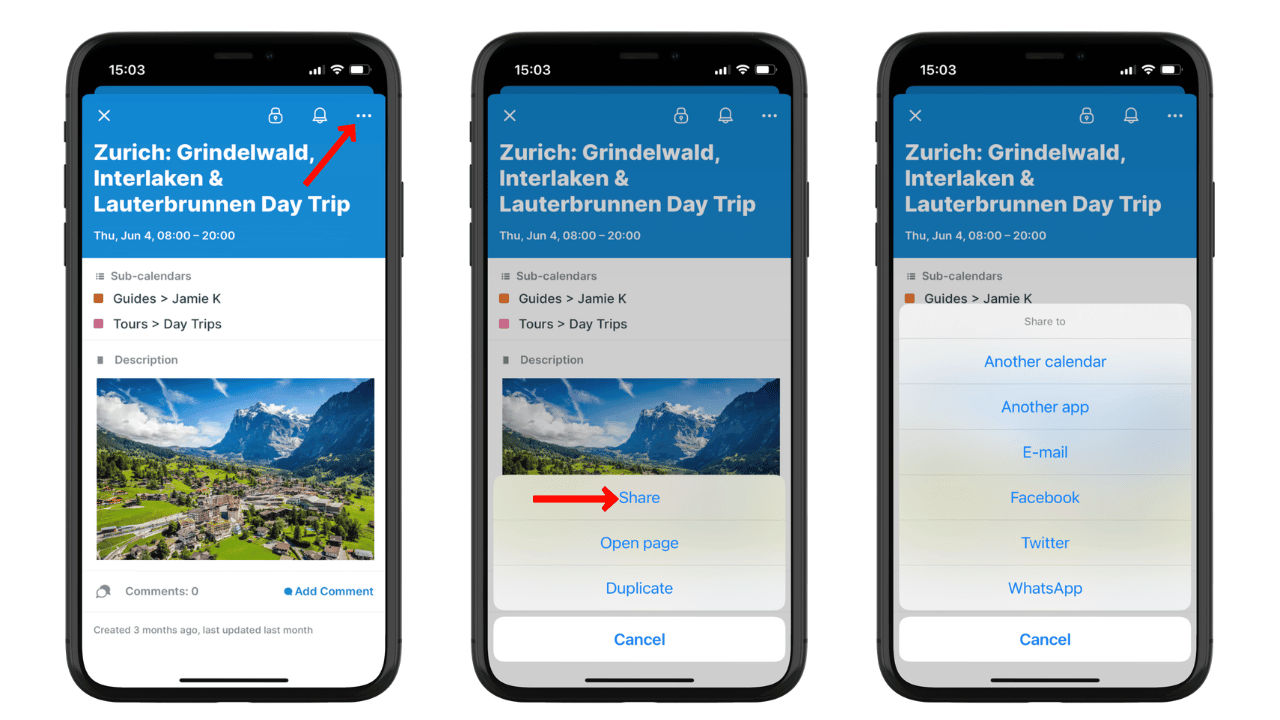
Click to enlarge: Open an event, tap the three dots, then tap Share to see the sharing menu.
Using the Teamup app, you can share calendar events via mobile to groups or to individuals:
- send to a Whatsapp group.
- share calendar event in a group text.
- send calendar invite via text with a single person.
- share to a Facebook group.
- send the event page link in an email.
- share a calendar event on social media.
To share an event, open it, then tap the three-dot menu in the top right. From there, tap Share to see sharing options, or tap Open page to see the event page in your mobile browser.
📲 Here are the download links for the iOS app and Android app.
Once you have the Teamup app installed, open it and create a new calendar or use a Teamup calendar you have already created. More details here.
Share calendar event via text
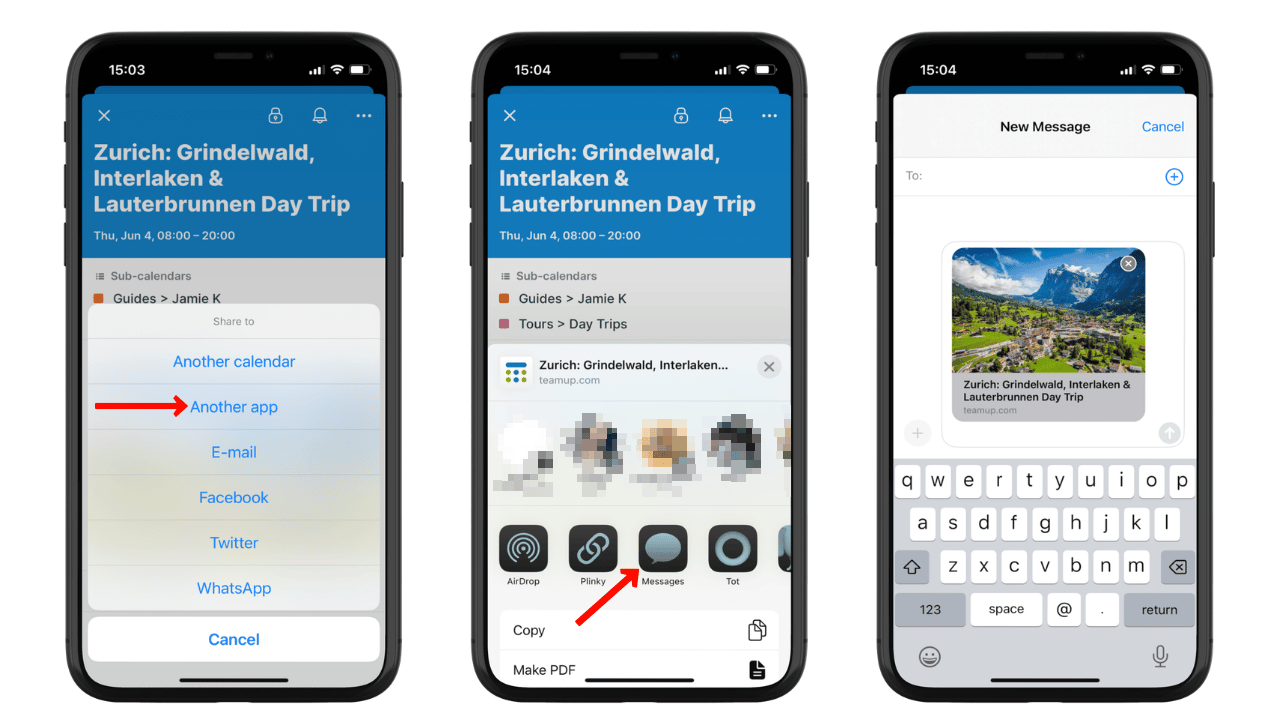
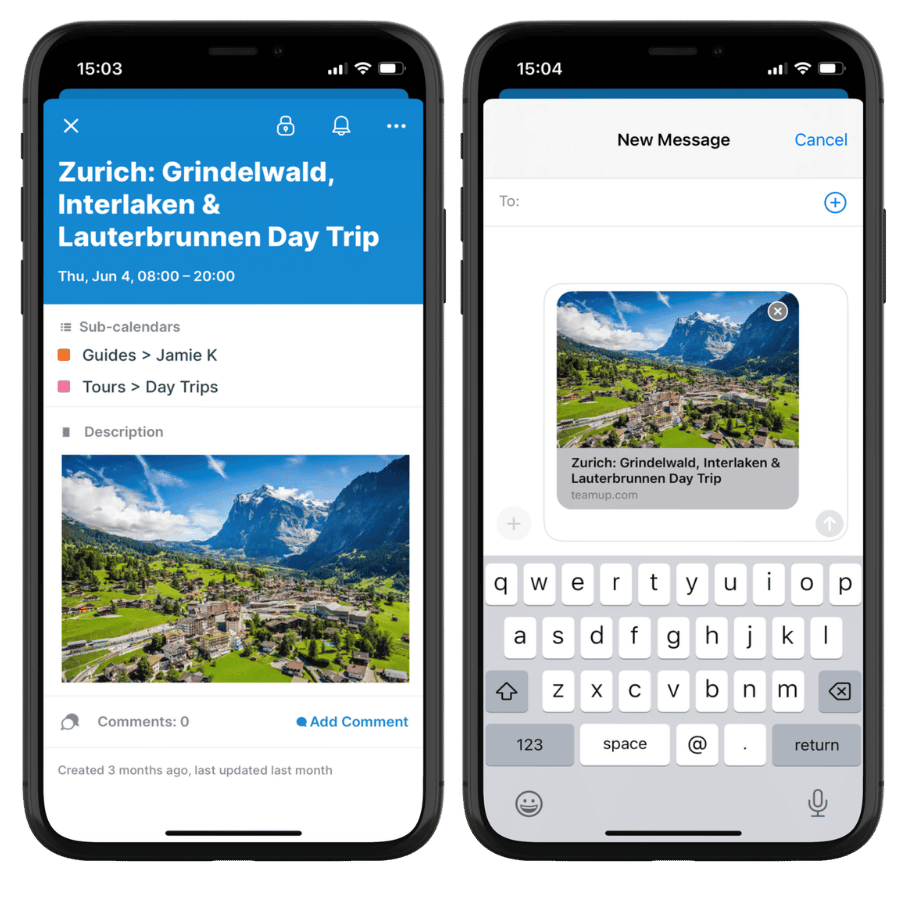
Click to enlarge: From the Share menu, choose Another app, then select your texting app.
Open the event, then tap the Share icon. Tap Another app and your phone’s sharing menu will open. Select text from the sharing options.
The event information will automatically be put into the text message. You can add your own details or message, if desired. When the person receives your text, they will see a thumbnail of the event which is linked to an event page. The event page contains all the event details (and if you change the event, the event page will update automatically).
You can send a calendar event via text to a single person or in a group text.
Share calendar event on social
Want to share a calendar event from iPhone or Android to social media? You can do that too. Open the event, and tap the Share icon. Facebook, Twitter, and WhatsApp are options on the sharing menu that opens. If you want to use another social app, select Another app from the sharing menu. Your phone’s sharing menu will open with your apps that are enabled for sharing. If you don’t see the app you want to use, it may not be enabled in your phone’s sharing options.
Send a calendar invite on mobile
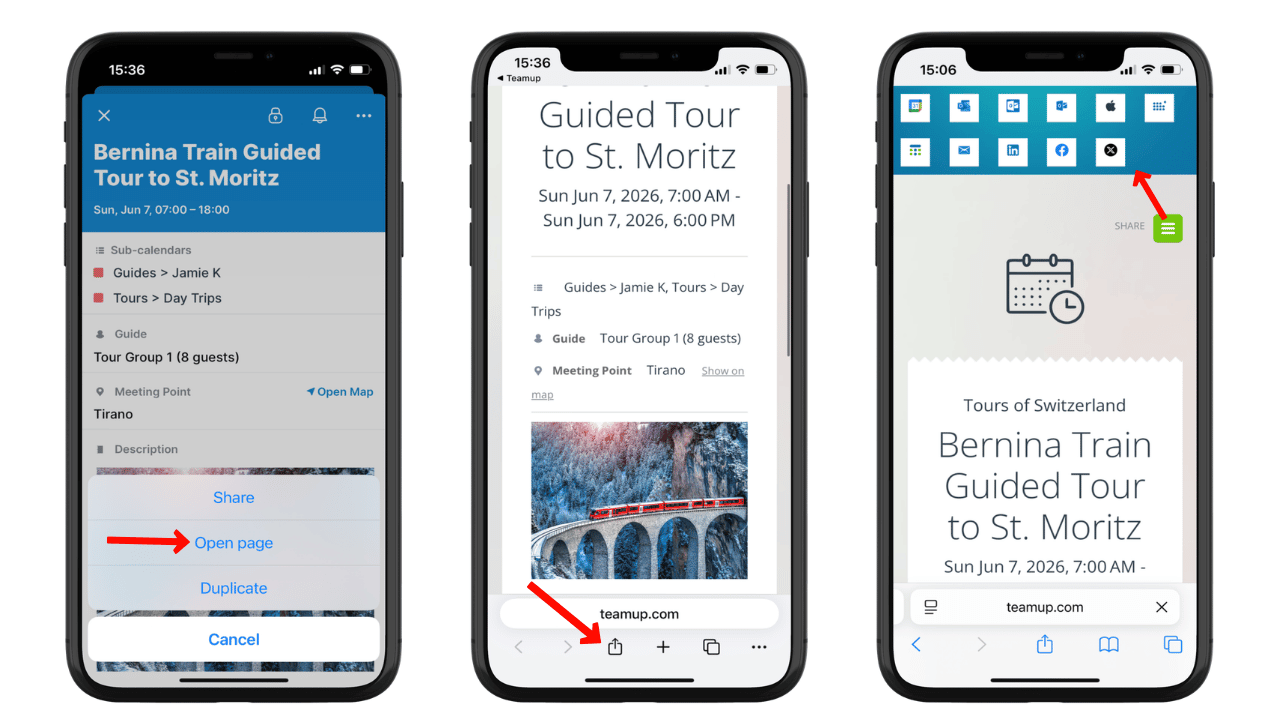
Click to enlarge: Any event can be shared as an event page that has all the details, built-in sharing options, and stays updated automatically.
Sending Teamup calendar invites on mobile is as easy as sharing an event:
- Create or open the event.
- Tap the three dot menu, then tap Open page.
- Use your mobile browser’s sharing menu or tap the green Share button to open sharing options.
- Send the event page to the people you want to invite.
Create the event
To send calendar invites on iPhone or Android, first create the event in your Teamup calendar. Add photos or images to make the event page more interesting. Don’t forget to format the text (see here for how to format text on Teamup mobile apps).
Send the event page
Open the event, tap the three-dot menu, then tap Open page. This option automatically creates an event page. The event page will open in your mobile browser.
From the event page, there are several ways to send calendar invites:
- Copy the link and send it to anyone as a calendar invite.
- Use the sharing menu built into your mobile browser.
- Use the sharing options at the top of the event page.
Here’s a great thing about event pages: if you change any of the event details, the event page will automatically update. So you won’t have to resend the calendar invite.
When you copy the event page link and send it via email, text, or share it via Whatsapp or another app, you will have the option to include your own message along with the event page link. Personalize your invitation, point out an important detail, or ask people to sign up or leave a comment, then send the event information.