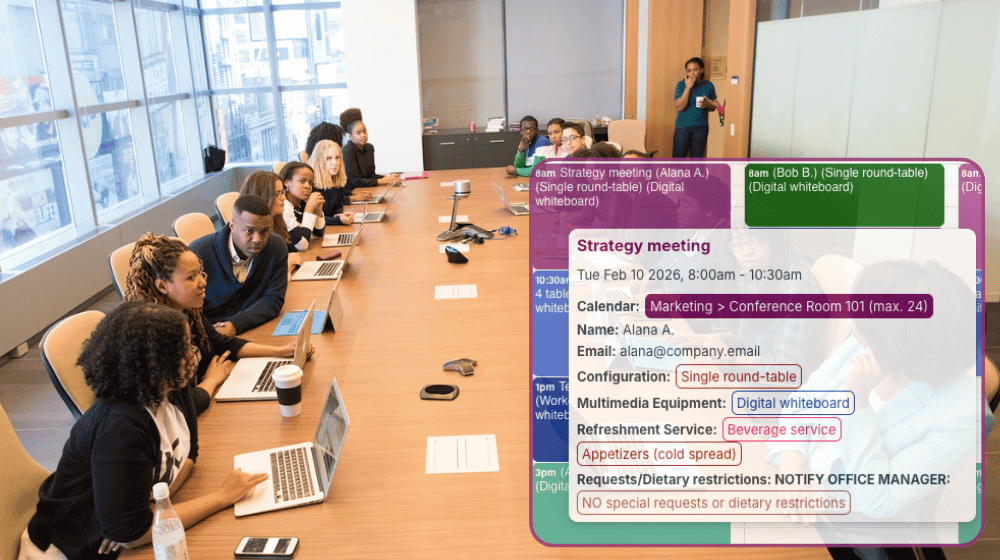
In a busy corporate office, teams book rooms for internal meetings, client calls, interviews, and hybrid sessions throughout the day. Without a clear system, scheduling quickly turns into email threads, last-minute conflicts, and rooms that appear free but are not.
A self-booking calendar gives employees a simple way to reserve meeting rooms on their own while ensuring availability stays accurate and conflicts are prevented automatically.
The need: Large corporate offices need a reliable way for employees to book shared meeting rooms themselves without creating conflicts or relying on office managers to coordinate every reservation.
The Teamup solution: A shared, room-based calendar with self-booking and automatic conflict prevention lets employees reserve meeting rooms independently while giving office managers full visibility and control.
Key needs in a self-booking meeting room calendar
For self-booking to work in a large office, the system has to balance freedom and control. There may be dozens of employees in different departments. To let employees view meeting room availability and reserve rooms safely, a meeting room calendar must:
- Show real-time availability for all rooms.
- Prevent double-bookings automatically.
- Let employees self-book rooms while protecting other bookings.
- Scale across dozens of rooms and hundreds of users.
- Stay simple enough that people actually use it.
Here’s how a shared Teamup calendar can meet those needs: providing security, structure, and ease of use so the system works efficiently.
Self-booking with structure
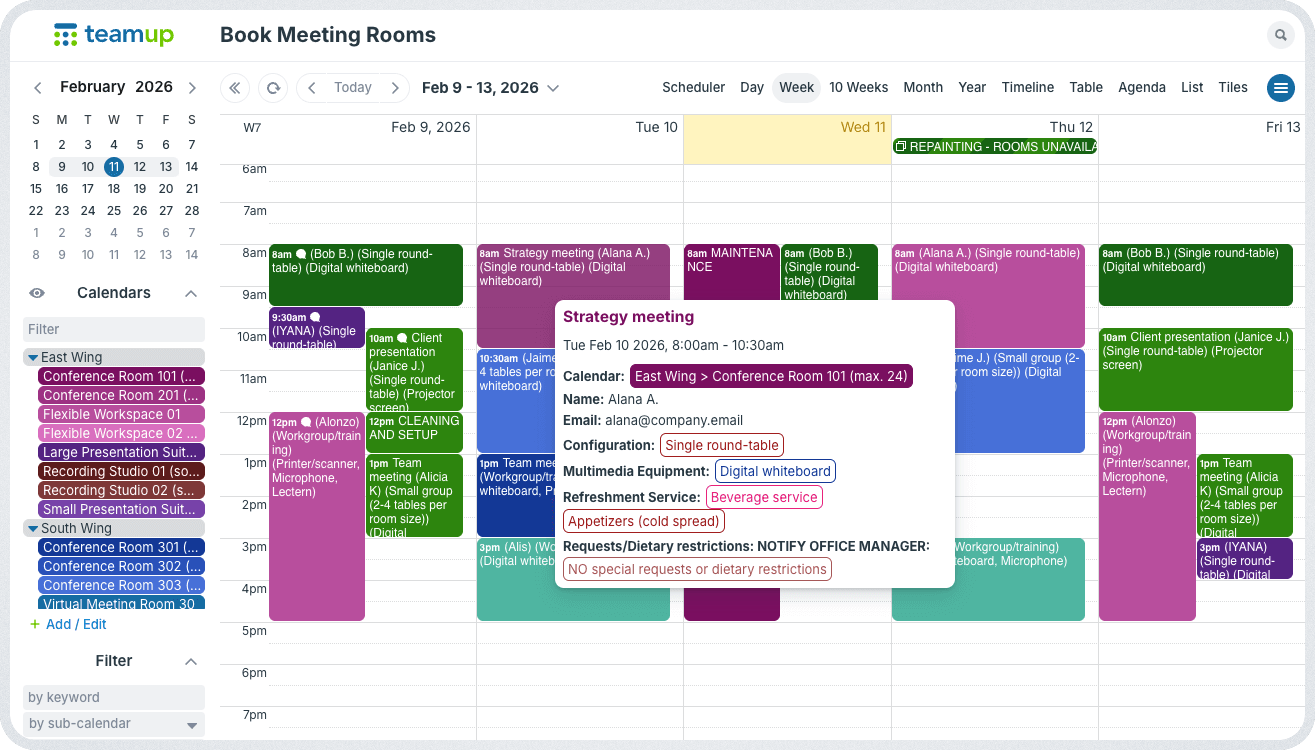
Click to enlarge: Rooms are organized in departmental folders. Custom fields capture all booking details.
The key is to organize the calendar around rooms, not people. This structure allows for consolidated management of all rooms in the building, while allowing customized, secure access for different teams and departments.
One sub-calendar per meeting room
Each meeting room is represented by its own sub-calendar. The sub-calendars can be color-coded and grouped in folders. The room name, capacity, location, and key features are reflected in the calendar name or description. Each sub-calendar has overlap prevention enabled, so the room cannot be booked by two meetings at once.
In larger offices, rooms can be grouped using folders in a way that makes the most sense: by floor, usage, capacity, or department. This keeps the calendar readable even with many rooms.
Sub-calendars provide access control. So office managers can set up access for each team that includes only the rooms (sub-calendars) that team needs to access. More details below.
Custom fields for specific booking requests
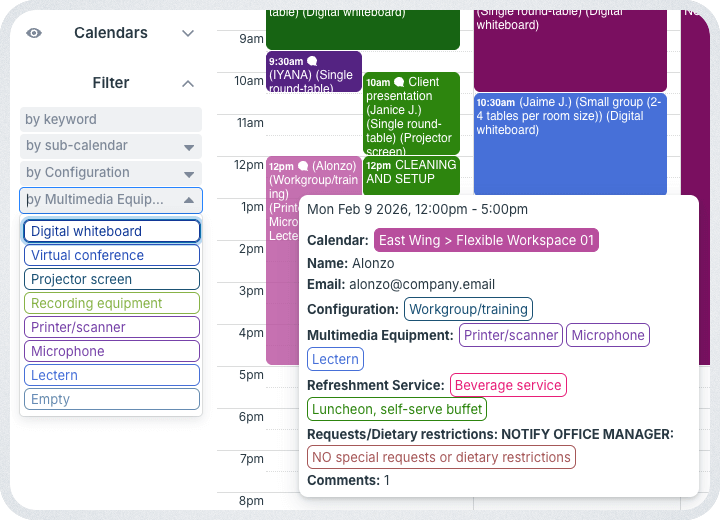
Click to enlarge: Choice fields provide prefilled options and a built-in filter.
There are often different options that go along with meeting room usage: different setup configurations, multimedia equipment, and refreshment service. Custom fields provide a place to capture these details consistently without getting in the way of the larger scheduling picture.
For requests that have predetermined options, a choice field works best. Employees select from the available options when the book a room.
For special requests or other details that fall outside of a predetermined scope, add a text field. Employees can add those details here if needed, and ignore the field otherwise.
Self-booking with security
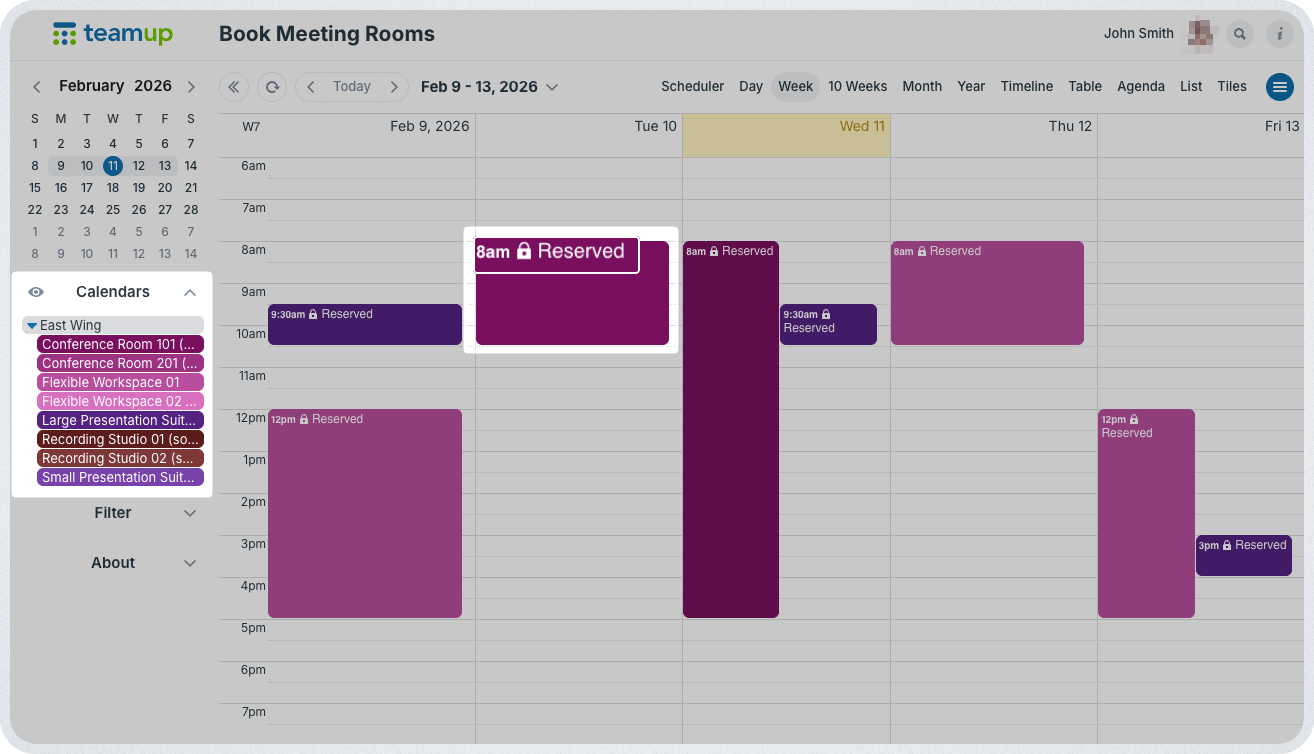
Click to enlarge: Individual access including only selected sub-calendars, with other bookings shown as Reserved.
Keeping things secure in an office environment with many employees requires careful consideration. Office managers might resort to manual review and approval of meeting room bookings to avoid potential issues. But this approach adds a huge workload and still leaves a lot of room for human error. A self-booking calendar with access control provides a secure and streamlined way for employees to reserve rooms.
Here’s how it works: Each individual gets their own unique, secure access to the calendar, showing only the rooms they’re able to access and book as appropriate for their role. If setting up individual access isn’t practical, provide a unique team view showing room availability.
- To set up individual access: Add each person as a user with modify-my-events permission for only the meeting room sub-calendars they are allowed to use. Each user will be able to add and modify their own bookings but will not be able to change other bookings or items on those sub-calendars. Optionally, use modify-my-events, no details permission so bookings made by others appear only as Reserved, showing no specific information.
- To show room availability: For each team, create a secure link with read-only permission for only the meeting room sub-calendars that team is allowed to use. Use that link to embed the calendar on that team’s space in the company intranet (or share the link directly with the team). Team members will be able to check room availability, then put in a booking request to their team lead or the office manager. Enabling team members to view availability directly streamlines the booking process and eliminates multiple emails and texts to match open rooms with team schedules.
How office managers retain control
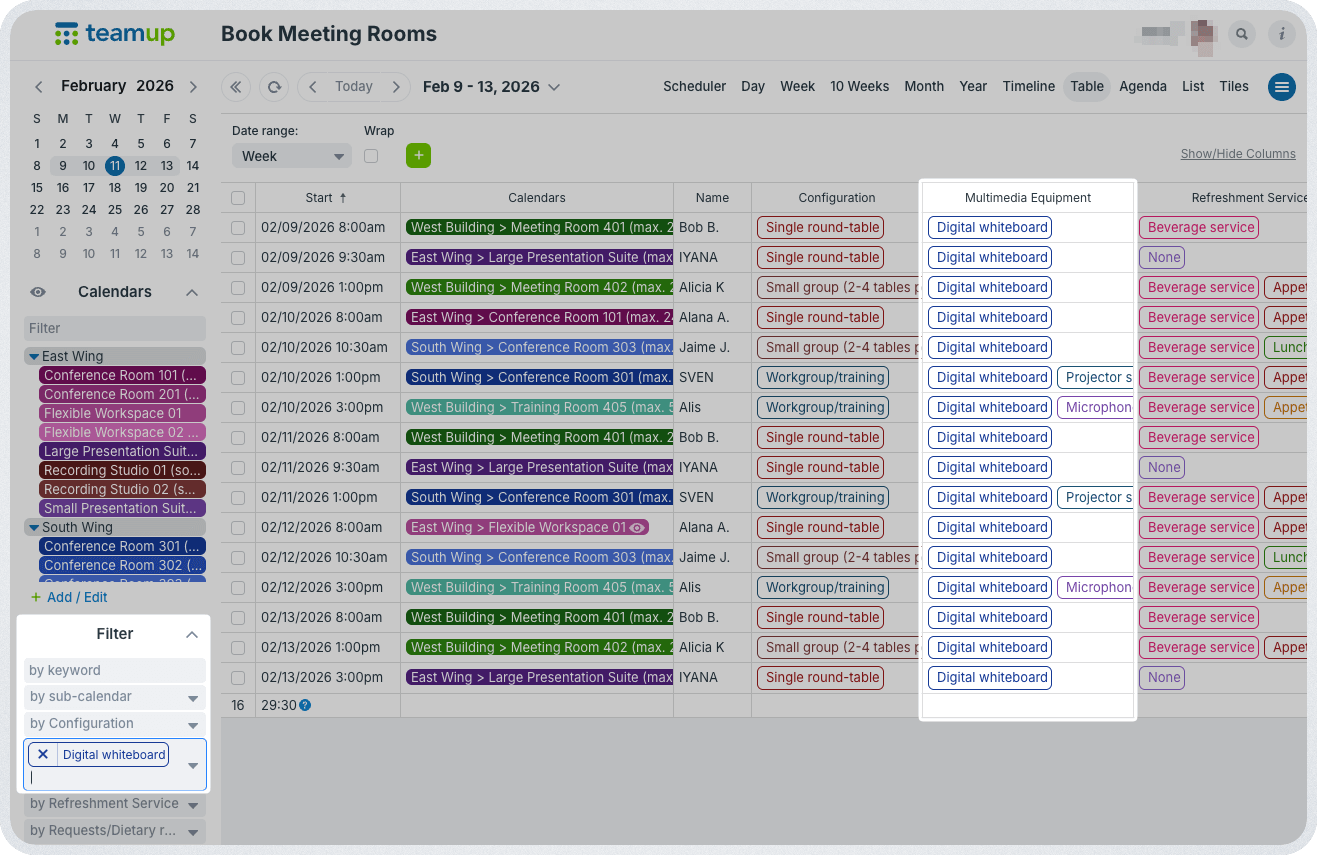
Click to enlarge: Table view provides a scannable view of all booking details. Built-in filters can sort events by field, keyword, etc.
Self-booking does not mean losing oversight. The office management team has access to all the sub-calendars. They can always see what’s happening across all floors, departments, and spaces: availability, all bookings, and all details. They can provide oversight as needed with the big picture in mind:
- Filter bookings by one or more traits to plan for needs. (Table view works well, see above.)
- Check and update room availability for last-minute changes. (Try Scheduler view.)
- Ensure adequate “buffer time’ is included for setup between bookings.
- Block rooms for maintenance, cleaning, or special events.
- Step in if exceptions are needed.
- Review room usage over time for insights.
The system runs itself day to day, but managers stay in control when it matters.
A scalable way to manage meeting rooms
Meeting rooms are shared resources. They work best when availability is visible, rules are enforced automatically, and people can act independently without causing disruption.
Once self-booking is in place, the impact is noticeable. No double-bookings, lower admin load, and employees empowered to make plans and work efficiently. A self-booking calendar for corporate meeting rooms and workspaces allows everyone access to the spaces they need, while keeping things organized, transparent, and preventing conflicts.
Related resources
- See how Teamup compares to Excel or Airtable for resource booking
- ▶️ Teamup 101: 7 Essentials to Get Started
- Here’s how to set up a self-booking system for smaller teams
- More ways to make operations efficient: Centralize PTO, set up bookable appointment slots, and manage hybrid work schedules
Give it a try: Get started with a contained, secure, self-booking calendar to make corporate meeting rooms easier to manage.