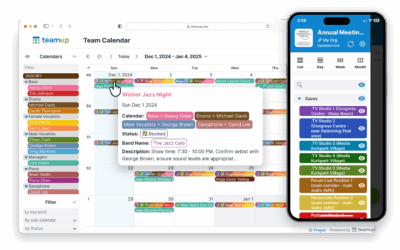
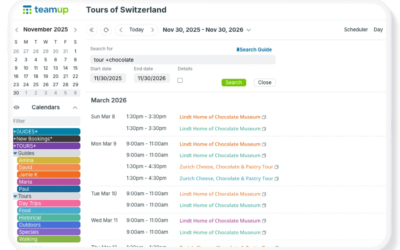
Sometimes you want to see an all-day event next to your scheduled events, not pinned to the top of the calendar.
When you add an event to your Teamup calendar for All-Day, it doesn’t go into the hour-grid section of your calendar. Instead, when using Scheduler, Day, Multi-day, or Week view, the all-day event appears in the top box of the calendar.
Sometimes, however, you want to be able to view your all-day event(s) next to your scheduled events. There’s a quick way to make this happen.
- Simply drag the all-day event down into the top slot of the hour grid, then drag it to extend the event for the whole day.
Now the event will show for the day in the hour grid covering the entire visible time range.
If you want the slot to cover longer hours than the visible time range (set in Settings > Date and Time) or simply from 12:00am to 11:59pm, you can reset the time of the event in the event editor window; uncheck the all-day box, then set the hours accordingly on the day of the event. This will move the event to show in the entire hour grid.