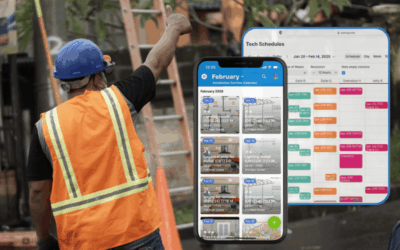
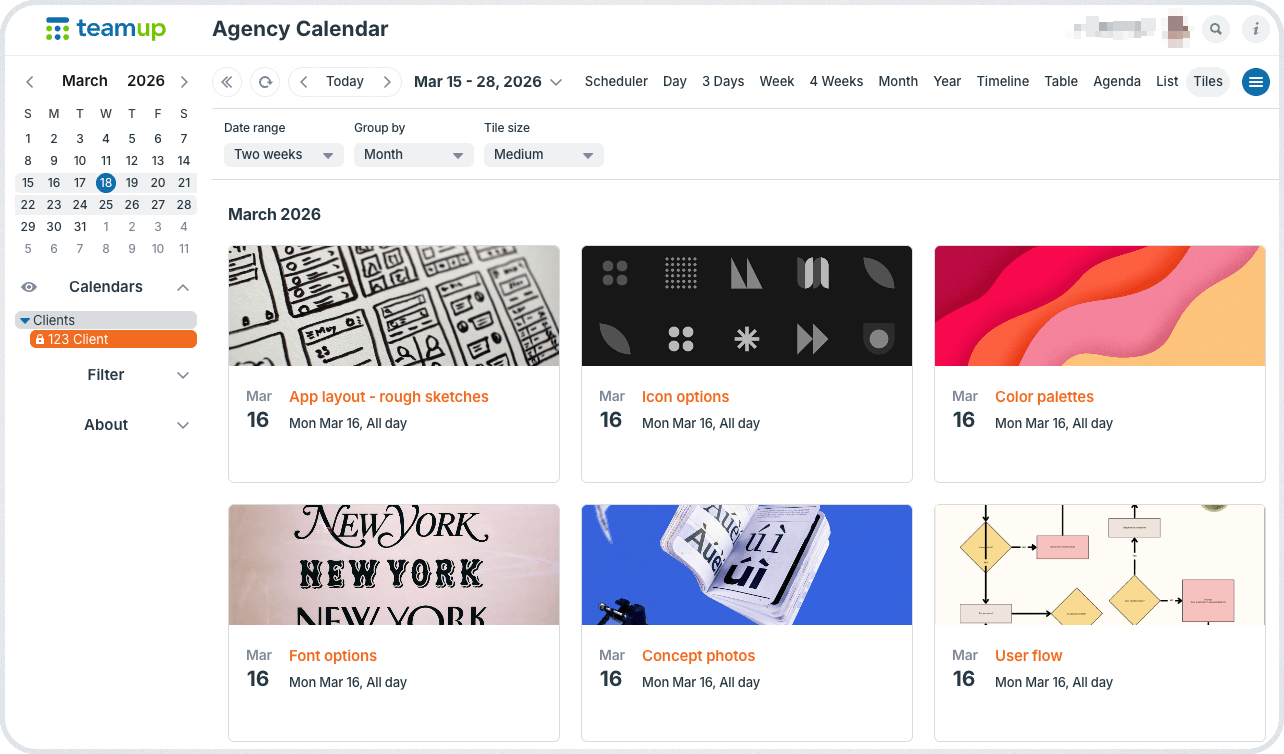
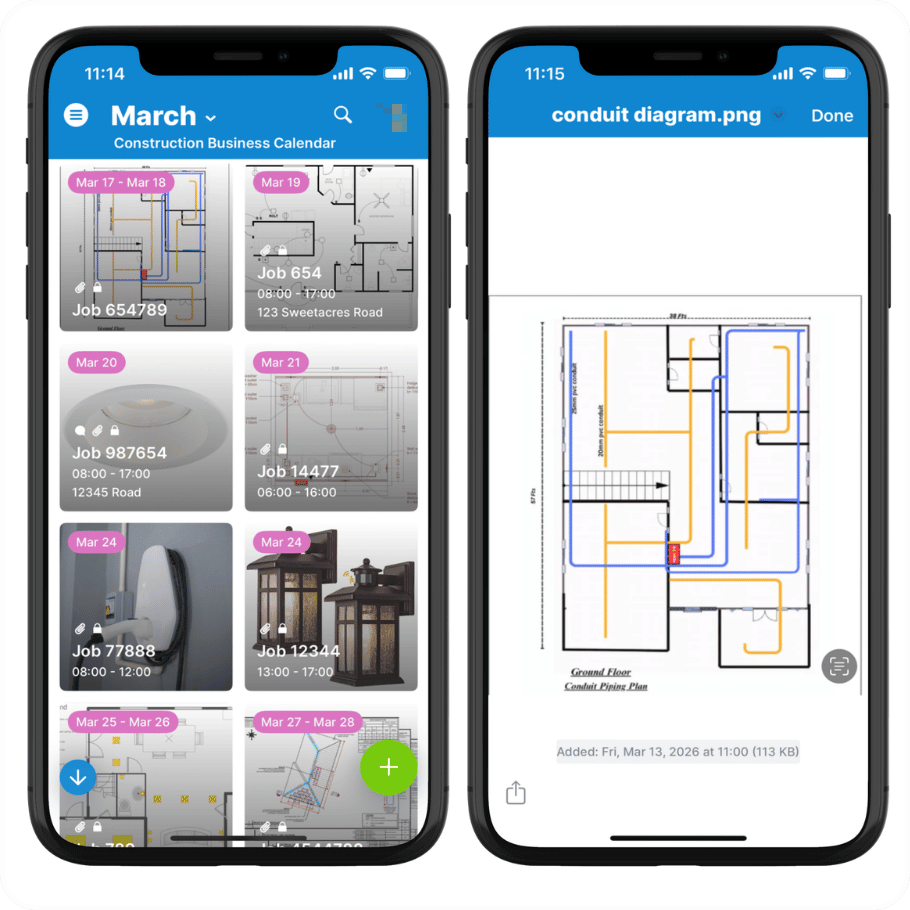
As we close out July, here’s our monthly roundup with highlights, great content, tips, and more from Teamup. Check out how to add images and attach files to every job, task, or event to keep everything in context, then share visual schedules that convey information in an appealing, effective way. Plus, get insights on how to delegate more efficiently, enable self-managed availability, and manage simple hourly tracking. Download free printable calendars for the upcoming month and quarter to stay organized for the weeks ahead.
Highlights
Keep every task’s information in one place
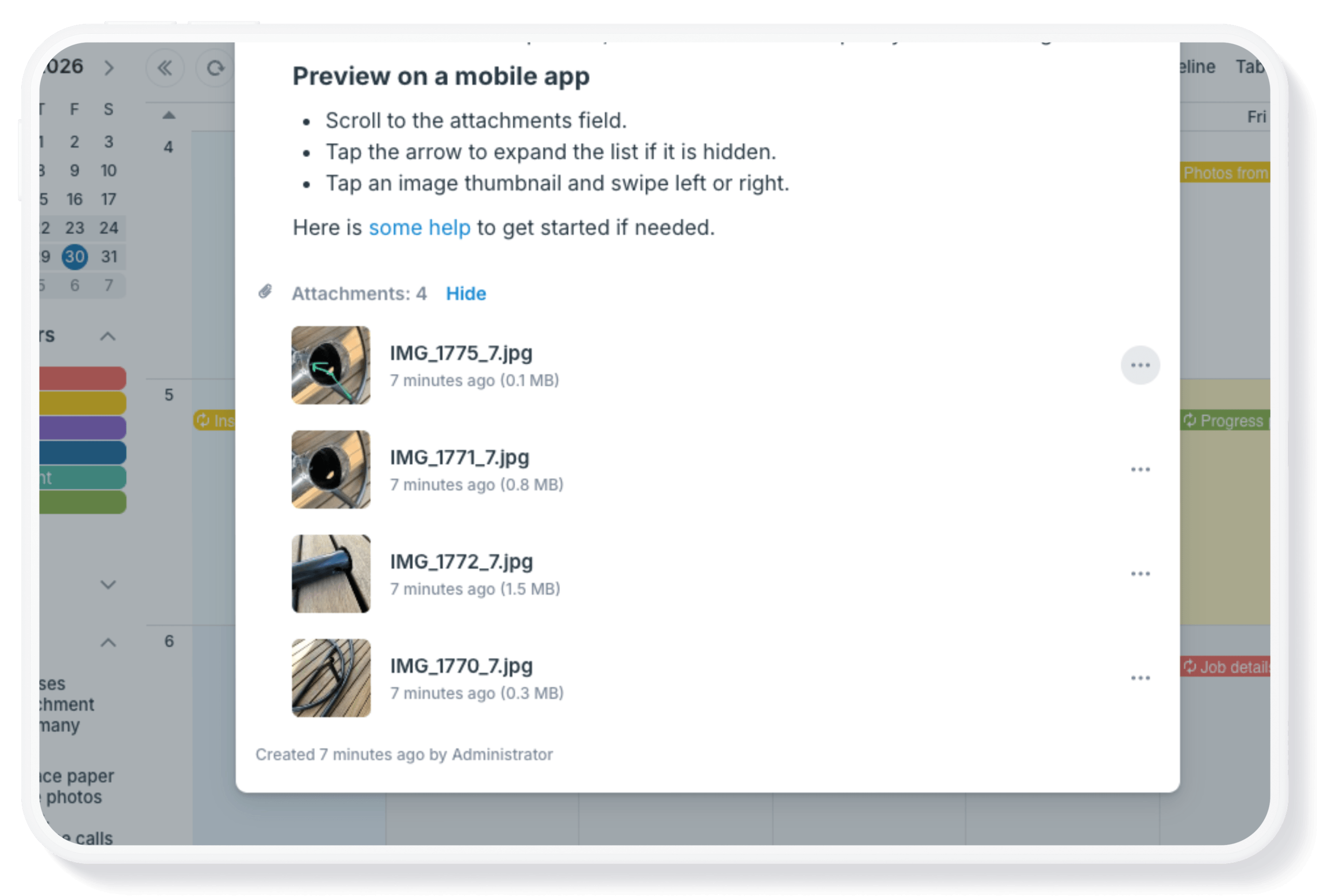
A calendar event often needs much more than a title, date, and time. It may also include photos, contracts, maps, work orders, checklists, presentations, invoices, or other supporting documents.
With Teamup, all of that information stays attached to the event itself. Images, files, and documents remain organized, secure, and easy to find alongside the related task, job, or appointment. Team members spend less time searching for information, workflows stay organized, and complete records are preserved long after the work is finished.
Read more: Keep Images and Attached Files with Events

Use cases + stories
Simple, flexible employee hour tracking

Employee hour tracking is a common need in many industries, especially those in field services. For many small businesses, the requirements for tracking employee hours are simple: They don’t require a dedicated app or software solution that larger organizations may need. Here’s how to use Teamup as an employee timesheet calendar with convenient, secure hour tracking, quick reporting, and built-in flexibility.
Read more: Simple, Flexible Employee Hour Tracking with Teamup

Secure, self-managed availability
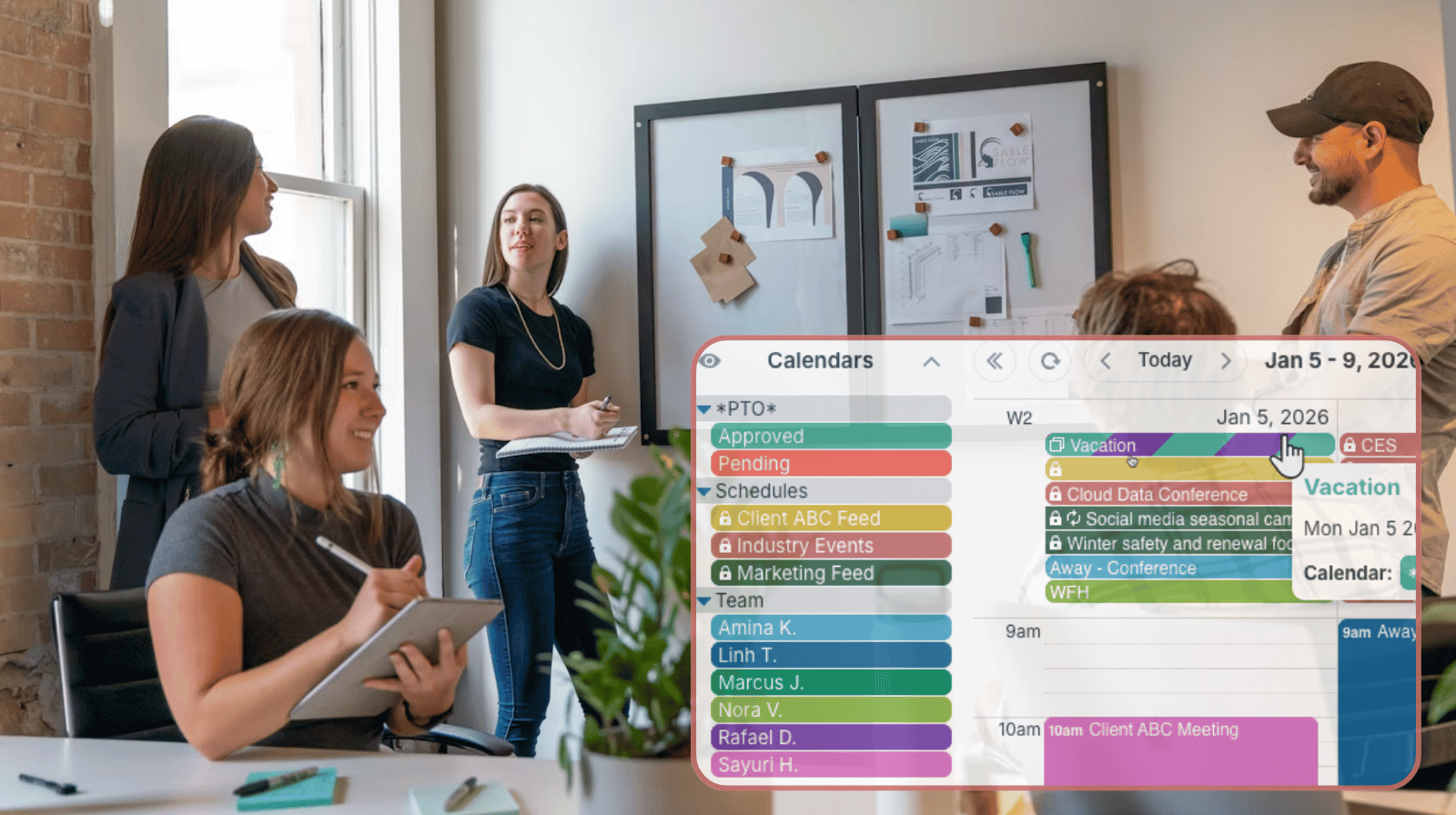
Keeping employee availability up to date is often more difficult than building the schedule itself. Instead of collecting availability through emails, texts, or spreadsheets, organizations can let each person maintain their own schedule in one shared calendar. Managers retain complete schedule visibility of the whole team.
Read more: Enable Self-Managed Availability Without Losing Oversight
Better task delegation and progress updates

Many managers spend time assigning work, following up on progress, and checking whether tasks have been completed. A shared calendar with clear task delegation provides a simple way to assign responsibilities, monitor status, and keep everyone working from the same schedule. Custom fields and filters make it easy to see progress updates in one place.
Read more: Delegate Tasks and Track Progress Without Chasing Down Updates

Interactive demos + power tips
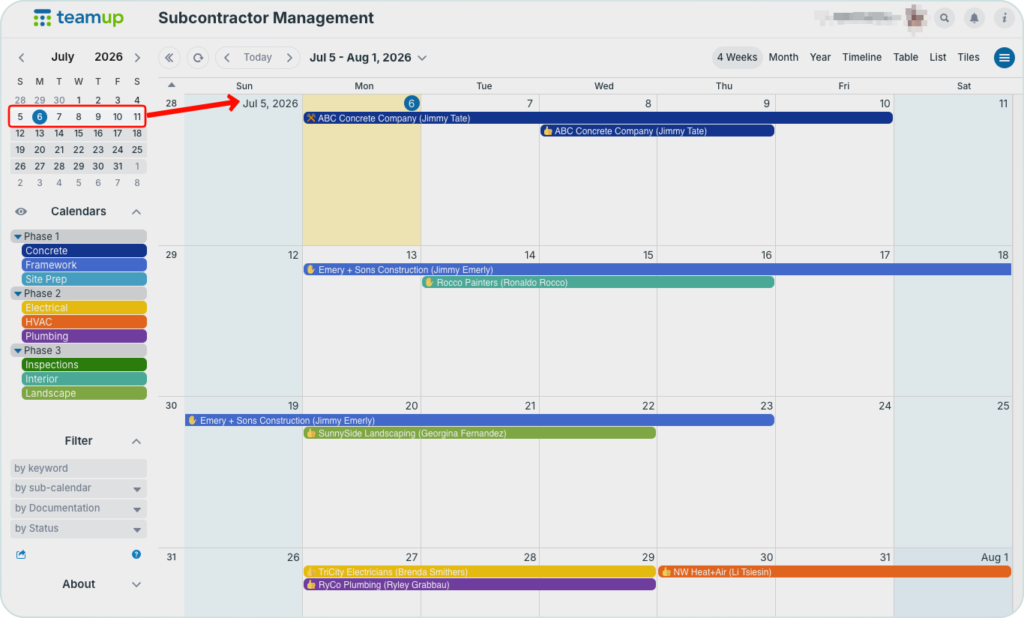
Scroll through weeks with Multi-Week view
Multi-week view (browser only) shows an adjustable number of weeks, with the current week always at the top. It’s a good alternative to the standard monthly view as well as a great layout for long-term planning. 🔗 Learn more
Manage events across multiple time zones
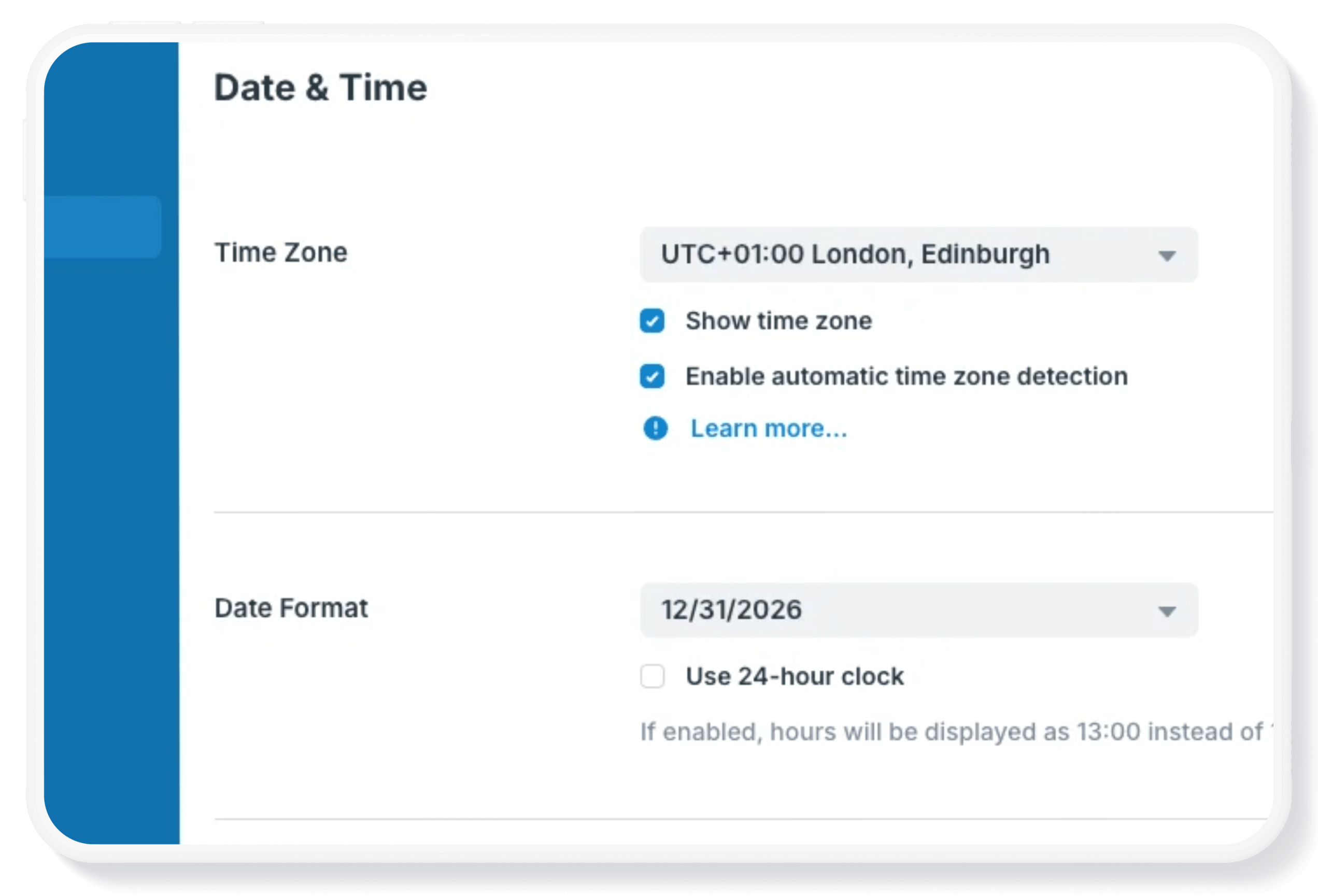
For anyone who works with colleagues in different places, considering time zones is important when you’re planning a meeting or event. Teamup’s built-in features like automatic event time conversion, simple time zone switching, and visual time zone indicator, make planning easier while ensuring everyone sees the correct event time for their local time zone. 🔗 Learn more
Access all your calendars on the dashboard
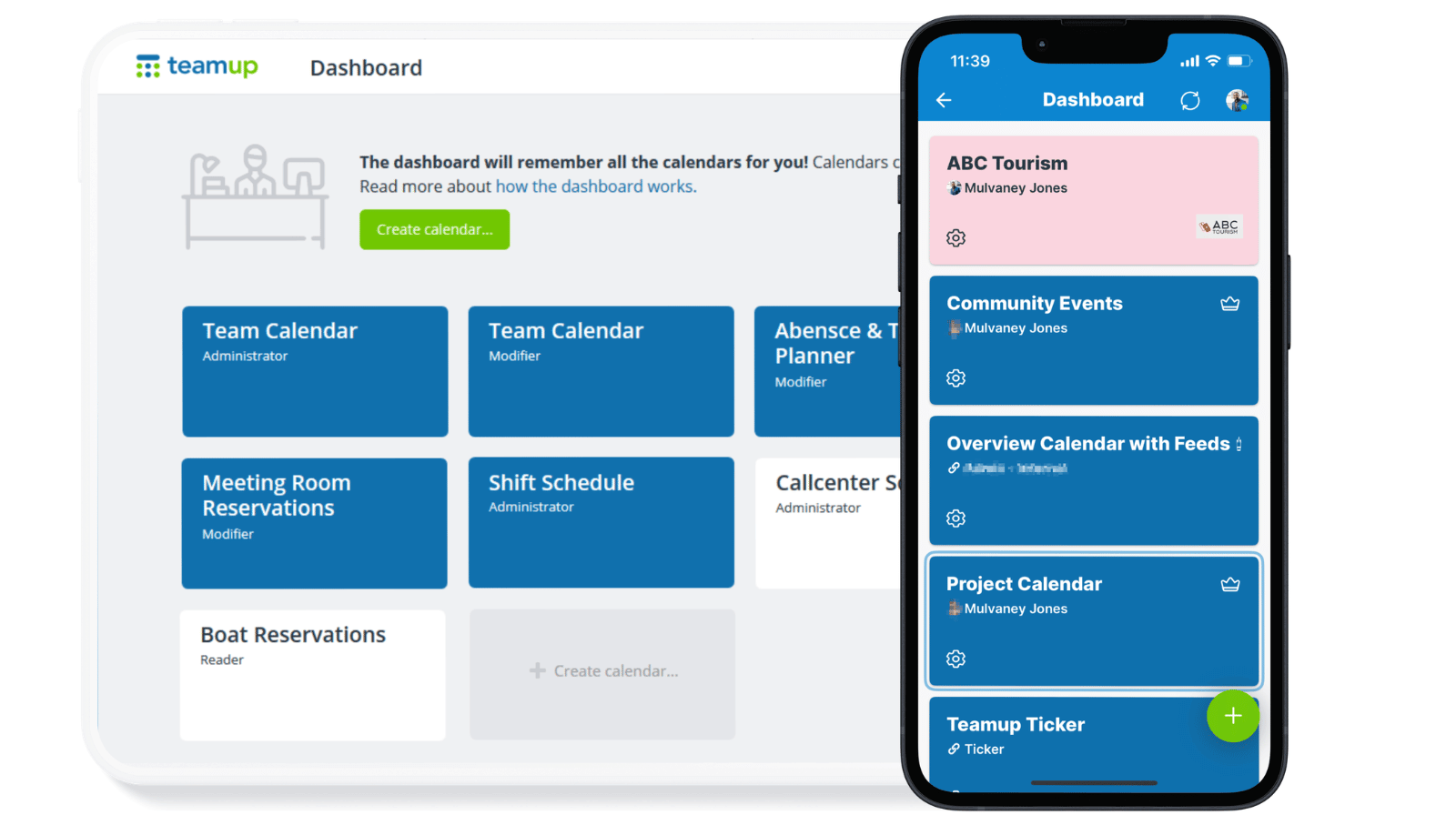
If you have a Teamup user account, you already have a calendar dashboard. A calendar dashboard provides one convenient, secure place to access all the calendars you have created or been invited to access. 🔗 Here’s how it works.

Free calendar printables
August 2026 printables
Click to open, download, and print our free calendar printables for the upcoming month and quarter:
- Daily blank planners for August 2026: Print a single day, selected days, or all days in the entire month.
- Weekly blank calendars for August 2026: W32, W33, W34, W35
- Monthly blank calendar for August 2026
- Quarterly blank planner for August – October 2026
- Need a big view of the whole year? Get a 2026 yearly calendar to print (several formats available).
Create a custom printable calendar
Or create your own custom blank calendars: Go to Teamup’s Printables page and scroll to the Create a Customized Blank Calendar section. Use the printable widget to create your own custom calendar printables.
See more Teamup tips from June. New tickers are added regularly, so don’t forget to check in or subscribe via RSS. Subscribe to our newsletter for highlights and news delivered to your inbox.