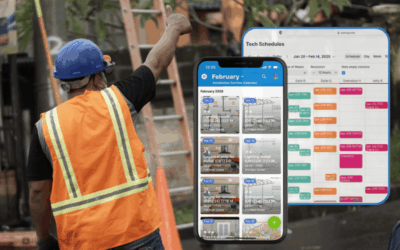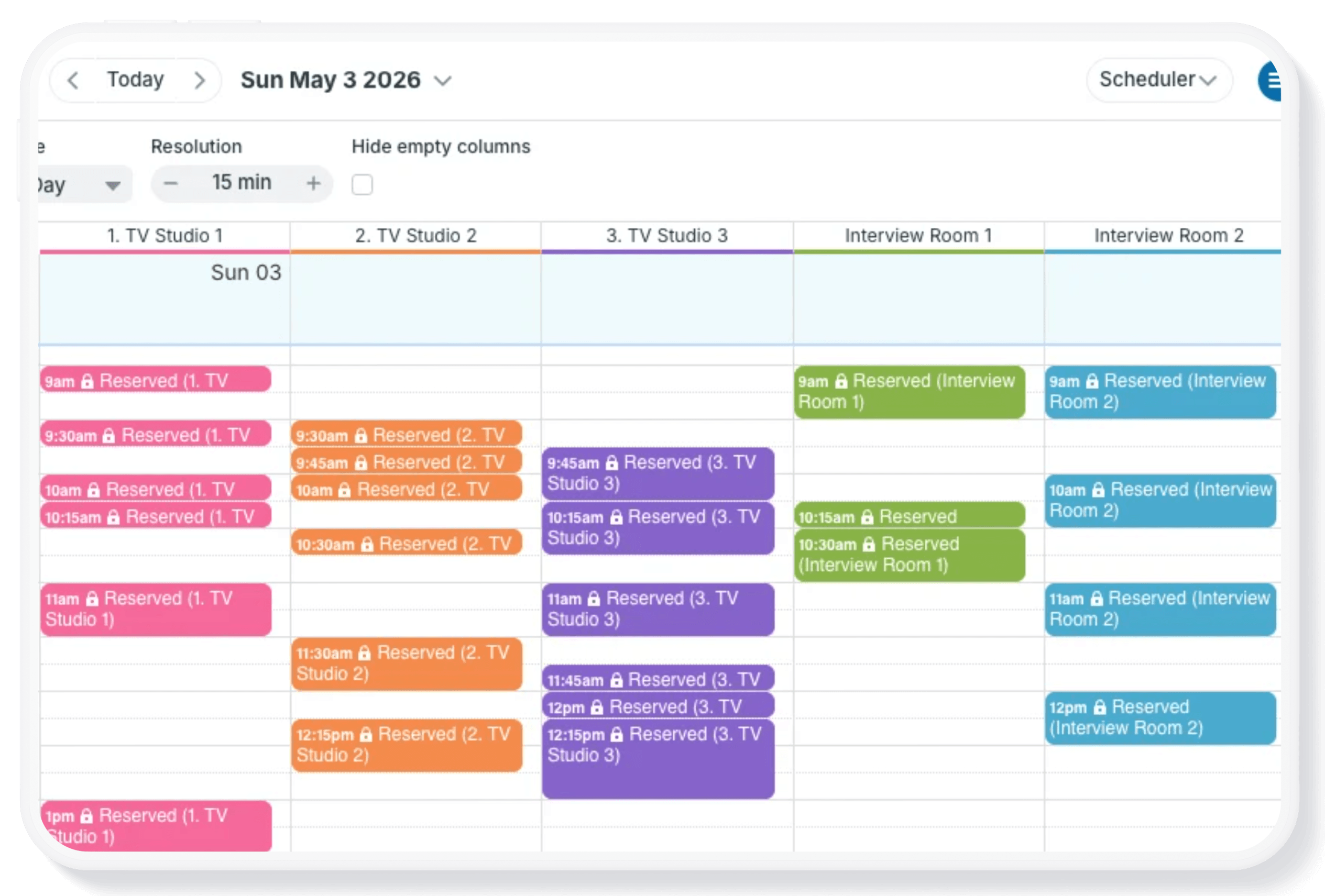
Scheduler view is one of Teamup’s most unique and powerful calendar views. It’s a very different calendar layout than traditional calendar views. Each sub-calendar is displayed in its own column, so events from each calendar are shown side-by-side. Scheduler view can make it easier and faster to compare schedules and find availability.
What makes Scheduler view special
Sub-calendars are displayed as columns to provide clear visual distinction between each calendar, even on a busy calendar.
- Events shown side-by-side: Most calendar views sort and stack events by start time. Scheduler view keeps events organized by calendar, organized in a vertical time grid.
- Adjustable date range: Focus on a single day or see up to 5 years’ of events in a scrollable view.
- Adjustable resolution: Zoom in or out to see the level of detail you need.
- Useful for short-term and long-term: Adjust the view options to get granular, viewing a single day in 5-minute increments, or scroll through an overview of weeks, months, or years.
- Toggle sub-calendars: Click title bars on the calendar panel to show or hide sub-calendars and keep only the relevant ones on the screen.
- Automatically hide empty columns: Check the box to hide empty columns and see only sub-calendars with scheduled events.
Scheduler view in action
While Scheduler view can be helpful in lots of cases, two scenarios in particular benefit from the unique layout:
- Room and resource bookings: Managers, supervisors, and coordinators often need to organize rooms and other resources so they’re used optimally. A common challenge, though, is knowing which spaces are available when. Even with everything organized and scheduled on a calendar, it’s not easy to see the availability in typical calendar views. With Scheduler view, each resource is displayed in its own column. Availability is instantly visible and clearly organized.
- Shift and team scheduling: Managers and team leads need to see who’s working, when they’re available, and where there are gaps or overlaps in coverage. With Scheduler view, each team member or role can be displayed in its own column, making it easy to compare schedules, spot conflicts, and see coverage at a glance.
Media room bookings
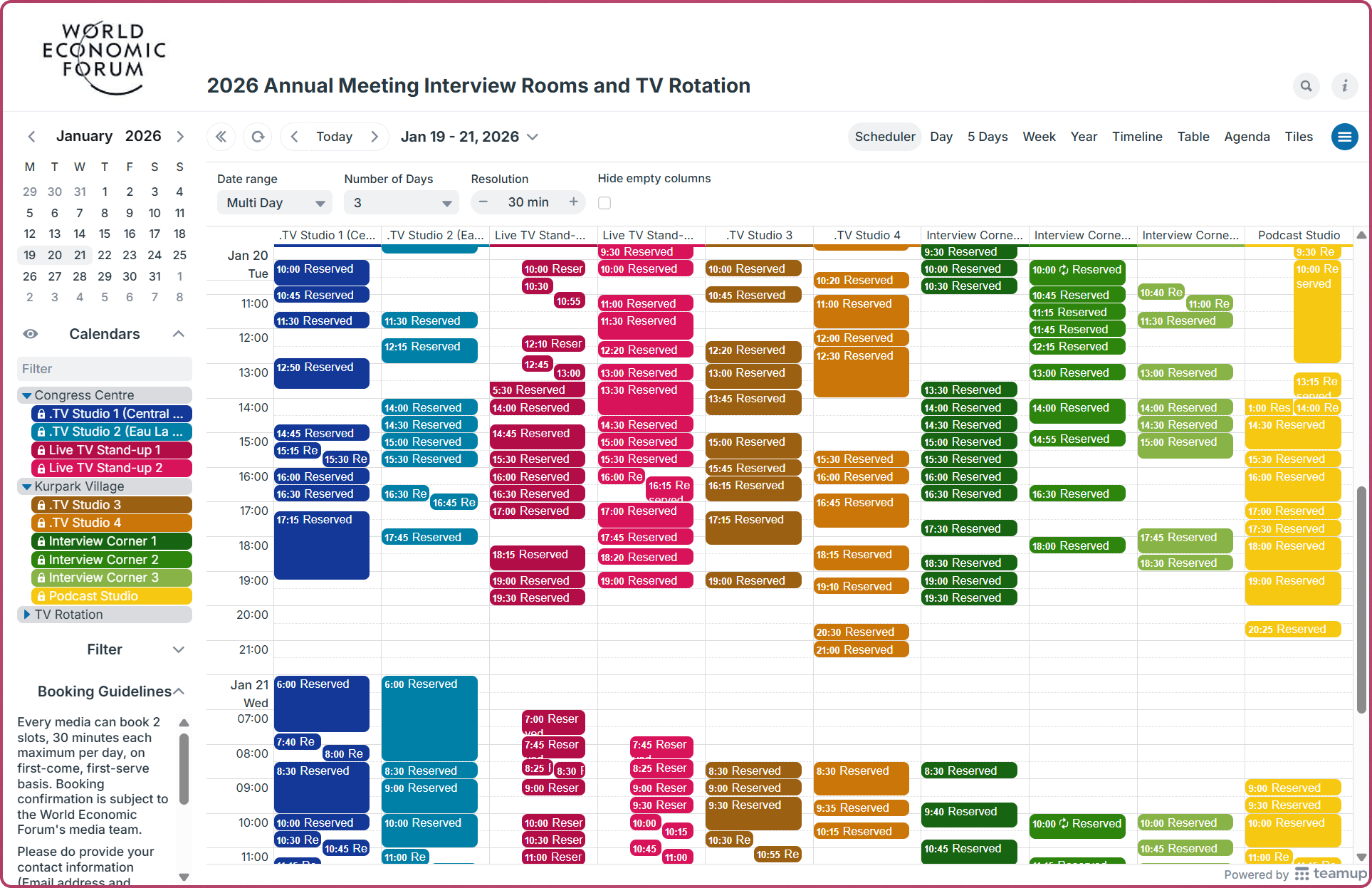
Click to enlarge: A busy calendar with many short-term bookings stays organized and visually clear with Scheduler view.
Each year, hundreds of members of the media attend WEF gatherings in Davos and beyond. There are top-tier international broadcasters alongside regional outlets from every corner of the world. The WEF media team is responsible for helping media organizations access the Congress Centre and conduct onsite interviews with meeting participants. Teamup’s Scheduler view provides clear visual understanding and efficient management of hundreds of bookings for each event.
🔗 More: How Teamup Supports Media Bookings at World Economic Forum
Tennis club court bookings
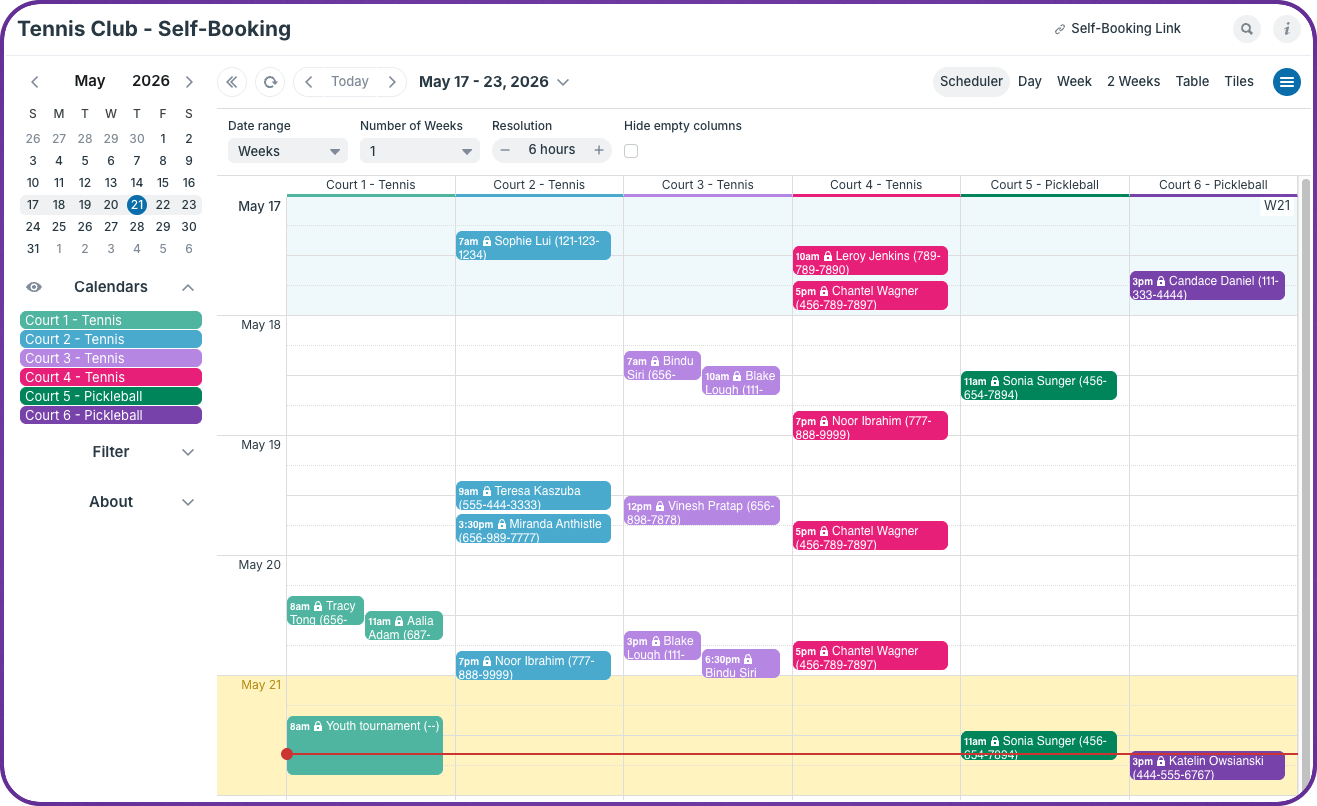
Click to enlarge: Scheduler view shows each court’s booking side-by-side, so it’s easy to find an open court for the needed time.
Teamup can be configured as a lightweight booking system without any specialized software. For example, a tennis club can manage usage of courts by setting up a shared club calendar that allows members to self-book court usage. Each tennis court gets its own sub-calendar. Members get a single calendar link with a special permission that lets them add reservations, but nothing else. Scheduler view shows each court side-by-side, so members can scan across to find a court that’s open when they want to book. Bonus: Each sub-calendar can be configured with a no-overlapping events rule that prevents double-bookings automatically. If a court is already booked, or marked unavailable for a club function or tournament, no one can book over it. The system simply won’t allow it.
🔗 More: A Shared Calendar for Tennis Court Self-Booking
Gym staff scheduling
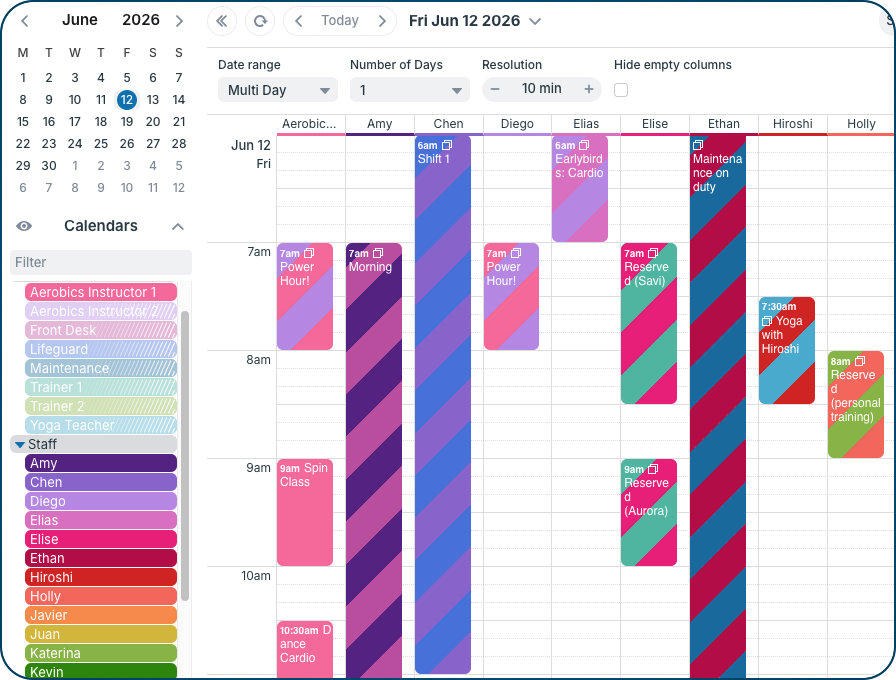
Click to enlarge: Scheduler view provides side-by-side visibility of staff availability and shifts, tasks, or other items that need to be assigned to a staff member.
Fitness facilities rely on many different staff members working together throughout the day. Trainers, instructors, front desk staff, lifeguards, childcare workers, and managers all have different schedules, qualifications, and availability. When someone becomes unavailable or a last-minute change occurs, managers need to quickly determine who can cover the shift without creating problems elsewhere. They need to quickly see which staff members are available to fill in so every role is covered when the gym is opened. With Teamup’s Scheduler view, staff availability is visual and clear. When schedules change, managers can quickly see who’s available and keep every area of the facility properly staffed.
🔗 More: A Shared Calendar to Manage Gym Staff Scheduling
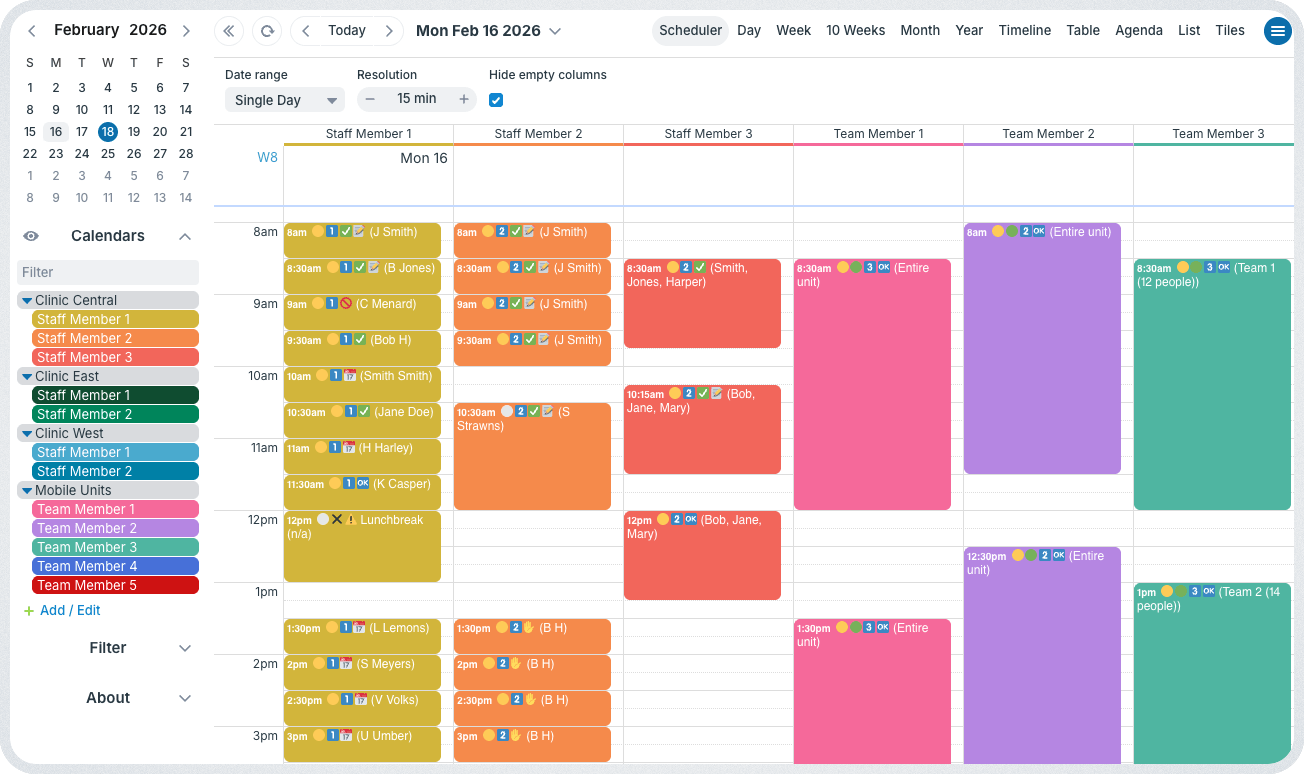
Click to enlarge: Managing staff and scheduled events across multiple offices is easier with Scheduler view. Office staff are organized by clinic location, while mobile units (five team members, each using one van) are organized in their own folder so supervisors and schedulers can understand what’s happening everywhere.
Coordinating staff schedules across multiple offices and mobile units can become complicated, especially when locations are handled on separate spreadsheets and mobile units are siloed in separate calendars. Updates get lost and no one has a full picture of the entire staff schedule. Teamup provides a single place to centralize scheduling for all offices and mobile vans. Color-coding makes location or mobile assignments clear, while Scheduler view provides a clean, at-a-glance overview of what’s happening for every staff member.
🔗 More: Improving a Multi-Site and Mobile Team Scheduling Workflow
Organization and clarity with Scheduler view
If you’re constantly reorganizing shifts on a spreadsheet, communicating back-and-forth about resource bookings, or chasing down staff members to get their availability, try out Scheduler view. Set up Teamup for a more flexible calendar structure that fits your organization; then view what’s happening in clear, organized Scheduler view. Side-by-side comparison of resource availability or staff scheduling makes things visible and clear. Try it out with a live demo or get started with your own Teamup calendar today.