If you have a Teamup user account, you already have a calendar dashboard. A calendar dashboard provides one convenient, secure place to access all the calendars you have created or been invited to access. Here’s how it works.
What is a Teamup user account?
A Teamup user account is your personal login, tied to your e-mail address and password. Teamup user accounts provide better security and unlock the most powerful Teamup experience, including a personal calendar dashboard, syncing across devices, event reminders, and customized notifications. A user account is free and offers benefits for both calendar administrators and individual users.
Learn more about all the benefits, or register now to create your own Teamup account.
The calendar dashboard
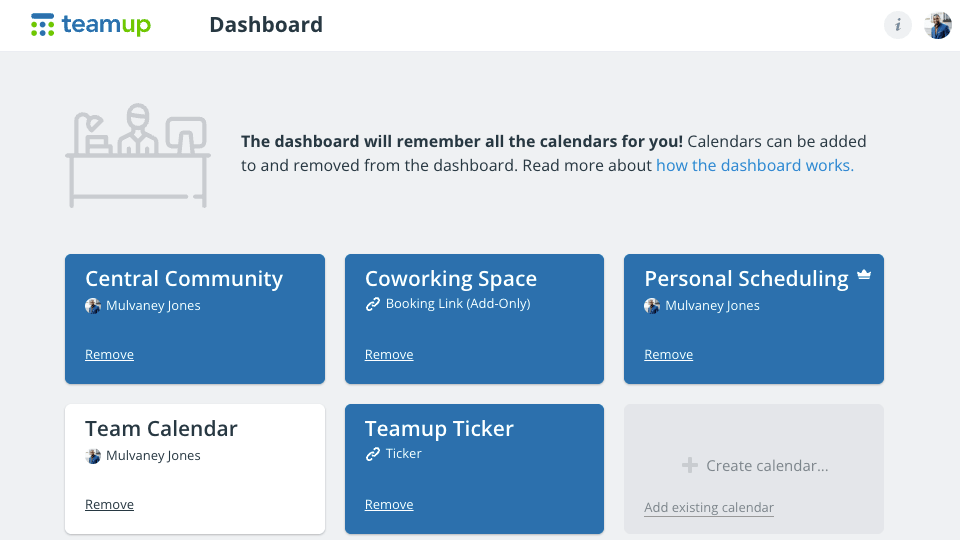
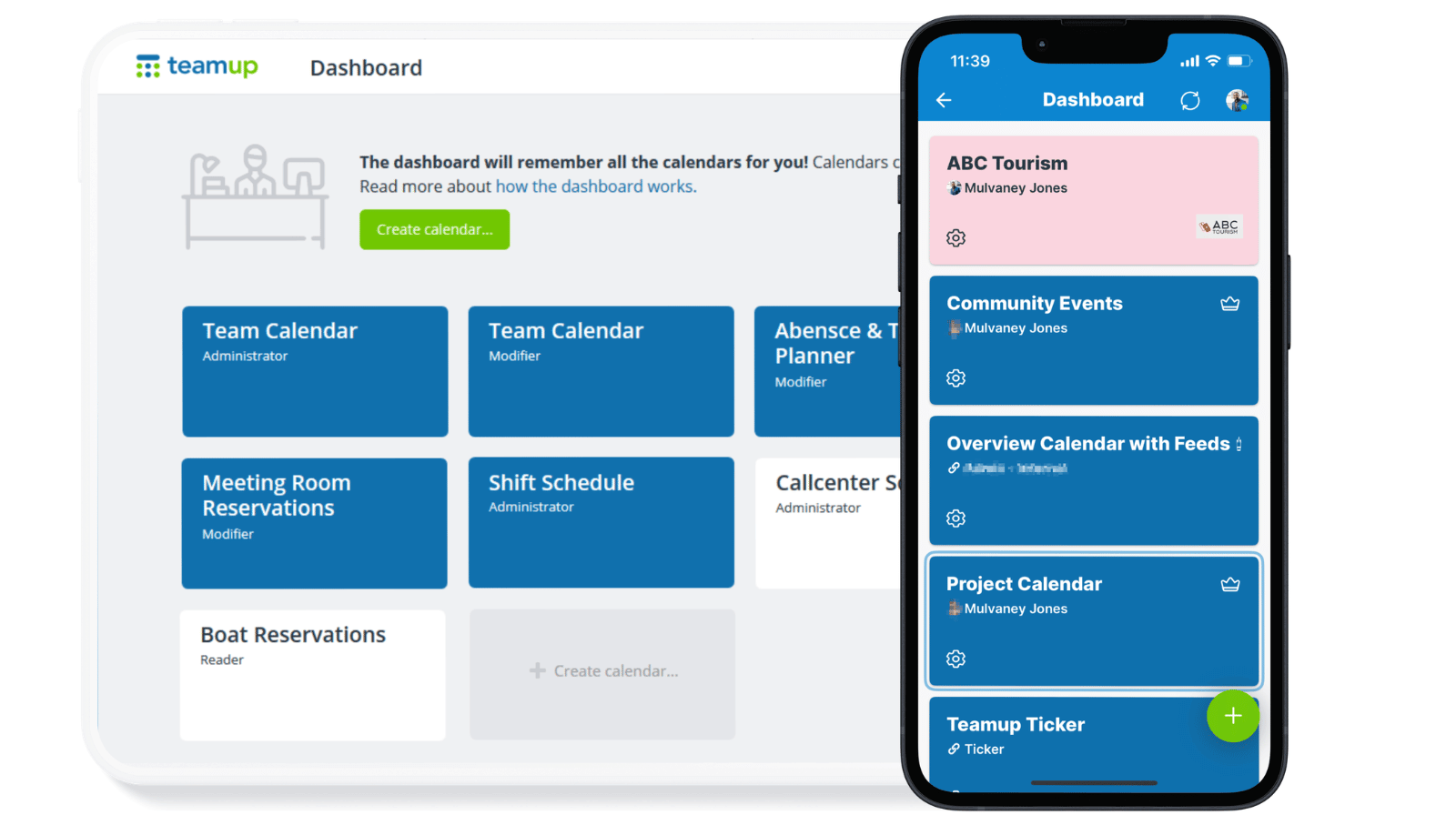
Click to enlarge: Your calendar dashboard provides synced, convenient access to all your Teamup calendars. You can open your dashboard on any browser (shown here) or in the Teamup app.
When you log into your Teamup account, on a browser or in the Teamup app, you’ll see your calendar dashboard. The dashboard is your central location for all your Teamup calendars. If you create a calendar, it will automatically be added to your dashboard. If you’re added as a user to someone else’s calendar, that calendar will also appear on your dashboard automatically.
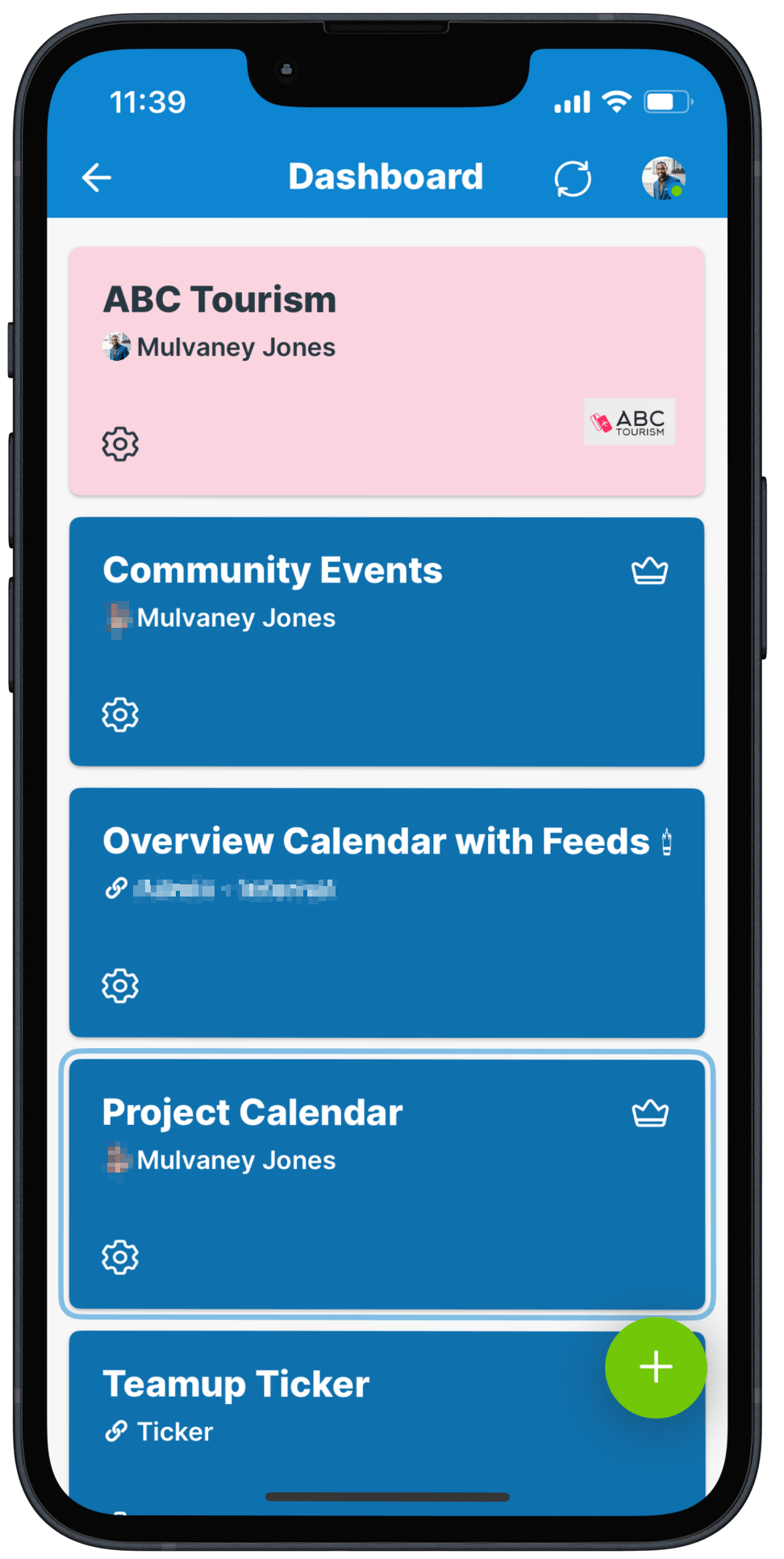 You may have access to a group or public Teamup calendar via a shareable calendar link. Instead of bookmarking it on your browser, you can add it to your dashboard. Then you can log into your account anywhere and open the calendar, without having to remember or bookmark separate calendar links.
Access the calendar dashboard
On a browser: Log into your Teamup user account. You will be taken to your calendar dashboard. Click a calendar title to open it. To return to the dashboard, click your avatar (top right), then click Dashboard. See details.
On the Teamup app: Log into your Teamup user account. You will be taken to your calendar dashboard. Tap a calendar title to open that calendar. To return to the dashboard, swipe to open the right menu (or tap your avatar in the top right), then tap Dashboard. See details.
Using the calendar dashboard
You can have access to multiple calendars on your dashboard. Each calendar tile on a dashboard shows the calendar’s title as well as the user name (with an avatar for user account access, or with a link icon for shareable calendar links). To open a calendar, click or tap its calendar title on the dashboard. To open a different calendar, return to the dashboard and click/tap another calendar.
Add a calendar link
If you’re added via user account to any Teamup calendars, they will automatically be added to your dashboard once you log in. If you have access to a calendar but it’s not automatically on your dashboard, it’s a shareable calendar link. Here are two easy ways to add a calendar link to your dashboard (on a browser). If you’re using the Teamup app, follow these steps.
Remove calendars
When you no longer want a particular calendar on your dashboard, you can remove it. See this interactive demo. See also how to remove a calendar from your dashboard in the Teamup app. Note: Removing a calendar from your dashboard only affects your access to the calendar. The calendar will still exist with the same subscription and accessibility for other users.