With a Teamup calendar, you can share your calendar securely with others by adding users via email. This sets up the most secure form of calendar access, tied to a verified individual and protected by login.
In some cases, you may need to provide calendar access more broadly or without requiring a login. Shareable calendar links work well for these situations. When using a shareable calendar links, it’s important to assign the safest permission level, include only the relevant information, understand the security risks, and use links only in appropriate situations.
🔒 Security checklist for shareable calendar links
Understand the security risks
Shareable calendar links are meant for calendars that will be shared publicly or with a large group when the calendar does not contain any security-sensitive information. They provide an easy, convenient way to share Teamup with a large number of people without requiring a login. However, their convenience means that they are less secure:
- Usable by anyone: A shareable calendar link is not tied to an individual person and does not require a login. Anyone who has the link can access the calendar.
- Confidentiality risk: A link could be exposed to unauthorized users or shared beyond a designated group, creating a confidentiality risk if the calendar contains sensitive information.
- Untrackable use: Because calendar links can be used by anyone, it’s not possible to track who accessed a calendar through a particular link.
- Lost calendar access: If someone loses the calendar link, they lose calendar access. They will have to contact the calendar admin to request the link again.
Keep these security risks in mind when using a shareable calendar link.
Follow best practices for calendar links
Because links can be forwarded or shared beyond your control, it’s important to manage them carefully and follow these best practices:
- Only create links when necessary. Use account-based access for individuals who need access to the calendar.
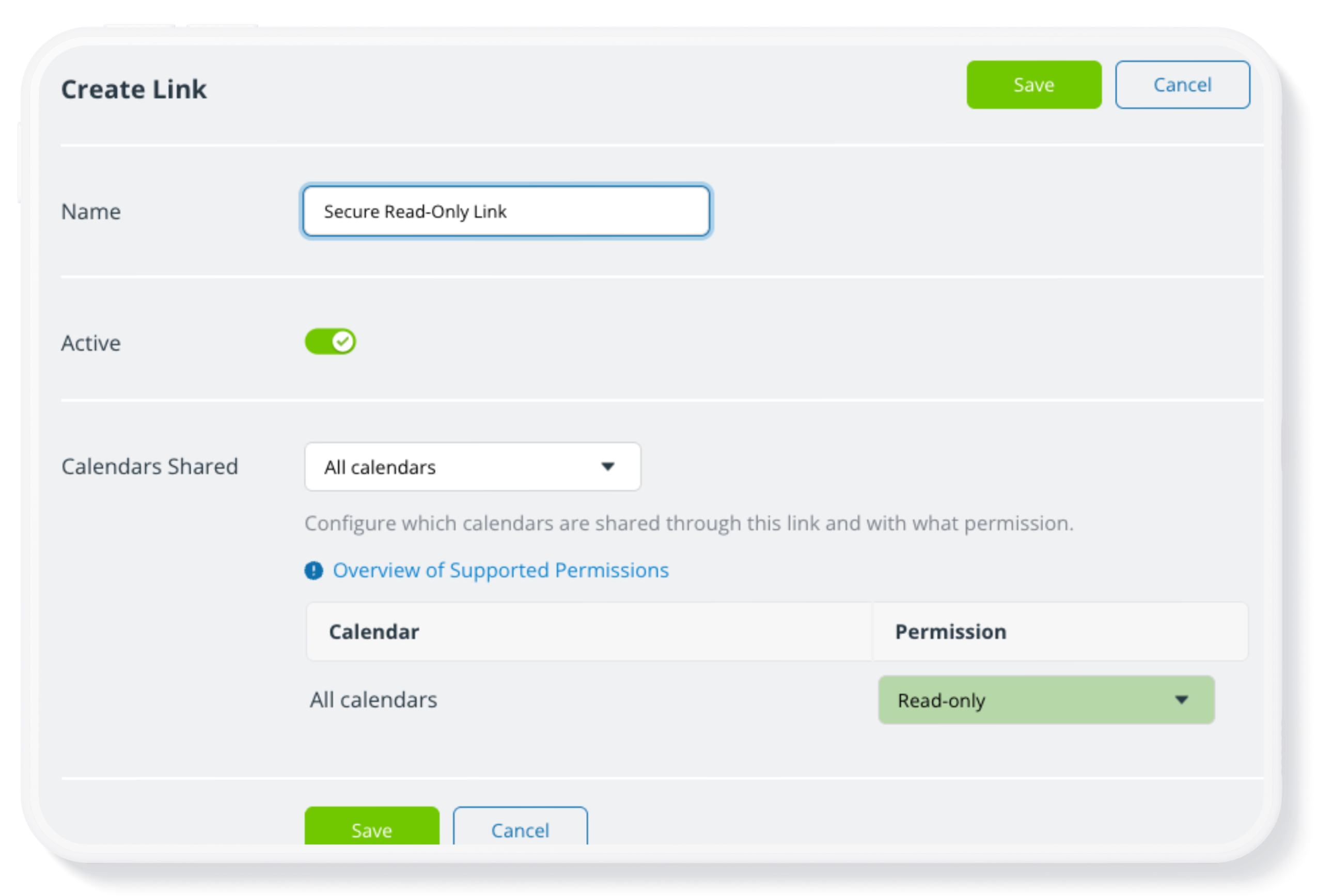
- Assign the lowest permission level needed: Read-only is the recommended permission for calendar links.
- Read-only: View calendar events including details but can not make changes.
- Read-only, no details: View calendar with events marked as reserved time blocks but no further event details. No changes are allowed.
- Avoid sharing links with modify permission, as it creates the risk of unwanted changes or data deletion on the calendar.
- Regularly review existing links to ensure that only currently needed links with appropriate permissions are active.
- Deactivate or delete any links that have insecure permission levels, are no longer needed, or may have been shared too widely.
These steps help prevent unauthorized access to your calendar.
Use links in appropriate situations
Calendar links allow you to share the calendar without requiring registration or a login. You can embed the calendar with a secure link, and they work well for setting up secure public or group access. Be sure to assign an appropriate permission level to keep your calendar safe.
Sharing a calendar with the public
👉 See an example: Share a secure, visual schedule of athletic events
If you want anyone to be able to view a schedule, a read-only calendar link is the simplest option. This works well when the calendar is intended for public consumption. A secure, read-only link allows you to share the calendar publicly, while preventing anyone from making changes to the calendar.
Sharing a calendar with a large group
👉 See an example: Share a weekend retreat events calendar with guests
Calendar links are also useful when you need to share a schedule a defined group of people, but creating individual user accounts would be impractical. You may have high turnover in the group (e.g. community organizations with many members), making it impractical to set everyone up with individual access. Or you may only need to provide access to a certain group of people for a limited time: For example, conference attendees.
⚠️ When a calendar link is shared with a group, there’s no way to guarantee it will not become publicly accessible. Adhere to this practical security precautions:
- The link should be shared carefully and only with the intended people.
- Regenerate the link periodically by deleting it and creating a new one to ensure access remains limited.
- If the calendar contains confidential data or information that could pose a security risk if shared outside the group, do not use a calendar link.
- Instead, add users via email (for verified, account-based access) and organize them in a group of users.
Embedding a calendar on a website
👉 See an example: Provide a secure, updated view of shared school events
A secure calendar link is used to embed a live Teamup calendar. The secure, read-only link prevents any viewers from making changes to the calendar, while allowing them to see schedules and event details directly on the website. When you create the link, you can choose which sub-calendars to include. So while an internal calendar may have multiple sub-calendars for staff schedules, event planning, and so on, you can share only a single “Public Events” sub-calendar on the embedded view. Because the embedded calendar is synced automatically, any event updates or changes are reflected in the shared events on the website. Visitors always see the most current schedule without requiring manual updates.
Setting up a calendar for self-booking
👉 See an example: Let clients book their own appointments from predetermined times
Calendar links are often used to allow clients, participants, visitors, or group members to self-book appointment slots or reservation windows.
First, appointment slots are created on the calendar with signups enabled. Then, the calendar is shared using a read-only, no-details link. Using the no-details permission keeps viewers from seeing event details; they’ll only see other events as “Reserved.” The link can be embedded on a website or shared directly. Participants can reserve one of those slots by signing up for it. This method works well for appointment scheduling, consultation bookings, volunteer shifts, class registrations or equipment reservations.
Allowing community members to submit events
👉 See an example: Let volunteers mark their own availability
In some scenarios, you may want to enable users to submit events for a community or group calendar. This can reduce the workload for group administrators: Share the calendar link with members and let people add event information directly to the calendar. Admins can then review and approve the submitted events.
For this scenario, the add-only permission levels are appropriate:
- Add-only: Allows adding new events (with a brief time period for editing); Users can read but not modify any existing events.
- Add-only, no details: Same as add-only but the details of any existing events are hidden (marked as reserved).
Be sure to follow the same security precautions as advised for sharing a link with a large group.
Sharing temporary, limited calendar access
👉 See an example: Share a visual property showing schedule with clients
In almost every case when an individual needs calendar access, account-based access is the better, more secure, and more convenient choice. However, there are a few exceptions. For example, if you’re working with clients who need limited, temporary access, it may not be practical to ask them to create a user account. You can create a secure calendar link and share it for easy, no-login access on the Teamup app or a browser. Be sure that the link only includes the relevant sub-calendar(s) and has secure, read-only permission. When the access is no longer needed, delete the link.
Sharing a calendar via iCalendar feeds
👉 See an example: Set up secure, automated status updates
A read-only link can be used to generate an iCalendar feed, which contains only information with an all-user visibility setting. (See how to configure event field visibility.) Others can subscribe to the iCalendar feed to see events from the Teamup calendar in their own calendar app (e.g. Google Cal, Apple Cal, Outlook). The events will refresh automatically on a regular basis. This is a useful setup when you want to share limited information and let people receive those calendar updates automatically.
🔒 Essential Guides: Calendar access + security
- How to Set Up Your Calendar Securely
- Share a Calendar with Customized Access Permissions
- Keep Calendar Access Secure and Up to Date
- When and How to Safely Use Shareable Calendar Links
- Secure Your Teamup Calendar When an Employee Leaves
- What You Need to Know About Administrator Access
- ▶️ Review and Modify User Access
- Calendar Administrator Access Explained
- Replace Calendar Links with Account Access