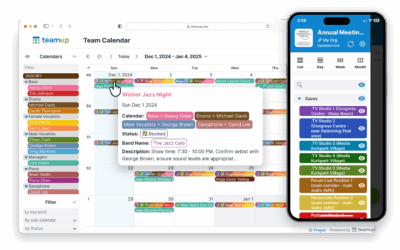
Click and drag over the time grid to pre-fill the event editor with your selected time frame for the event.
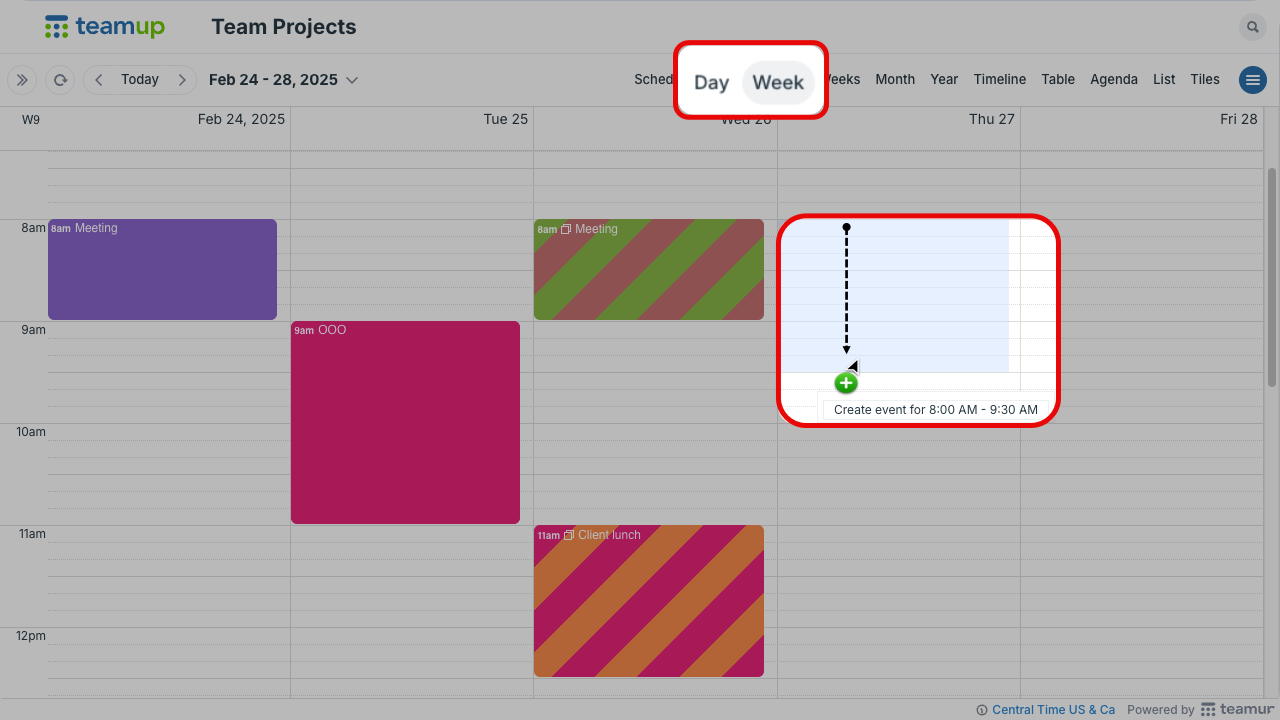
- Use the Day or Week view.
- Click and drag over the relevant times.
- Release the mouse to open the editor.
The event editor will open with the times already set for the event.
Adjust time slots
- To create shorter time slots, click and drag in the calendar just a little, until your desired time slot is highlighted. Change the time resolution on your calendar for even finer control.
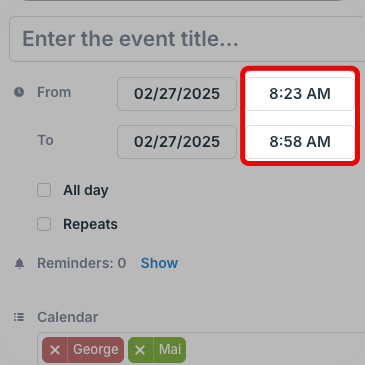
- Shorten or lengthen event times to the minute in the event editor.

Adjust event time
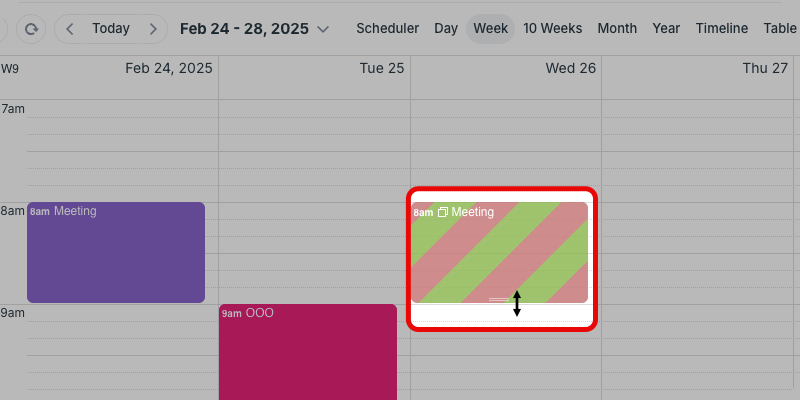
To easily change the duration of an event, click and drag on its bottom border.
When changing the start time of an event within the event editor, the end time changes automatically, keeping the duration of the event the same.
To quickly change the event duration:
- Use a view with a time grid.
- Click and drag the edge of the event to expand or shorten the time.
- You can also click and drag the event to move it to a different time.