Administrators can include event comments in a bulk calendar export. This short guide covers the CSV export steps and advanced options to set.
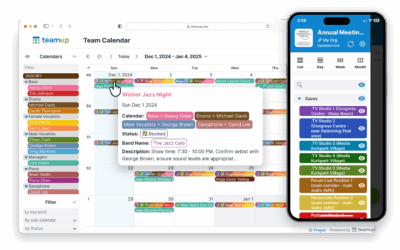

Administrators can include event comments in a bulk calendar export. This short guide covers the CSV export steps and advanced options to set.
A roundup of short resources for learning Teamup Calendar: interactive demos, product tips, getting started guides, the FAQ, and live demo calendars to try.
Emojis assigned to custom field choices show in event titles across all views of the Teamup mobile apps, a quick way to mark priority, type, or status.
Teamup Calendar’s CSV export offers two ways to export recurring events: one row per series for backups, or one row per instance for reports.
Bookmarking a shared calendar link saves digging through old emails. This guide covers each browser and a more secure option: the calendar dashboard.
How to get more out of Teamup Calendar, from event comments as time-stamped logs to custom recurrence rules, link parameters, and sub-calendar folders.
Not every task has a set time. Three Teamup methods keep unscheduled tasks visible, plus tips for sorting, tracking status, and logging completed work.
This guide shows how to set up a free Teamup calendar as a shareable schedule app for family, roommates, chores, menus, and personal projects.

A quick way to create events with the right length: drag over the time you need in a grid view, and fine-tune with the calendar’s time resolution setting.
A quick look at the options for repeating events in Teamup Calendar, from daily and weekday patterns to end dates and a fixed number of occurrences.
Link parameters let any calendar user open a customized calendar view, with their own date, view, language or time zone, without touching admin settings.
A quick tip for adding time-specific events: click or drag over the hours you need in Day or Week view, and the event editor opens with those times set.