If you manage projects for yourself, with your team, or for clients, you may find your calendar needs changing. For example, you may have a complex project that requires a lot of calendar space. But once the project is over, you want to clear it off your calendar. You may also want to share events related to the project with your team or set up project updates for a client, but not share the rest of your calendar. Teamup can help in all these situations.
Keep projects organized on your calendar
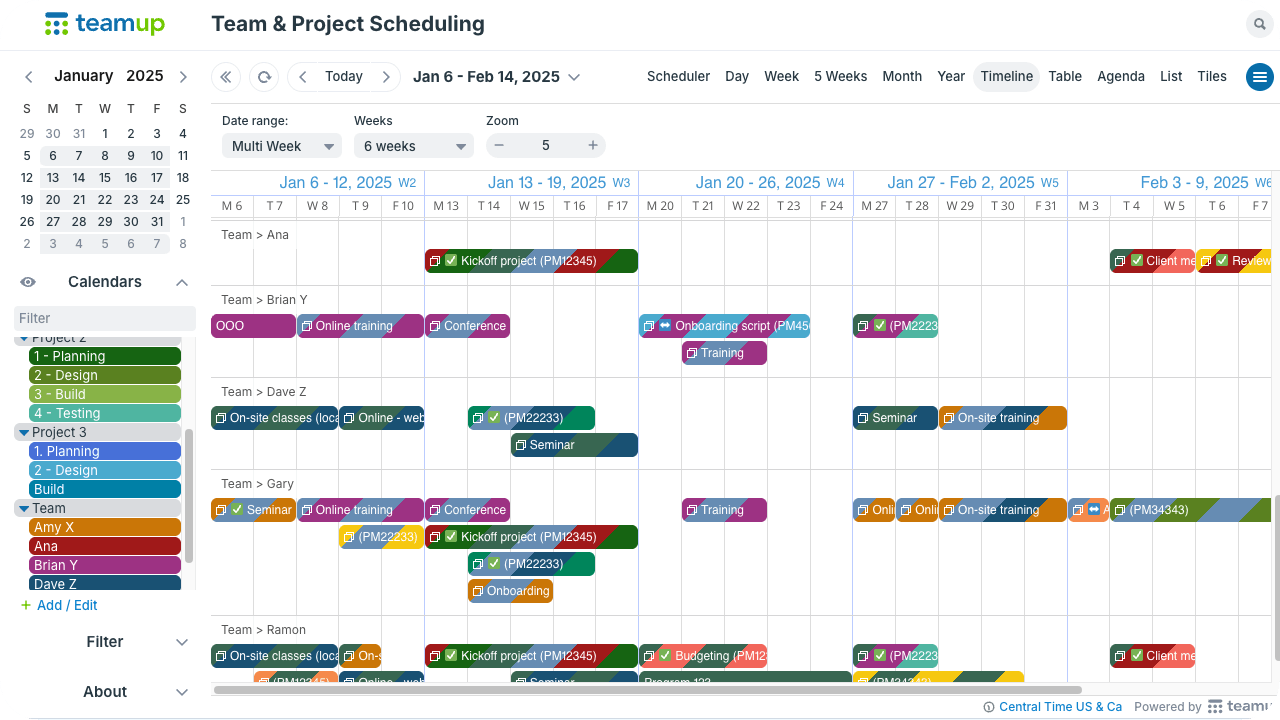
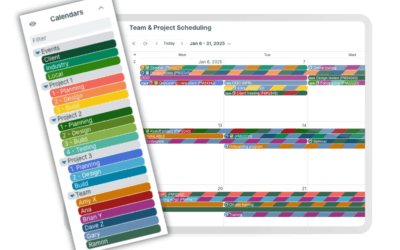
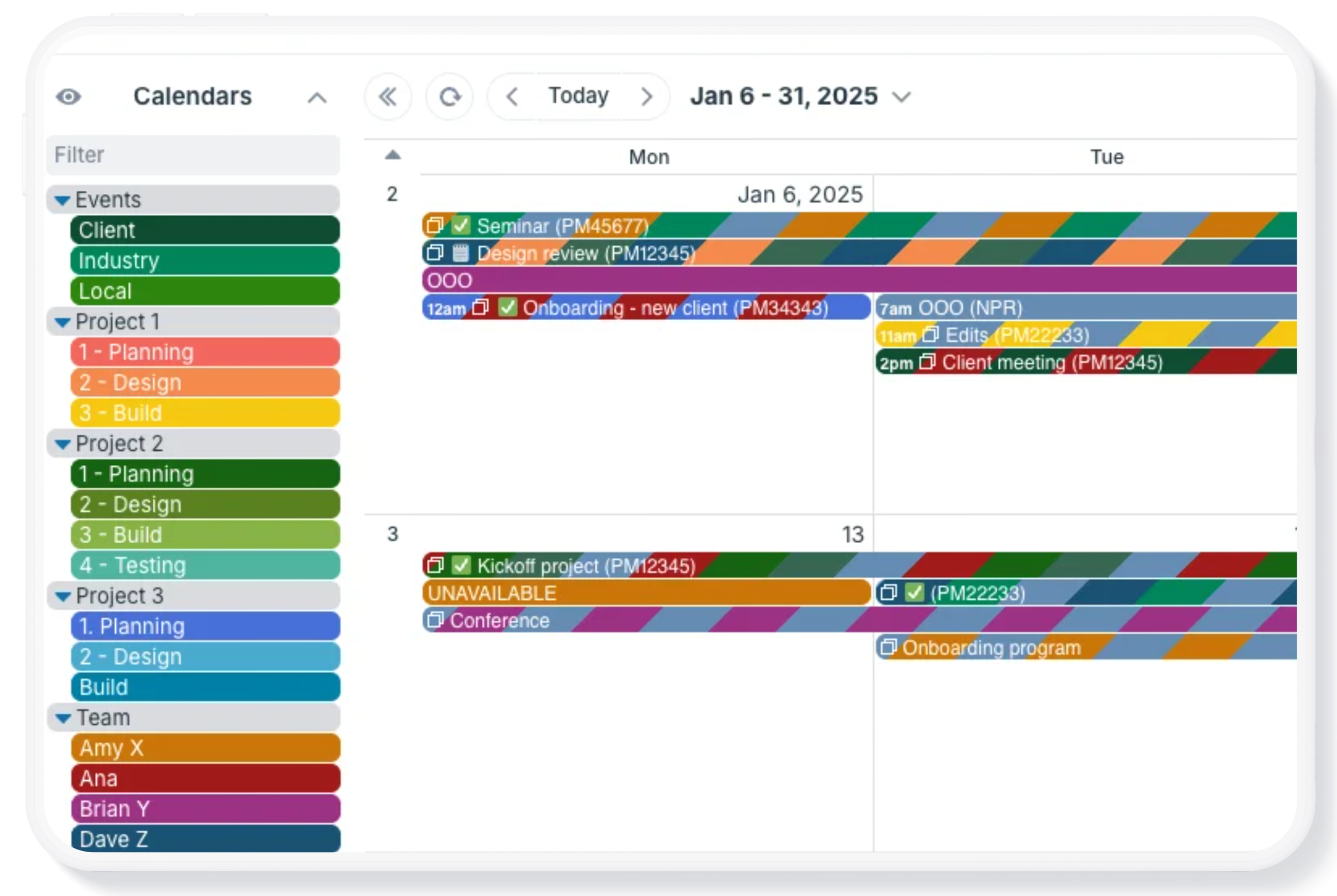
Click to enlarge: Organize complex projects with folders and color-coding to keep things organized; calendar views show progress and project phases clearly.
Since you can add, modify, activate or deactivate sub-calendars at any time, it’s easy to create a sub-calendar for a specific project. Then you can keep all events and tasks on the dedicated sub-calendar. Your other sub-calendars will not be cluttered by project-related tasks and events. For complex projects, use a set of sub-calendars to organize phases, contributors, inputs, and so on. The project sub-calendars can be contained in one project folder, so everything stays organized and you can “hide” the entire project by toggling that folder out of view, then bring it back on display when needed.
⚙️ Set up projects as sub-calendars

Share appropriate project access with your team
Let everyone involved with the project have the right amount of access with appropriate permissions for their role. You may be working with your own team, staff members from another department, and external contractors. For each person, you’ll set up customized calendar access: Choose which sub-calendars they can see, and assign the permission level for each one.
If Sam, a team member, is involved in Project Z and Project B, give Sam access to those sub-calendars. If he’s an active contributor on Project Z, he could have modify-level or add-only level access for Project Z sub-calendars. If he’s involved only in review on Project B, assign him read-only permission for Project B sub-calendars.
Meanwhile Li, who is working on Project A and leading Project X, gets appropriate access to those sub-calendars. They might have modify-my-events permission for a few Project A sub-calendars, and full modify permission for all Project X sub-calendars. In this way, each team member accesses only the calendars they need for their roles.
⚙️ Add contributors with customized project access
Set up convenient project updates for clients
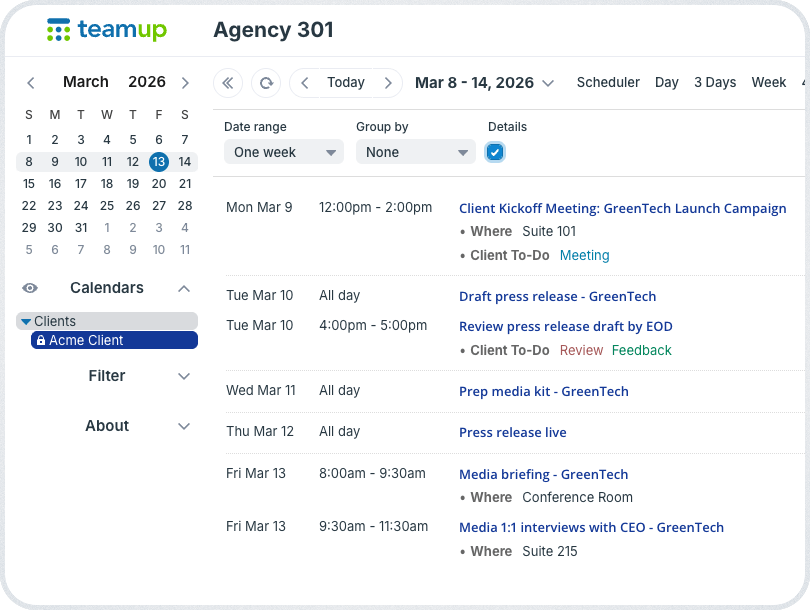
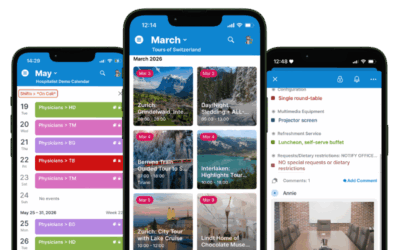
Click to enlarge: Provide automated project updates to each client with read-only access to only the sub-calendar(s) you want to share.
If you’re managing a project for a client, you may want to share ongoing project updates or allow them to see progress. Set up customized access for each client to only one sub-calendar, or multiple, depending on what you want to share. The access can be read-only, so clients can view project updates but not make changes to anything on the calendar. Your client will only be able to view the events on sub-calendars you give them access to; all other sub-calendars (and their events) will be completely inaccessible.
⚙️ Share selected project info with clients
Export and archive completed projects
When the project is over, it’s easy to export data, then deactivate the project sub-calendars. Deactivated sub-calendars can be reactivated, which makes their data viewable on your calendar again. Maybe a project was completed a few months ago, but a client reaches out for a detail or reference. Or you want to review which contractors you’ve worked with, or how long a certain phase takes. For recent projects, reactivate the relevant sub-calendars. As long as the data is within historical limits, you can immediately access and view the project information again, right on your calendar.
Note that data past the historical data limits becomes inaccessible even on activated sub-calendars, and is permanently deleted after the retention period.
- To retain permanent records, export data from project sub-calendars for permanent storage elsewhere.
- Use deactivated sub-calendars as an accessible archive for recently completed projects.
💡 Tip: Be specific when you name an archival sub-calendar (e.g. “Archive: XYZ Project”) so it’s easy to identify.
⚙️ Archive completed project sub-calendars