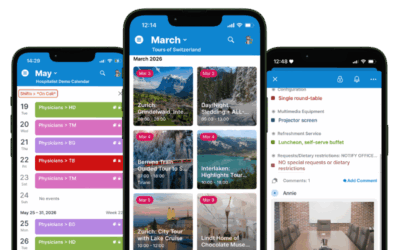
Instead of creating duplicate events for every person, team, or resource involved, assign a single event to multiple calendars. Update the event once, and everyone sees the latest date, time, details, attachments, and changes on their own calendar.
Assign one event to multiple calendars
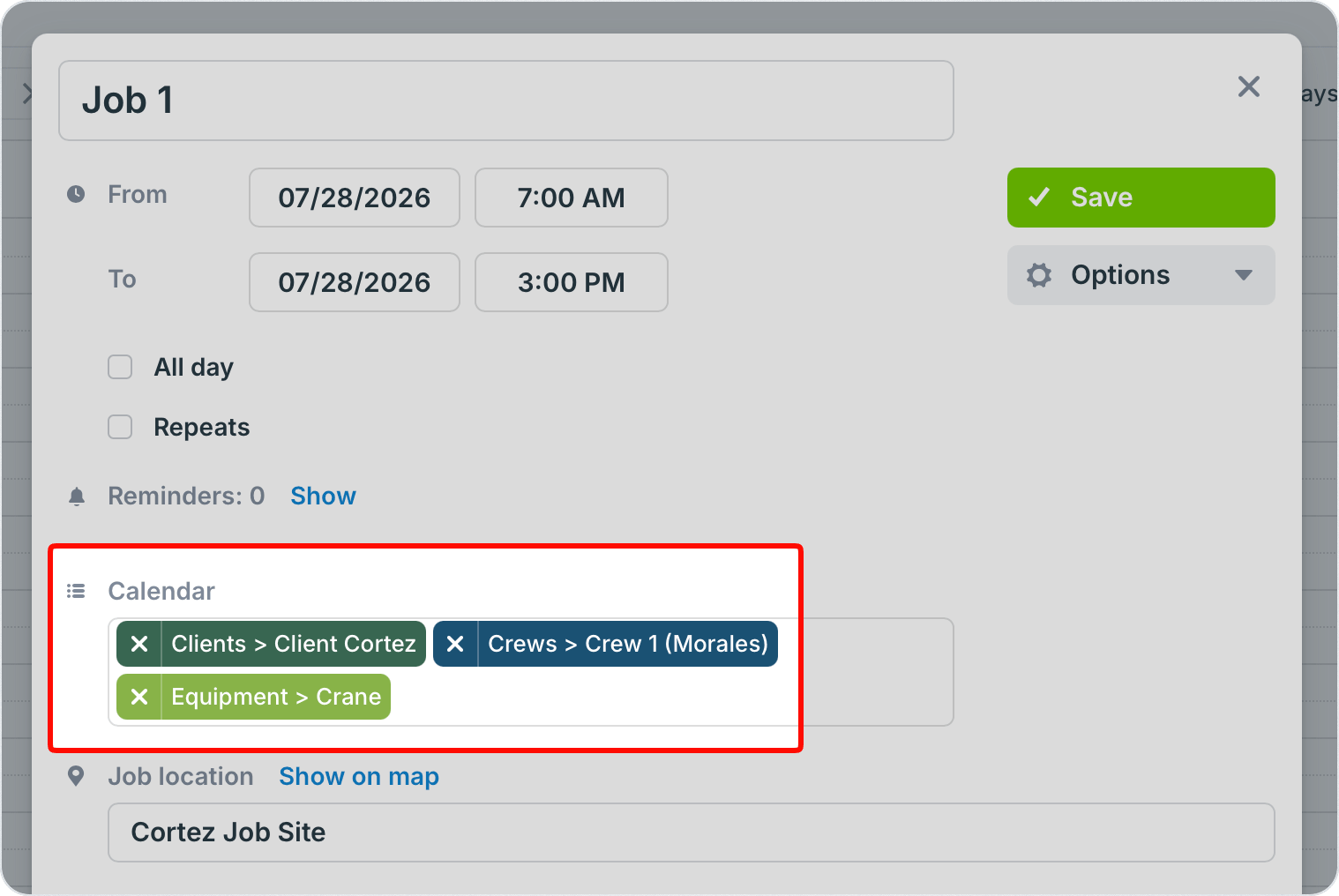
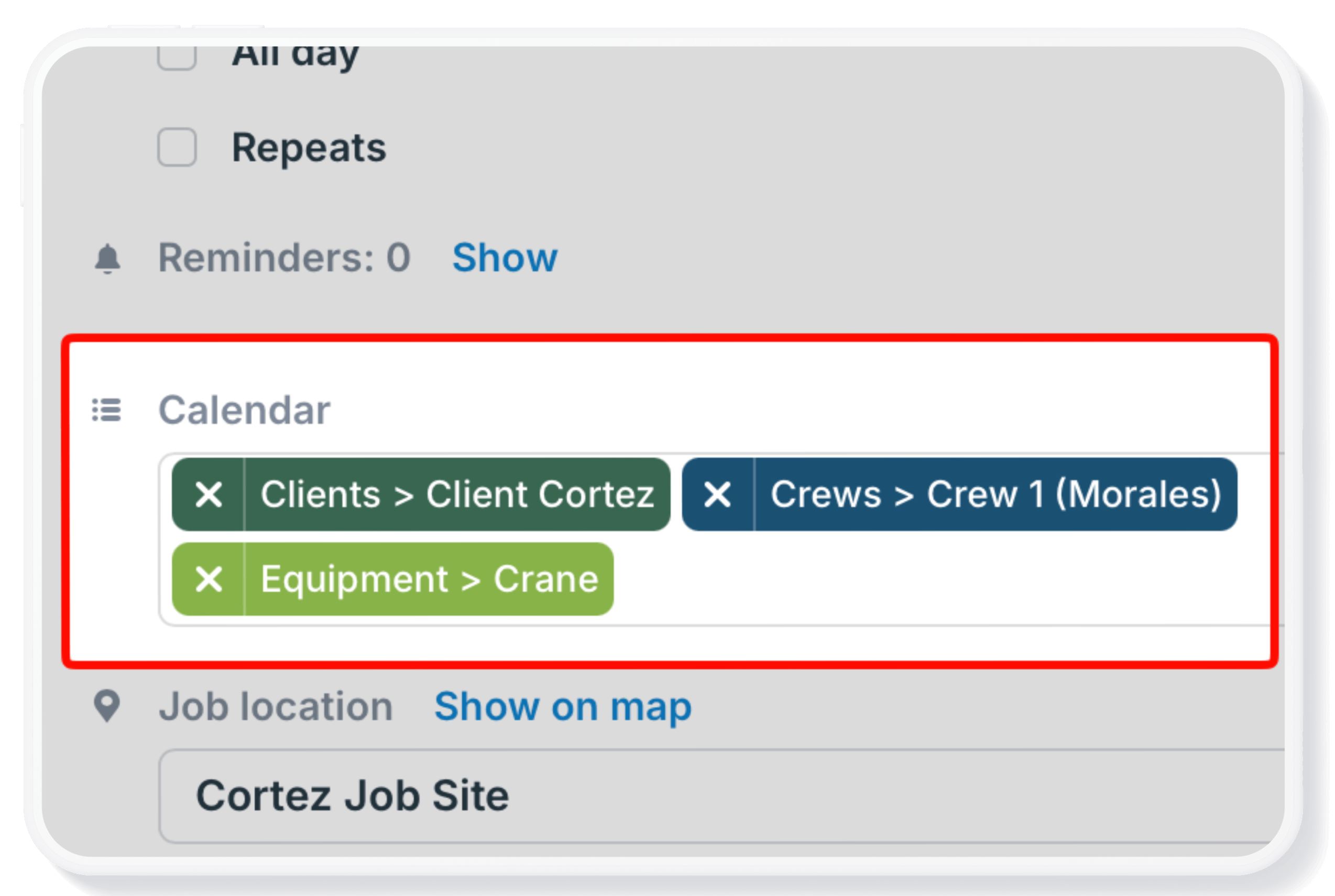
Click to enlarge: When creating or editing an event, select multiple calendars in the Calendar field to assign one event to multiple sub-calendars.
Many events involve more than one person, resource, or team. A project kickoff might include several departments. A service appointment may require both a technician and a vehicle. A training session could involve an instructor, a meeting room, and attendees from different teams.
Instead of creating separate copies of the same event on separate calendars, Teamup allows you to assign one event to multiple sub-calendars.
Because there is only one event, updates only need to be made once. If the meeting time changes, a document is added, or additional notes are included, every assigned calendar reflects those changes automatically. Event details, custom fields, comments, attachments, and linked files all stay synchronized, eliminating the confusion that often comes with duplicate events.
This feature works especially well for:
- Staff assigned to a project or shift.
- Jobs that require both a driver and a vehicle.
- Events that need a room, equipment, and personnel.
- Training sessions shared across departments.
- Client meetings involving multiple internal teams.
- Maintenance work involving several technicians and locations.
- Volunteer assignments coordinated across different groups.
You can also choose how multi-calendar events appear.
Choose how multi-calendar events are displayed
Calendar administrators can choose the display style that best fits the way the calendar is used.
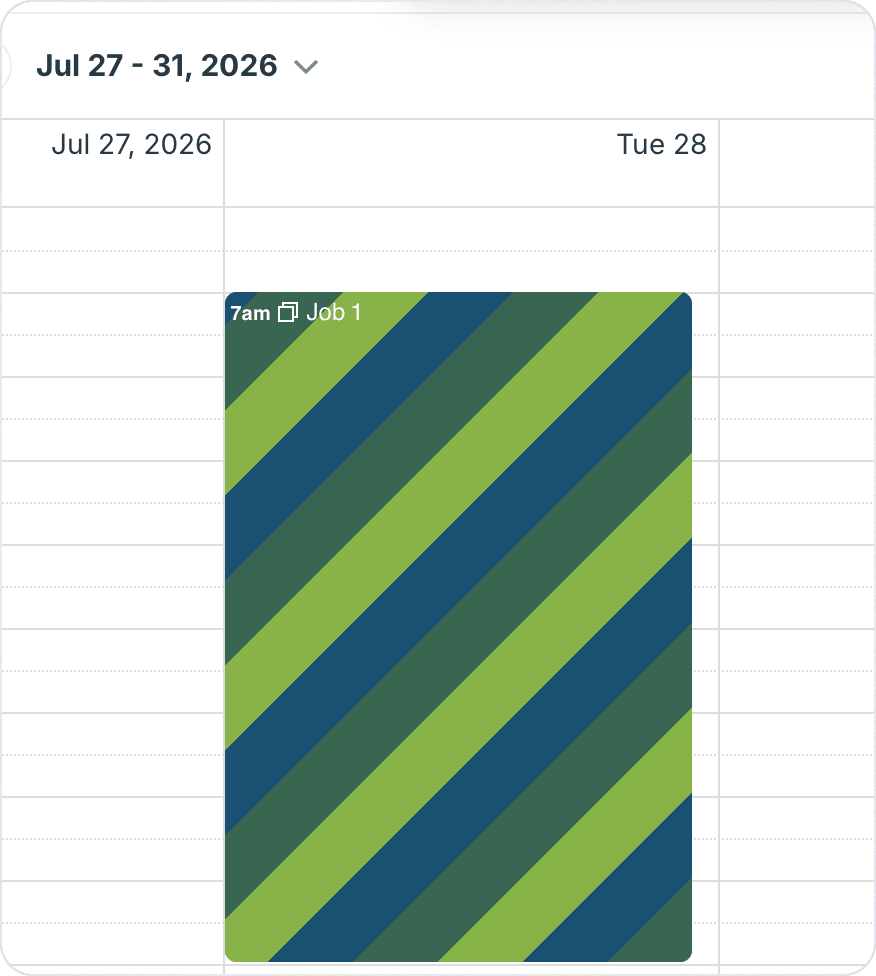
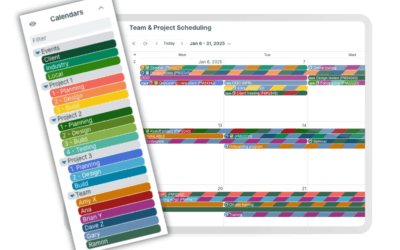
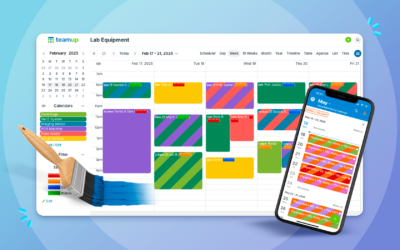
Striping displays one event with colored stripes representing each assigned calendar. This provides a compact view that clearly shows everyone and everything connected to the event while avoiding duplicate entries.
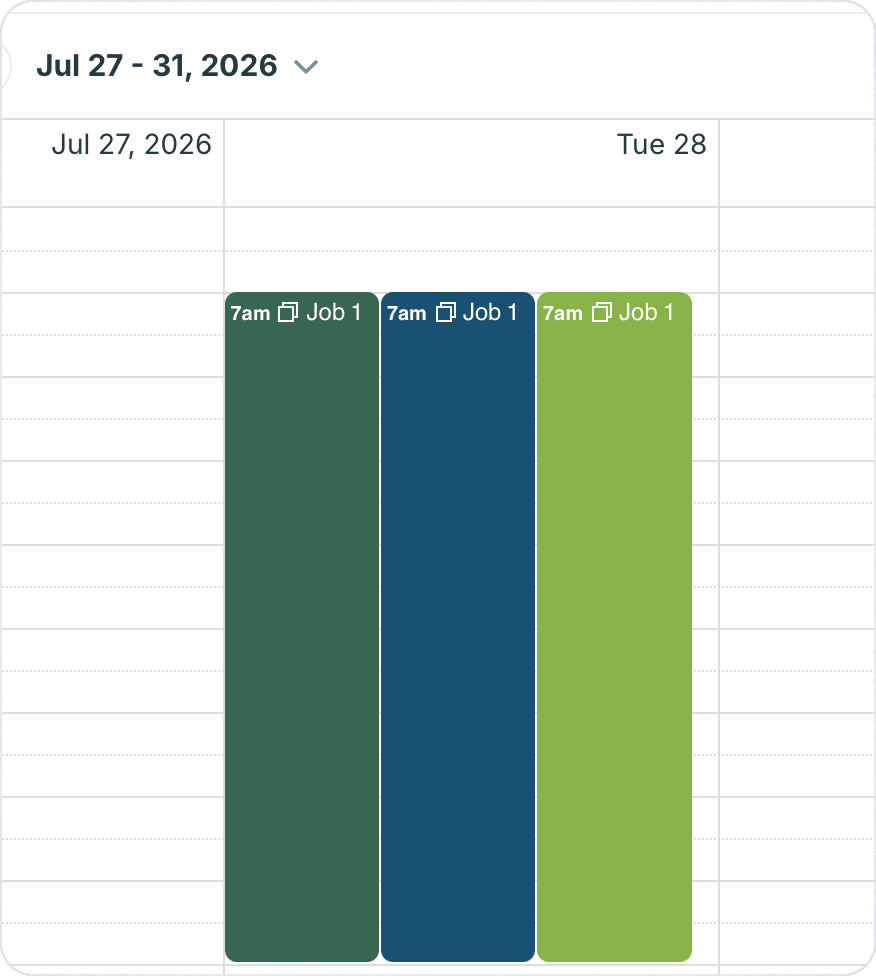
Multiple boxes displays the event separately on each assigned calendar while still linking them to the same underlying event. This keeps each calendar visually distinct, which can make busy operational calendars easier to read without creating extra work.
No matter which display option is selected, users still edit only one event. Any changes are synced for all assigned sub-calendars and all users.
How to enable one-to-many events
The one-to-many feature is controlled by the calendar administrator:
- Open Teamup in a browser.
- Click the blue menu (top right).
- Select Settings.
- Go to General Settings.
- Scroll to the Multiple Calendars Per Event section.
- Select Yes to enable one-to-many.
- Click the Display menu and select Striped or Multiple Boxes.