For anyone who works with colleagues in different places, considering time zones is important when you’re planning a meeting or event. Teamup’s built-in features like automatic event time conversion, simple time zone switching, and visual time zone indicator, make planning easier while ensuring everyone sees the correct event time for their local time zone.
Create the event in the hosting time zone
Perhaps you’re scheduling a client presentation for 2:00 PM Eastern Time. Your project team includes colleagues in California, Germany, and Australia. Eastern Time is the hosting or originating time zone. You’ll create the event in the hosting time zone, and share it with your colleagues.
Teamup has automatic time zone conversion so the event time will automatically adjust when viewed in other time zones. This automatic adjustment includes all the daylight saving time shifts around the world. Everyone will see the meeting’s scheduled time for their time zone, with no need for time zone calculations.
You’re in the hosting time zone
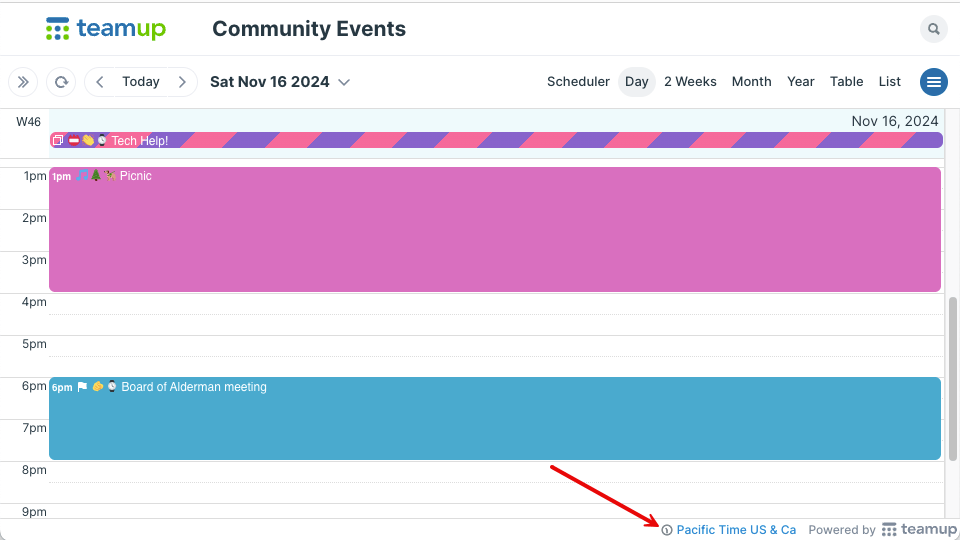
Click to enlarge: The visible time zone indicator is in the bottom right of the calendar.
If the hosting time zone is your local time zone, simply open your Teamup calendar and create the event. The visible indicator makes it easy to see the time zone you’re in.
You’re not in the hosting time zone
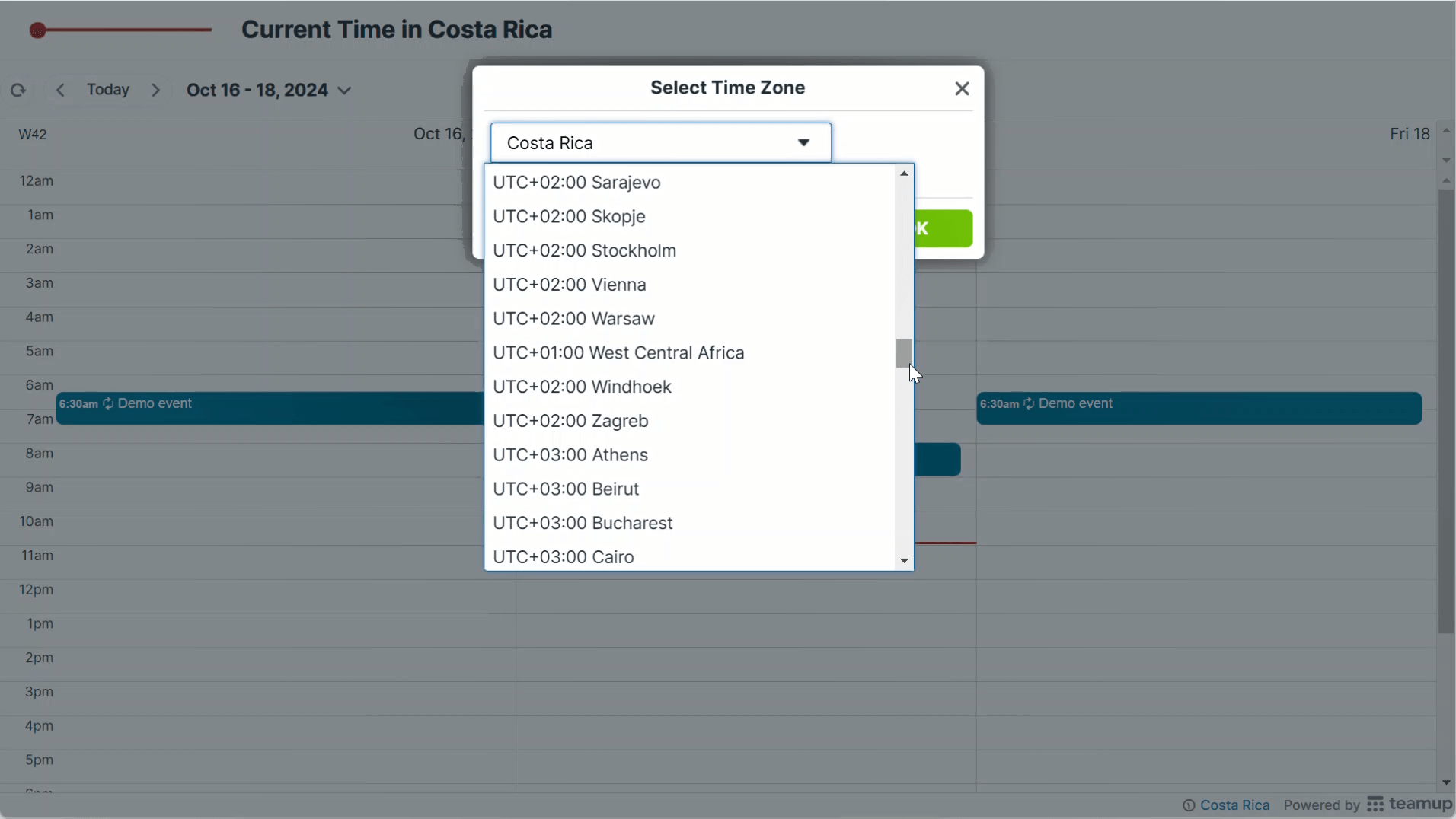
Click to enlarge: Choose the needed time zone from the menu.
If the hosting time zone is not your local time zone, open your Teamup calendar and switch time zones to the hosting time zone. Click the visible time zone in the bottom right of the calendar, then select the hosting time zone from the menu. Create the event at the designated date and time in the hosting time zone and save it. Then switch back to your own local time zone. The event timing will automatically shift to display in your local time zone.
Share the event across time zones
If other participants have access to the same Teamup calendar, they’ll see the event on the calendar in their own displayed time zone. No manual calculations needed.
To share the event with others who don’t have access to the calendar, open the event and share it as an event page. The event page will show all the event information as a secure, stand-alone webpage. If any event details are changed on the calendar, the event page will also update automatically.
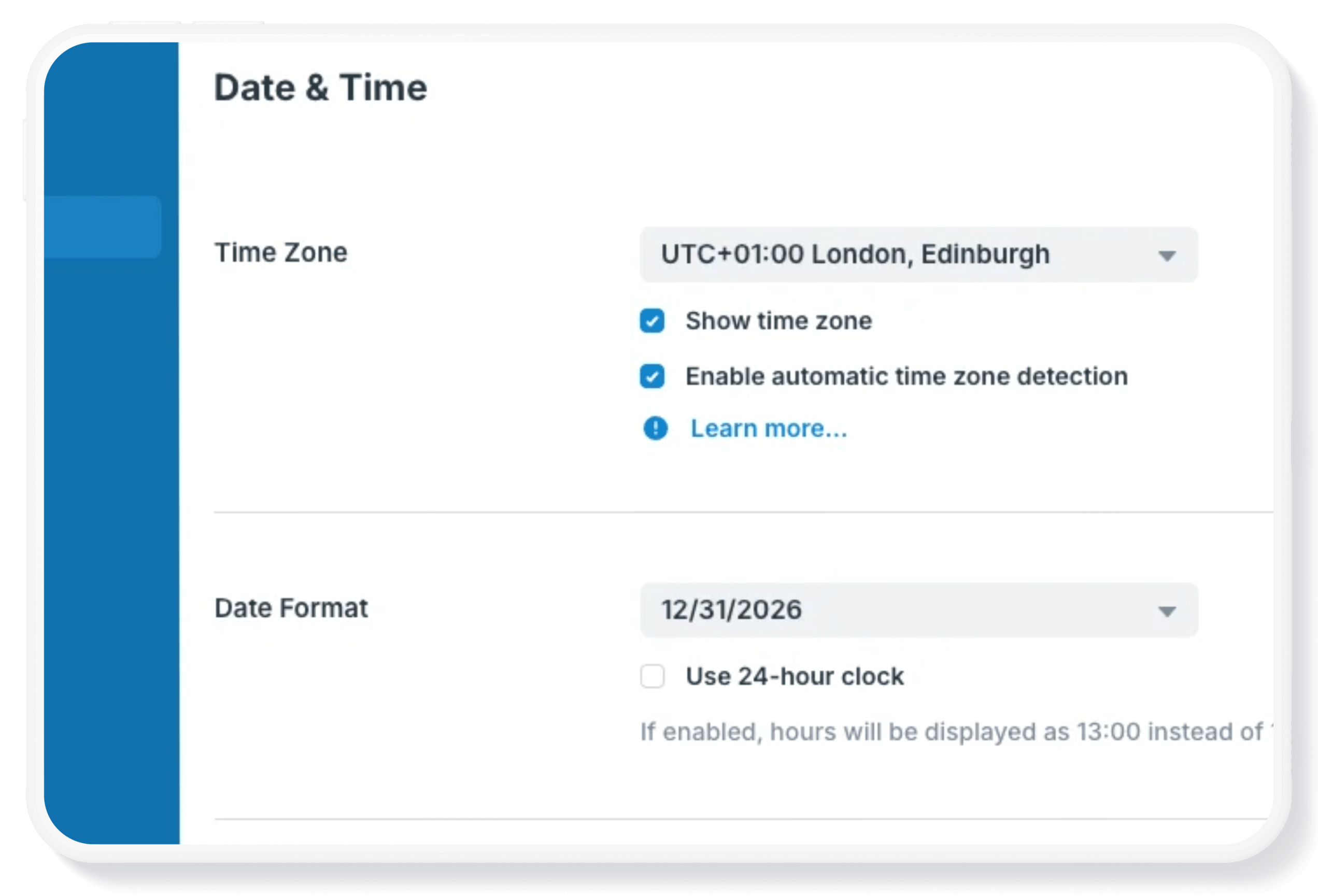
Make sure Teamup is set to automatically detect the default time zone for each browser or device. When someone views the event page, they will see it in the time zone set for their browser or device. This means everyone is shown the correct event times for their own time zone.
Schedule confidently across time zones
Coordinating meetings across multiple time zones doesn’t have to involve manual conversions or uncertainty. By creating events in the hosting time zone and letting Teamup handle the automatic conversion, everyone sees the correct meeting time wherever they are. Try Teamup yourself for scheduling across time zones that’s simple, accurate, and easy to manage.