
In training organizations, coordinators often need to assign sessions based on instructor qualifications. But when qualifications are scattered across notes, emails, or memory, finding the right trainer quickly becomes difficult. With a structured calendar setup, qualifications become visible and searchable, so scheduling decisions are faster and more reliable.
The need: Coordinators need a clear way to identify and assign trainers based on certifications and qualifications without relying on memory or manual lists.
The Teamup solution: Use calendar structure, such as sub-calendars or custom fields, to organize and filter trainers by qualifications, making it easier to find the right trainer for each session.
Where scheduling breaks down
For coordinators who assign trainers and instructors to classes, workshops, or specialized sessions, qualifications are part of the scheduling process itself. For example, a workforce training organization may need to match multiple sessions requests from clients to their pool of instructors with various qualifications.
One requested session may require a trainer certified in workplace safety, while another needs someone approved for compliance training. Coordinators need a reliable, quick way to filter available instructors by their qualifications, so they can be sure to assign an appropriate person for each session. Many teams try to track certifications through spreadsheets or other documents, with updates and reminders sent via emails or internal messages. But this creates layers of complicated information that aren’t easily searchable and may not be up-to-date.
A shared calendar with structured qualification data makes scheduling much easier. When certifications are visible and searchable inside the calendar itself, coordinators can quickly filter and assign the right trainers for each session. Here are two practical methods for organizing and tracking trainer qualifications in a shared availability calendar.
Method 1: Organize trainers using sub-calendars
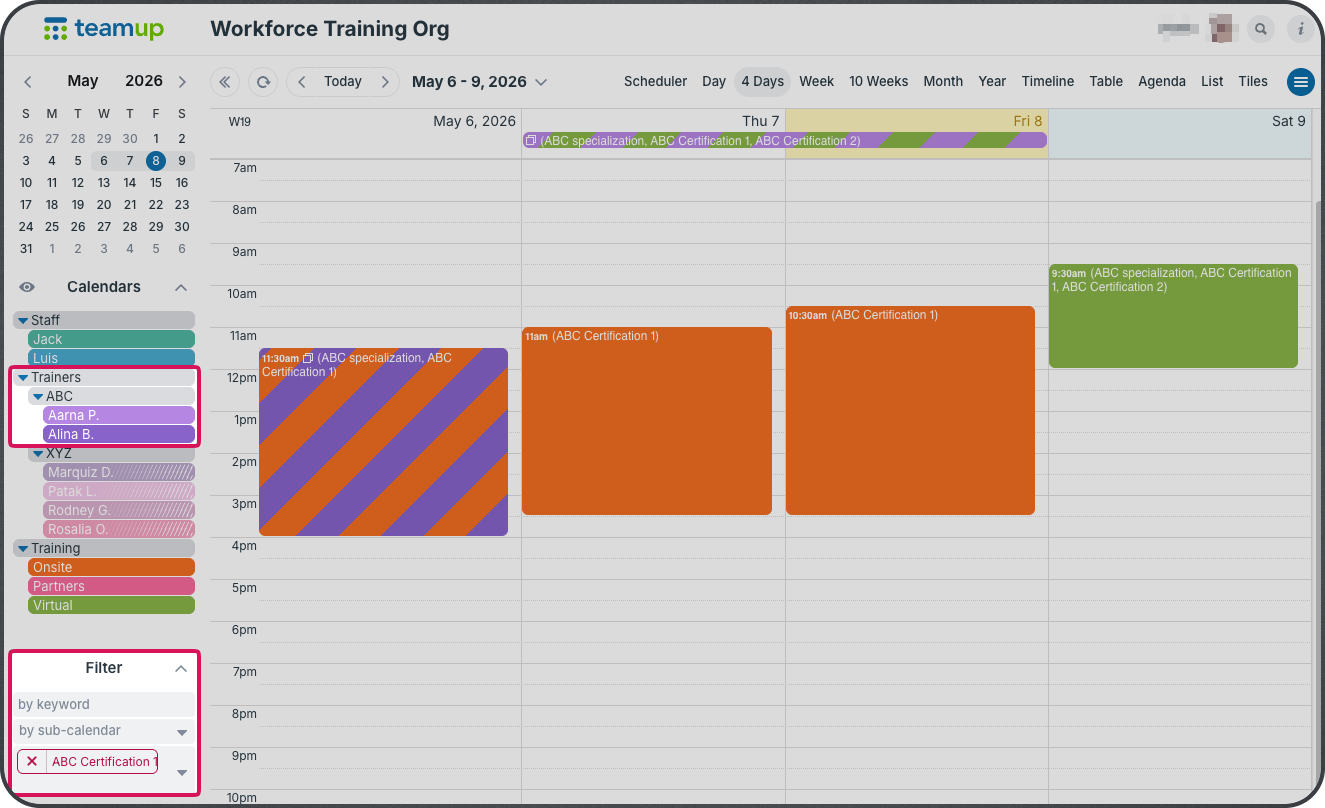
Click to enlarge: Filter events to show only those with certain requirements and toggle folders to show only trainers with matching qualifications.
One practical approach is to group trainers by qualification directly in the list of sub-calendars. Each trainer has their own sub-calendar where they can provide their availability and see their assigned sessions. With folder organization, these sub-calendars can also serve as a way to categorize trainers by their qualifications.
For example, a training organization might create folders for each topical training area or certain level of achievement. Then, each qualified trainer’s sub-calendar is placed in the relevant folder. When a coordinator needs to book a session, they toggle the calendars to show only the trainers that have matching qualifications for the session requirements. Then they can simply find a trainer with matching availability from the visible calendars.
What works well: Qualifications are automatically connected to availability in the same sub-calendar structure. Coordinators only have to toggle folders to view qualified trainers for each session.
Limitation: There’s no way to categorize trainers who hold certifications in more than one area. This method is limited to use with qualification categories that don’t overlap.
Method 2: Track qualifications with a custom field
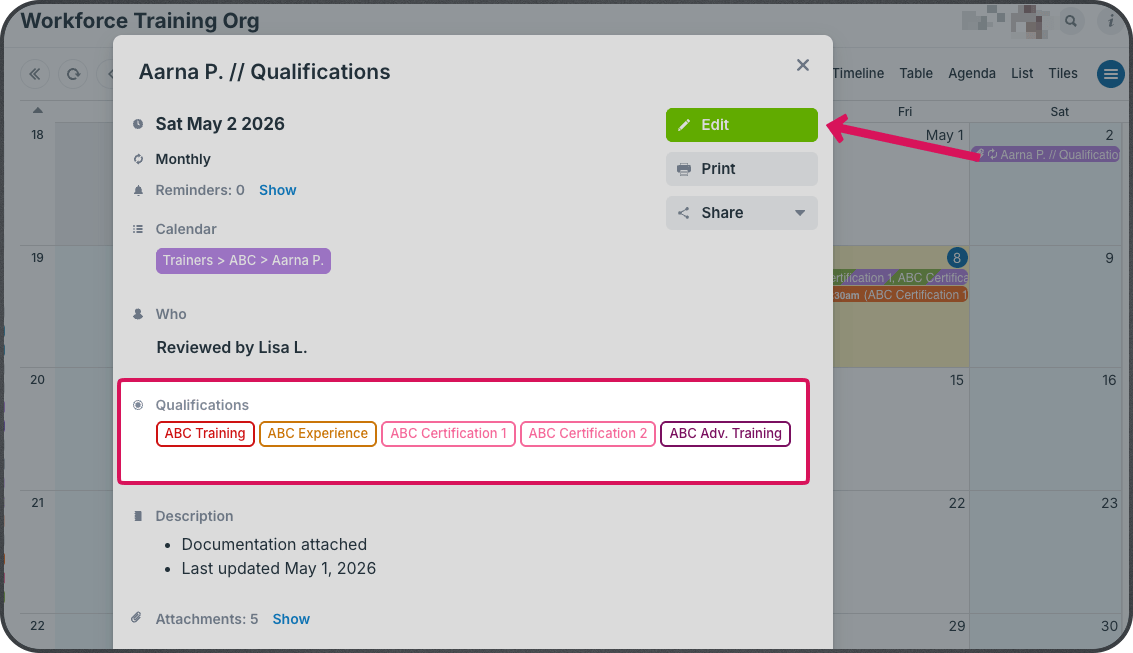
Click to enlarge: A custom choice field can show trainer qualifications. A reference event can repeat regularly so it’s always easy to check updated qualifications.
Another approach is to store qualifications as structured data using a custom field, and create a reference event for each trainer that displays their qualifications.
- Create a custom field with options for all qualification or certification names. This can work much like a Requirements field, but it is used to track trainer qualifications instead of session requirements.
- Set the field visibility to Modify users only. This allows the trainer, coordinators, or managers to view and edit the information without making it visible to every calendar viewer.
- Create a reference event for each trainer (titled “Qualifications” or similar). Assign all of that trainer’s qualifications to the event. Upload any relevant documentation to the event as well. Park the event on a no-activity day, such as a Sunday or holiday. If needed, make it recurring monthly or quarterly so it stays easy to find and maintain.
- Optionally, you can create a dedicated sub-calendar for these reference events, titled appropriately. Then each reference event can be assigned to this “Qualifications” sub-calendar as well as the trainers’ sub-calendars.
When a coordinator needs trainers with certain qualifications, they can filter by the title word Qualifications and by the specific certification they need. This works especially well in year view or table view with a long date range.
What works well: It’s possible to show each trainer’s overlapping qualifications and specific skills, and to update an individual trainer’s certifications on their reference event.
Limitation: This method is more flexible for trainers with multiple qualifications, but it is not quite as easy to filter as using sub-calendar folders. It requires a bit more manual effort to check qualifications in a reference event against the requirements for a training session.
Choosing the right method
Both approaches solve the same operational problem: making qualifications visible during scheduling. Which one works best for your needs?
- Use sub-calendars when you need quick, visual filtering for qualification categories that don’t overlap.
- Use custom fields when trainers have multiple overlapping certifications and more specific skills to track.
- Combine both methods if your team needs quick filtering (for distinct categories that stay separate) and detailed qualification records (for specific certifications, levels, and skills within the broader category).
The key is consistency. Once qualifications are structured, use them consistently and keep them updated. Scheduling will be faster when coordinators can rely on built-in, structured data to filter and assign trainers.
Efficient scheduling with visible qualifications
When trainer qualifications are built into the calendar, scheduling becomes more straightforward. Coordinators can assign sessions confidently, trainers are matched to the right classes, and last-minute changes are easier to handle. Instead of relying on memory or scattered records, the calendar provides a practical way to see who is qualified for what.
This approach works for fitness studios, training centers, educational programs, and any team that assigns work based on skills or certifications. Ready to give it a try? Explore features and try out both methods in a live demo calendar. When you’re ready, create your own Teamup calendar and start scheduling with full visibility today.