If you manage ongoing meetings or repeating tasks, it’s helpful to see them all in one place. With Table view, you can easily review and organize every recurring event on your calendar:
- Check weekly standups and plan for holiday gaps.
- Review recurring deadlines to keep schedules on track.
- Ensure client meetings are spaced appropriately.
- Edit or reschedule events directly in Table view.
View and sort repeating events
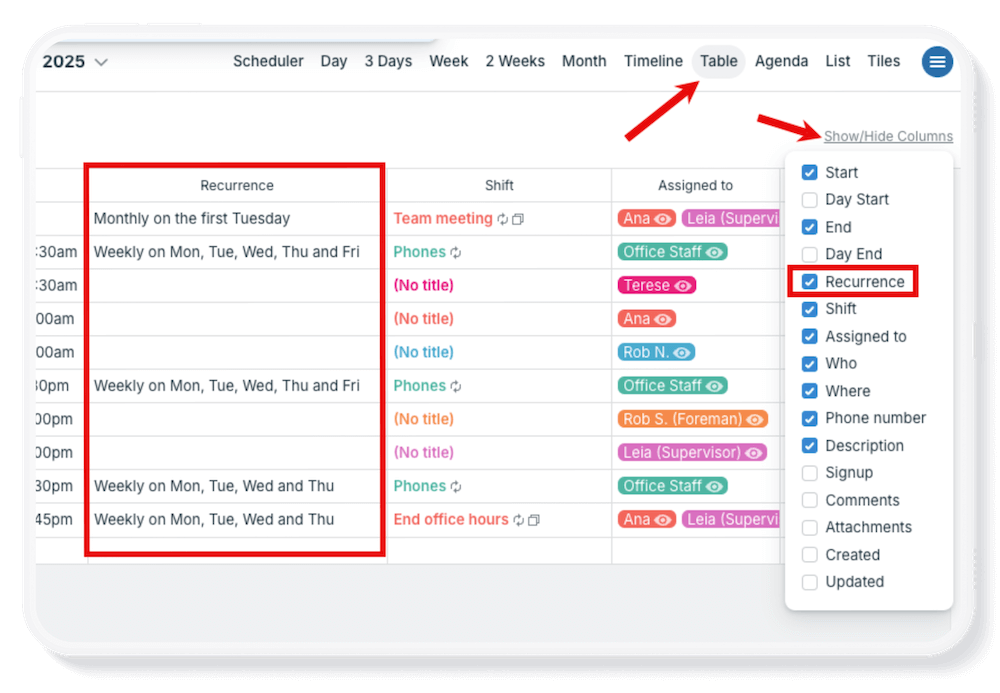
Table view shows each event field as a column. It has a Recurrence column to show the recurrence pattern applied to any repeating events.
- Open Teamup in a browser (Table view is not available in the Teamup app).
- Switch to Table view.
- Click Show/Hide Columns in the top right.
- Check the box beside Recurrence.
- Adjust the date range as needed.
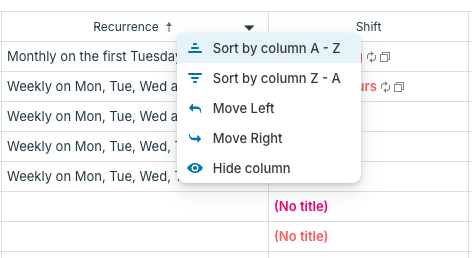
- Hover over the top row of the Recurrence column, then click the ▼ triangle.
- Choose Sort by column A-Z or Sort by column Z-A to see events sorted by their recurrence pattern.

Check out how to generate PDF reports in Table view as well.