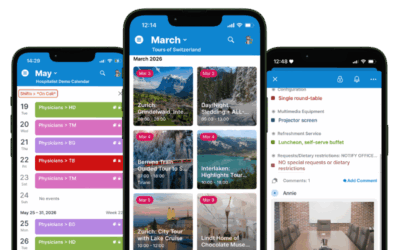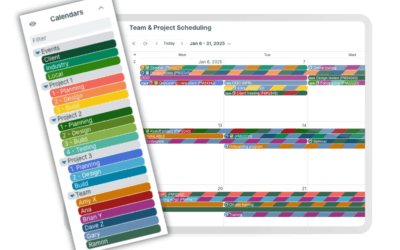
The Attachments field allows you to upload multiple images and files. All attachments are kept in an organized list that can be collapsed or expanded. On the Teamup app, you can preview images and files in the Attachments field.
No need to open up individual photos or download multiple PDFs to figure out which is the right one. Just tap for the preview, then swipe through the attached images and files. You can also share or save an attachment directly from the preview, if needed.
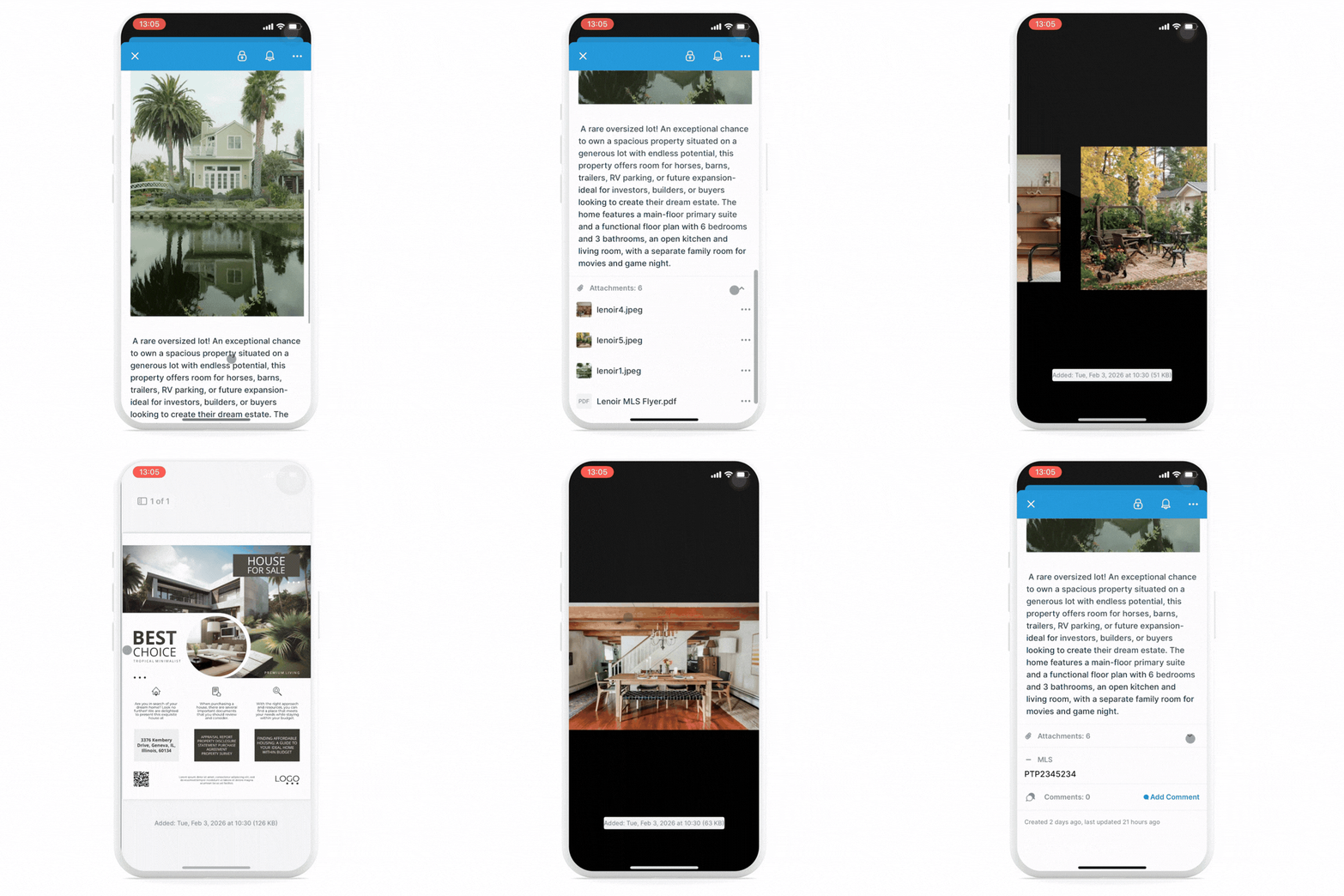 This is great for situations where events have multiple photos or attachments, but downloading them all isn’t practical or necessary:
- Reference event setup or teardown instructions.
Attach floor plans, setup diagrams, vendor instructions, and checklists so staff can quickly confirm requirements on site. - Store permits and compliance documentation.
Attach permits, insurance certificates, safety plans, and approvals directly to the relevant event. Workers can check the documentation as needed. - Access real estate listing and showing materials.
Upload property photos, floor plans, flyers, and disclosures for quick mobile reference during showings. - Provide client itineraries and supporting resources.
Share maps, schedules, prep documents, and visuals by attaching them directly to client-facing events. Clients can reference what’s relevant without a hassle.
How to preview attachments
Open an event, expand the Attachments field, then tap a thumbnail to open the preview. Swipe to the right and left to move between attachments. Swipe down to close the preview.
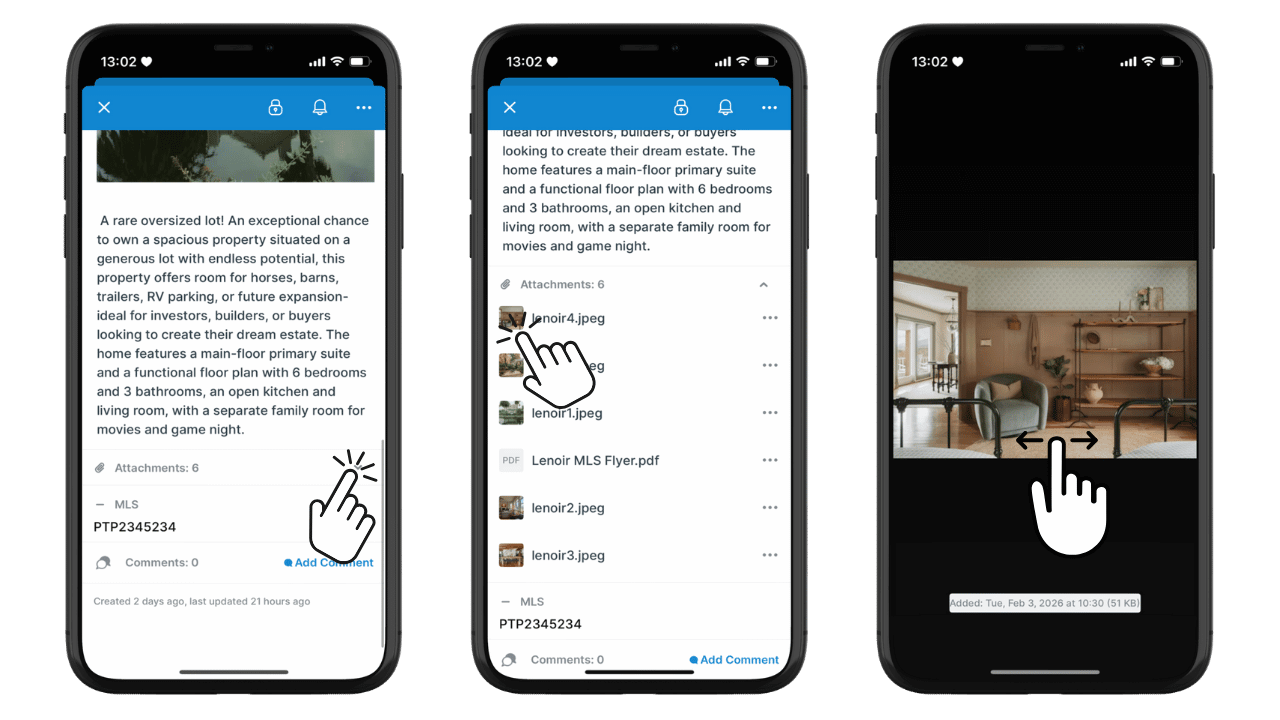
Long-press any preview to display the Share button and save or share the attachment.
See how to add images and attach files to events. If you don’t have the Teamup app yet, download it now. It’s free, full of great features, and available for iOS and Android.