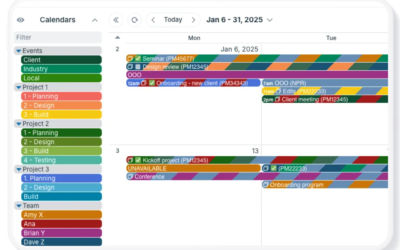
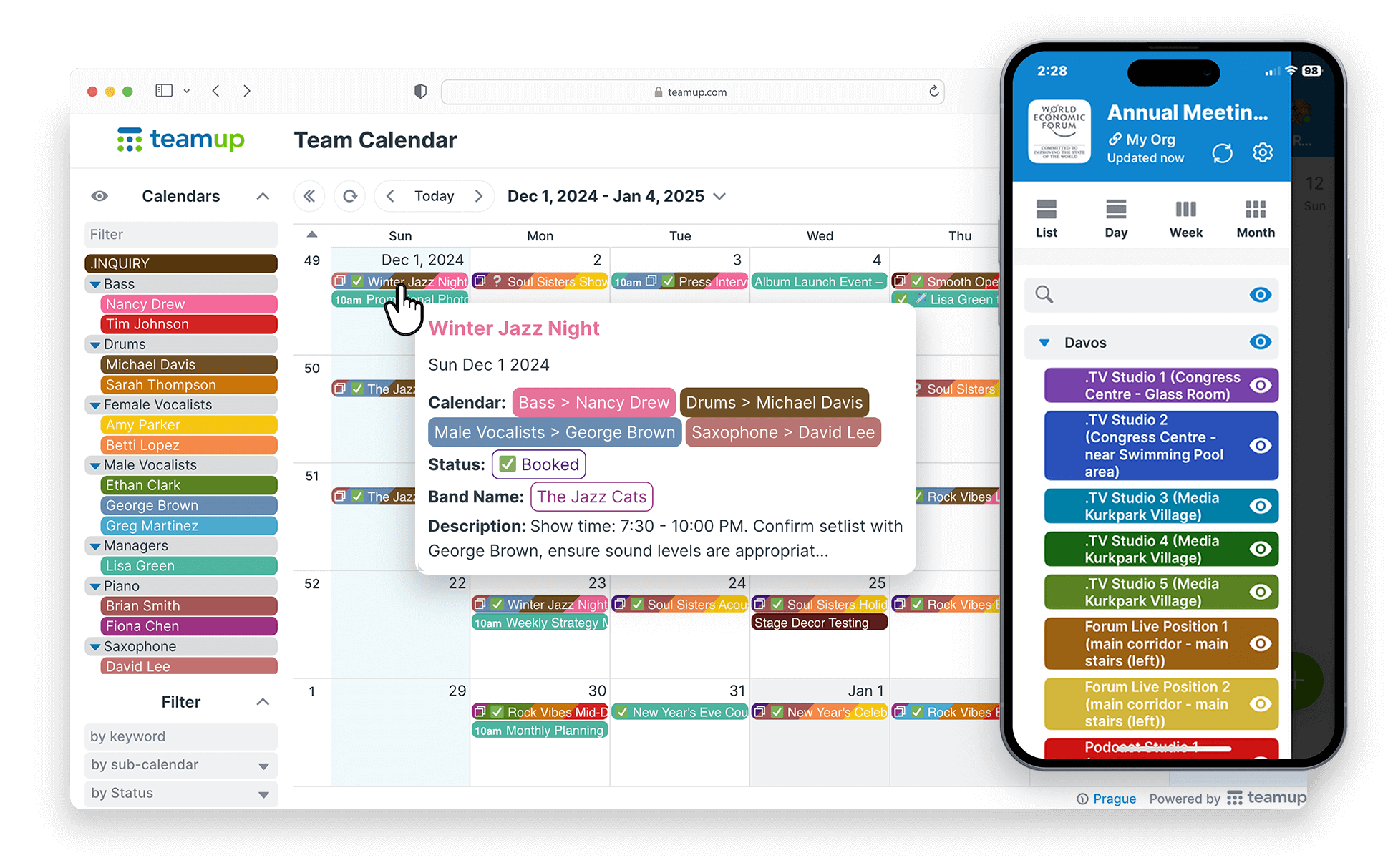
Facebook events are spread across pages, groups, and invitations. If you’re sharing local, club, or community events with others, it’s hard to keep track of them in Facebook alone. A curated Facebook events calendar puts the events you choose in one place that anyone can view, even without a Facebook account.
Here’s how to set one up with Teamup.
Set up your calendar
Start by creating a Teamup calendar for your curated events. Then add sub-calendars to sort them, for example by type (concerts, workshops, meetups), by host or group, or by location. Each sub-calendar gets its own color, so viewers can see what’s what at a glance.
Next, add a custom event field for the Facebook event link. Go to Settings > Event Fields, add a new field, and name it something like “Facebook event.” This keeps the link to the original event with every entry, so people can click through to RSVP.
Add Facebook events
Facebook no longer offers a feed of all your upcoming events, but you can still bring in events one at a time.
Import the event file
- Open the event on Facebook and choose the option to add it to your calendar. This downloads an .ics file.
- In Teamup (web app), open the menu at the top right and choose Import Invitation.
- Select the .ics file and click Import.
- The event opens in the event editor. Choose a sub-calendar, paste the Facebook link into your custom field, and click Save.
Or add it by hand
For a quick entry, create a new event in Teamup. Add the title, date, time, and location, then paste the Facebook event link into your custom field.
Let others contribute events
You don’t have to do all the curating yourself. Create a sub-calendar named something like “Submitted events,” then share a calendar link with Add-only permission for that sub-calendar. Contributors can add events but can’t change or delete anything else.
Review new submissions regularly. When an event is approved, move it to the right sub-calendar.
Share your curated calendar
When your calendar is ready, share it however works best for your audience:
- Read-only link: create a sharing link with read-only permission and share it anywhere.
- Embed it on your website: add the calendar to a page on your site so visitors always see current events.
- Post it on Facebook: share the calendar link on your Facebook page or group, or pin it so people can find it easily.
People don’t need a Teamup account or a Facebook account to view your calendar. You can also create an independent event page for any event, to share and promote events on other platforms.
FAQ
Can I sync all my Facebook events to a calendar automatically?
No. Facebook no longer provides a subscription feed for all upcoming events. You can still add events one at a time by downloading each event’s calendar file.
Can people RSVP from the calendar?
RSVPs happen on Facebook. Add the Facebook event link to each event so viewers can click through to respond. For events you host, you can also use Teamup event signups instead.
Can I add events from other sources too?
Yes. You can mix Facebook events with events from other calendars. Add an iCalendar feed as its own sub-calendar to bring in events from other sources automatically.