
Scheduling recurring meetings can quickly become a complex puzzle, especially when schedules don’t follow simple daily, weekly, or monthly patterns. Many teams and projects face scenarios that go beyond standard repetitions:
- Meetings or events that occur every few months, such as quarterly project check-ins.
- Sessions on specific days or dates within a month, like every Tuesday and Thursday, or on the 1st and 15th.
- Events requiring flexibility for exceptions, accommodating weekends, holidays, or individual adjustments while keeping the overall pattern consistent.
Planning these recurring meetings across teams and departments pushes project managers and team leads past the limits of a standard calendar. One project manager recently shared on Reddit:
I have been looking for a calendar tool that lets me make a group of events recur—like a whole project cycle with meetings that follow the same pattern. Every 3rd month, we have a project with deadlines that always go Tuesday, Tuesday, Tuesday and then the following Thursday. Traditional recurring events just don’t work.
If that sounds familiar, you’re not alone—and there’s finally a solution that makes this kind of scheduling not just possible, but simple.
The real problem: Project schedules are complex
Most calendar tools are great for individual recurring events. They let you repeat a meeting every week, every second Tuesday, or the first Monday of the month.
But when your project involves a recurring pattern of several connected events—for example, a kick-off meeting, mid-point check-ins, and a wrap-up review—things fall apart fast.
Here are the common pain points project managers face when scheduling recurring meetings:
- Limited customization for complex patterns: Standard calendar tools like Outlook can’t handle multiple related meetings as a single recurring block. You’re often limited to repeating events weekly or monthly, which can break the intended sequence over time.
- Lack of visual clarity: Traditional calendar layouts bury recurring events in lists or small monthly views, hiding the bigger picture. On top of that, team members may not have a clear view of recurring events across projects or departments.
- Time-consuming manual adjustments: Weekends, holidays, or individual availability often disrupt scheduling recurring meetings. Many tools make it difficult to adjust single occurrences without breaking the entire series. Manually moving individual events is tedious and increases the risk of mistakes, especially for distributed teams working across multiple time zones.
- Few sharing options: Many calendars have restrictions on how schedules can be shared, making it harder to schedule recurring meetings across teams, departments, external collaborators or clients.
If you’ve been managing this in Excel, or dragging Outlook invites around manually, you’ve probably thought: there has to be a better way.
How to schedule recurring meetings visually with Teamup
Teamup calendar makes planning recurring events with complex patterns straightforward and flexible. Teamup lets you create and repeat groups of events as flexible patterns—choose the one you need from a collection of configurable recurring options:
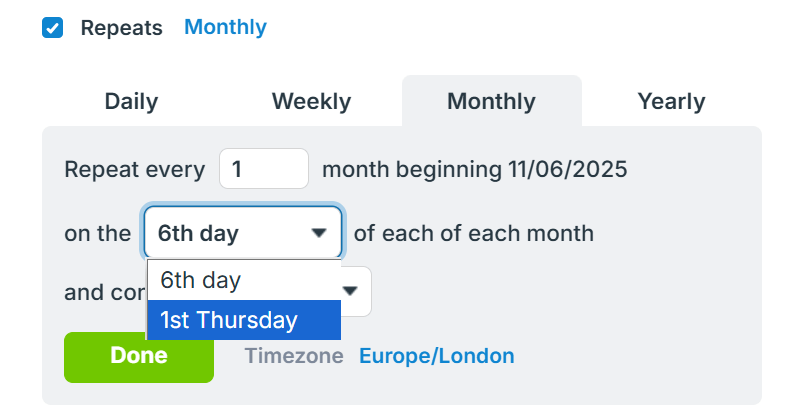
Here’s how project managers are using Teamup to solve some of the challenges in scheduling recurring events:
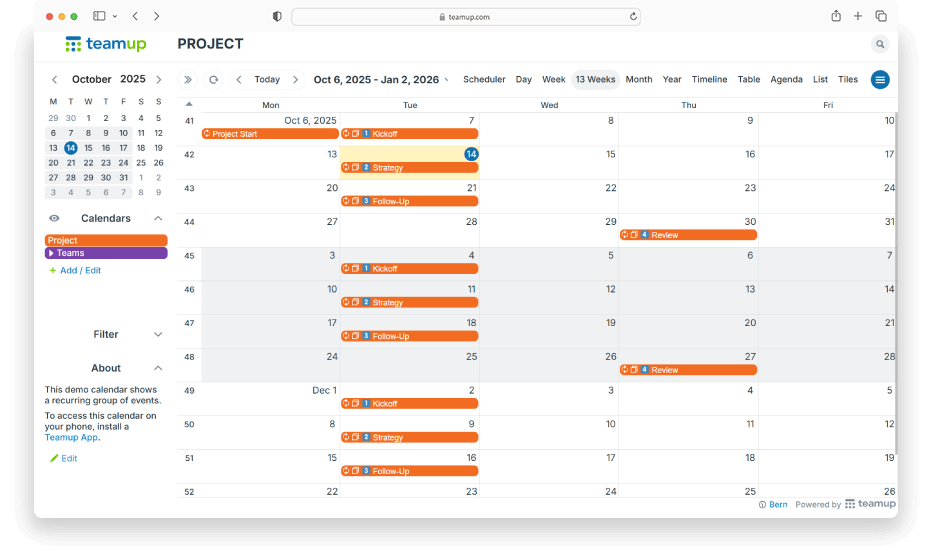
Create a recurring project cycle visually, keeping weekdays or dates consistent
You can map out the entire project sequence and easily schedule recurring meetings in one view, with multiple events and precise control over days or dates — beyond daily, weekly, or monthly patterns. You can plan long-range schedules for your projects and teams. Learn how to create recurring events in Teamup here.
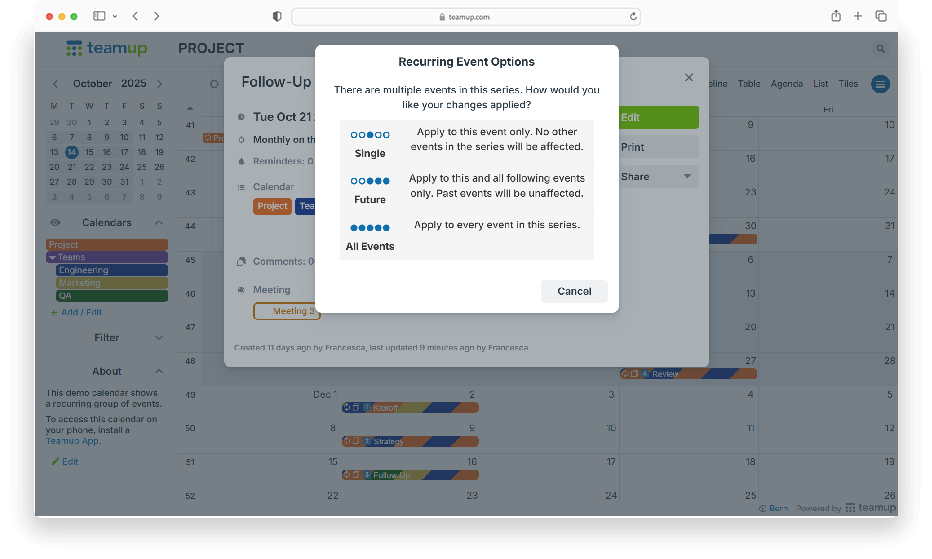
Adjust exceptions effortlessly
To handle an exception, drag and drop to move an event. You don’t break the recurring pattern; you can just tweak one instance. The rest of the series stays intact.
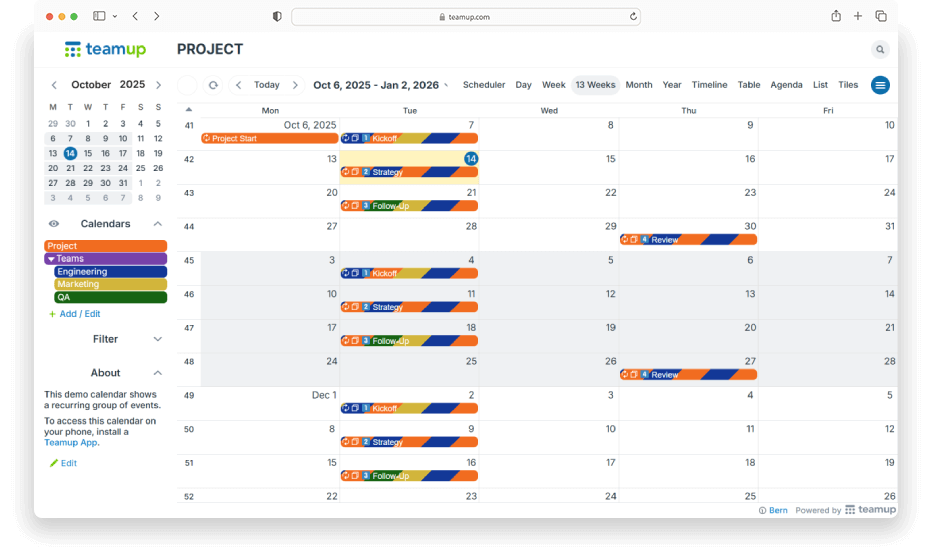
Add structure and context
When you schedule recurring meetings, use color-coding for phases or teams to make the project timeline easy to scan. Attach links, notes and files to each event, so everyone has the information they need without digging through emails or documents.
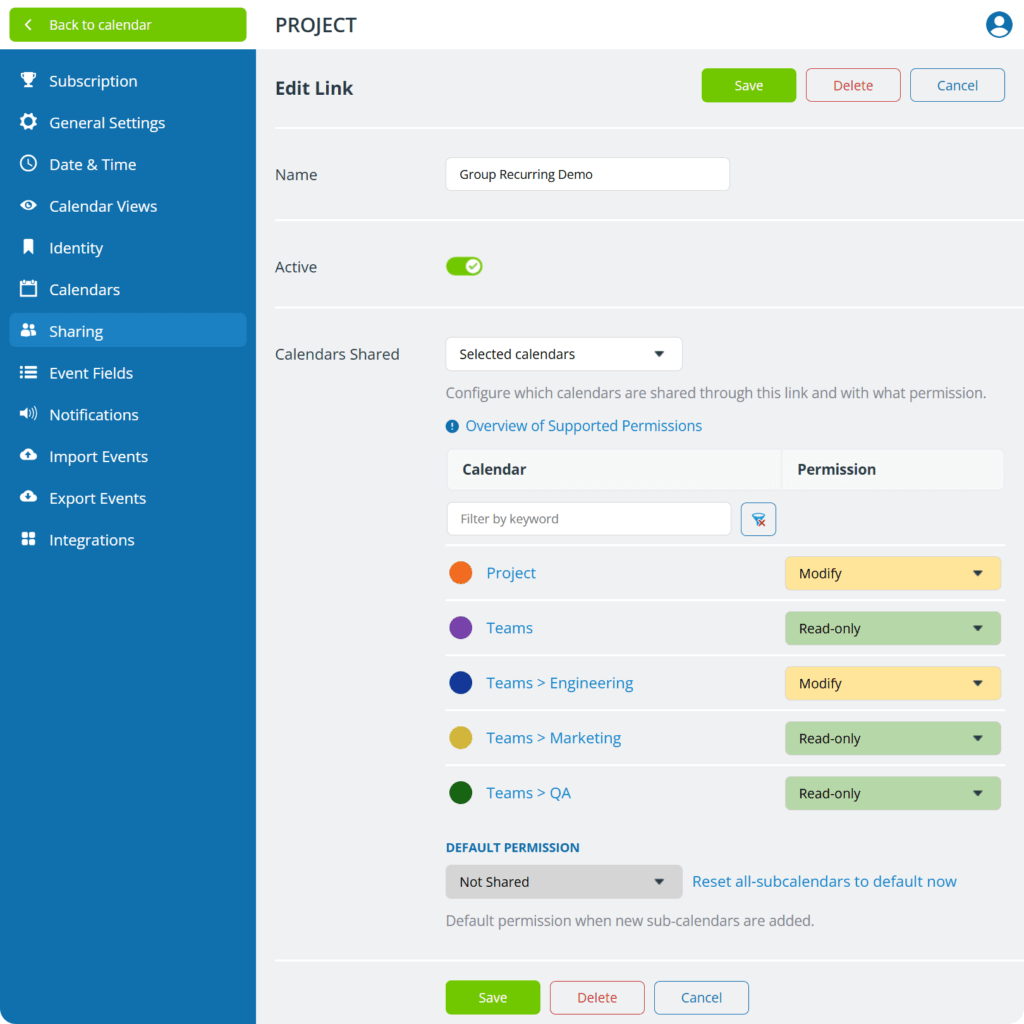
Assign permissions and share easily
It’s easy to share your calendar with team members, stakeholders, or clients, internally or externally. Teamup lets you customize access with 9 levels of permission types, including unique permissions. such as the ability to modify events created by one self but not events created by others. Learn how to safely share with external stakeholders.
Why project managers love Teamup
This approach isn’t just about convenience—it’s about control and visibility:
- Keep the big picture in view.
You see all your recurring events in one place, color-coded and easy to adjust. - Stay aligned across teams.
Whether you’re coordinating engineering, design, marketing, or product teams, everyone knows the project’s rhythm. - Reduce time spent managing calendars.
Assign separate sub-calendars for each team or project, then create shared calendar views that combine them. - Adjust visibility and permissions as needed.
Each user can show or hide sub-calendars with a single click to focus on their own work, while permission settings make sure everyone sees only what’s relevant to them.
Unlike standard calendars, Teamup is designed for flexible multi-team coordination, making it simple to stay aligned across departments and external partners or clients.
I have worked at other tech companies in terms of project management and have had my fair share of PMP tools with calendars (Outlook, Google, etc), agile and Kanban structure and on it goes. The power and simplicity of Teamup is a breath of fresh air.
— S. Douglas, Operations Manager
Tips for scheduling complex recurring meetings in Teamup
To make the most of your scheduling:
- Connect the meeting schedules with broader project info.
Meeting schedules are only a small part of project management. The project may have its own document repository, another PM tool that tracks various moving parts of the project, internal or external resource links, etc. Add pointers to any info that may be relevant to the scheduled meeting. - Use Comments to collect info relevant for a specific meeting in the recurring series.
Adding comments to individual events of the recurring series will not impact the series itself. For example, if it becomes known that a guest speak will join the 3rd meeting, add a comment with the speaker info to that meeting without moving the particular meeting out of the series. - Create and update meeting agenda.
Aside from the option to link your meeting agenda that is kept and updated elsewhere, it is also practical to create the agenda right on Teamup and keep it updated throughout the time leading up to the meeting. - Review the sequence as needed.
Small changes (like holidays) are easier to handle when caught early.
Simplify complex scheduling once and for all
With Teamup, project managers can plan once, reuse often, and stay perfectly aligned, no matter how irregular or detailed the schedule. So next time you need to schedule recurring meetings — any mix of dates, weekdays, intervals, or months — Teamup has you covered.
If your projects run on their own rhythm, it’s time your calendar did too.
👉 Explore how Teamup helps you schedule complex recurring meetings visually and effortlessly. Check out all the features with a live demo calendar or get started with your own calendar now.