Make it easy for anyone to get directions straight to job site or event location with map integration. Map integration is automatically enabled for the built-in Where field. You can also enable map integration for all single-line text fields and formatted text fields as well. Use multiple fields with map integration to add a secondary parking address, a drop-off and pick-up spot, or multiple delivery points to a single job or event. When mapping is enabled, there will be a Show on map link above the field. Put the address in the field, and users can tap the Show on map link to get directions. It only takes a tap to move from viewing an event to getting mapped directions to the event location.
One tap to mapped directions
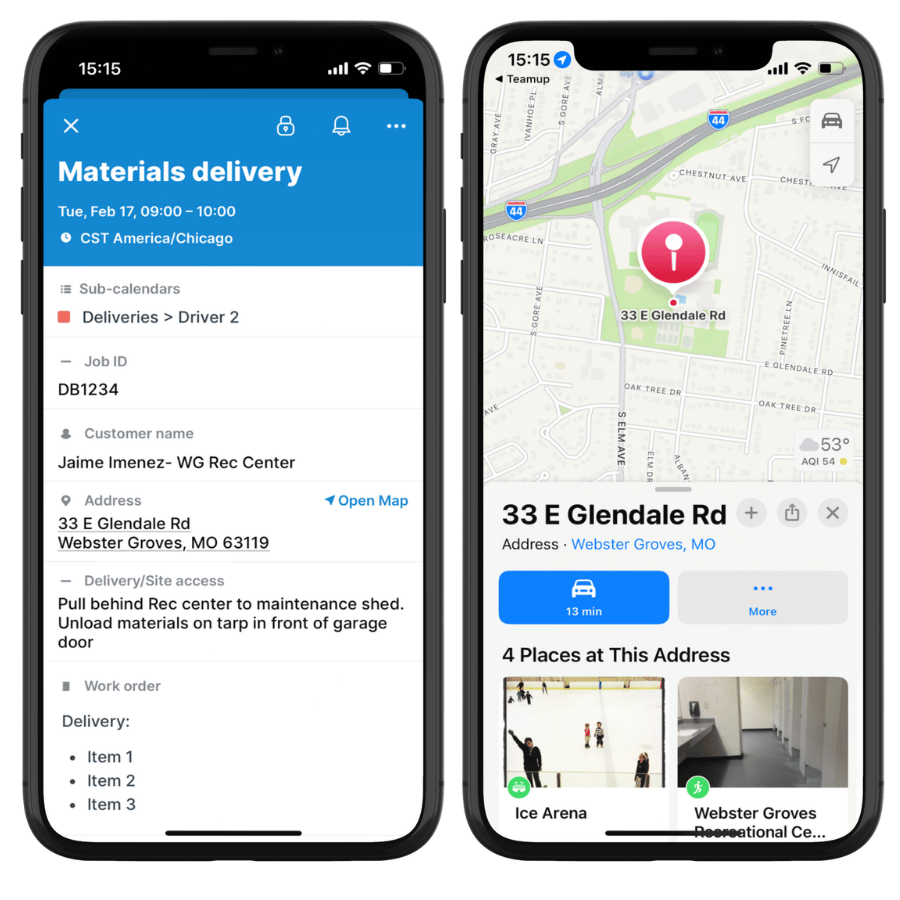
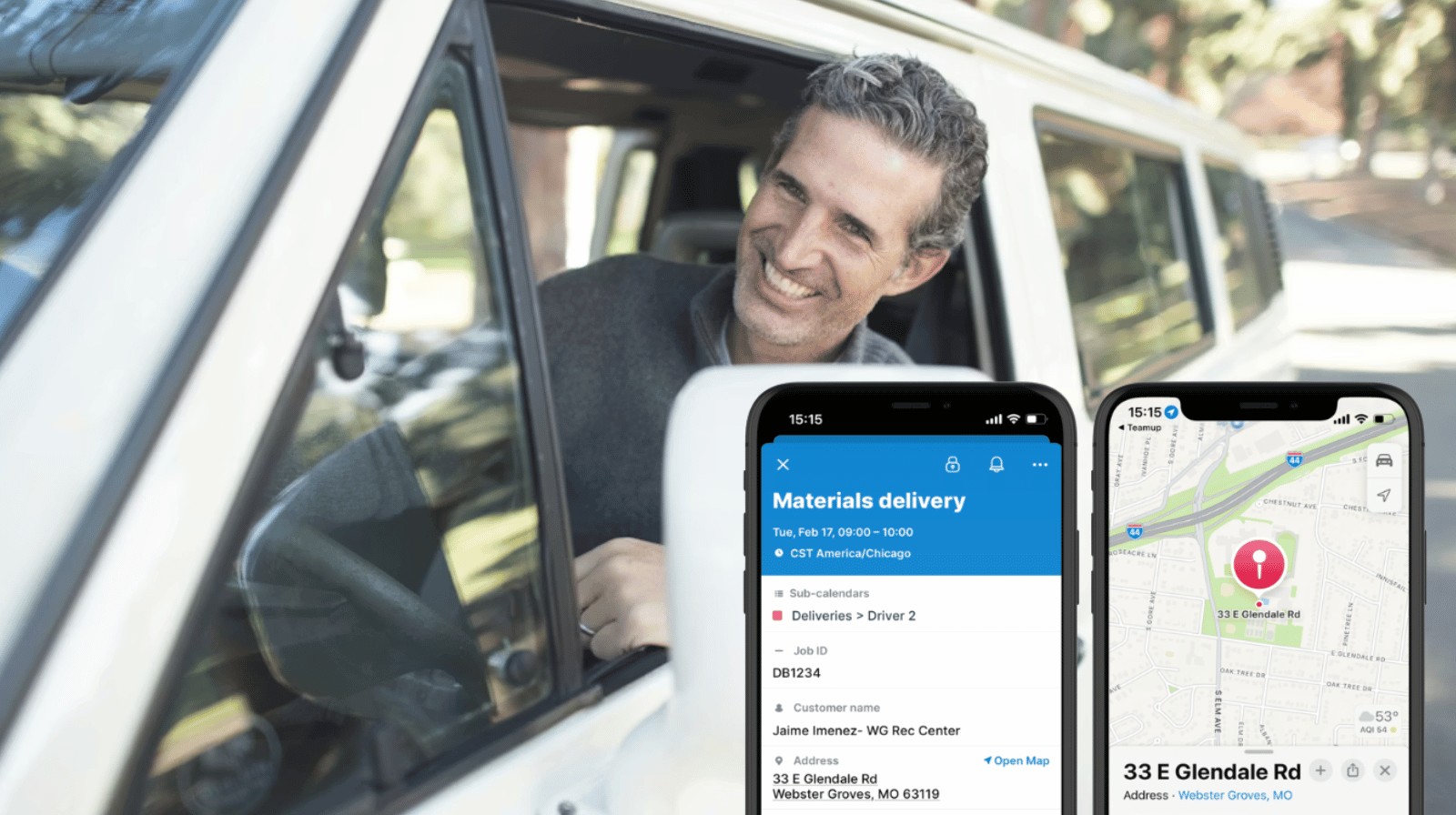
Click to enlarge: On the Teamup app, any field with map integration enabled will open an address in the Maps app for quick directions.
- Field crew can check their schedule and tap to open directions to the next job site.
- Conference attendees can view details for an off-site social event then tap for directions there.
- Fleet drivers can tap to open mapped directions to their next drop-off or pick-up point.
Enable map integration
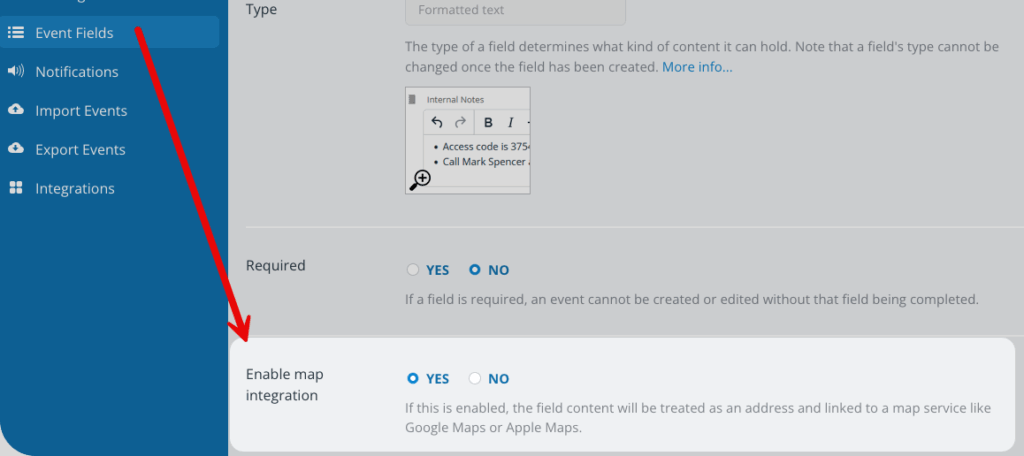
- Open Teamup in a browser.
- Click the blue menu (top right) and go to Settings.
- Go to the Event Fields tab.
- Click the pencil icon beside an event field.
- Scroll to Enable map integration. Check Yes to enable.
Add mapped locations to events
If you know the address of the location, create the event and simply put the address into the appropriate field.
If you don’t know the exact address, create the event and input the name of the business or a street name. Then click the Show on map link above the field. A map will open showing you the closest matches. Choose the correct location from the list, then copy and paste the exact address into the location field.
Now it’s easy for guests, drivers, and crew members to get directions without needing to copy and paste an address into a separate app or GPS system.