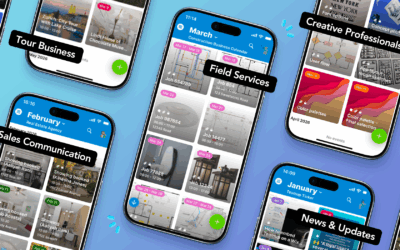
In large departments, multiple teams run on different rhythms: project planning, meetings, reviews, field activities, and more. Each team is responsible for, and focused on, its own scheduling. But the department manager needs to see all of them together.
So there’s a dual need, and handling it can be a challenge. Each team needs visibility into their own work, without being distracted by everything else going on in the organization. But for department managers, seeing the big picture is essential. They need visibility into what’s happening across all their teams. And operations directors need an even wider perspective that includes all teams across all departments.
What teams and managers need
Most teams start out with a simple calendar setup. It’s easy to launch, but harder to maintain once event types multiply. Planning meetings overlap with training sessions, and recurring check-ins stack beside reviews. Color-coding helps, but not every element is equally important. Plus, for managers overseeing multiple teams, remembering all the “codes” isn’t practical.
Teams need a reliable way to categorize what goes on the calendar, and capture and organize all the details for each event, task, or meeting. Managers need quick, understandable visibility of milestones, resource use, and project progress. Most calendars can’t provide the needed structure for flexible organization along with high-level views. Good news: Teamup can.
Work details + high-level perspective

Click to enlarge: A structured calendar can be scaled to accommodate more teams without disruption or loss of organization.
A single, well-structured calendar brings clarity to both sides of the equation. Here’s how it works:
Customizing access
- Color-coded sub-calendars for each team, organized in folders. Easily scaleable as new team members or more teams are added.
- Customized access, so each team has access to their own calendars only while managers have department-wide visibility in one place.
- Optional: Allow teams that work together to have read-only access to each other’s calendars. The folders can be collapsed, so each team can focus on their own scheduled work but expand other team folders when they need to check resource use or collaborate on projects.
Setting visibility

- Configurable event fields for capturing and organizing details in a searchable way.
- Custom text and number fields let teams collect the data relevant to their work.
- Custom choice fields provide consistency for tracking factors that impact the whole department.
- The visibility setting provides control on whether teams can see all details of each other’s projects and tasks. (More details below.)
Using the calendar
- Powerful calendar views provide multiple layouts that work for different tasks: Year view for long-range forecasting, Timeline view for checking project progress, Scheduler view for checking resource availability side-by-side, Table view for scanning all the details of multiple events at one time.
- Built-in filters for sorting events by keyword or choice field to quickly find key tasks or events, view all jobs related to a certain project, or filter by status. Filters can be combined, too. Plus, toggling individual calendars or entire folders on and off from view limits filtered events to just what’s relevant.
Everyone operates within the same shared system, with separation between teams to keep everyone focused. Managers get high-level visibility of all progress, resources, and dependencies. Teams have a distinct, organized structure for their work and can still collaborate easily with other teams.
Team Calendar example: Who sees what
Use two levers to control information visibility across teams:
(1) Visibility settings for each event field, and
(2) Permission level on calendar access.
If an event field is visible to modify users only, it will appear only for users who have modify access to that sub-calendar. Users with read-only access will not see that field.
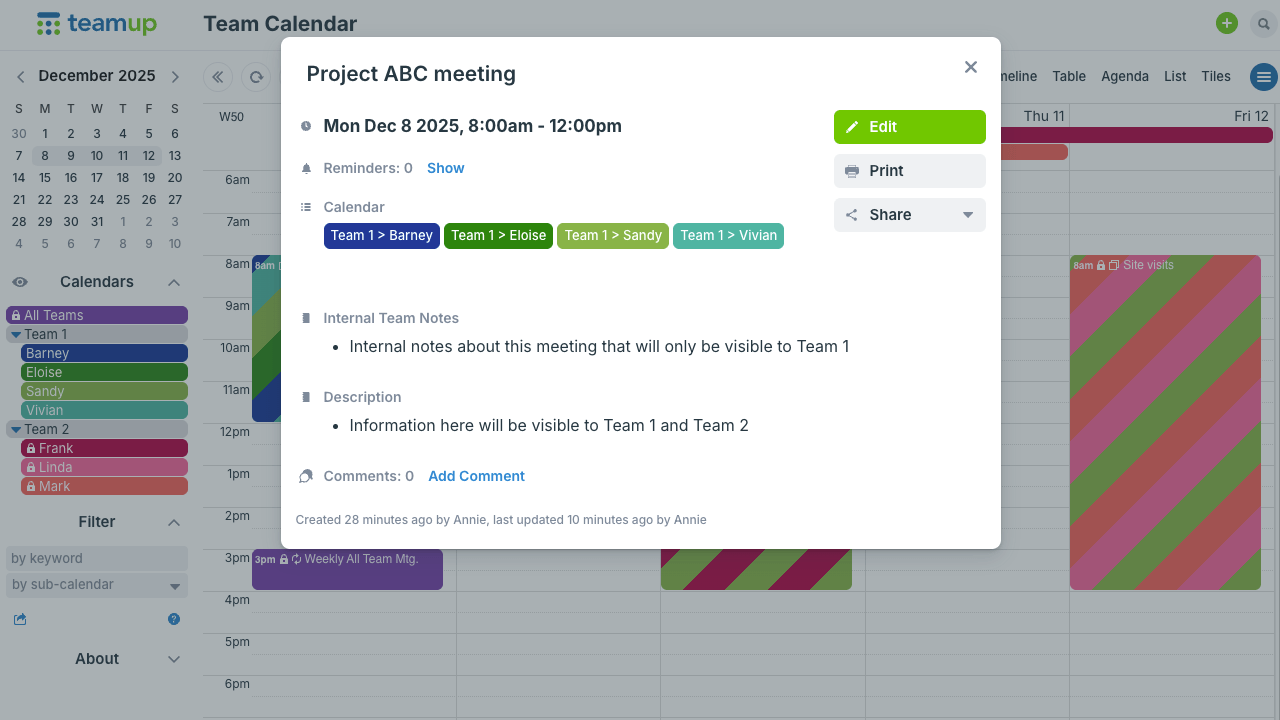
Click to enlarge: Eloise is in Team 1. Her view of the calendar shows the Internal Team Notes field on events that belong to Team 1 calendars.
- Keep sensitive notes inside a team while still sharing dates and times with other teams.
- Keep confidential client information contained within the team that needs to access it.
- Let managers see everything across teams for planning and reporting.
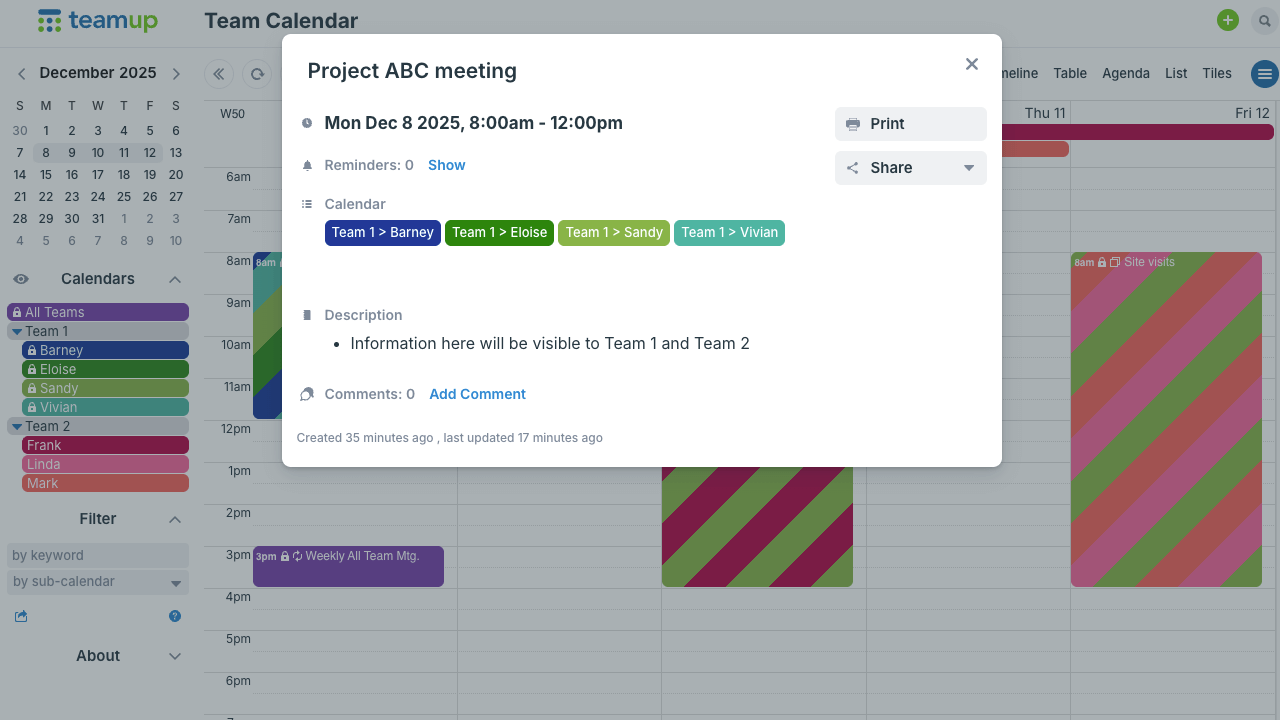
Click to enlarge: Linda is in Team 2. Her view of the calendar will not show the Internal Team Notes field on events that belong to Team 1 calendars.
A closer look
Here’s how access permissions work with field visibility:
- Team 1 members have modify access to Team 1 sub-calendars and read-only access to Team 2 sub-calendars.
- Team 2 members have modify access to Team 2 sub-calendars and read-only access to Team 1 sub-calendars.
- Manager has modify access to both Team 1 and Team 2 sub-calendars.
- Internal Team Notes field is set to be visible to users with modify access only.
| Viewer | Calendars being viewed | Will Internal Team Notes field be visible? |
|---|---|---|
| Team 1 member | Team 1 calendars | Yes (they have modify access) |
| Team 1 member | Team 2 calendars | No (they are read-only on Team 2) |
| Team 2 member | Team 2 calendars | Yes |
| Team 2 member | Team 1 calendars | No |
| Manager | Team 1 or Team 2 calendars | Yes (manager has modify access) |
How to set it up
- Create or choose the event fields that may contain sensitive data. Set their visibility to visible to modify users only.
- For each team, create a calendar link with the correct permission level:
- Modify for members of that team.
- Read-only for other internal teams that should see limited details.
- Manager links with modify permissions to all relevant sub-calendars.
- Test with two browser sessions:
- Open the Team 1 link and confirm Team 1-only fields are visible.
- Open the Team 2 read-only link and confirm those fields are hidden on Team 1 events.
- Document which fields are internal and remind editors to use them for team-only details.
With field visibility tied to permission level, teams collaborate in one calendar without oversharing. Managers keep full context. Cross-team viewers see only what they need.
Get team organization and unified visibility
This setup helps large departments stay organized while keeping each team’s identity and schedule intact — and protecting sensitive data. This calendar structure easily scales as the department expands, without disrupting the work already in progress.
When multiple teams share one workspace, structure is essential. Teamup brings flexible organization that provides structure without adding friction. Explore all the features in a live demo, or create your own calendar today.