Managing a resource schedule shared across dozens of events, while keeping a busy team updated in real-time, is a big challenge. Add in another factor: The events are happening across multiple locations, or rely on multiple shared resources. This kind of complex scheduling challenge is a reality across different industries and scenarios:
- Festivals: Coordinating performers, crew members, and security teams across multiple stages or venues while keeping all team members updated in real-time.
- Sports tournaments: Scheduling games and officials across multiple facilities while providing accurate schedule updates for teams, staff, coaches, fans, and media.
- Video production: Managing actors, costumes, sets, equipment rental, and crew availability across location changes often on a tight shooting schedule.
- Construction projects: Scheduling workers and subcontractors who rely on material deliveries and heavy equipment use across multiple job sites.
- Crisis response: Directing emergency responders and logistics teams while coordinating shared medical equipment and relief supplies in real-time during disasters or large-scale emergencies.
- Conferences: Scheduling speakers for keynotes, breakout sessions, and workshops across multiple spaces in a venue while providing staff assistance and tech support as needed.
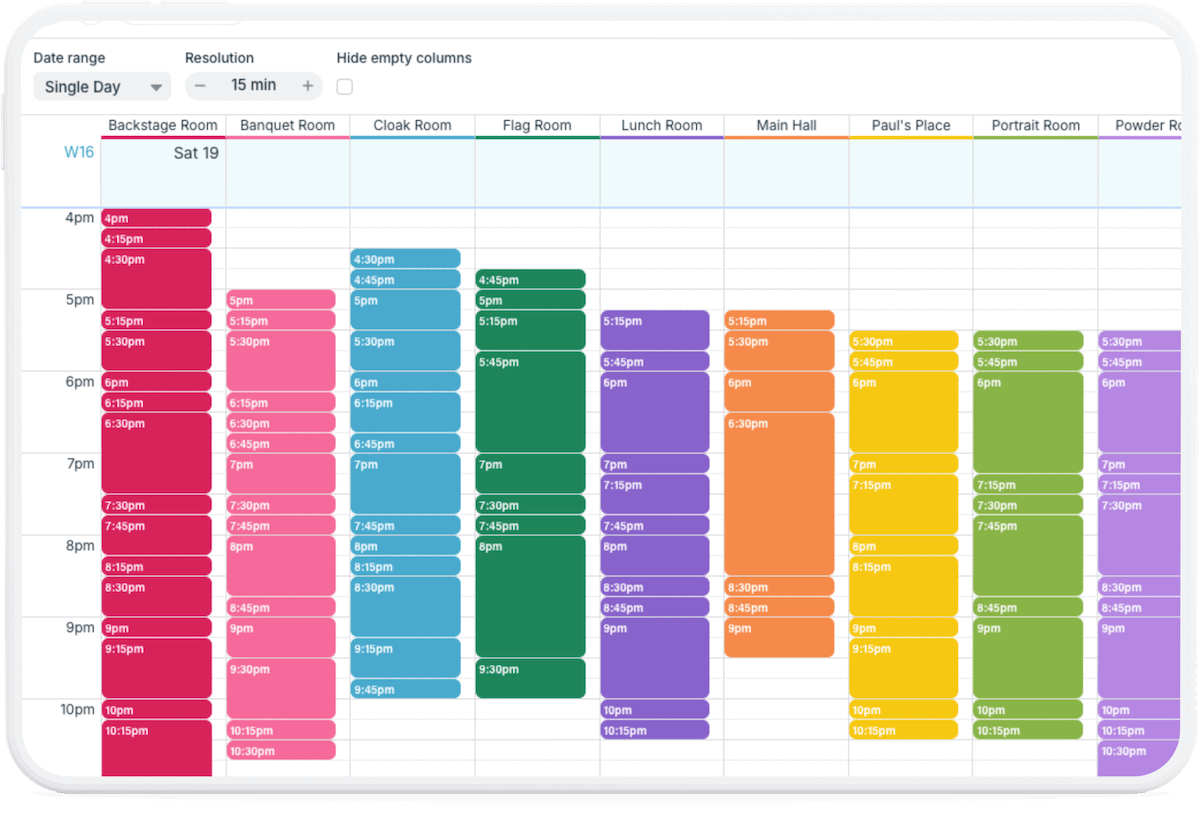
In each of these scenarios, scheduling tools are only helpful if team members can see each location, venue, or resource–with its scheduled events and transition times–separate but side-by-side. Seeing each location separately, without the instant visual comparison of what’s happening in the other locations, provides only part of the necessary information. Seeing all the events for all the locations or resources jumbled together shows all the information, but in a way that’s very difficult to make sense of. The ideal layout for this type of scheduling scenario is combined but organized: Each venue or resource in its own column, shown side-by-side, with the events for each column neatly stacked in a time grid.
It’s surprisingly difficult to achieve this kind of layout with many scheduling and project management tools.
Excel: Organized layout but missing functionality
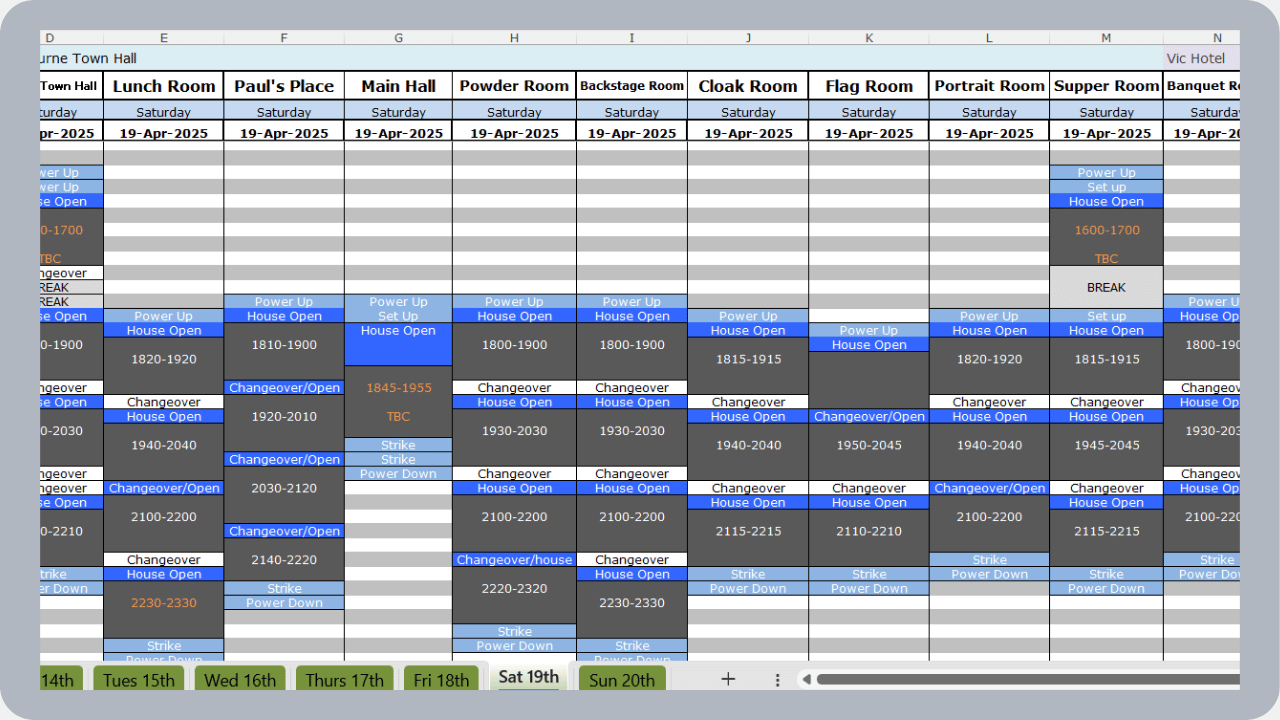
Many teams rely on Excel to visualize these complex resource schedules. With the spreadsheet format, you can achieve the basic layout. Each location or resource is represented in one column. Each row can represent a time block of whatever duration is needed. Then it’s just a matter of adding events over the appropriate cells to show what’s happening at each location throughout the day.
But while Excel provides the needed schedule layout, it has some severe shortcomings:
- Making manual changes to events is tedious.
- Text-based schedule lacks visual cues.
- No safeguard to prevent scheduling conflicts.
- Alerts are too generic to be useful.
- Not optimized for mobile use.
Airtable: Better interface but jumbled information
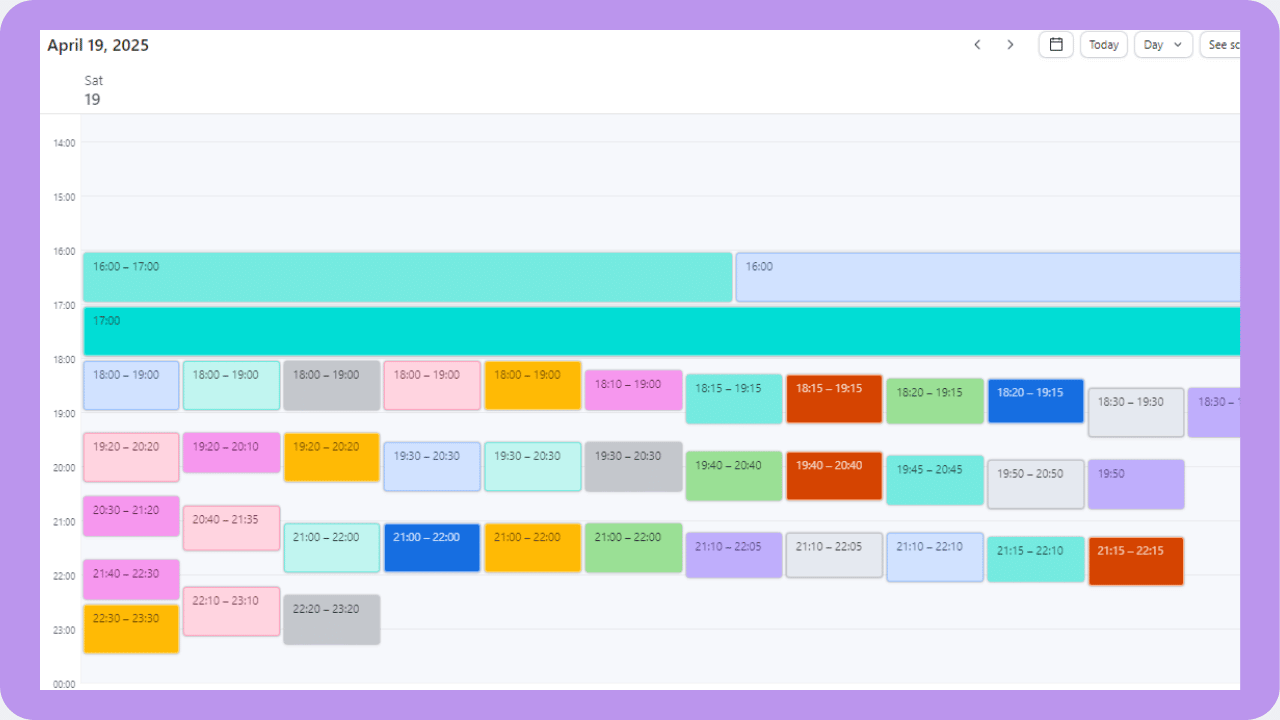
Airtable, a popular project management tool, seems like a solid upgrade from Excel. And it is, in many ways. The interface looks smoother and updates are easier. Notifications can be more customized and there are automation possibilities. However, to work with your data for scheduling, you need to use Airtable’s calendar view. And the calendar view doesn’t provide the flexibility and organization needed:
- Different locations or resources aren’t grouped in separate columns.
- Events are jumbled together without clear views of how each resource is booked along the time line.
- The time grid doesn’t zooming into time slots under an hour.
- Shorter events (30 minutes, 15 minutes) aren’t clearly visible.
Teamup: Organized, visually aligned, and zoomable
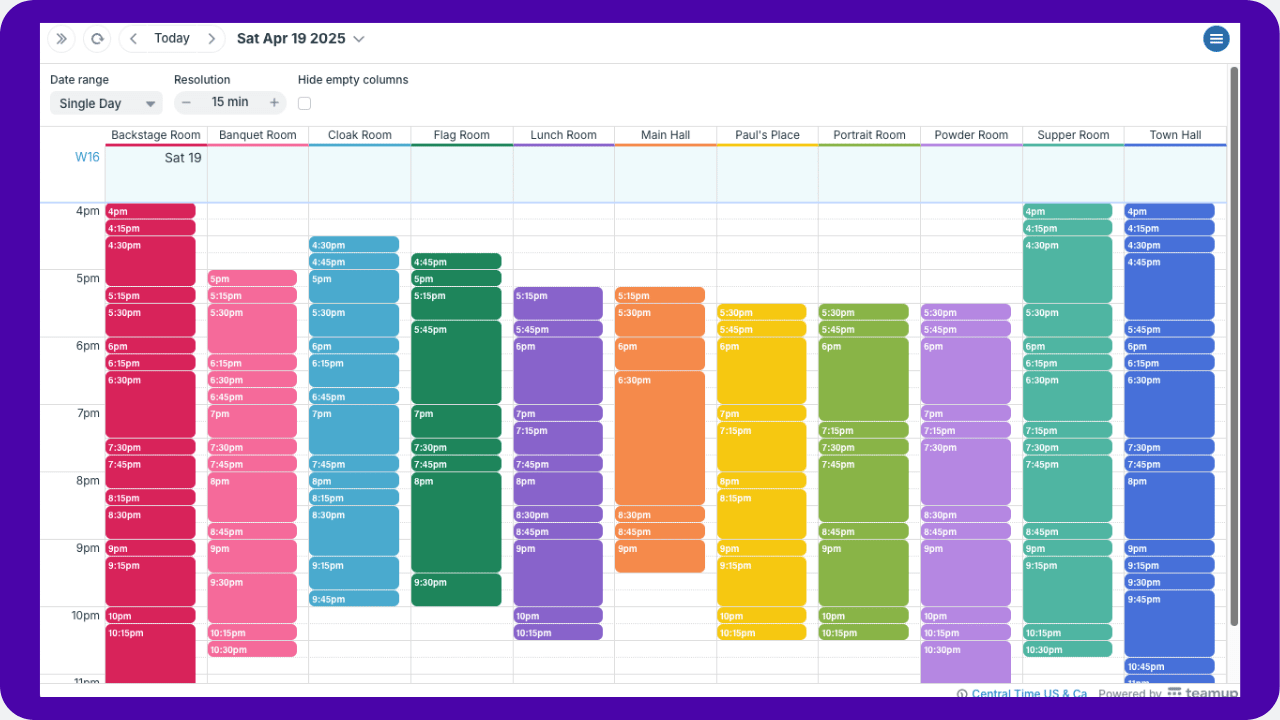
Teamup is more than a calendar. It’s a customizable tool for managing time-based data. With an organized layout and user-friendly functionality, it’s ideal for the type of complex scheduling scenarios described here. The design is visually clear, making it easy to take in details and process information without wading through lines of text. Most importantly, Scheduler view (one of 12 available calendar views) provides the exact layout needed with events organized neatly, side-by-side. Scheduler view has configurable resolution, so it’s easy to zoom in for granular schedules or zoom out for high-level overviews.
Here’s what you get with Teamup’s Scheduler view:
- Each venue, location, or resource in its own column.
- Customized color-coding for visual cues.
- Adjustable zoom level, from 5-minute increments and up.
- Automatically prevent double-booking across venues or resoruces.
- Secure, customized access to let team members view (only) or make their own changes.
- Notifications keep everyone synced with real-time updates
For teams managing complex daily schedules across multiple locations and/or resources, choosing the right tool makes all the difference. Teamup offers clear, structured visualization with flexible configuration and real-time updates.