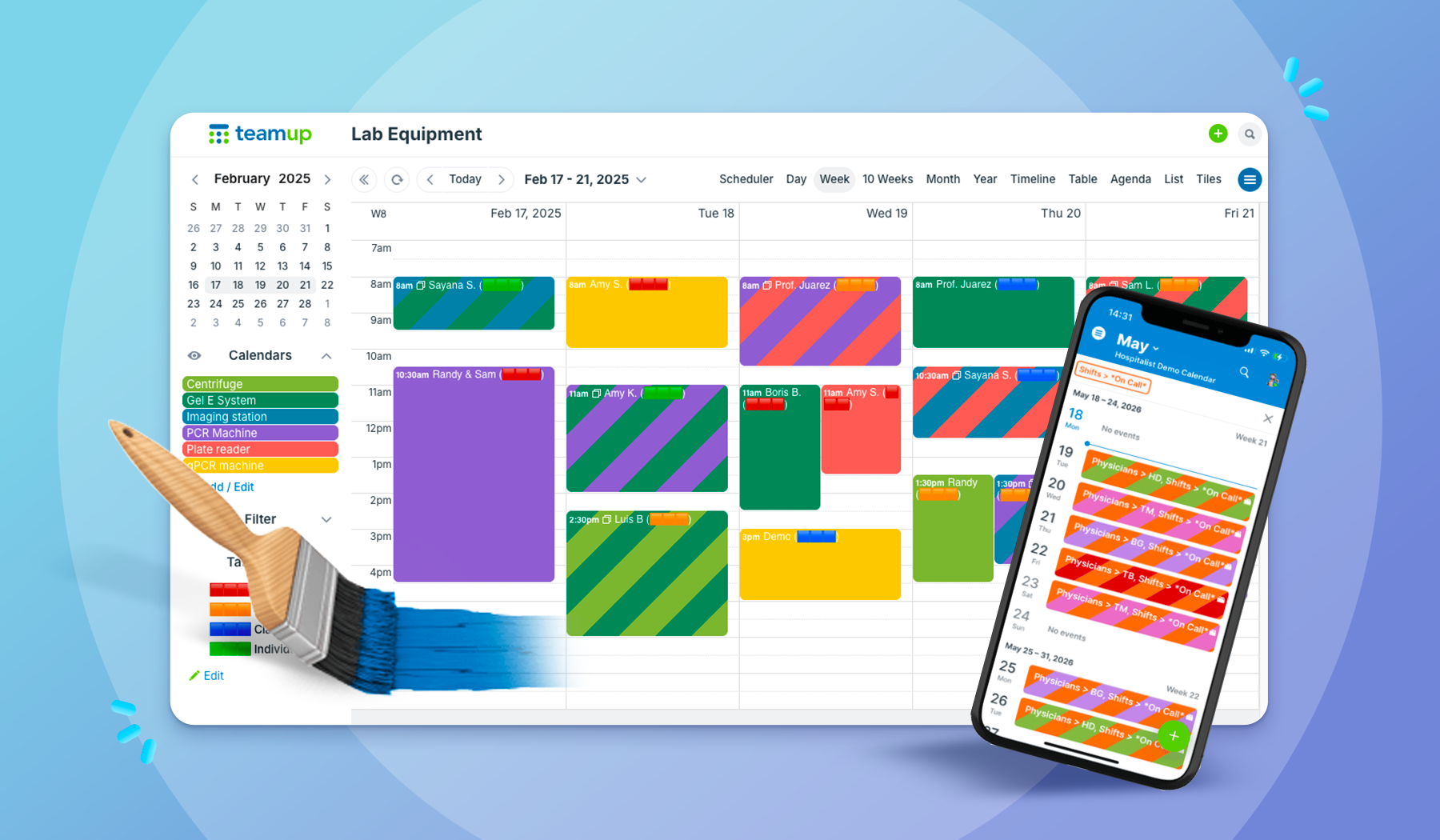
With Teamup’s sub-calendars, building a color coded calendar is easy. Choose from a palette of 48 colors and assign the right one to each calendar. You can even use a CSV template to import your color-coded calendar structure. When you color-code your calendar, you gain visual cues that can increase your efficiency. Your brain can quickly identify events based on color, at a glance. Plus, using colors creates a more appealing calendar look, whether you prefer a bright rainbow of organization or a more restrained, minimal look.
The need: You’re staring at a calendar full of events in identical text, and it takes real effort to tell what’s what at a glance.
The Teamup solution: Color-coded sub-calendars, a 48-color palette, and CSV import for bulk setup, so every event carries a clear visual signal whether you’re on a browser or working from the Teamup app.
Benefits of a color-coded calendar
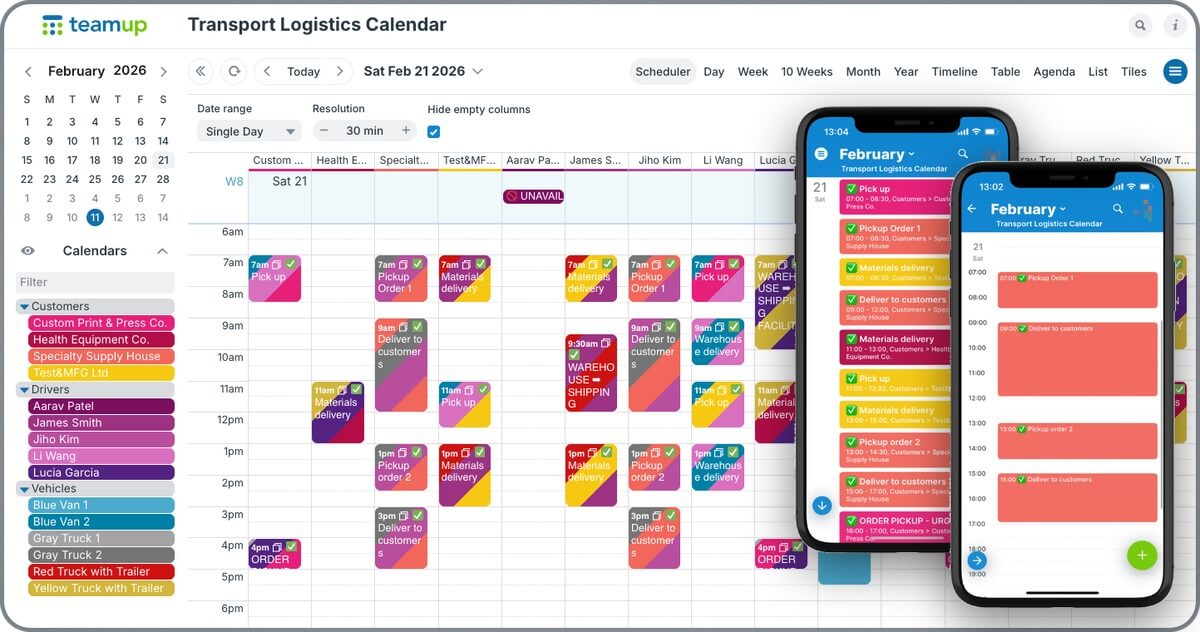
A color-coded calendar assigns a distinct color to each category of event, such as a person, team, task type, or priority level, so you can identify what an event is about just by looking at its color rather than reading it.
Research shows that color enhances memory performance and works “as a powerful information channel to the human cognitive system.” We’re all overwhelmed by lots of information and tasks that demand our attention. Our brains sort through a huge amount of data every day, and visual processing makes it faster and easier. A color coded calendar works as a powerful cue that shortcuts processing time.
When you associate the color red with urgent, you’ll automatically start paying attention to the red-colored events on the calendar first. You can use the same concept to automatically understand the context of any calendar event.
It may seem like a small effect, but consider that your brain is receiving, processing, and responding to enormous amounts of data every single day. A shortcut that shaves off a few seconds of processing time, over and over, can result in lots of saved time over days and weeks. Plus, color recognition means less cognitive load, since it reduces the attention needed to sort and categorize each bit of information.
Calendar color coding tips
Okay, now that you know why it’s smart to use calendar color coding, let’s take a look at how to do it well.
Color code your calendar consistently
When it makes sense in an operational context, you can carry color coding from the calendar to other parts of the workflow. The consistency makes it easier to keep things organized and get those quick visual cues. For example, here’s a great example of consistent color-coding from calendars to supplies to vehicles:
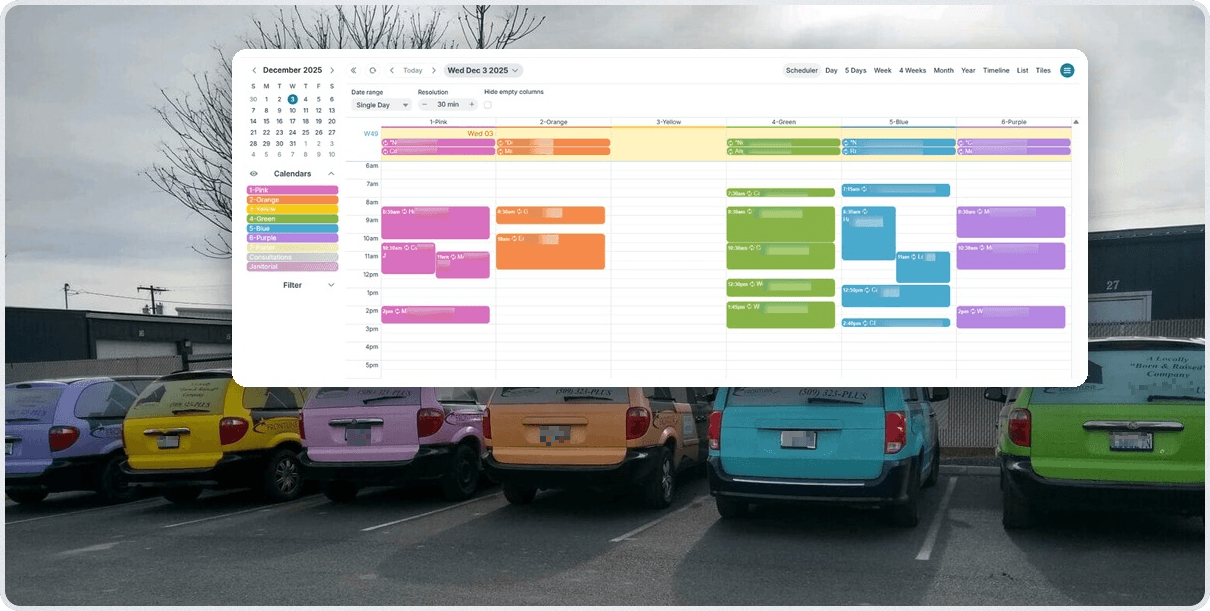
Frontline Cleaning knows how to color-code! Read their story.
When you can maintain consistency with color-coding, it makes it easier for people to remember. Of course, context matters: don’t try to force a color scheme if it doesn’t work for the way you work! And with Teamup’s flexibility and 48 colors to choose from, it’s easy to adjust color-coding to match preferences.
Choose contrasting calendar colors
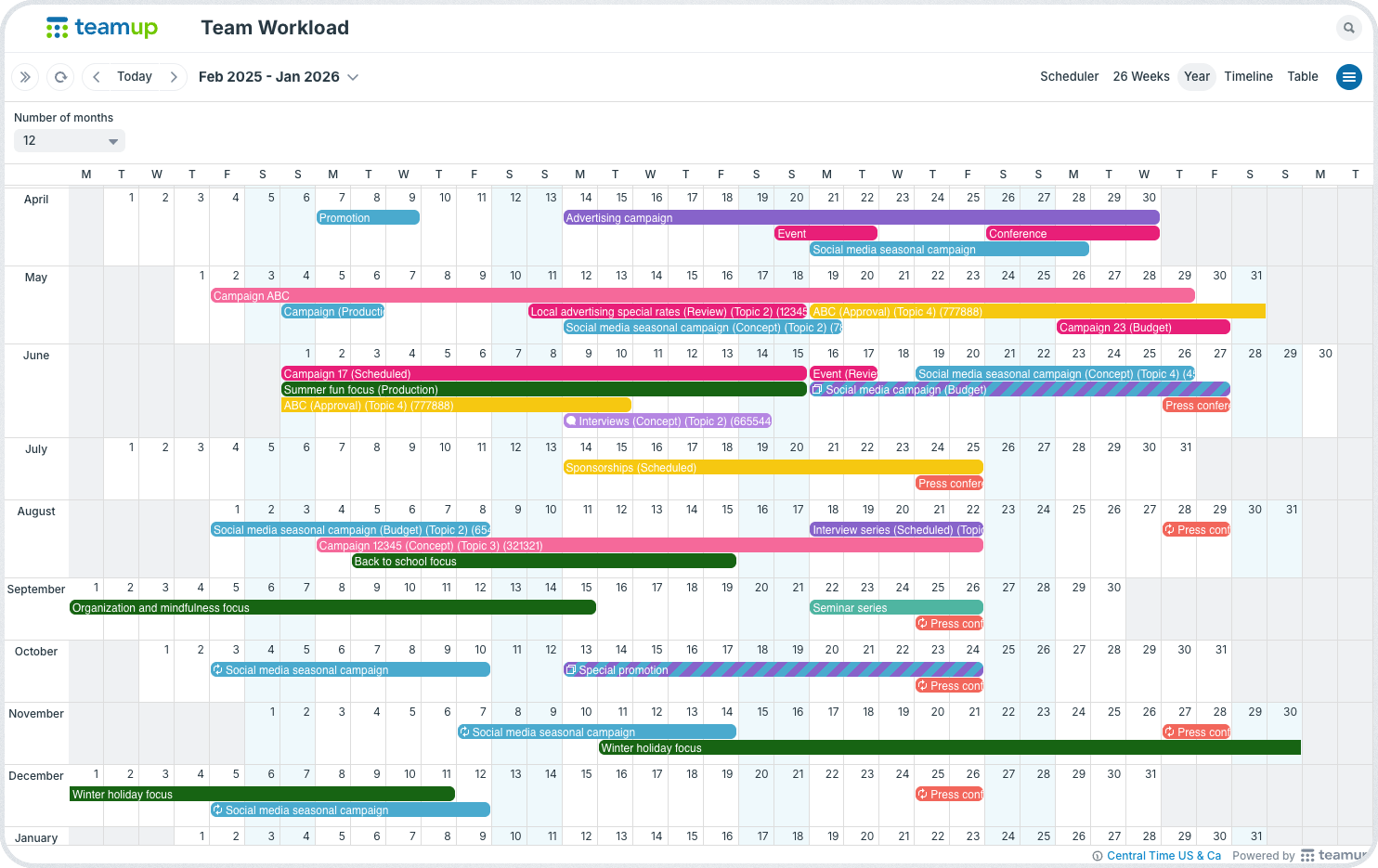
Consistent color-coding allows you to visually distinguish events and plans across the many months at a time for easier long-term planning.
For maximum visual impact, choose contrasting calendar colors. Dark and light colors, or warm and cool colors, will contrast with each other and make it easier to visually distinguish between each one.
Group sub-calendars into color families
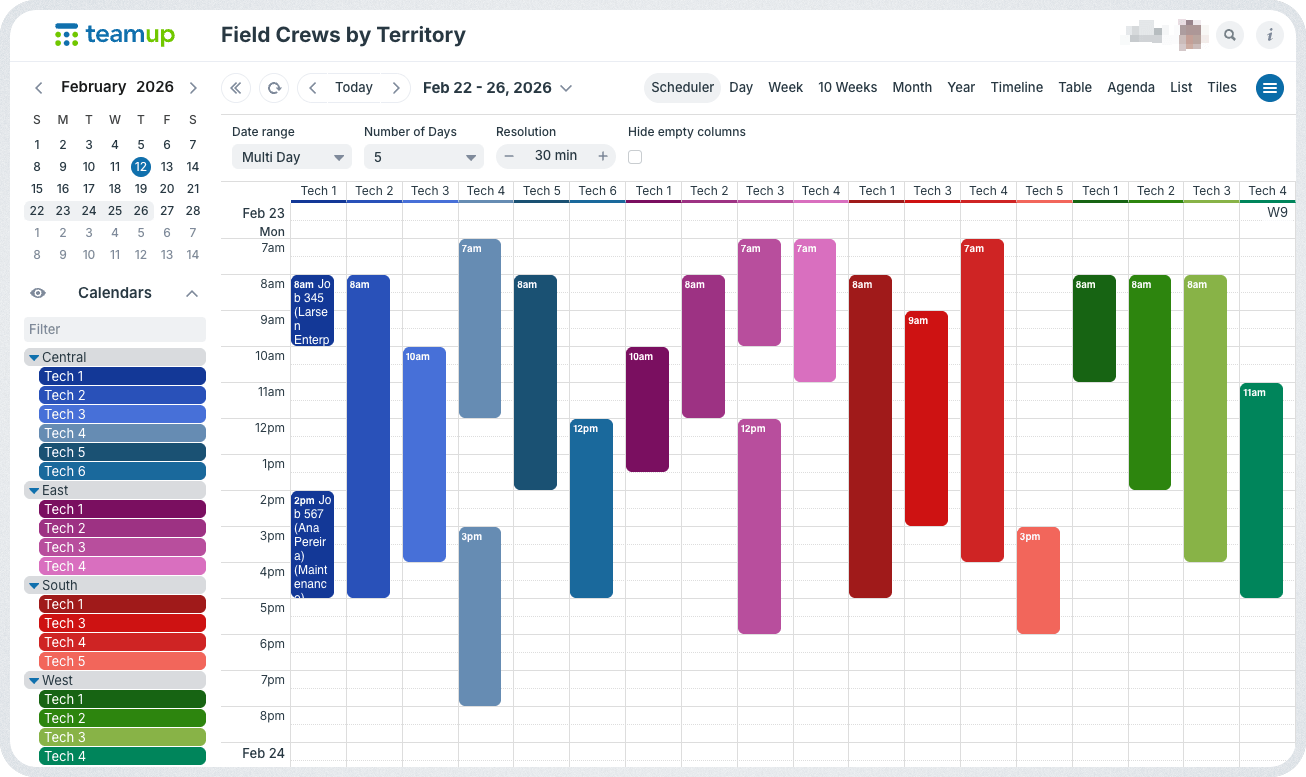
Click to enlarge the image, or read more: How to set up a regional field crew calendar.
When you have a larger number of sub-calendars, color families can help with visual distinction. For example, perhaps you’re running multiple field crews in different regions. All the calendars for techs in the Central region go into folder and are assigned colors in the blue family. When you see an event in that color family, you automatically know it belongs to a tech in the Central region. For other regions, choose a contrasting color family.
Color code across multiple dimensions
Perhaps you use calendar color-coding for one dimension (e.g. people), and you need a way to visually distinguish another dimension (e.g. task type, or location). See when to use sub-calendars vs. custom fields for a closer look at how the two approaches compare.
You can accomplish this with two sets of sub-calendars. Each set represents one dimension. Assign any event to the relevant sub-calendar from each set, for a dual color-coded look like this:
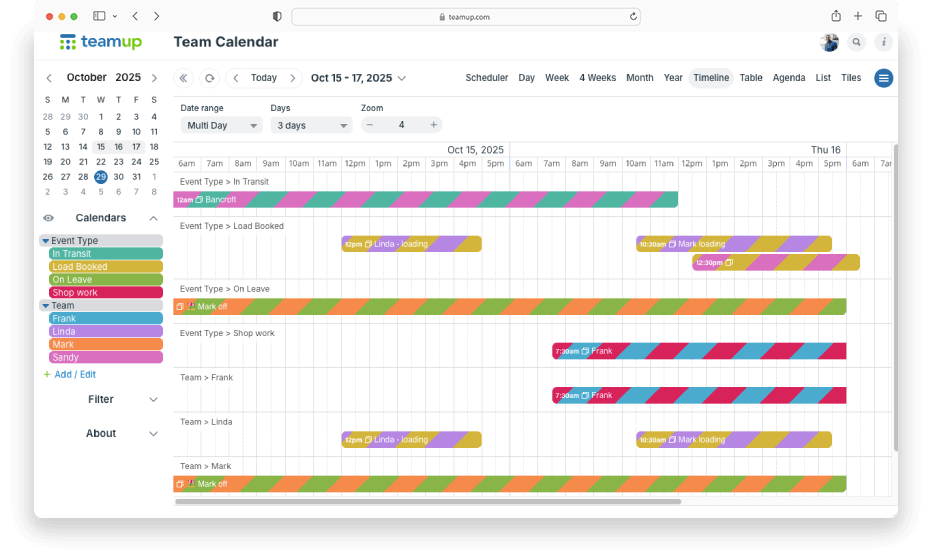
Events assigned to multiple calendars will display colorful striping to visualize which calendars are involved. Learn more.
If you don’t want to use multiple calendars, or don’t like the striping effect, use a custom field with color blocks instead:
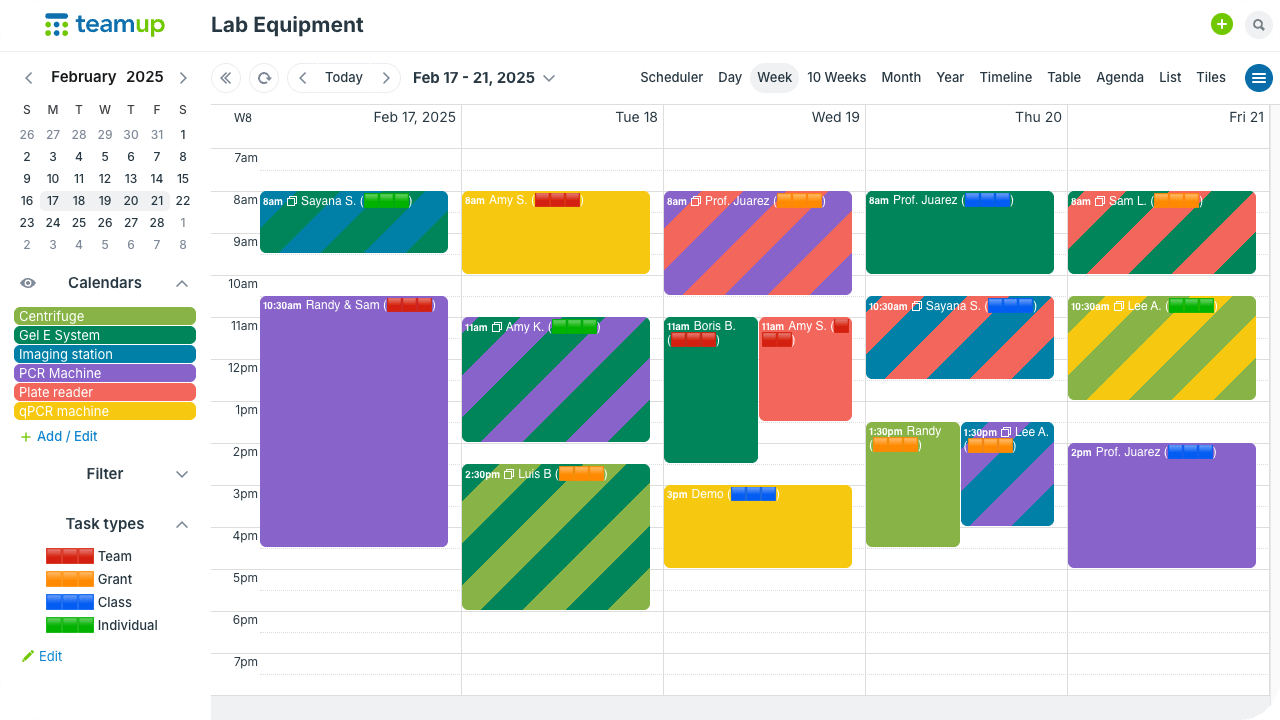
There’s more than one way to color-code a calendar. Learn about using custom fields with color blocks.
🎨 Mini-guide: Start color-coding
- 📋List your event categories (people, teams, task types, locations, or priority levels) before you touch any settings. See how to plan your structure.
- 🗂️Create a sub-calendar for each category and choose a color from Teamup’s 48-color palette for each one. Learn more about sub-calendars.
- 📁Group related sub-calendars into folders to keep color families together, e.g., all Department A calendars in warm reds and pinks. See how folders work.
- 📥Use a CSV template to bulk-import your color-coded calendar structure instead of setting colors one by one. Get the CSV template guide.
- 🧩Add a second set of sub-calendars, or a custom field with color blocks, if you need to color-code multiple dimensions. See this color-blocks tip.
- 🎯Review contrast between colors that will appear side by side, and adjust any that are too similar to tell apart at a glance. See color-coded event examples.
- 👥Share the color key with your team so everyone reads the calendar the same way. Learn about sharing and permissions.
Start your color-coded calendar today
A color coded calendar works because it gives your brain a fast, visual shortcut instead of making you read every event title. Whether you keep it simple with a single set of color-coded sub-calendars, or add a second dimension with a custom field, the same principles apply: stay consistent, choose contrasting calendar colors, group related calendars into color families, and pick from Teamup’s 48 colors for your calendar categories.
Ready to get started? Use a CSV template to import your color-coded calendar structure in bulk, or set it up manually as you add and organize sub-calendars. Feel free to experiment first with a live demo calendar, or create your own color-coded Teamup calendar today.
Related resources
Frequently asked questions
Find answers to common questions below.
What is a color-coded calendar?
A color-coded calendar assigns a distinct color to each category of event, such as a person, team, task type, or priority level, so you can identify what an event is about just by looking at its color.
How many colors can I use to color-code a calendar?
Teamup gives you 48 colors for your calendar, which you can assign across as many sub-calendars as you need, enough to color-code by team, project, location, or any other category without running out of distinct options.
What are some calendar color coding ideas for a team?
Common approaches include assigning one color per team member, grouping departments into color families, using warm colors for urgent events and cool colors for routine ones, or color-coding by location or task type.
How do I color code a calendar by more than one category?
Use two sets of sub-calendars, one per category, and assign each event to a sub-calendar from both sets for a dual color-coded look. Or use a custom field with color blocks if you’d rather avoid multiple sub-calendars.
Is color-coding a calendar different from using labels or tags?
Yes. Labels and tags require reading text to understand an event, while color-coding lets you recognize the category at a glance, before you read anything, which is faster for your brain to process.