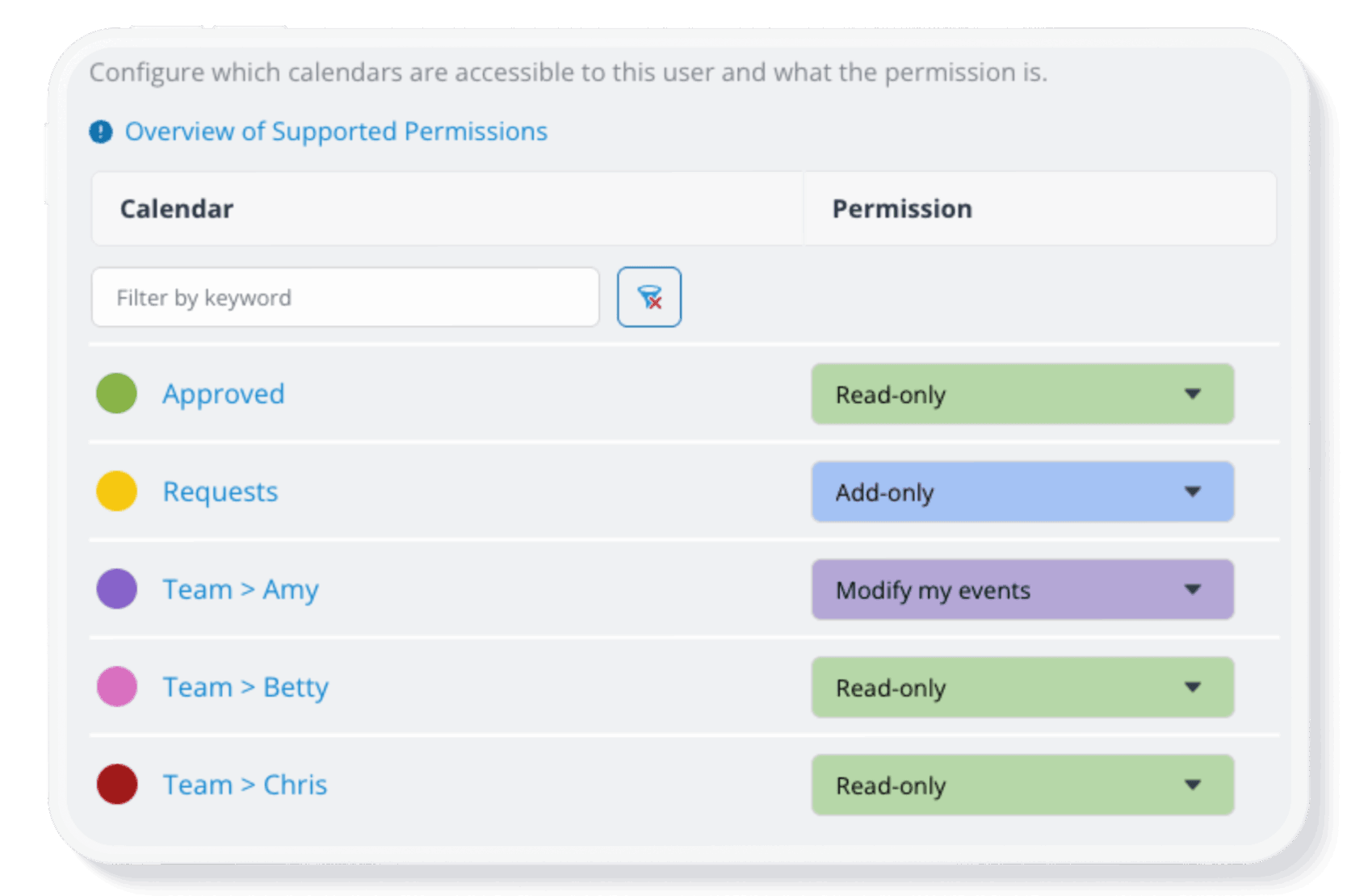
Teamup’s advanced access permissions provide more granular control over users. Add-only permission and modify-my-events permission both provide unique ways to allow users to contribute events to a calendar while limiting what they can edit. Here’s how they differ.
Add once, then read-only
The add-only permission allows someone to add events to a sub-calendar. For a short period of time, and while they remain in the same browser session, the user can also edit the event they just created.
Once the browser tab is closed or the session time expires, the user can no longer edit that event. At that point, the event becomes read-only, just like other events on the calendar.
Add-only (no details) works the same way, but it also hides details of existing events on the calendar. Those events appear simply as “Reserved.”
When to use add-only
Add-only permissions are useful when you want users to contribute events without giving them ongoing editing control:
- Allow volunteers to mark their availability.
- Enable staff members to submit PTO requests to a calendar.
- Let contractors propose site visits or meetings on a shared project calendar.
- Let group members submit events to a community calendar.
Create and edit your events only
The Modify-my-events permission allows someone to add events to a sub-calendar and continue to edit or remove the events they created.
Unlike add-only, there is no time limit on editing. Any event the user adds will remain editable by that user on that sub-calendar.
Modify-my-events (no details) works the same way, except the user cannot see details of events created by other users.
When to use modify-my-events
Modify-my-events permissions are useful when users need ongoing control over their own events but should not change events created by others:
- Allow structured self-booking for a shared neighborhood clubhouse.
- Let contractors update their availability on a shared project calendar.
- Enable staff members to share their hybrid work schedules.
- Set up a team self-booking calendar for shared spaces..
See more about when to use modify-my-events permission.