Once a calendar is set up and shared with your team, it often stays in active use for months or years. During that time, people join or leave the team, roles change, and access needs evolve. If your calendar access isn’t reviewed periodically, old user accounts and shared links, unused notification subscriptions, or outdated permissions can cause issues. Here are the checks calendar administrators should do regularly to keep calendar access secure:
🔒 Security checklist: Keep calendar access up-to-date
Review user access and permissions
Start by reviewing who currently has access to your calendar and what level of permissions they have. Access levels that were appropriate when the calendar was first shared may no longer reflect current responsibilities.
In the calendar settings, go to the Sharing section to review users who have access to the calendar and their permission levels. Do they have access to the relevant sub-calendars for their role, only? Do they have permissions that are appropriate for what they need to do and see on the calendar? Make changes as needed to ensure that access stays updated for each user in their current role.
⚠️ Reminder: Administrator access provides full control over the calendar, including settings. Limit this level of access carefully to one or two people who are responsible for managing the calendar.
If your calendar is currently shared through links, replace links with account-based access. Account users have identity-based access control which is more secure and easier to manage.
Remove outdated calendar links and feeds
Calendar links are appropriate for certain situations or temporary, limited use. It’s important to regularly check all calendar links and delete any that are out-dated or have inappropriate permission levels. Remember that links are less secure and should be monitored carefully:
- A shareable calendar link is not tied to an individual person and does not require a login. So, anyone who has the link can access the calendar.
- A link could be exposed to unauthorized users or saved by former employees, creating a confidentiality risk if the calendar contains sensitive information.
You should also review outbound iCalendar feeds, which allow users to subscribe to your Teamup calendar from other calendar apps such as Google Calendar or Apple Calendar. If someone who previously had access no longer needs calendar updates, you can reset the outbound iCalendar feeds. This invalidates the existing feed links and prevents those subscriptions from receiving future updates. Keep in mind that some calendar apps may continue to display events that were already synced before the feed was reset.
Check notification subscriptions
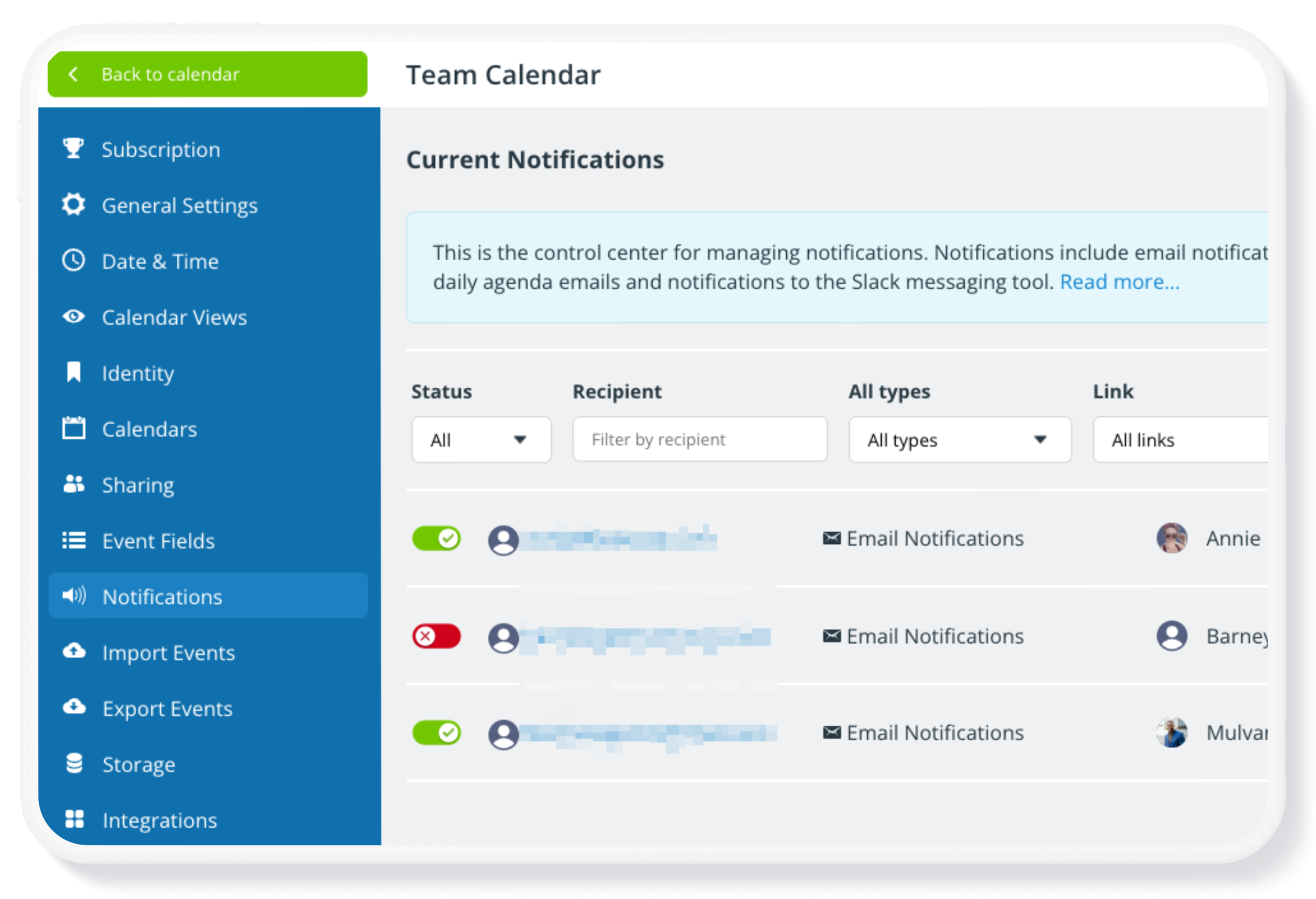
Notification subscriptions allow users to receive updates when events are created, modified, or deleted in the calendar. As the calendar administrator, you can review who currently receives notification emails and which sub-calendars or event changes trigger notifications. Make this part of your regular routine, and delete any notifications that should no longer be active.
Keep your calendar safe with regular reviews
Periodically reviewing permissions, links, feeds, and notification subscriptions helps ensure that access remains appropriate. You don’t need to review these settings constantly. A quick check every few months, or whenever there are team changes, helps keep access up-dated and ensures the calendar is secure.
🔒 Essential Guides: Calendar access + security
- How to Set Up Your Calendar Securely
- Share a Calendar with Customized Access Permissions
- Keep Calendar Access Secure and Up to Date
- When and How to Safely Use Shareable Calendar Links
- Secure Your Teamup Calendar When an Employee Leaves
- What You Need to Know About Administrator Access
- ▶️ Review and Modify User Access
- Calendar Administrator Access Explained
- Replace Calendar Links with Account Access