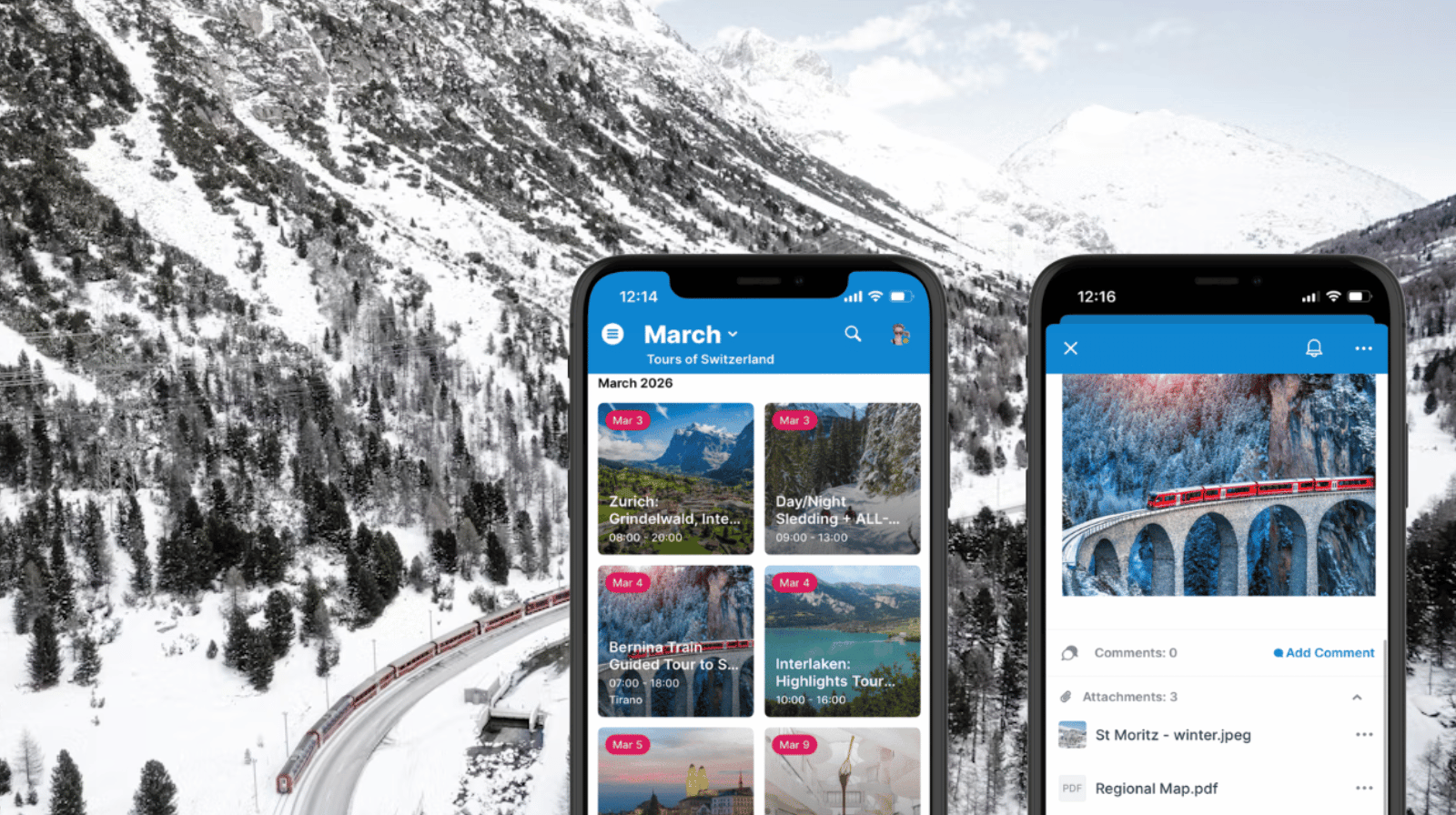
Tour guides in the field need quick access to tour details, their own notes, and information they want to share with guests. Plus, they need a quick way to add photos and notes along the way for accurate documentation and to capture ideas or thoughts in the moment. With Tiles view on the Teamup app, tour guides have a visual tour schedule that holds all the information they need.
The need: Tour guides need one reliable way to review their scheduled tours, access all related details, and keep their own notes along the way. They’re on the go with guests, so it has to be accessible on mobile, secure, and easy to use.
The Teamup solution: The Teamup app does it all: With Tiles view, each event or tour is shown as a visual tile. Guides can scan to get quick visual cues of upcoming moments, open an event to see their notes and attached documents., and capture notes or photos quickly in a comment. It’s easy to use on mobile, immediately accessible to the back office staff, and everything stays organized for future reference.
Primary user group: Tour guides.
Other user groups: Back-office staff, tour schedulers, managers and owners of tour providers.
Before the tour: Check and prepare
Jamie leads several tours each week. The tour operator schedules the tours according to guest requests and Jamie’s availability. Then Jamie checks her upcoming schedule and prepares in advance.
At the start of the week, she opens each upcoming tour event and adds the details she’ll want in the moment: a link to a map, restaurant menus, a reminder about timing, a list of great photo spots on the route, and her notes about the history of the region they’ll be visiting. Everything lives inside the scheduled event.
During the tour: Adjust and document in real time
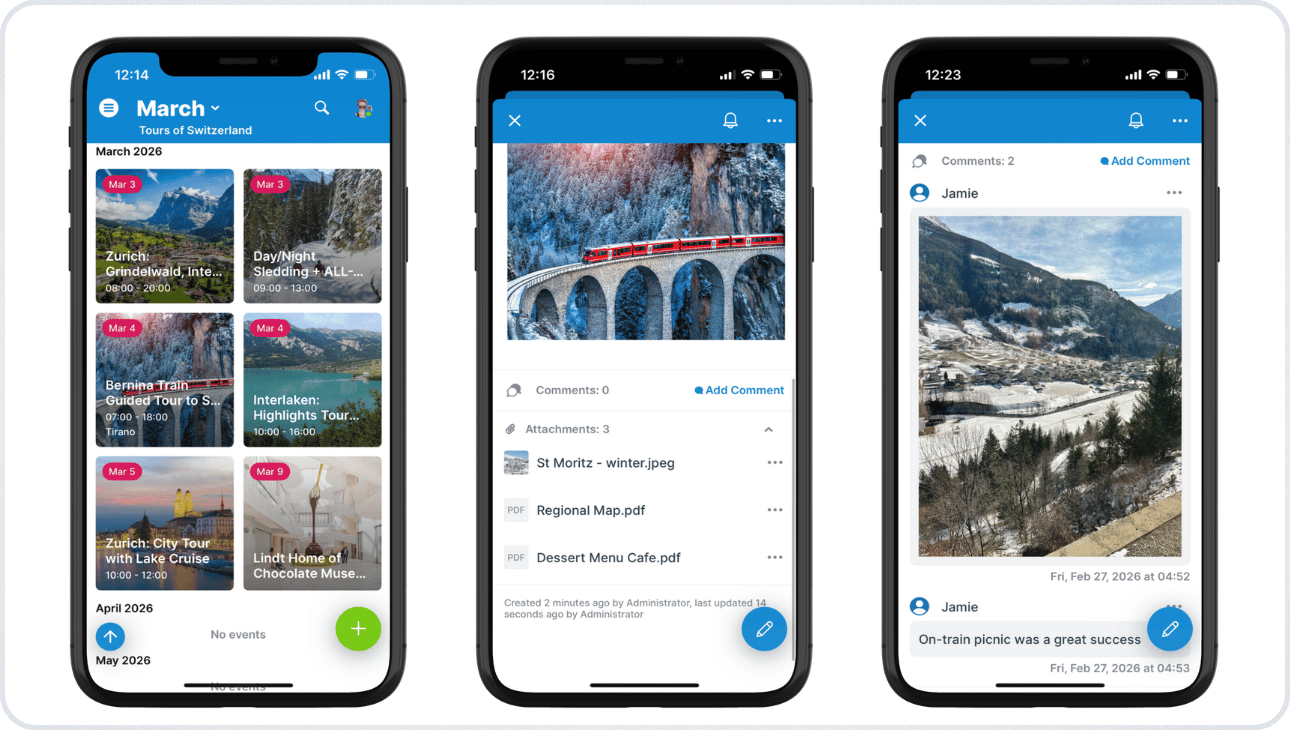
Click to enlarge: Tiles view on the Teamup app displays each event as a visual card. Details and attachments are easy to access. Comments provide a quick way to upload photos and take notes during the tour.
When Jamie opens Teamup on her phone, she sees her tours laid out as visual cards. She taps a tour and the prep details are already there, tied to the correct date and time.
She can update the event if something changes. For example, if guests request a different drop-off point, or transportation delays cause the schedule to change, she can update those details directly in the event. This keeps a clear record of what actually happened on the tour, and allows the tour operators to see the changes to the schedule so there are no surprises.
For quick, in-the-moment documentation, Jamie can use event comments. Comments are easy to use and automatically time-stamped, so they work well for capturing small updates, uploading photos, or making notes to review later. For example, she might add a short note about a timing issue, upload a quick photo of signage or a setup detail, or document a recurring guest question.
The result is a simple running log tied to that specific tour. It doesn’t overwrite the established information about the tour, but it stays connected. It’s easy to review later and removes the need for a separate documentation process.
Organized access across multiple guides
Tour operators can use one master calendar to schedule and oversee all guides and tours. Each guide gets customized access to only their own schedules, or expanded according to their roles such as team leads. There’s clear separation for guides, which prevents inadvertent sharing of guest details or tour info: Each guide’s schedule is contained. But tour operators work with an overview of all guide schedules, so they can view availability and manage tours in one place.
The system is straightforward: one shared calendar, clear responsibility boundaries, and visibility controlled by role.
Mini-guide: Setting up a tour guide information portal
- Create separate sub-calendars for each guide, optionally sub-calendars or custom choice fields for tour categories.
- Give each guide modify access to their own sub-calendar.
- Give managers and schedulers broader access (up to all sub-calendars) for full operational visibility.
- Add custom fields for preparation notes, route variations, or internal reminders.
- Enable file attachments so guides can add maps, reference images, or documents.
- Enable event comments so guides can capture quick updates and time-stamped documentation during tours.
- Guides can use the Teamup app for a visual schedule with all the details, documents, and information they need.
A schedule that supports real work
A visual, organized tour schedule removes the stress from tour preparation. Guides can add all the notes, documents, and reference photos to one trusted schedule that’s easy to scan and access on the go. They can preview attachments, review any special requests, and capture photos and notes while details are still fresh. They’re able to relax into their role knowing that all the information they need is at their fingertips.
And over time, the calendar itself becomes a living archive. Guides can review their past notes and grab their favorite links to set up new tours efficiently. Operators can review tour history and see the time-stamped comments from guides, which simplified administrative work and provides valuable insights.
Give tour guides a visual, mobile information portal with Teamup. It’s a straightforward way to enable a better tour experience for guides and guests alike.
FAQ: Teamup for tour guides
- Can tour guides edit their own tours?
Yes. If a guide has modify access to their sub-calendar, they can edit tour events directly (notes, links, attachments, time/location updates) from the Teamup mobile app. If you prefer, you can give tour guides read-only access to their sub-calendars. They can still use event comments to add notes and upload photos and files. More details here. - What’s the difference between editing an event and using event comments?
Event edits update the event fields (the “official” record). Event comments can be added without editing the event fields. They work best for quick, chronological notes and in-the-moment photos during the tour. - Can each tour guide see only their assigned tours?
Yes. Use separate sub-calendars and customized calendar access so each guide has access to their own tours, while managers can maintain visibility across the full tour schedule. - What information should a tour guide store inside a Teamup tour event?
Common examples include prep reminders, map links, route notes, reference photos, and any internal details the guide wants available on-site in one tap. - Is Tiles view good for scanning a busy tour day on mobile?
Yes. Tiles view shows tours as visual cards, making it easier to scan what’s next and open the full event details quickly on a phone.