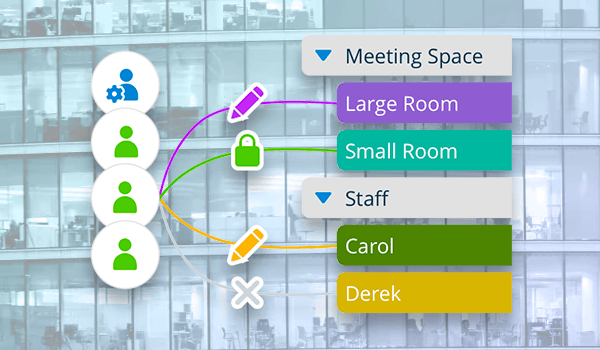
With Teamup, calendar access for every user is customized and centrally controlled by the calendar administrator, who decides exactly who can see what, and what they can do — all from one place. Here’s an easy way to picture it.
How calendar access works
Think of your master calendar as an office building. Each sub-calendar inside a master calendar is like a different room inside that building.
Just as different rooms serve different purposes, each sub-calendar can be used for a specific area of work or category: One for marketing schedules, another for operations, one for events, or even a separate one for each team member, client or subcontractor. When multiple sub-calendars are organized in a folder, it’s comparable to arranging rooms next to each other on the same floor. A Teamup master calendar may have multiple folders, just as an office building may have many floors.
As the administrator, you can open every room or floor to everyone, or keep some private and invite only certain people in. You decide who can enter each room and what they can do inside:
- Some people can only look around (Read-only).
- Others can bring things in, but they can’t take things out (Add-only).
- Others can add, change, or remove things (Modify).
You might choose a select few to help manage everything, including settings and permissions for the entire calendar (Administrators).
This structure keeps everything in one building but with separate, secure spaces for different teams or purposes.
Giving access to the calendar
When you share your calendar with someone, you’re granting them access to it. That’s like handing an employee a key to enter the office building. You can give out a key that opens one office (a single sub-calendar), several offices, or even every office in the building. With a Teamup calendar, you can share your calendar securely with account-based access or via shareable links.
Account-based access
Account-based access (for users and groups) requires users to log into their Teamup user account with a verified email address. This method provides a higher level of security and control.
Giving someone account-based access is like setting up a personalized ID badge to enter the office building. The badge specifies which offices (sub-calendars)the employee can access and what actions they can take inside. When the employee uses their badge to make any changes (such as updating or adding information) those changes are tracked under their name, so you always know who did what within the calendar.
Use account access for team members and collaborators who need ongoing, personalized calendar access. You can update their access anytime or revoke it when they leave. Learn how to manage users and groups here.
Shareable Links
A calendar link is like a key that can be passed along to anyone or shared with a large group without requiring the users to be known individually. Each key opens only the rooms (sub-calendars) that are given access to and is allowed only certain actions — such as view, add, or modify, as defined in the permission levels. Links aren’t tied to a specific person; anyone with the link can access the calendar.
Using a calendar link is the best way to embed a calendar on a website or intranet, so anyone who needs to view the calendar can access it directly. This makes it easy to share updates, schedules, or availability. Learn how to manage links here and how to embed them in this interactive demo.
Permission levels
When you give someone access to a calendar, you need to define the permission level you want to grant. Each sub-calendar (room) has its own permission settings — from Read-only and Add-only to Modify rights with variations of each that hide details of other people’s events. It is also possible to set permissions globally by user or group, applying one access level to all sub-calendars.
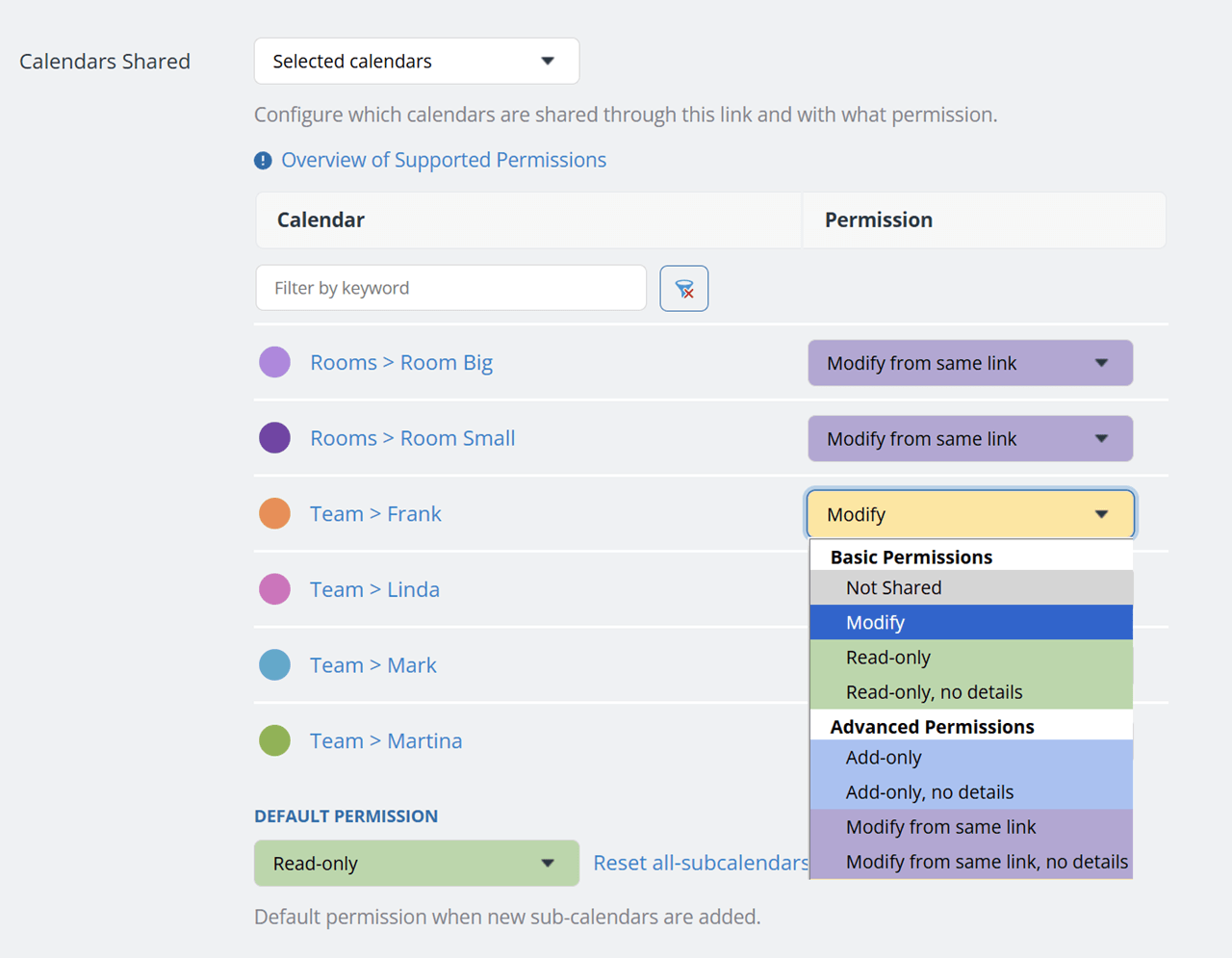
Click to enlarge: Multiple sub-calendars with different access permissions.
Going back to the analogy, it’s possible to mix and match these permissions for each ID badge or key, giving every user or link exactly the access they need. You might let someone enter multiple offices just to look around (Read-only), or allow a group to come in and make changes (Modify).
There are nine different access permission levels you can assign to each sub-calendar for every account or shareable link.
⚠️ Administrator Access Warning
Use this permission level with great caution, as it provides complete control over the calendar, including the power to delete the entire calendar. To prevent unintentional assignment, the Administrator permission is not in the drop-down menu with other permission settings; it is located in a separate Administration section.
Administrator access should be carefully protected and only granted to people with the proper authorization and understanding. A person who needs to manage all events on the calendar can be given Modify permission for all sub-calendars. Administrator access is not required. A good security-conscious practice is to grant admin rights to only as few users as necessary!
Managing users and calendar links
The calendar administrator can manage access at any time — add, modify, or remove users, and create, update, deactivate, or delete calendar links.
The original administrator is the one who created the calendar, but this role can be assigned to someone else or even shared with multiple authorized people.
Keep in mind that the number of account users and links depends on your subscription plan. See the Teamup pricing page for all plan details.
Both users and links remain fully under the administrator’s control. When someone no longer requires access — for instance, a former employee or contractor — the administrator needs to remove the user or delete their link to keep the calendar secure.
This flexibility keeps your calendar secure and well-organized while still making collaboration easy, even as teams grow or responsibilities shift. Review your team’s access permissions now and set the right access level in your calendar Settings.