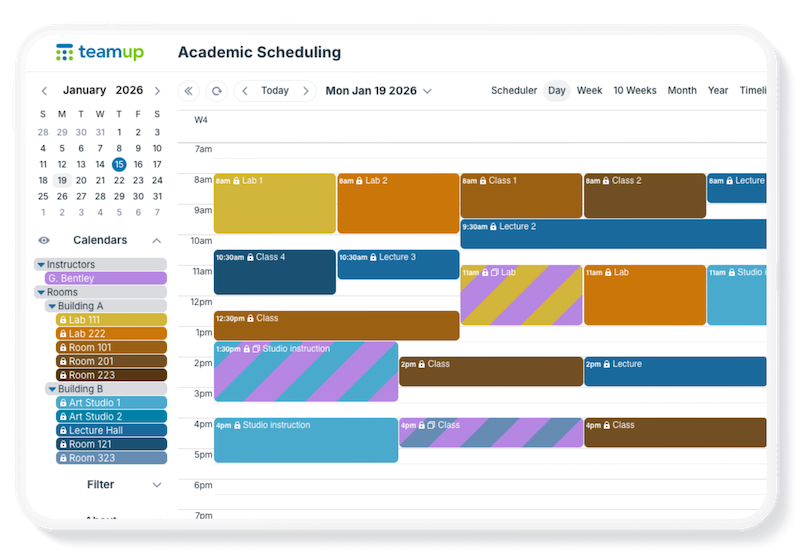
A calendar’s structure determines how a calendar is organized. With Teamup, you can build a multi-dimensional structure using both sub-calendars and custom fields to bring all the scheduling factors together. But it can be tricky to decide whether a particular factor should be a sub-calendar or a custom field. Here’s what to consider.
Sub-calendars for primary categories
Typically, sub-calendars are best for the primary scheduling categories, like staff members, projects, or locations. Sub-calendars have access control, automatic conflict prevention, and color-coding built in. For primary scheduling dimensions, those features are invaluable. Take a look at these examples.
Example: Shift scheduling
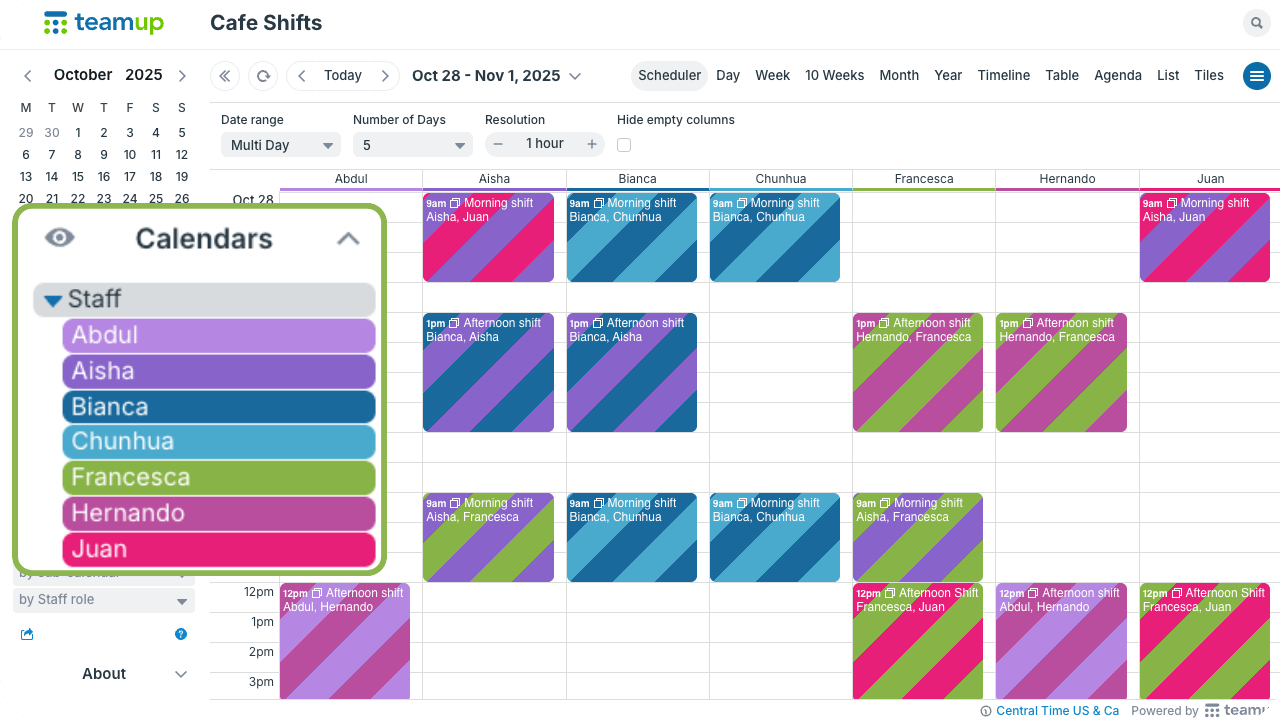
Click to enlarge: The manager has modify access to all staff sub-calendars. Each staff member has access only to their own sub-calendar.
A calendar for assigning shifts to staff members can be structured with one sub-calendar assigned to each shift member. To assign a shift, an event for that shift time is created and assigned to the appropriate calendar(s). Each sub-calendar can be set to disallow overlapping events, which prevents anyone from being accidentally assigned to two shifts at the same time. Each staff member can have access only to their own sub-calendar, so they can see their own shift assignments but not the schedule for other staff members.
Example: Academic class schedule
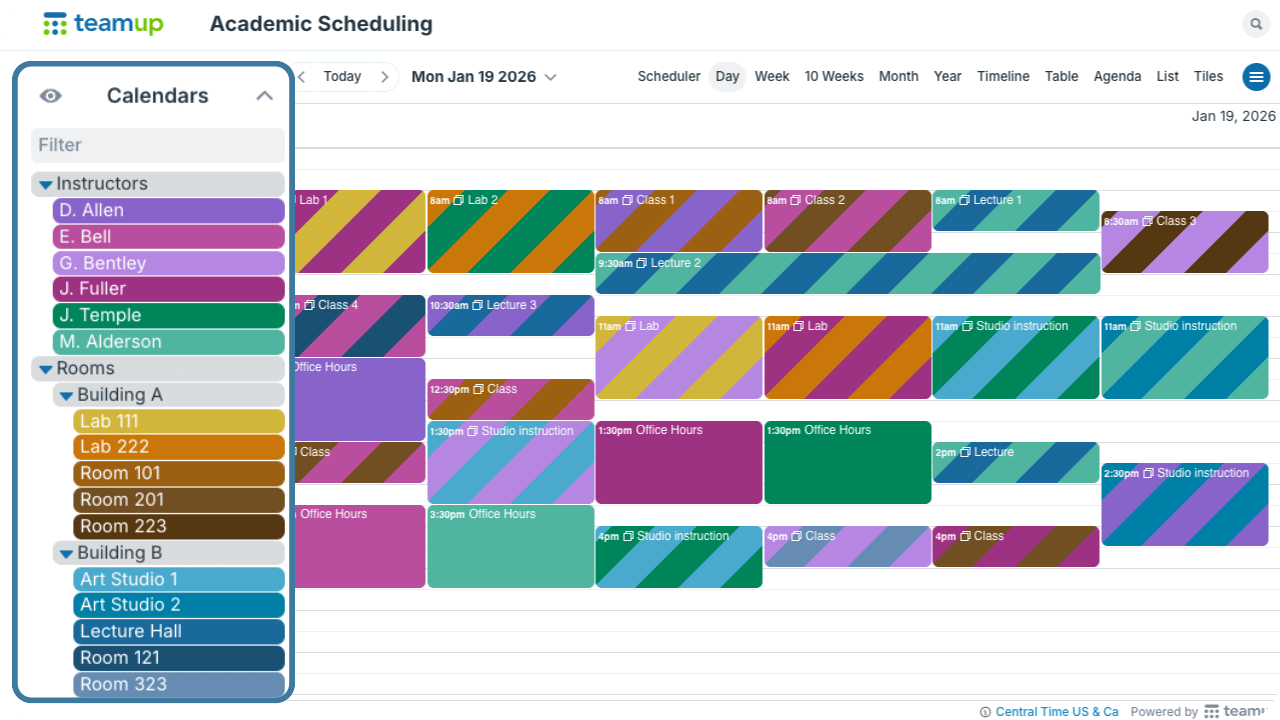
Click to enlarge: Sub-calendars grouped into folders. Nested folders organized rooms in different buildings.
A calendar for scheduling classes can be set up with two primary sets of sub-calendars. The first set is for instructors; each instructor has a sub-calendar, and these calendars are grouped in a folder. The second set is for locations: namely, individual rooms where classes will be held. There are several buildings, so these calendars are grouped in nesting folders to keep them organized by building. All the sub-calendars disallow overlapping events to prevent double-booking instructors or classrooms.
Custom fields for secondary layers
Custom fields are best for scheduling factors that need cross-category reach, such as project phases and task status. There are different field types and field contents can be shown in event titles.
Example: Shift responsibilities
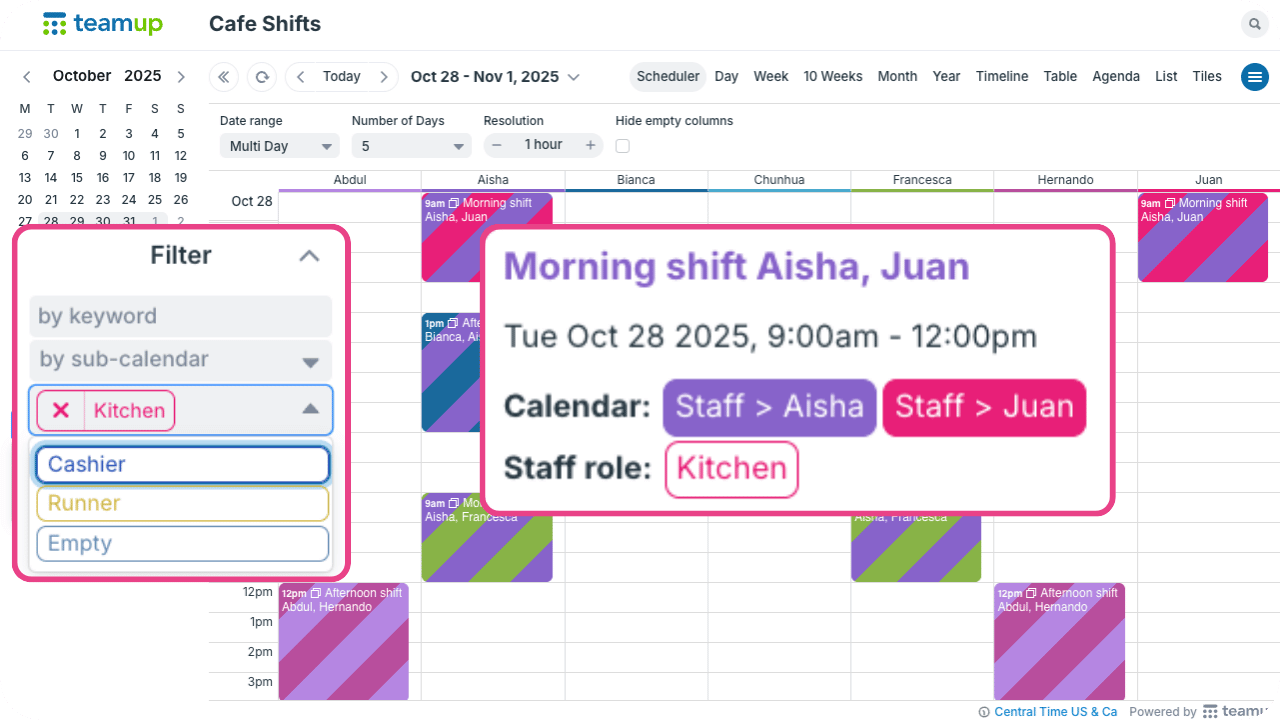
Click to enlarge: Managers can assign a role to staff members when scheduling shifts using a custom field.
On the shift scheduling calendar above, the manager schedules each staff member by adding events to their calendar. This tells each staff member when they’re working. If the manager also wants to assign specific roles or tasks, a custom field works well. For example, a custom field could be added for Shift responsibilities or Staff role.
When a manager schedules someone to a shift, they can also assign a role and/or designate certain responsibilities. If there are regular roles, a choice field with predetermined options works best. If the manager wants to write in different tasks that change frequently, a text field works best.
Example: Course numbers
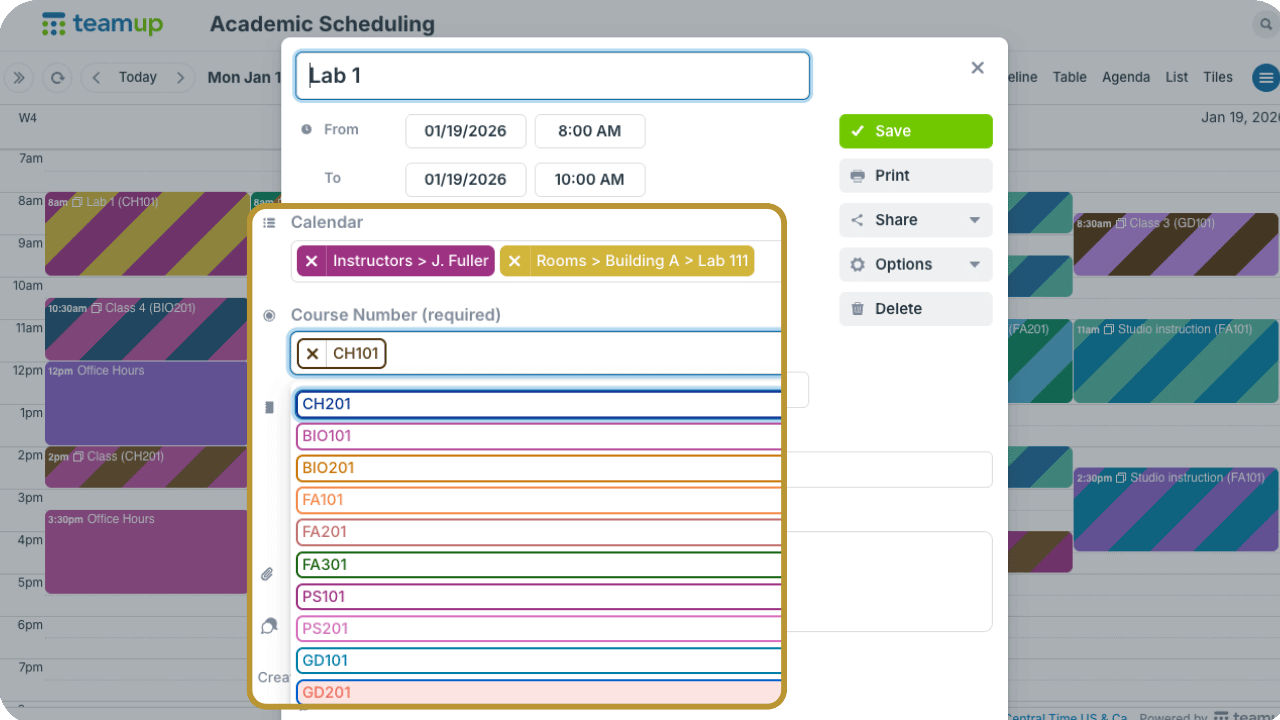
Click to enlarge: Schedulers can assign the course number to every class, lab, or studio session and easily track all the scheduled hours for a particular course.
For academic scheduling, each class session is added to the calendar for the instructor and the classroom. Schedulers may also want to track the course number for each class, so they can then look over the whole calendar and make sure there are adequate classroom hours to meet the different course requirements. They can add a custom choice field, prefilled with the course numbers. Then each class can be “tagged” with the appropriate course number by choosing it from the field. Schedulers can filter to see all the scheduled classes, and total hours, for any course. Having the ability to filter by course number across all sub-calendars helps schedulers find the info they need quickly.
Features to consider
Both sub-calendars and custom fields have a lot to offer. When deciding which one is best for a particular part of scheduling, like room assignment or shift responsibility, think about what’s important. Then choose the best fit. Here are some factors to consider:
- Access control: If access control is important, use sub-calendars. When you add a user, you can select which sub-calendars are included and set the permission level for each sub-calendar individually. More details here.
- Conflict prevention: If it’s important to avoid double-booking, use sub-calendars. Each sub-calendar can be configured to automatically prevent overlapping events.
- Track across categories: If a certain factor (project phase, task status, ID) needs to be tracked across other categories, use a custom field. Custom choice fields have built-in filters for easy sorting and tracking.
- High variation: For a high number of possible options (course numbers, clients, keywords), use a custom field. Choice fields allow many predetermined options without cluttering the calendar. Text fields work well for items that need to be included, but aren’t necessarily known ahead of time (tasks, assignments, contact names).
Want to test out what works best? Open a live demo calendar and try out the possibilities with sub-calendars and custom fields.