Tour operations rarely follow a predictable schedule. Guides often work different tours on different days, set their own availability, or pick up shifts as bookings come in. Because of this, tracking absences is not as simple as updating a PTO spreadsheet. When a guide takes time off or calls in sick, managers need to quickly see which tours are affected, who is still available, and where coverage gaps exist. Teamup brings that information together in one shared calendar so changes are easier to manage.
The need: Manage tour guide availability and absences in conjunction with actual tour bookings, make swift schedule adjustments to ensure full tour coverage, and keep up with absence/PTO tracking per guide.
The Teamup solution: A shared calendar brings guide schedules and booked tours into one view. Guides can update their own availability and managers can quickly spot conflicts, reassign tours, and keep operations moving.
━━━━━━━━━━━━
More Teamup solutions for tour operations:
Why absence tracking is more complex for tour teams
Tour guide schedules are constantly shifting. One guide might only handle weekend walking tours, while another focuses on adventure tours that might be booked anytime.
And tour companies typically offer standard tours as well as custom experiences and private group bookings, which don’t happen on a regular schedules. For this kind of operation, absence tracking means quick schedule adjustments to ensure that tours are covered and guests get the best possible experience.
A smarter way to manage availability and coverage
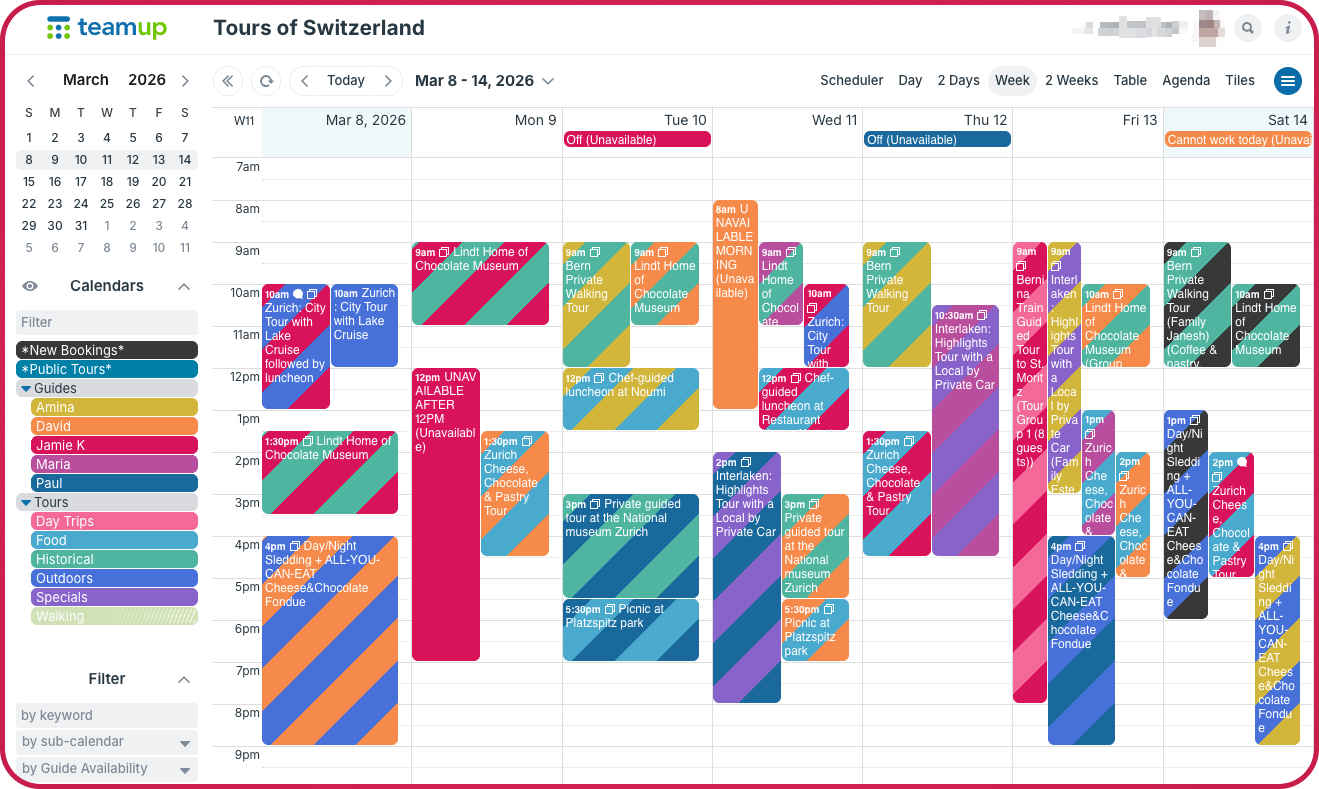
Click to enlarge: A tour operations supervisor can see the full view of what’s happening with private booked tours, public tours, guide availability and absences.
Using a shared tour operations calendar brings everything together in one place: requested tours that still need an assigned guide, booked tours, and guide availability. With all the scheduling information in one place, tour operators have a live operational dashboard for handling the different aspects of guide availability and absences. Here’s how it works.
Let guides self-schedule their availability
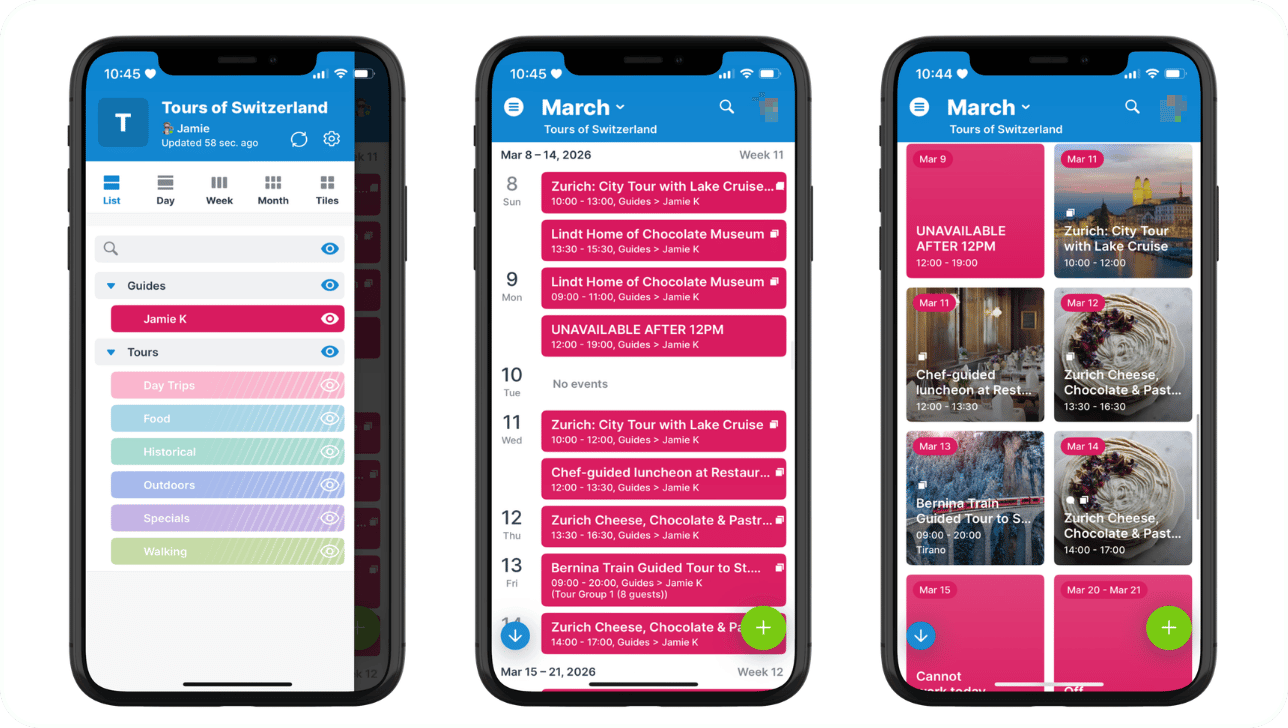
Click to enlarge: Tour guide Jamie’s customized access shown in the Teamup app. Here, her assignments and availability are shown in List view (more compact) or Tiles view ( more visual).
Each guide has their own sub-calendar, and that’s where they see their assigned tours and schedule their availability. Each guide gets modify or modify-my-events permission for their own sub-calendar, so they block off unavailable days, mark partial availability, or note preferred working hours.
What makes it work
- Sub-calendars are color-coded and organized, and have access control built in. Plus, one setting automatically prevents overlapping events so there’s no risk of booking an unavailable guide.
- Customized access keeps things secure while enabling each guide to self-schedule their availability.
Handling unplanned absences
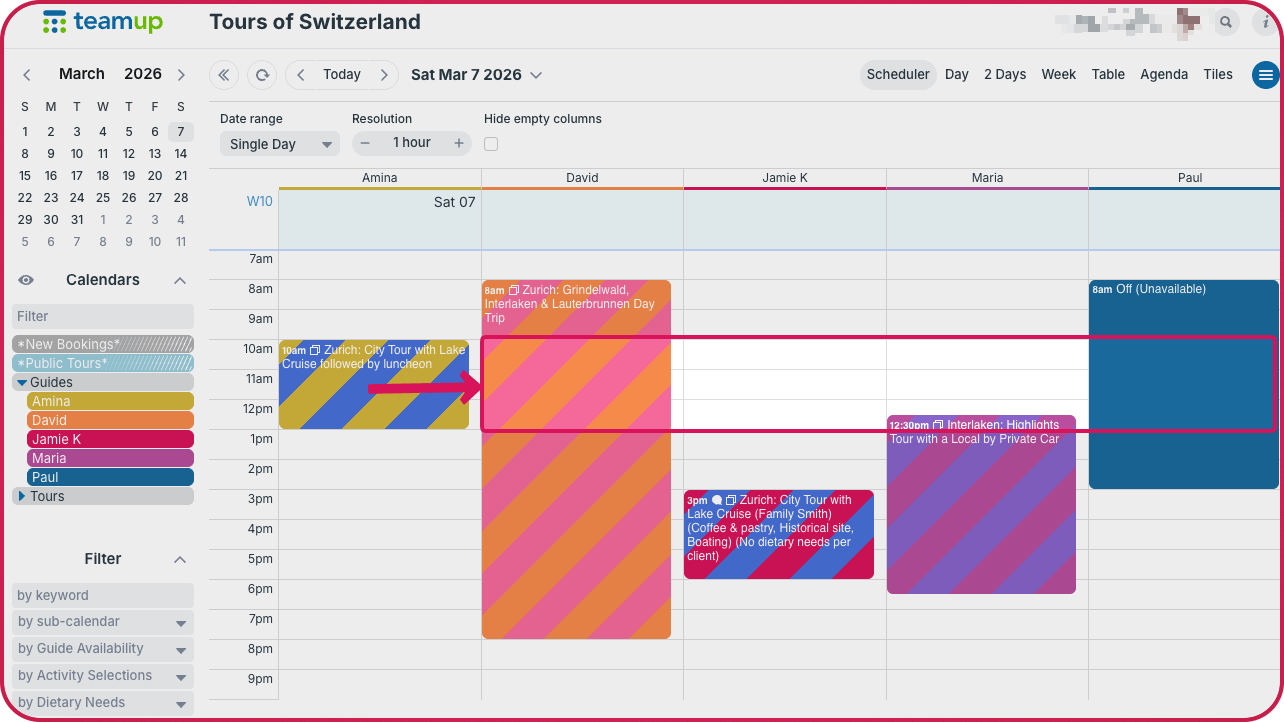
Click to enlarge: Scheduler view shows guide availability side-by-side. If guide Amina calls in sick, it’s easy to scan across, see who is available, and reassign her tour.
Tour guides might be required to schedule their availability weeks in advance, but there will also be unplanned absences and last-minute changes. When a guide calls in sick, the tour operator needs to quickly see a) which tours are affected and b) which guides are available for re-assignment to those tours. Toggling sub-calendars to view only that guide’s schedule will quickly show which tours are impacted. Then, Scheduler view displays guide availability side-by-side so it’s easy to spot other guides who can take over the open tours.
What makes it work
- Toggle sub-calendars and use filters to display only events assigned to a specific guide or matching certain keywords or other criteria.
- Scheduler view can be adjusted to show the right sub-calendars over the needed date range and resolution; scan across columns to spot guides who are available for the needed tour time.
Tracking absences and PTO
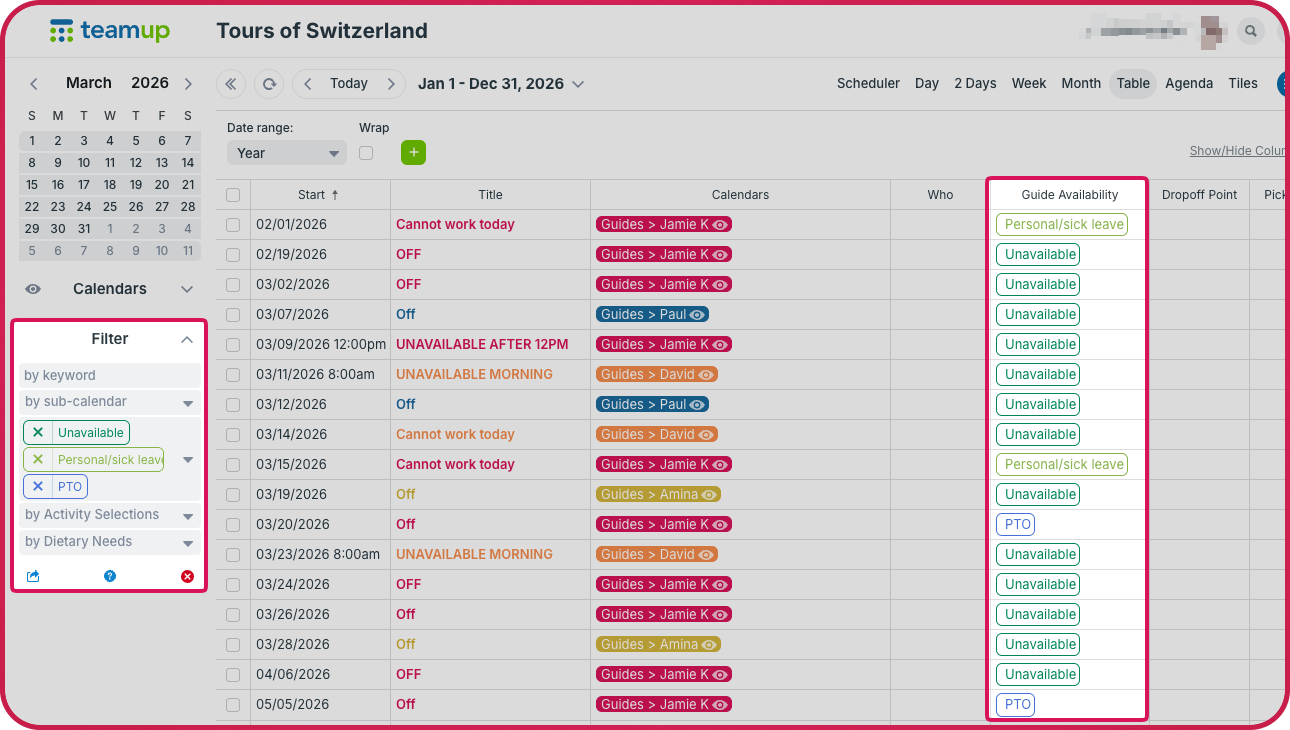
Click to enlarge: Custom fields with built-in filters can be used with any calendar view to sort events. Table view, shown here, has a spreadsheet-like layout.
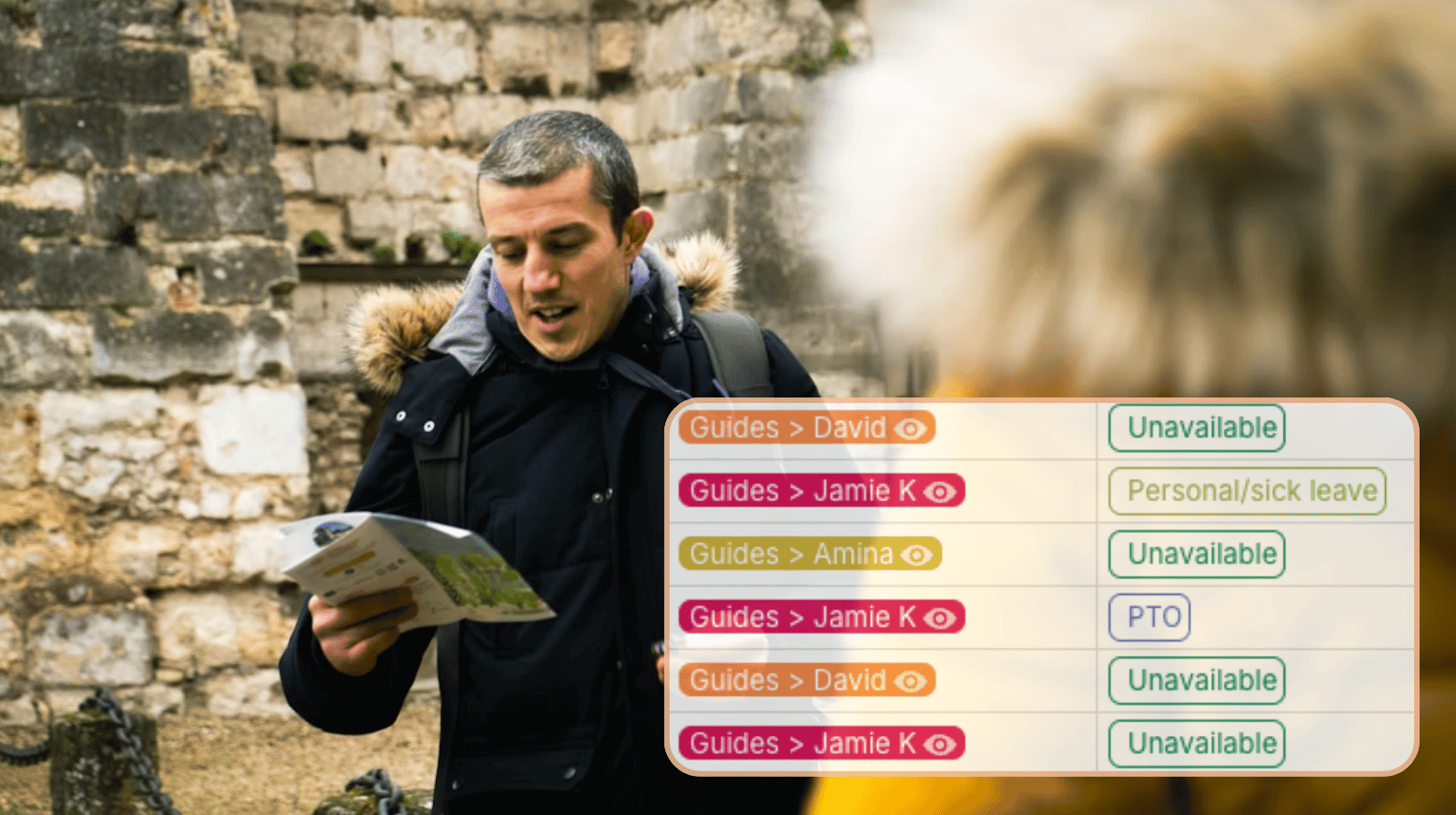
Custom fields can be used to signify availability, including what type of absence is requested or recorded on the calendar. Supervisors can filter by that field to view all absences for a selected date range, or toggle sub-calendars to view only a specific guide’s availability. Table view has a spreadsheet-like layout that automatically sums numerical fields, which can be used to efficiently track PTO hours or completed tours for each guide.
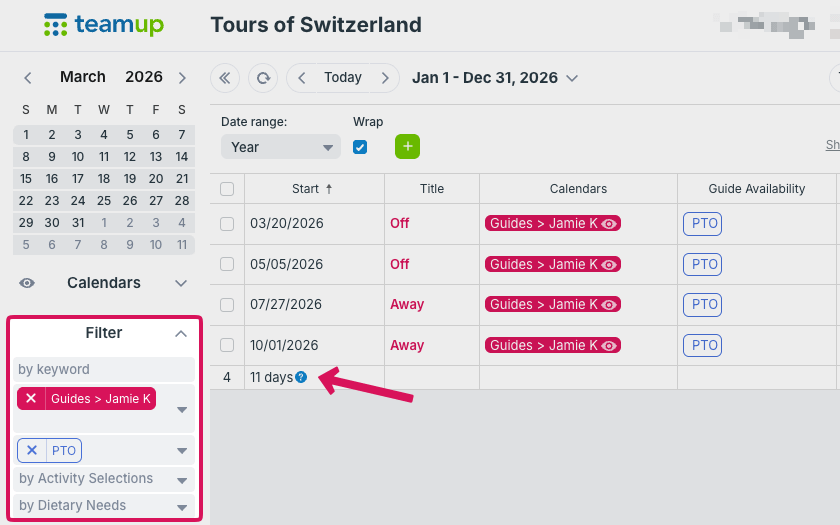
Click to enlarge: Use filters to view only a specific guide and availability type, then get a quick sum of total PTO days in Table view.
What makes it work
- Custom choice fields with built-in filters work well to capture the specific information that matters for the tour operations workflow and absence tracking.
- Table view has a spreadsheet-like layout that shows calendar data in an organized grid. Adjust which columns are visible and scan across details to get insights and generate reports without having to switch tools.
With different calendar views, managers can quickly spot unavailable guides across the week, compare schedules side by side to find open capacity, filter views to focus on tours that need reassignment, and make decisions without jumping between spreadsheets and messages.
Stay flexible when plans change
Tour operations need to adapt quickly, and the system should make that easier. When availability is planned in advance, tour operators can confirm and assign bookings with confidence. And guides can easily update their hours or request PTO with self-scheduling. It’s a more efficient system for everyone.
And when plans change at the last-minute, making adjustments is a smooth process. The team can immediately check availability and reassign tours without scrambling or sending multiple messages. Because everything updates in real time, the whole team stays aligned and the calendar provides a clear record of assignments and absences that’s easy to check.
For tour operators, absence tracking works best when it is directly connected to the tour schedule. Get started with Teamup to make guide availability and absence tracking easier to manage.
Related resources
- Learn more about customized access for shared calendars
- ▶️ Using Table View
- ▶️ Create a Custom Choice Field
- 💡More solutions for managing availability
- Teamup for tour operations: