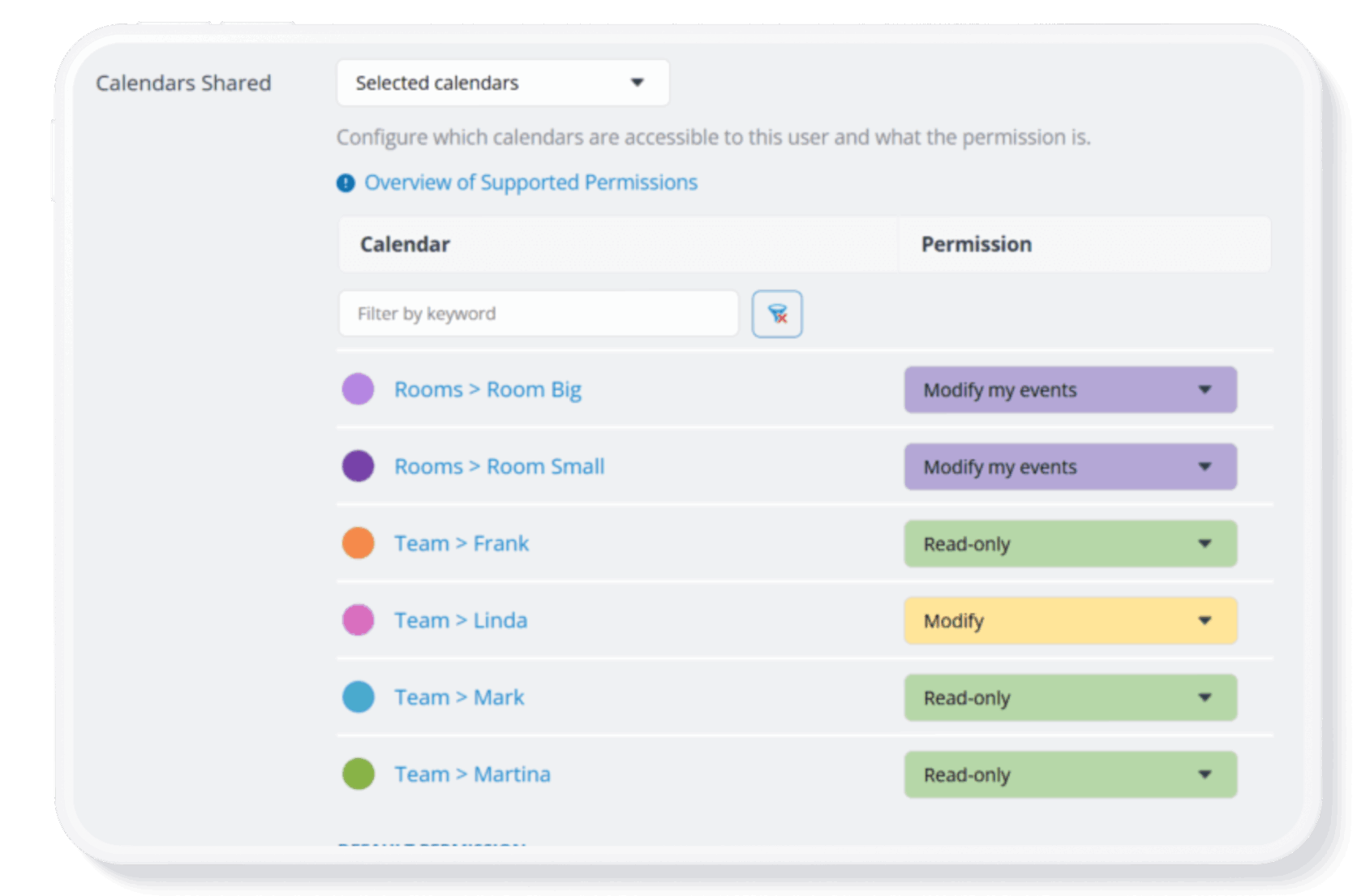
Teamup’s Modify-My-Events access permission lets users add, edit, and delete only the events they created, while still being able to see everyone else’s schedule. As one of Teamup’s nine access permission levels, this permission level bridges the gap between Add-only (can add events but not edit them later) and full Modify (can change any event). It’s a powerful tool for scenarios where each person should own only their entries.
When to use modify-my-events
Modify-my-events permission is a great choice when:
- Users should manage their own entries.
- Shared visibility is important.
- Full edit access is too permissive.
For additional privacy or sensitive information, you can also choose the modify-my-events, no details option, to hide details of other users’ events.
Here are some common real-world scenarios where modify-my-events permission works best.
Lining up contractor availability
In project-based environments, such as construction teams, training organizations, or field services, contractors and staff often need to indicate when they are available to take on assignments. Instead of coordinating availability through emails or forms, each contractor can enter their available days or time windows directly into a shared Teamup calendar. With modify-my-events access, they can update their own availability while project leads can maintain a clear overview of overall capacity. It’s easier to plan work, avoid scheduling conflicts, and assign tasks efficiently.
🔗 See managing instructor availability and scheduling for a detailed example.
Scheduling doctors in a busy clinic
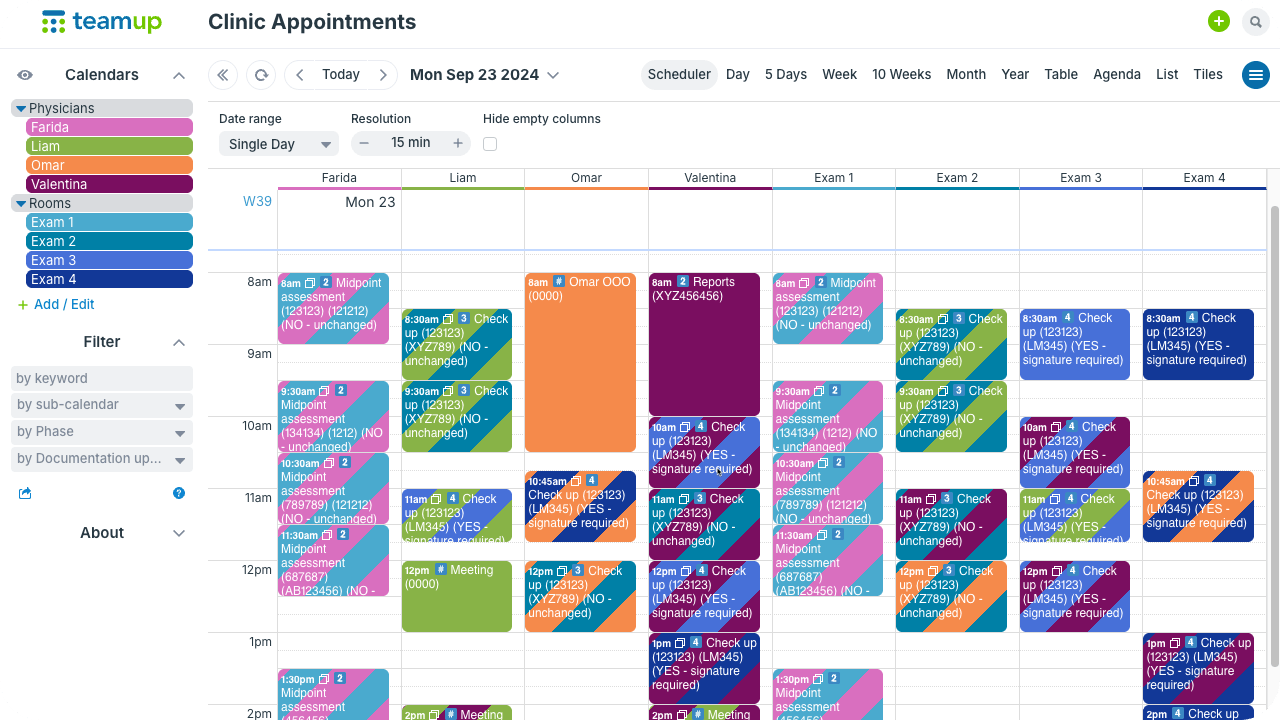
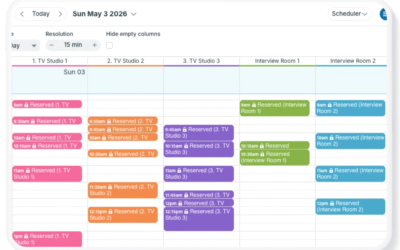
Click to enlarge: Teamup’s Scheduler view showing clinic appointments organized by physicians and exam rooms.
In medical practices and clinics, doctors often need to indicate when they’ll be unavailable and coverage must be arranged. With Modify-my-events access, each doctor can can mark their unavailability, for example, vacation time, conferences, or scheduled leave, directly into the shared calendar. They can update or adjust those dates if plans change. The practice manager or scheduler retains oversight of the full calendar, while individual doctors remain responsible for managing their own entries.
🔗 See how to keep clinic schedules running smoothly.
Centralizing team PTO & leave planning
Across many organizations, employees enter vacation or out-of-office dates into a shared calendar to ensure transparency and proper coverage. With modify-my-events access, each person manages their own leave entries while the team maintains visibility of overall availability.
🔗 See centralizing PTO to improve visibility and coverage planning.
Reserving shared resources
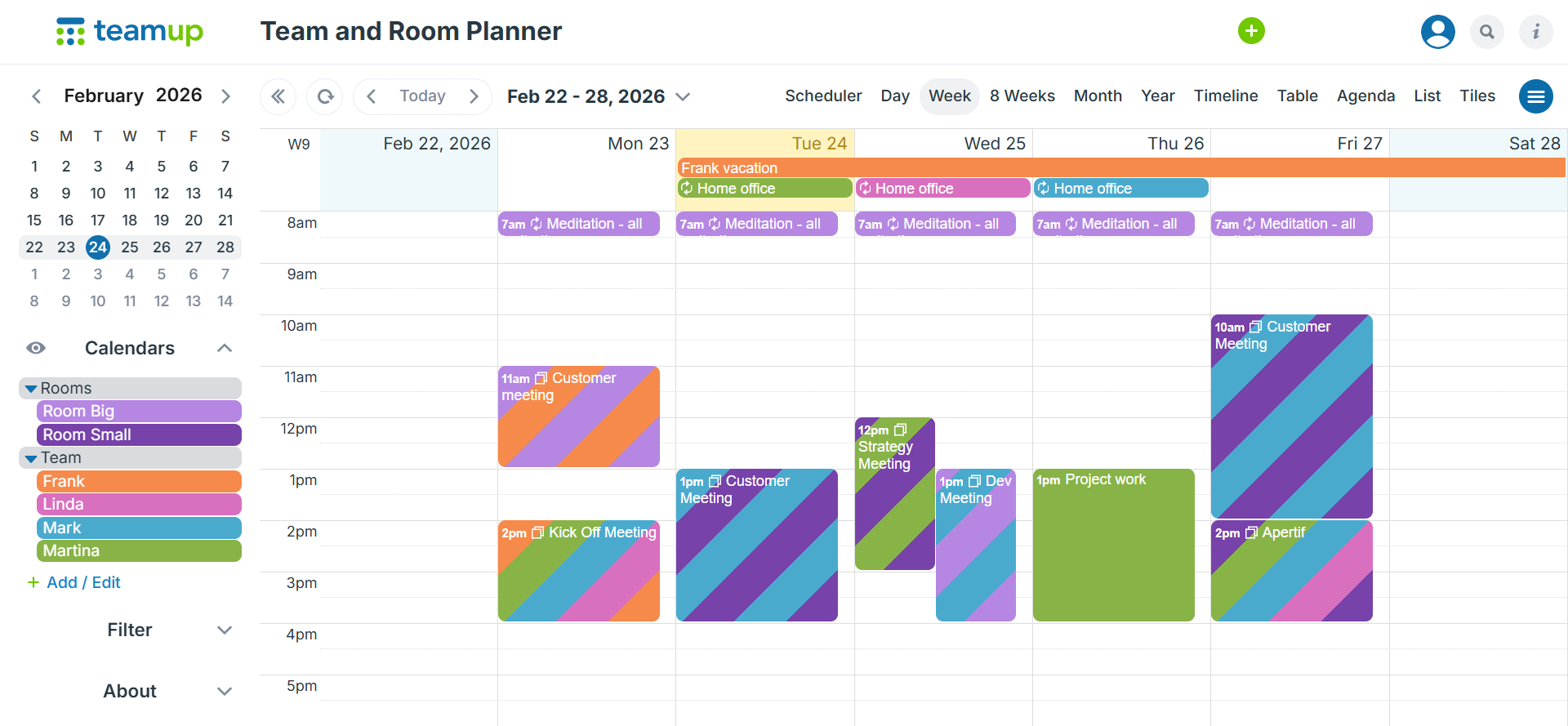
Click to enlarge: Shared room and team calendars allow team members to reserve spaces while maintaining visibility across all bookings.
When multiple users reserve shared spaces or equipment, such as meeting rooms, labs, hot desks, or community facilities, to prevent accidental changes to existing bookings is key. With modify-my-events, everyone can see which time slots are taken, but each user is allowed to create and update exclusively their own reservations.
🔗 Learn more about using Teamup for booking shared resources or spaces.
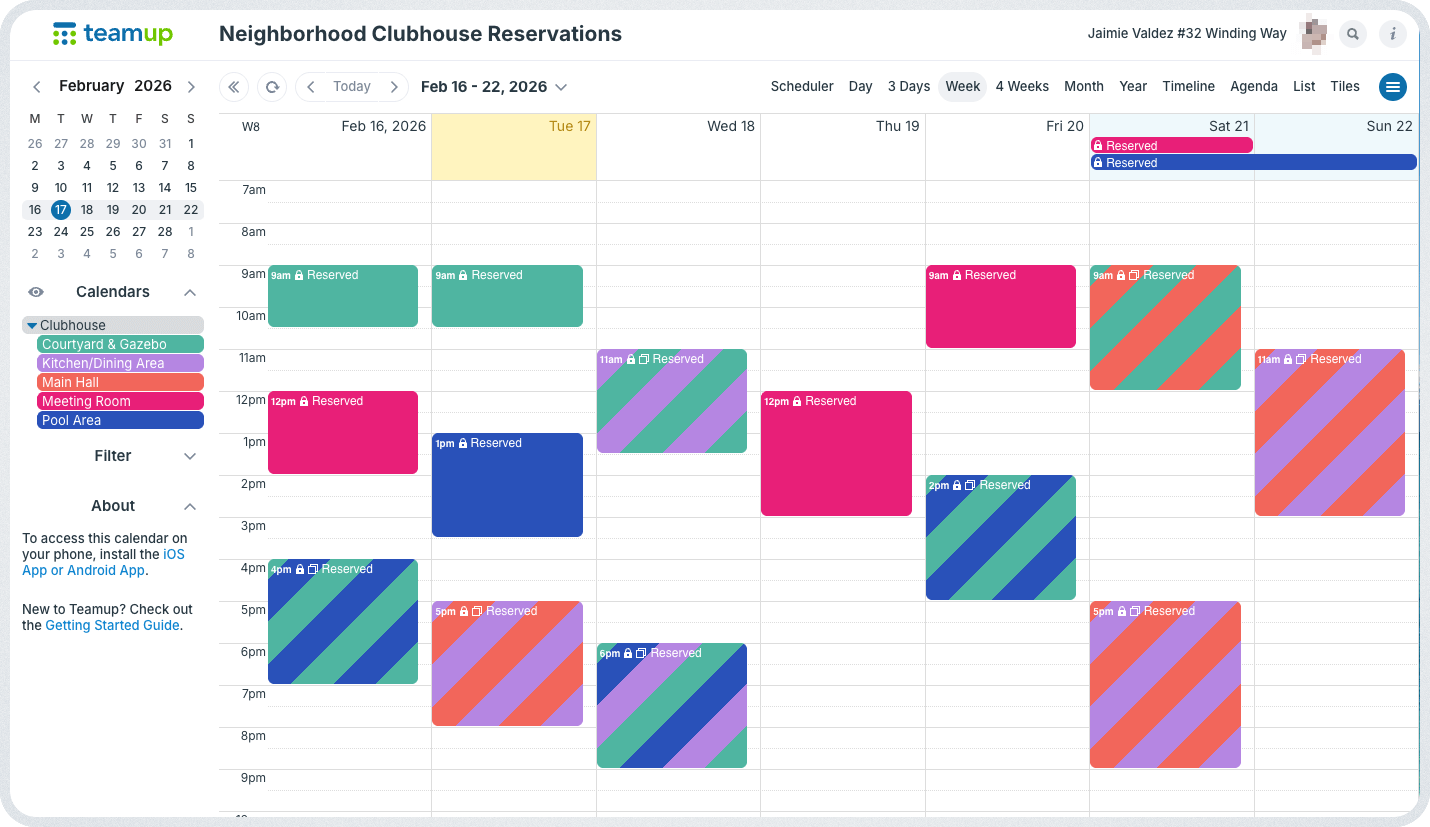
Click to enlarge: With modify-my-events, no details permission, users can see what others have added to the calendar only as Reserved.
Scheduling use of a neighborhood clubhouse is another example of reserving shared resources, this time with modify-my-events, no details permission. In a smaller HOA with fewer households, residents may be allowed to book use of a shared clubhouse directly. To set it up, each household can be given their own customized access to the calendar, with Modify my events, No details permission. This means residents can create their own booking events, but they cannot edit or delete anyone else’s bookings, and they cannot see private details about other residents’ events. They’ll see that a time slot is blocked, but not the event description or personal information.
🔗 Learn more about managing shared clubhouse reservations.
Simplifying volunteer shift signups
For nonprofits and community events, volunteers often add themselves to open shifts directly. With modify-my-events access, each volunteer manages their own shift entry without being able to edit someone else’s commitment. Coordinators maintain oversight while reducing administrative workload.
🔗 More details in this calendar for scheduling volunteer community services.
Enabling freelancers to log work
In project-based work, freelancer and contributors may need to log their assigned sessions or project work. Modify-my-events access ensures that each independent collaborator manages only their own job entries, while maintaining shared visibility across the team’s schedule. This keeps project timelines transparent without granting full editing rights.
Ready to assign the right access level for your team?
▶️ Learn how to share your Teamup calendar with the right access level.