Drag and drop events
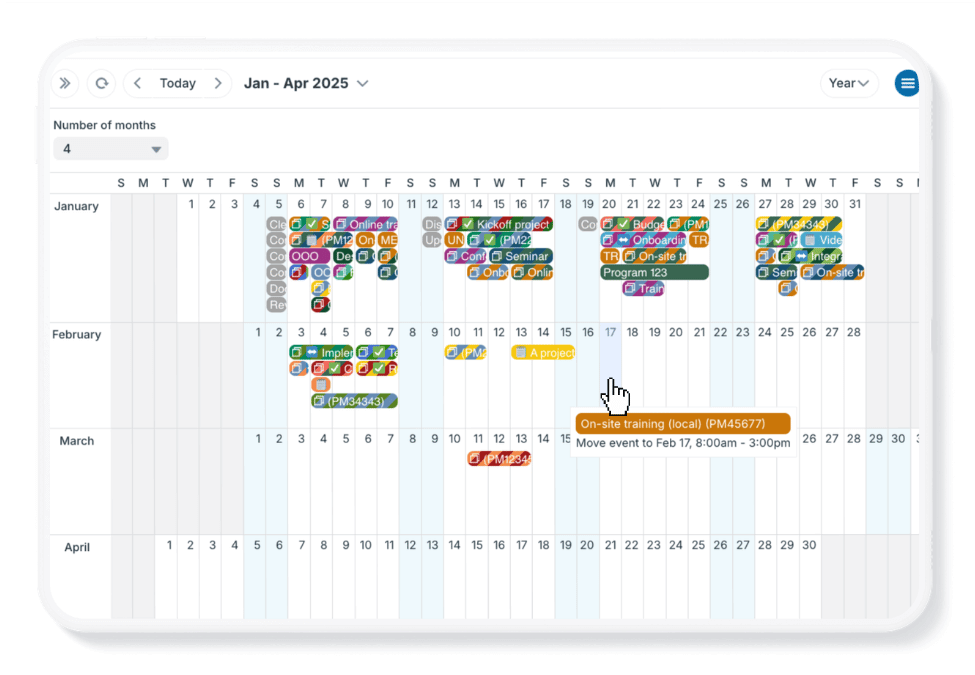
To quickly reschedule events in Teamup, use drag and drop instead of manually changing each event’s event date/time in the event editor.
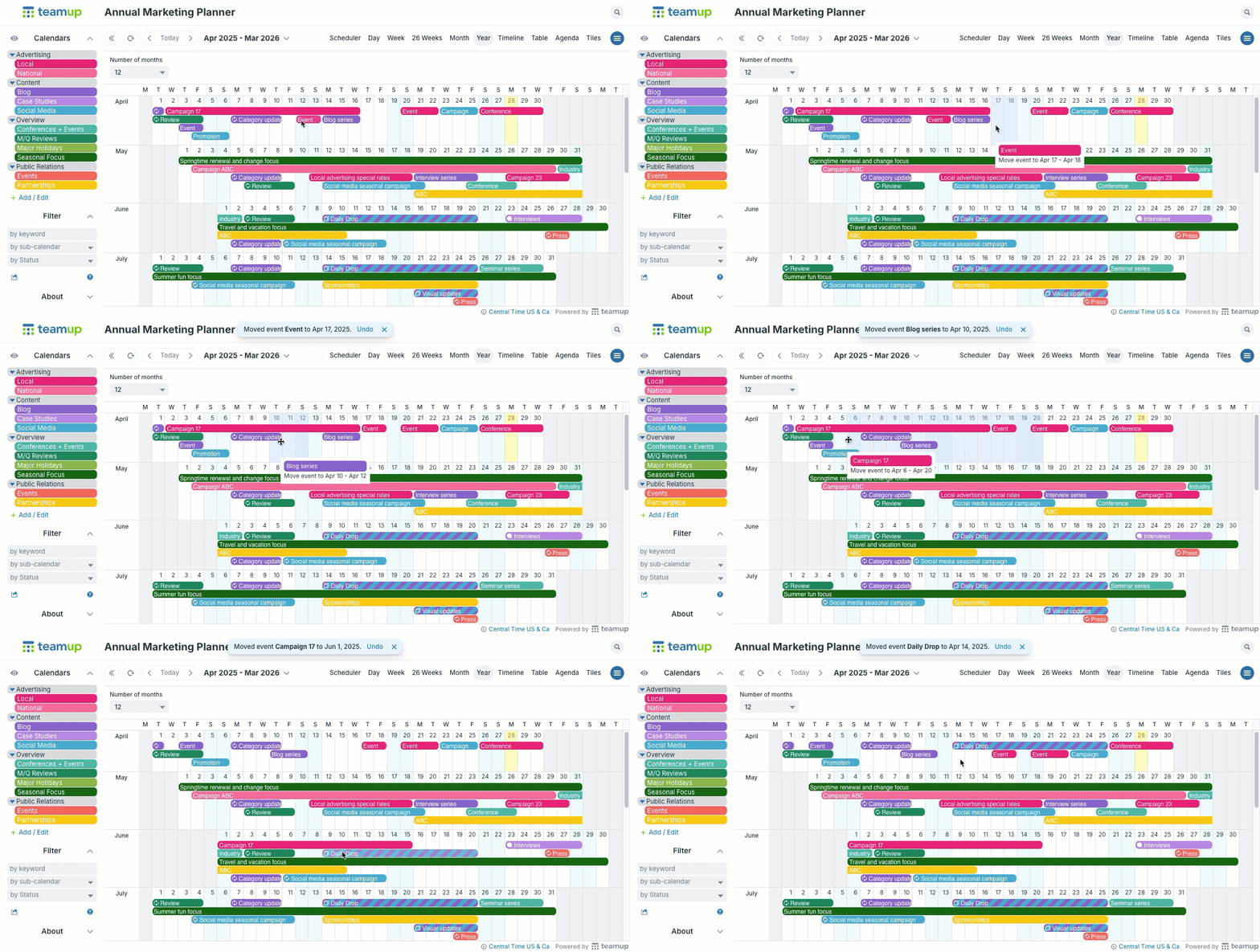
Click to enlarge: Quickly reschedule many events across weeks or months with drag-and-drop in Year view.
First switch to a calendar view that fits the time frame you need. For example, to reschedule events across months, use Year view. To reschedule events within the same week, use Week view or Multi-day view. To keep events on the same date but adjust the event duration, use any view with an hour grid.
Reschedule the events by dragging each one to the new date. ▶️ This interactive demo shows exactly how to do it.
Export and import events
If you have administrator access, you can use this method to change the dates of many calendar events in a more efficient way. Use the import/export feature to make the date changes in the downloaded file rather than on the calendar. Then import the file, with the dates changed, back into the calendar. Important note: Imports cannot be undone. Create a live demo calendar and test out your import there first to make sure everything is correct before importing into your calendar.
Here’s how to do it:
- Open Teamup in a browser.
- Go to Settings > Export Events.
- Choose the .csv file format. This will export your events in a spreadsheet format.
- Choose the sub-calendar and date range for the events you wish to export.
- Export the events to the .csv file. See more details here.
- Open the downloaded .csv file and change the event dates in the appropriate column of the spreadsheet.
- Save the updated version of the spreadsheet.
- Go to Settings > Calendars.
- Deactivate the original sub-calendar that held the events.
- Go to Settings > Import Events.
- Choose the .csv file format to import your spreadsheet.
- Set the sub-calendar name for the imported events. See more details.
- Choose your updated .csv file and import the events back to the calendar with the changed dates.
Note: all events imported from a file will be put on a single calendar. If you wish to work with events from multiple calendars, you can repeat this process separately for each calendar, so that the events will stay on separate calendars.