The data on deactivated sub-calendars or event fields is not lost, only archived. To access it, reactivate the sub-calendar or field.
Access level required: Administrator
- Open your calendar in a browser and click the blue menu (top right).
- Select Settings.
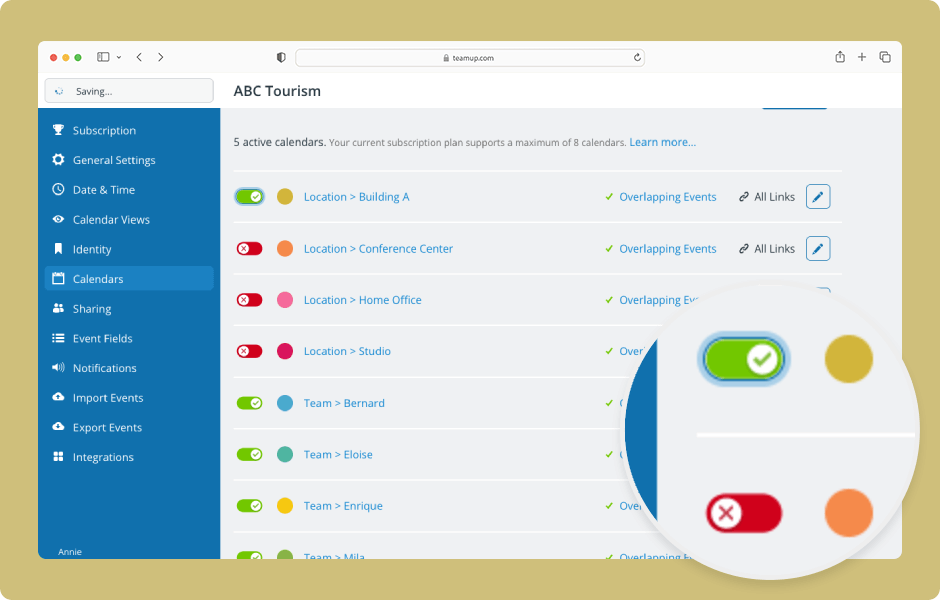
- Go to the Calendars tab to reactivate sub-calendars.
- Deactivated sub-calendars have a red/X toggle.
- Click the toggle to reactivate the sub-calendar.
- As soon as you reactivate a sub-calendar, it will be visible on the main calendar again.
- You can reactivate calendars up to your plan limit.
- Go to the Event Fields tab to reactivate event fields.
- Check the box to Show deactivated fields.
- Deactivated fields have a red/X toggle. Click the toggle back to green/√ to reactivate an event field.
- As soon as you reactivate an event field, it will be shown on events again.
- Go to the Subscription tab to upgrade your plan if you need more sub-calendars or event fields than the limits of your current plan. More details here.
ℹ️ Learn more: sub-calendars and event fields.