Change User Name and Profile Settings

You can change the user name, profile picture, and other settings for your Teamup user account. You’ll need to do this in a browser (not the Teamup app).


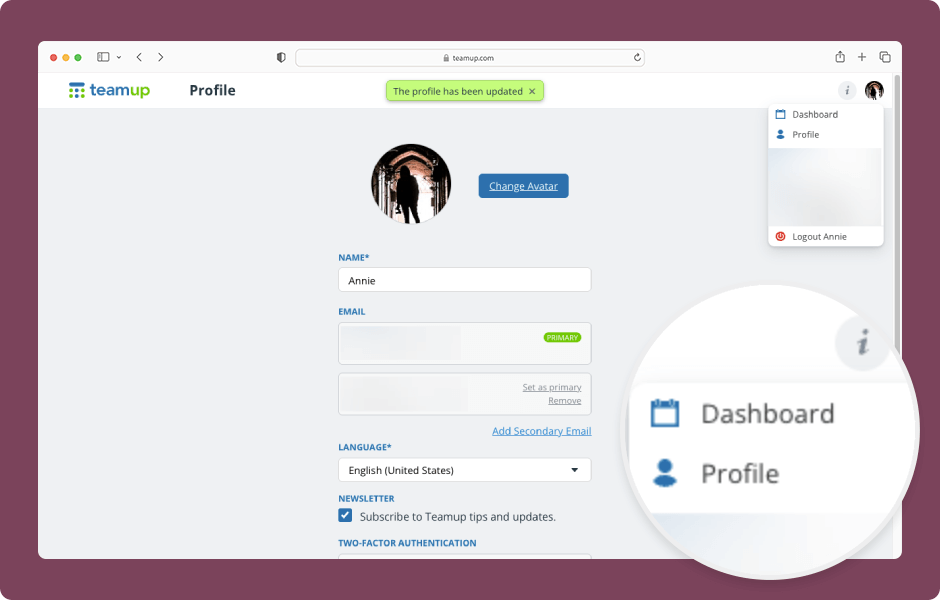
  1. Open Teamup in a browser. Make sure you are logged into your user account.
  2. Click your avatar (top right).
  3. Select Profile.
  4. Click Change Avatar to change your profile picture.
  5. Click into the Name field and type to change your user name.
  6. Use the options in the Email section to add or remove an email address.
  7. Scroll to the bottom of your profile to adjust the language, configure two-factor authentication, or change your password.
  8. Click Save.
  9. Click your avatar and select Dashboard; from your dashboard, you can return to your calendar.

ℹ️ Learn more
When to Use Modify-My-Events Access Permission

When to Use Modify-My-Events Access Permission

Modify-my-events access in Teamup allows users to manage only the events they create while maintaining shared visibility across the calendar. Learn when this permission level is the right choice for managing availability and resource booking.

Get a Mapped Location from the Teamup app

Get a Mapped Location from the Teamup app

Make it easy for field crew members, workshop attendees, and event guests to find their way to the right job site or event location. Just enable map integration for any text field and include the address, so they can open mapped directions straight from the Teamup app.

WordPress Cookie Notice by Real Cookie Banner