Working with events across multiple time zones is a normal need in today’s connected world. Whether we’re connecting with loved ones on the other side of the world, working remotely with a global team, or sharing events with a worldwide audience, we have to schedule across time zones. With Teamup, you get smart time zone calendar that makes planning and sharing these events much easier.
A shared calendar for working with multiple time zones
If you’re an event planner or group organizer, you probably work with collaborators who have their own preferred tools and calendars. You might not need to send formal meeting invitations, but you do need a way to share event times and details with others. Sending all the details for events via email or messaging is confusing. The best approach would be a shared calendar, where all participants could see what’s planned and add the events to their own calendars as needed. But what if you’re working with other event organizers in different time zones? Or need to share event details with participants in many different locations?
Teamup can help with these scenarios, with automatic time zone detection, event time conversion, and more. Here are a few scenarios to illustrate how you can use Teamup to manage events and share accurate event timing with folks all over the world.
How to schedule across time zones
With global connections, whether personal or professional, you often need a time zone meeting planner to help with two aspects. First, there’s finding the best time to schedule an event across time zones, so the start and end times will work for everyone. Then, there’s sharing that one event with people in these different time zones. You want to make sure each person sees the event with the correct time displayed for their time zone.
Even in the same country or region, you have to consider time zone planning for events and meetings.
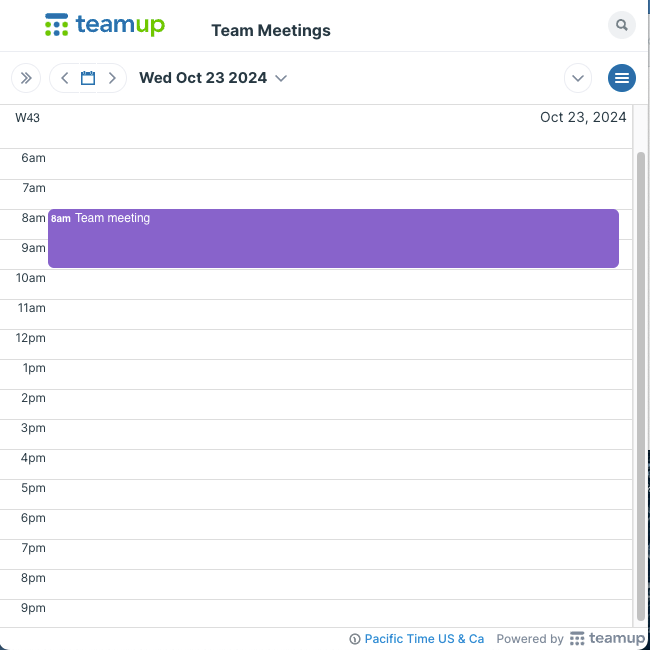
Perhaps you have a situation like this: you need to add a meeting to a shared team calendar. You’re in the Pacific time zone, and the meeting will be at 8am Pacific Time. But the other team members are in different time zones. You want to make sure that the meeting shows up on their calendars at the appropriate time for their time zone.
You want to set up the team meeting to occur at 11 AM Eastern Time / 10 AM Central Time / 9 AM Mountain Time / 8 AM Pacific Time.
- The team members in San Francisco will join the call at 8 AM local time.
- The team members in Denver will join the call at 9 AM local time.
- The team members in Chicago will join the call at 10 AM local time.
- The team members in New York will join the call at 11 AM local time.
Since you’re in the Pacific time zone, and your calendar is displaying Pacific Time (as shown in the bottom right), you can leave the time zone of your calendar set to Pacific Time and create the event for 8 AM:
When a team member in Denver views the event, with the time zone of their calendar set to Mountain Time, the event time will show as 9am:
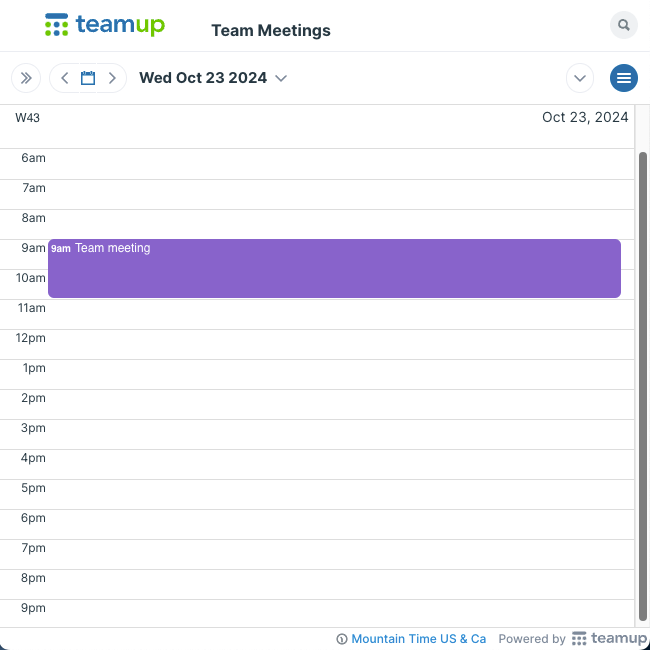
The event time will automatically shift for each participant, as they view the meeting in their own time zone:
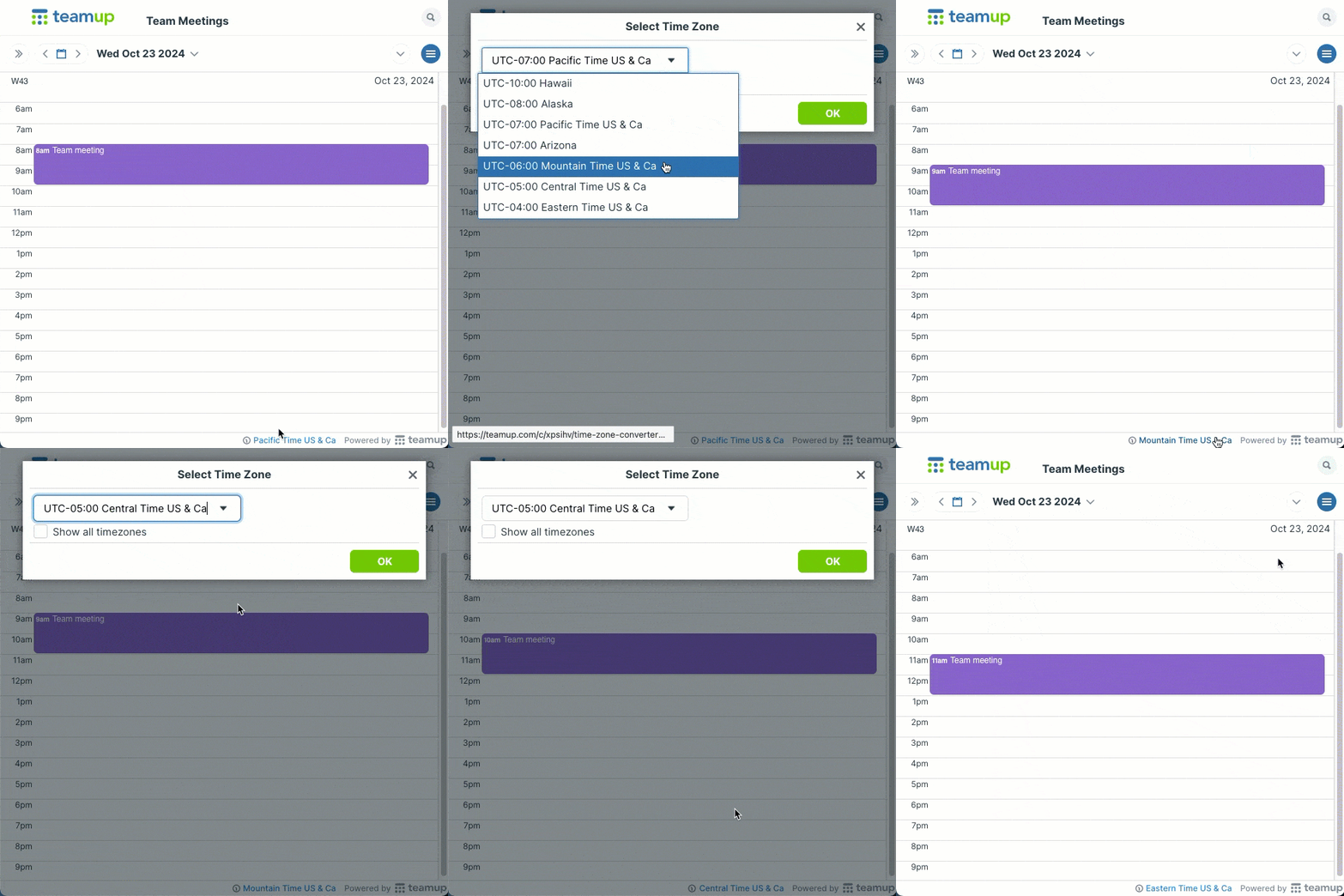
So, with Teamup’s automatic event time conversion, you don’t have to do time zone calculations to share an accurate event time with colleagues in different locations. Just create the event in the appropriate time zone, and when colleagues view the same event in their own time zone the event time will automatically adjust.
How to schedule and share events in different time zones
Sometimes, time zone planning brings in a different challenge: You need to create an event in a different time zone than your own. This is a lot easier to do if your calendar makes time zone switching easy, and always shows which time zone is currently selected.
For example, let’s imagine you work with a touring theatre show. You need to create events in the time zone that is local to the location of each event. The office for the theatre show is in London, but the tour events will take place across multiple time zones. How do you add events to the calendar in the time zone local for each event, when you’re in a different time zone yourself?
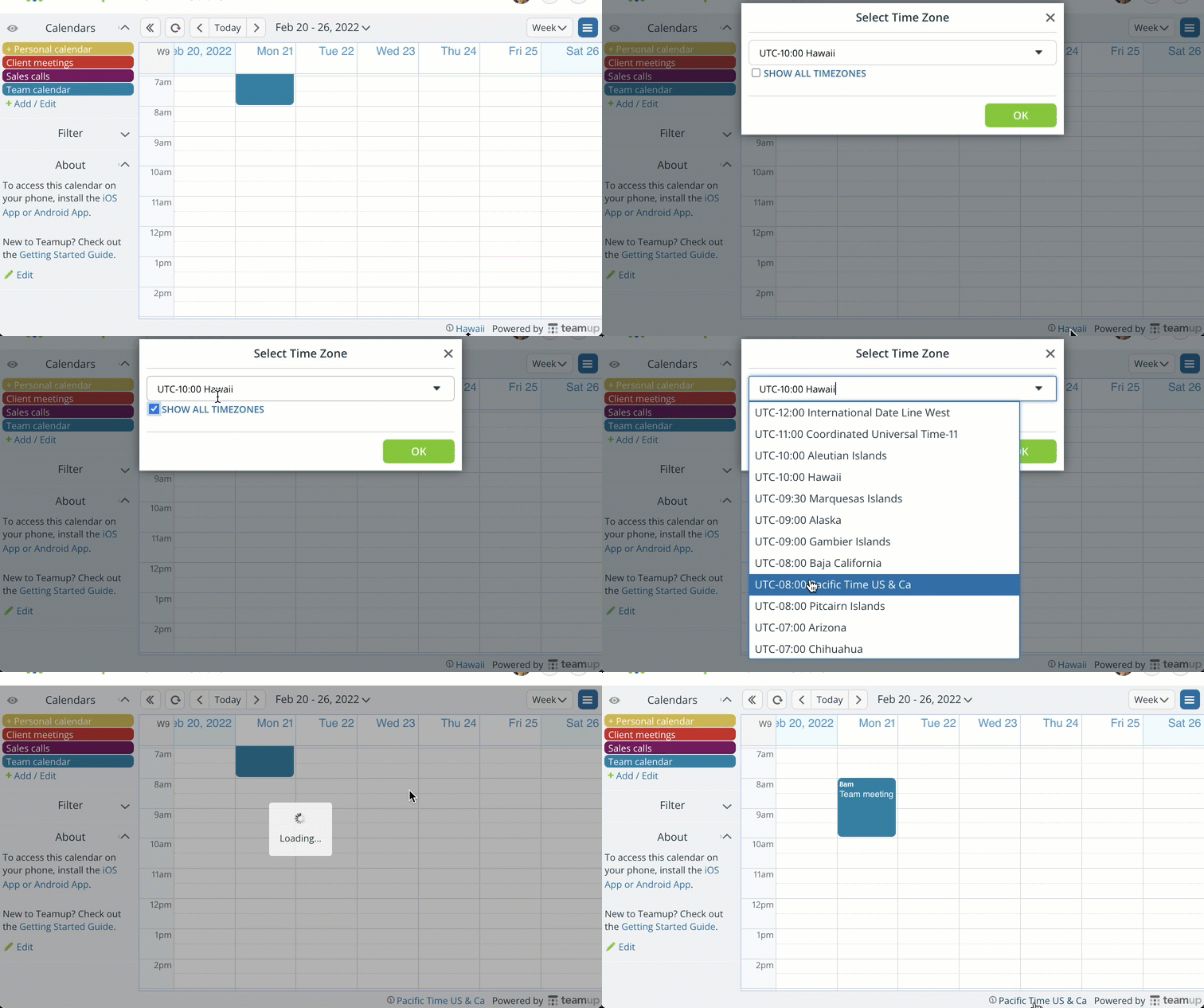
It’s simple: Switch to the time zone local to the event, then create the event.
Notice the time zone indicator (bottom right). The time zone indicator shows the reference time zone. All the events created while displaying this time zone are relative to it. When creating an event, if the time zone indicator shows Eastern Standard Time, then a 2pm event on the calendar means it will take place on 2pm in Eastern Standard Time.
To create an event at a time relative to the event’s local time zone, first use simple time zone switching to view the calendar in that local time zone, making it the reference time zone. Then create the event. When you switch back to your own time zone, the event display time will adjust automatically.
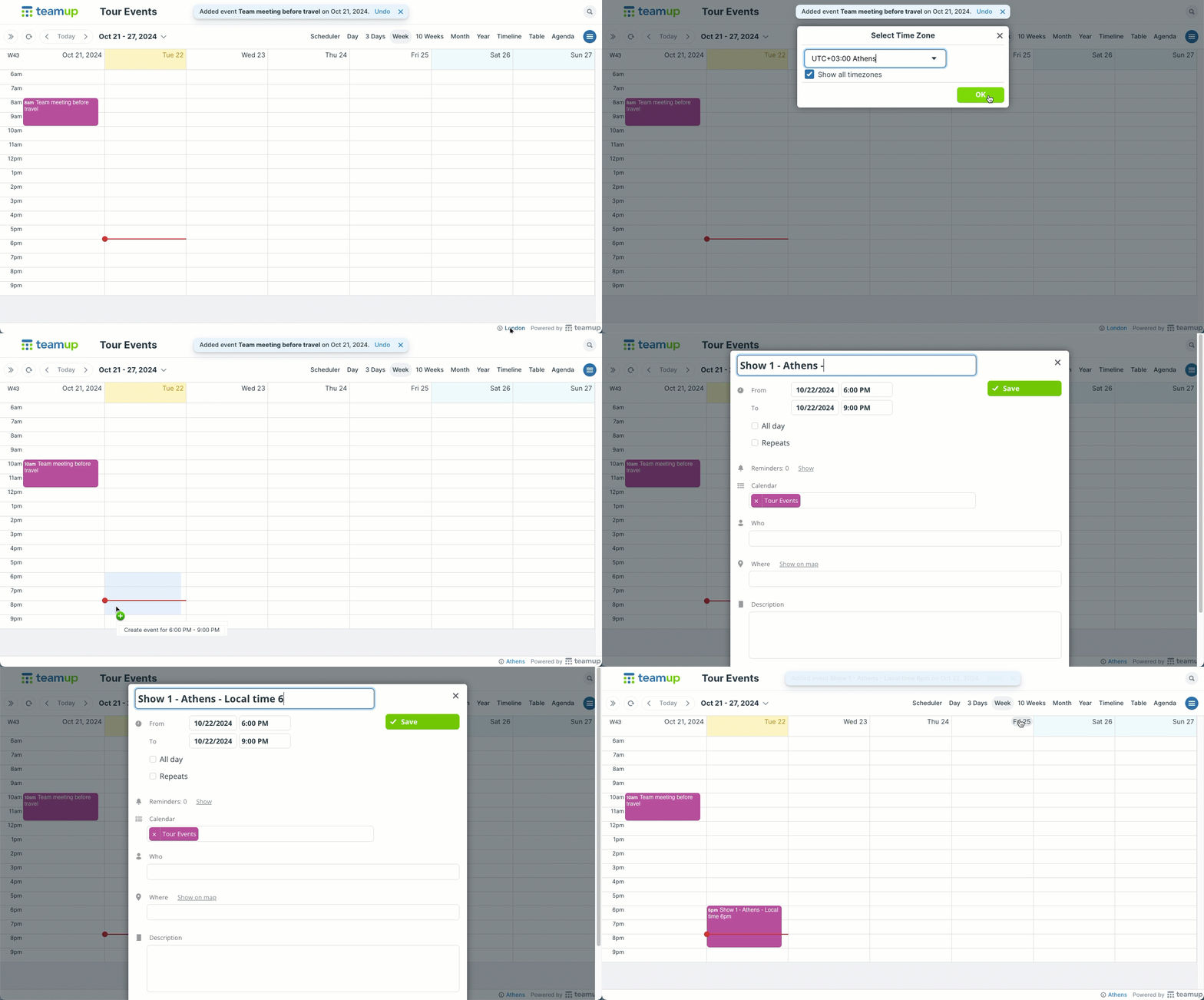
So in this scenario, to add a show that takes place at 6pm in the Athens time zone, you can switch to Athens as the reference time zone, then add the event to the calendar. You can repeat this process as many times as needed: Switch to the needed reference time zone for each event, then create the event. When done adding events for these other time zones, switch back to your own local time zone.
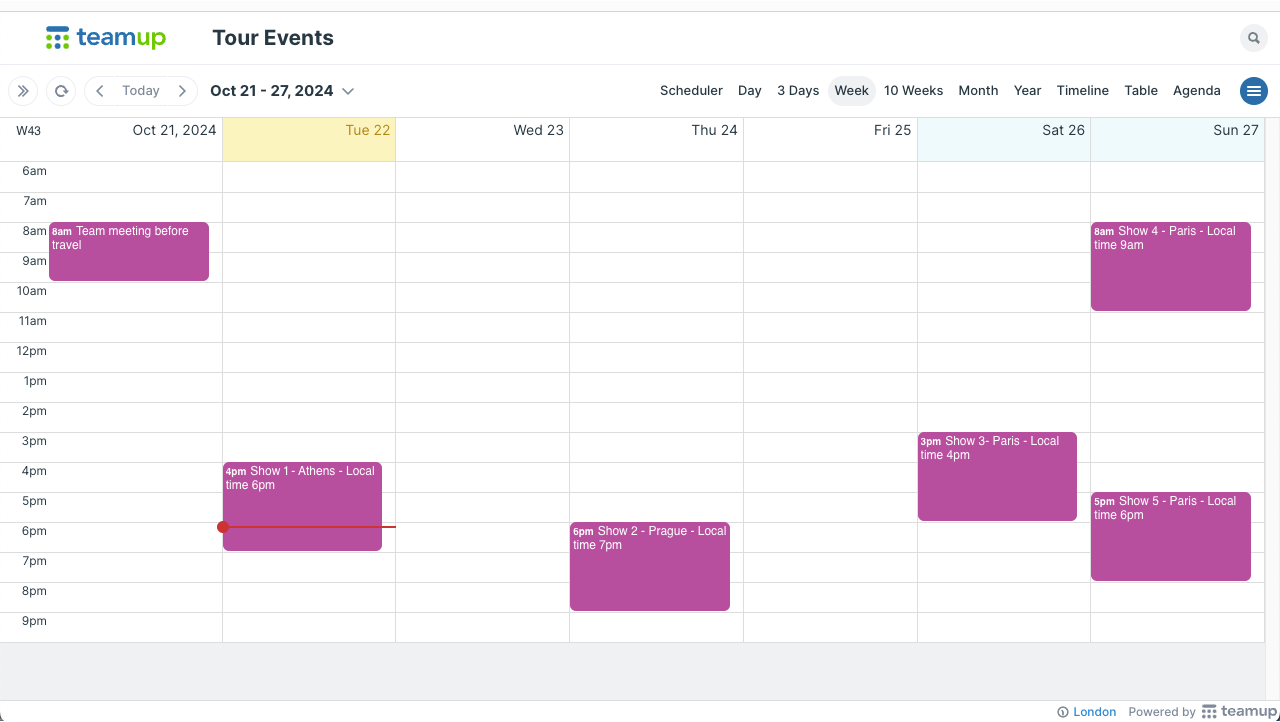
When the theatre team travels, they can view their calendar in the local time zone for each show, and the event will display at the correct time automatically.
A smart time zone calendar
When you need to schedule across time zones, try Teamup. With built-in features like automatic event time conversion, simple time zone switching, and visual time zone indicator, it’s easier to do event planning and make sure everyone sees the correct event time.
- Remote workers: Perhaps your local time zone is different than your supervisor’s. She sends you a list of meetings and appointments to put on the calendar. Instead of mentally converting the timing for each event as you add it to the calendar, just switch to her local time zone and add the events. Then switch back to your own local time zone.
- Conference planners: If you’re planning a conference or other event that will take place in a different location, you can adjust your calendar’s time zone to that location while you add events and plan out speaker schedules. You’ll be able to consider the local time implications and ensure that the schedule makes sense.
- Online event coordinators: Do you oversee a calendar of online events that might be submitted by others? If they send you the event information in their local times, you can switch to the needed time zone while you add those events to the calendar.
Here are the key features from Teamup that make it easier to schedule across time zones:
Automatic time zone conversion
Create a meeting in your own time zone, and the event time will automatically adjust when viewed in other time zones. This automatic adjustment includes all the daylight saving time shifts around the world.
Simple time zone change
Easily switch time zones without getting into the calendar settings or changing the defaults on your device. Preview event times for colleagues or friends, or schedule events in their local time zones even when different than your own.
Visible time zone indicator
When you schedule events across time zones, it can get confusing. With Teamup, you never have to wonder which time zone you’re viewing. The visible indicator makes it easy to see (and switch) the time zone you’re in.
Lead time zone for recurring events
You have the option to manually select the lead time zone for each recurring event series. This is often an over-looked but very helpful feature in a time zone meeting planner.
Automatic time zone detection
Teamup can be set to automatically detect the default time zone for each browser or device, so everyone is shown event times in their own selected time zone.