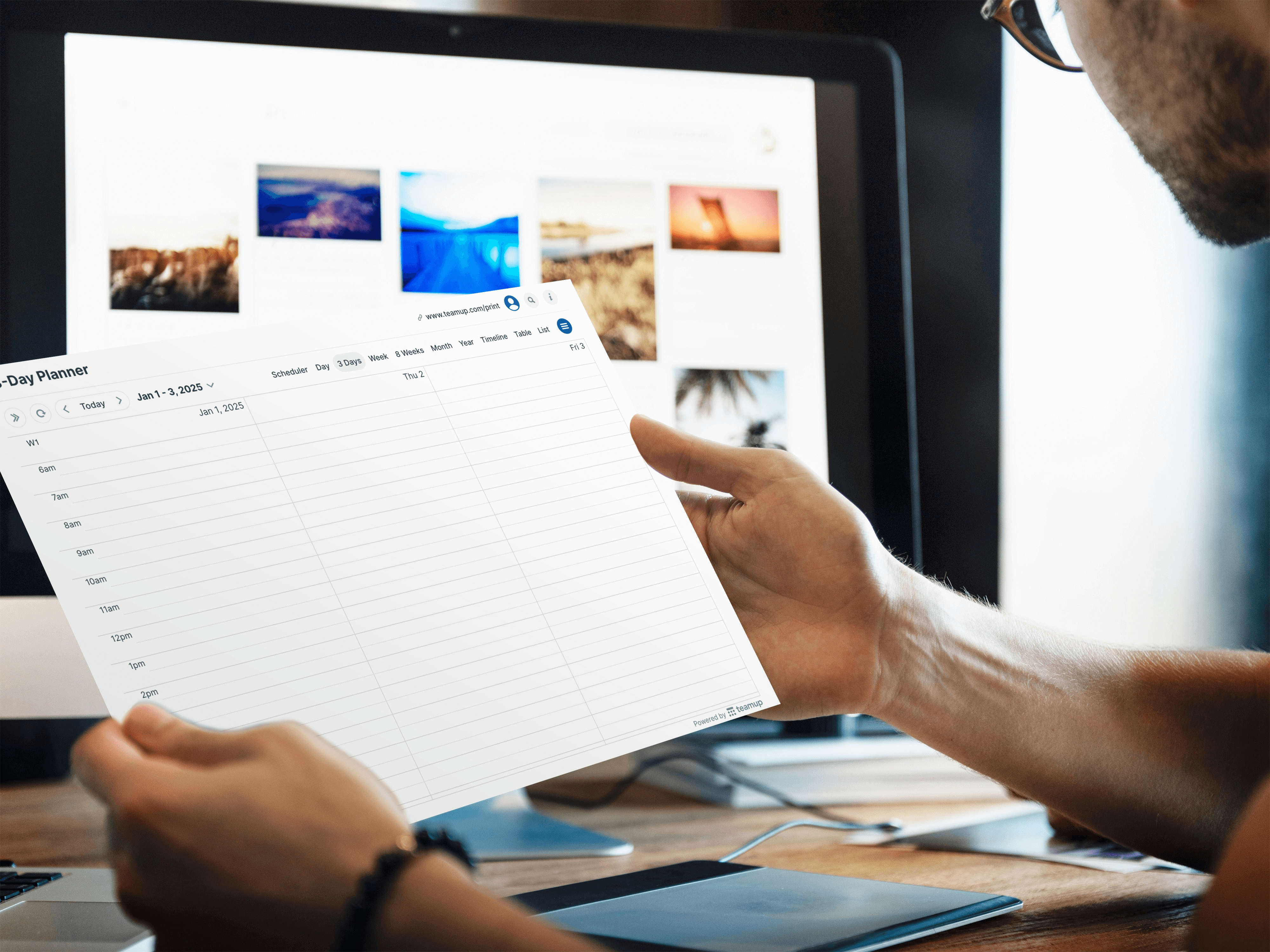
Digital planning is great, but sometimes a paper calendar is what you need. We’ve created a full set of blank printable calendars you can download and print for use: See the 2025 blank printable calendars or our new illustrated 2025 printable calendar collection. The premade printables are quick and easy to use, but you may want a blank calendar template that’s a little different, with a precise date range or different layout. No problem! You can easily create your own customized printable calendars from Teamup. We’ve made it super easy with our printable calendar widget. You can also use one of our live demo calendars, or your own Teamup calendar. We’ll show you how.
Make a custom blank calendar
There are three easy ways to create customized calendars with Teamup, anytime, for any planning purpose.
Teamup printable calendar widget
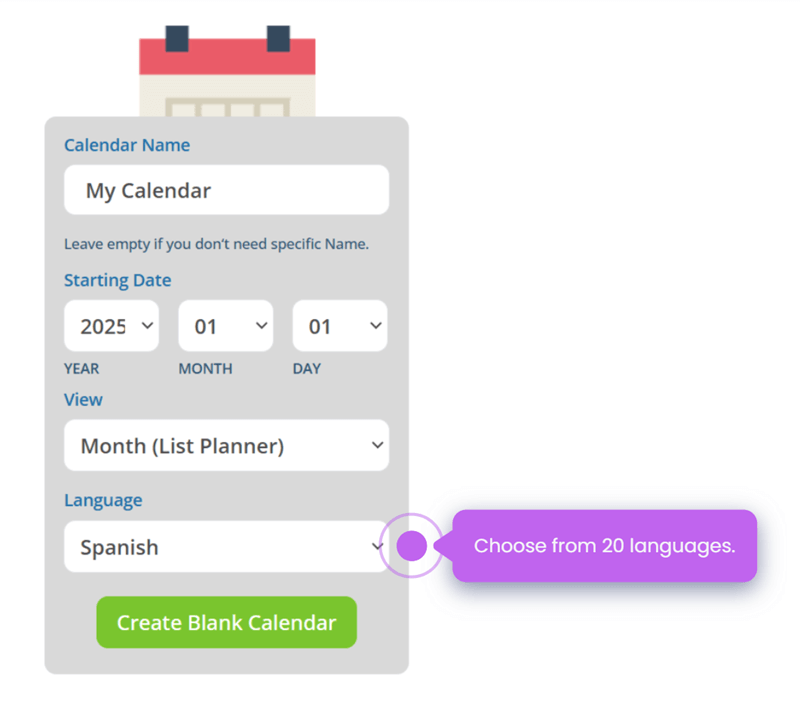
Use our handy printable calendar widget to quickly create a custom blank calendar to download and print. Enter the title and starting date, the set the other options. Click the button to generate your custom blank calendar. Once the calendar is open, use your browser’s print function to download a PDF or print a copy. Or click the blue hamburger menu (top right), then click Print & Export PDF. Check out the step by step guide.
Live demo calendars
Teamup has a collection of live demo calendars, and you can use any of these for a custom printable calendar. Just launch a demo, then toggle the sub-calendars to hide all the demo events. Now you’ll have a blank calendar, and you can adjust the date and switch calendar views to print as many custom calendar views as you’d like.
- Go to Teamup live demos.
- Click and launch any of the demos.
- Click the eye icon above the calendar list on the left to hide all events.
- Select the calendar view you want on the top right. In this example, we chose Year view.
- Adjust the dates or view configuration if needed, using the controls above the calendar.
- From the blue hamburger menu, click Print & Export PDF.
- Hide the sidebar and adjust the print settings if needed, then print.
Alternately, use your browser’s print functionality: Collapse the sidebar in the calendar first, then click Ctrl-P on PC or Cmd-P on Mac
Use your own Teamup calendar
If you already have a Teamup calendar, you can create custom printouts from it. If you want a completely blank printable, toggle all the sub-calendars out of view so events are hidden. Then select the calendar view you want, adjust the date range, and print: Ctrl-P on PC or Cmd-P on Mac, or click the blue hamburger menu (top right), then click Print & Export PDF.
A perk to using your own Teamup calendar: You can include events in your printable to create a custom countdown, an overview of project milestones, a travel planner, or whatever you need. If you want to include only some events from your calendar, you can put them all on one sub-calendar and hide other sub-calendars. Then you can create a printable calendar with just those needed events on it. Here’s how:
- In a browser, open Teamup and go to Settings > Calendars.
- Create a new “Printable Events” sub-calendar.
- Go back to the calendar. Duplicate all the events you want to include on the printable to the new sub-calendar. To do so, right-click on each event, then select Duplicate. Assign the duplicated event to the “Printable Events” sub-calendar.
- Once you’ve duplicated all the events you want to include on the printable, toggle all sub-calendars off except for the Printable Events sub-calendar.
- Switch to the date range and calendar view you want, then print the calendar:
- Ctrl-P on PC or Cmd-P on Mac, or
- Click the blue hamburger menu (top right), then click Print & Export PDF.
When you’re done making printouts, you can go back to Settings > Calendars and deactivate the Printable Events sub-calendar. It will still be there if you need it (just activate it) but it won’t clutter up your calendar view in the meantime.
Tips for printable blank calendars
When the blank calendar is displayed on your screen, you can still make adjustments before printing your customized blank calendar:
Link parameters
Note the calendar URL in the browser’s address bar. The URL has link parameters which determine how the calendar is displayed. You can modify these parameters to adjust how the blank calendar appears, the print the modified version. For example, you can use link parameters to change the title shown on the printable view. So you could print different versions of the same calendar with a customized title for each one. See more about link parameters.
Calendar views
Teamup has many unique and adjustable calendar views. Besides the standard calendar layouts like day, week, and month, Teamup also offers configurable Multi-day and Multi-week; you can set the number of days or weeks shown. You can also adjust the number of months shown in Year view. (You can configure these calendar view options in the calendar settings, or by using link parameters.) Try Table and Scheduler views to see calendar events in completely unique layouts. Adjust the settings and calendar resolution for the best display. Try Agenda view to create and print a customized task list from your own calendar.
Date range
Use the arrows or scroll through the date picker to adjust the date range. Working with the variety of calendar views and date ranges, you can print customized calendars for planning out an academic block, a project timeline, travel itinerary, or whatever you need. Try printing consecutive date ranges for a set of blank calendars or planners.
Ideas for custom printable blank calendars
Need some ideas to get started? The possibilities are endless.
- 1-day planner with plenty of room for tasks and notes.
- A granular timeline for blocking out routines.
- 3-day calendar with hour grid for time blocking.
- Multi-week calendar for the date range you need. Great for project planning.
- Year calendar for all the big events of the year on one page.
- A special event countdown calendar for the next exciting milestone.
- Biweekly planner showing two weeks at a time.
- A multi-column planner to plan schedules and tasks.
- Academic calendar for the precise block or semester. Try Multi-week view or Year view adjusted to show the months needed.
- A task list with checkboxes and space for notes.
- Vacation or travel planner. Adjust to the needed dates for your trip.
- A meal planner. You can make it detailed for tracking macros.
Printing is one way to use these blank custom calendars; you can also save the PDFs for use on a tablet or as part of a digital planner. Or work with other design tools like Canva to create custom frames and holiday themes for your printouts.