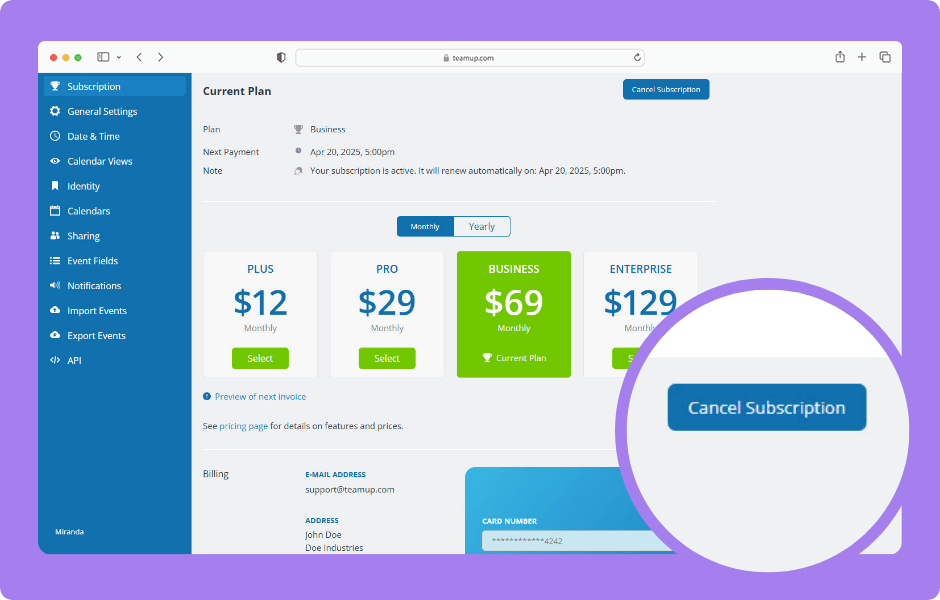
Teamup’s subscription plans are not based on user accounts, which is always free for anyone. Instead, they are calendar-based. Each subscription plan is bound to a specific calendar. Each plan must be cancelled within the respective calendar. The calendar administrator can cancel a calendar’s subscription in the calendar settings.
- Open Teamup in a browser. Make sure you have the right calendar open.
The subscription for each calendar can only be managed in that calendar’s settings by the administrator. - Click the blue menu.
- Click Settings.
- Select Subscription from the left sidebar.
- Click Cancel Subscription to confirm.
- Confirm subscription cancelation.
- Details on the cancellation can be found in the notes section.
ℹ️ Learn more
Your subscription remains active until the end of your current billing period. After that, it automatically downgrades to the Free plan. Your calendar remains accessible within the limits of the Free plan unless you completely delete it.