Do you have a Teamup Calendar that works really well for a project, team, group, or other need? With Teamup’s duplication feature, you can use your own calendar as a template to create another calendar with the same basic structure already in place. Then you can adapt and scale the duplicated calendar as needed.
Duplicate a calendar as a template
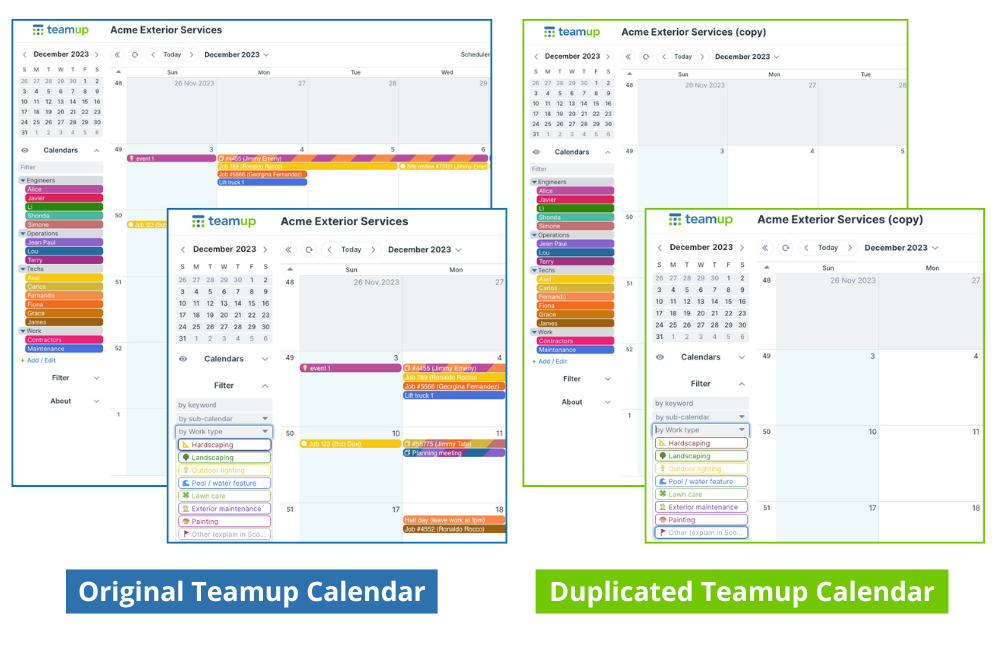
When you use your calendar as a template, the sub-calendars and basic configuration (including custom fields) are included in the duplicate:
- If you have a project calendar that works really well, you can use it as a template: Just create a duplicate calendar when you’re ready to start a new project.
- Or perhaps you lead a team at work and your colleague wants to create a similar calendar structure for her team. You can allow her to use your calendar as a template.
Calendar events and sharing settings are not duplicated. So your data is kept safe. Just be sure there is nothing confidential (e.g. client name, project ID) in your sub-calendar titles or custom fields.
How to duplicate a calendar
Method 1: Calendar settings
This method is only for the calendar admin to create another calendar you will own from the template calendar. So if you need a new project calendar, for example, you could use your current project calendar as a template to make setting up faster and easier.
- Go to Settings > General Settings.
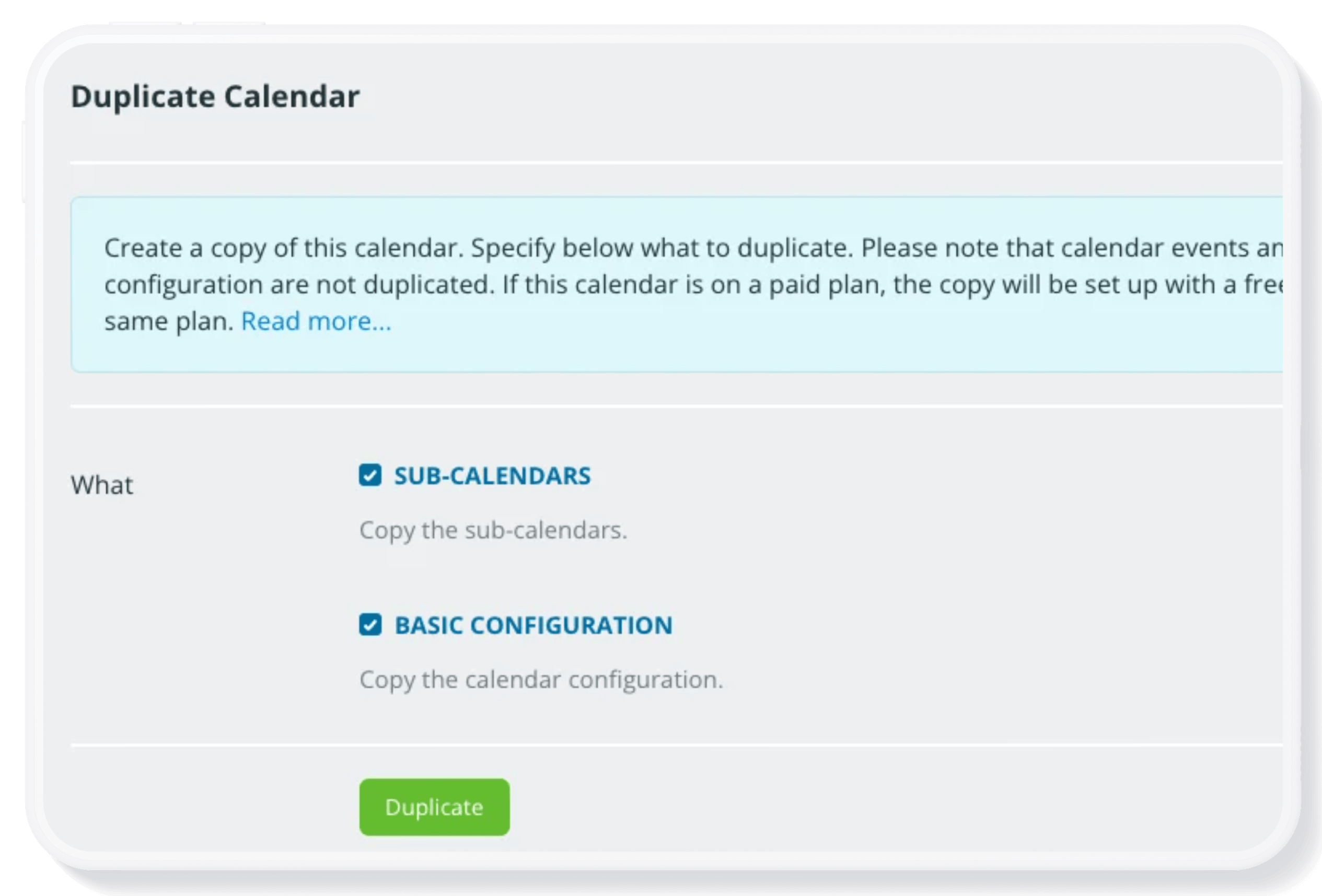
- Scroll down to the bottom of the General Settings dialog to the Duplicate Calendar section.
- Click the Duplicate button.
Configure and confirm the duplication. More details here.
Method 2: Template calendar link
This method allows you to let others use your calendar as a template for creating their own new Teamup calendar. So if a colleague at work wants to use your team calendar as a guide, you can give her a Template link so she can duplicate the structure you have in place.
- In your calendar, go to Settings > Sharing.
- Click Add User.
- Expand the Link section and click Add.
- In the Name field, enter Template as the link name.
- Scroll down to the Calendars Shared section.
- Choose All calendars.
- Apply Read-only permission.
- Click the green Save button.
To use the Template calendar link:
- Copy the calendar key and append it to the end of this link: https://teamup.com/calendars?template=
- Copy and paste the entire link into a browser tab to duplicate the calendar. You will be taken to a Calendar Creation screen.
- Click the green Create button. The original calendar structure will be duplicated in the new calendar created.
ℹ️ See more