Teamup provides 12 unique calendar views, so you can see your schedule in the format that works best for what you’re doing. Multi-week view (browser only) shows an adjustable number of weeks, with the current week always at the top. It’s a good alternative to the standard monthly view as well as a great layout for long-term planning.
See the current week always at the top
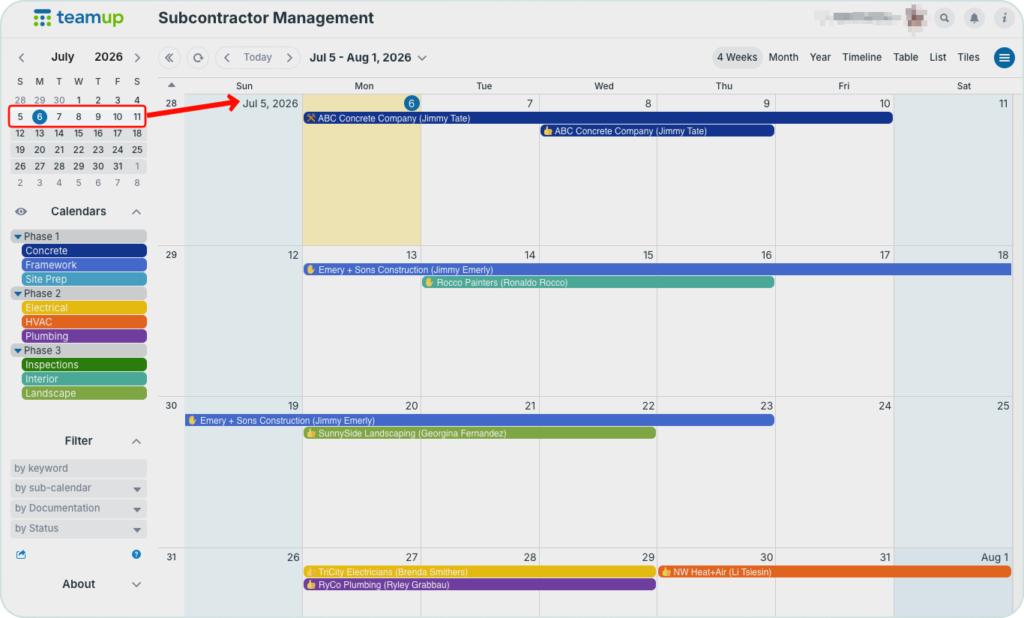
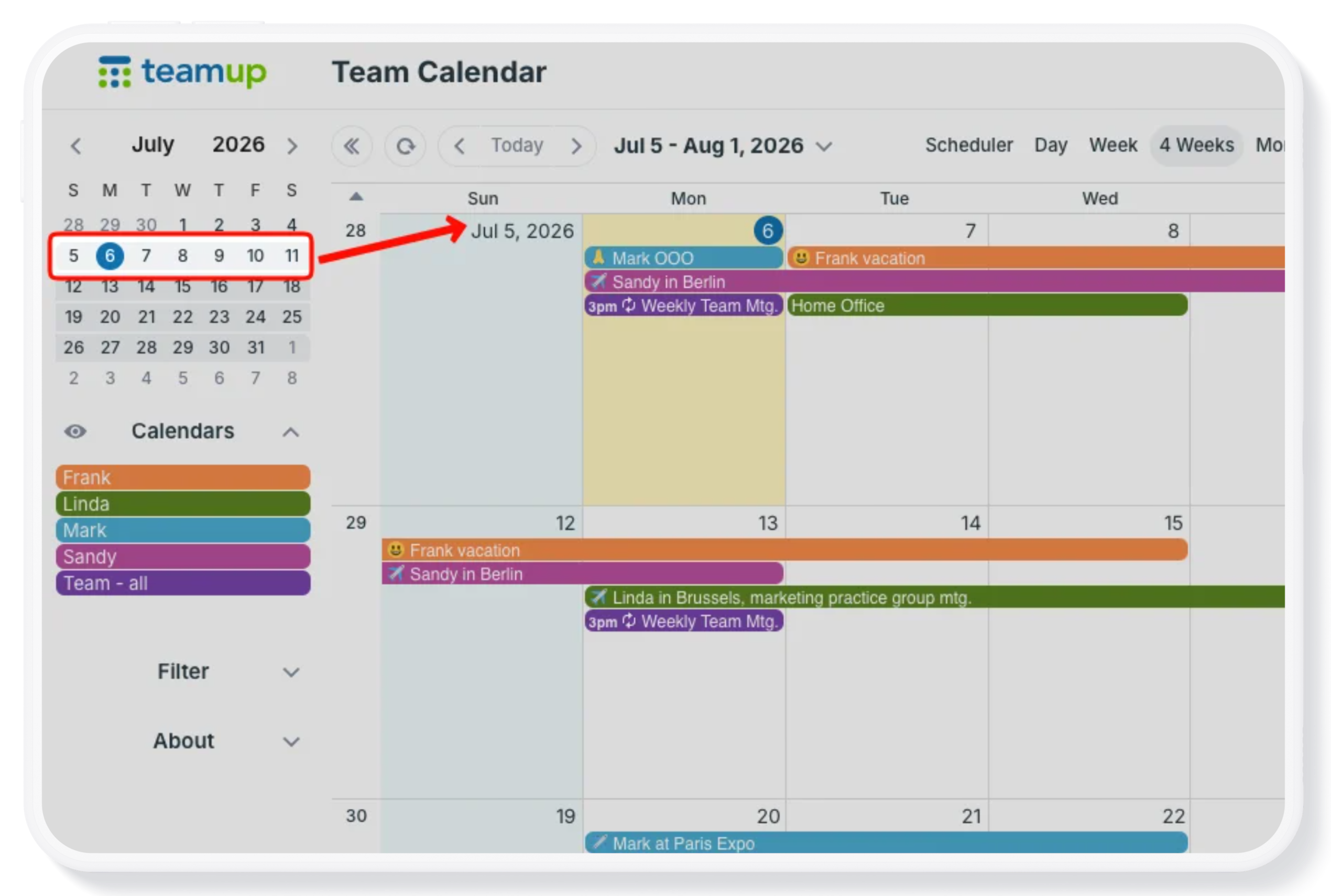
Click to enlarge: Multi-week view, set to display 4 or 5 weeks, provides a similar view to standard Month view while keeping the current date at the top.
Month view is a helpful, standard calendar view. But as the month progresses, you’re looking mostly at a calendar view with events that are already past. A big advantage of the multi-week view is that it keeps the current week at the top of your calendar. So the displayed events will always be current and future events, rather than past events.
Adjust the number of weeks
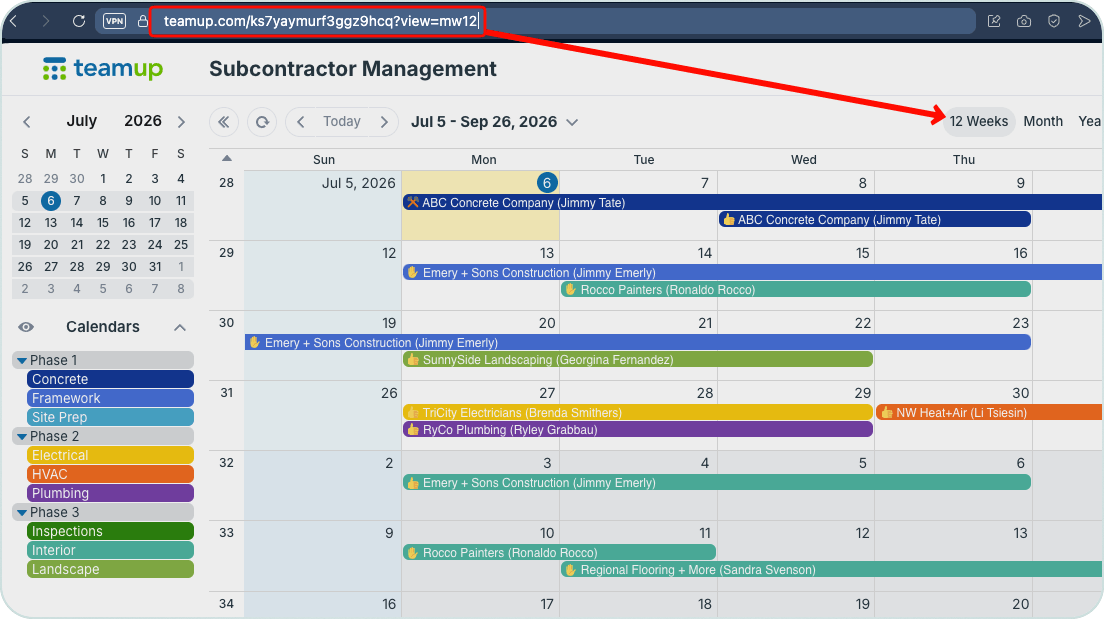
Click to enlarge: The administrator sets the number of weeks shown in Multi-week view; all users can use a link parameter to adjust the number of weeks visible for a single browser session.
Multi-week view can show from 1 to 53 weeks, which lets you adjust the date range shown to match what you’re working on: a quarterly report, a project timeline, an academic block, and so on. The calendar administrator can configure the number of weeks shown in Multi-week view; this setting will apply to all users. If the admin sets 8 weeks as the Multi-week configuration, the calendar will load for all users with an “8 Weeks” view option in the view picker.
If someone wants to see a different number of weeks, they can use a link parameter. Any user can add a link parameter to the calendar URL to change the number of weeks shown; the parameter will only apply to that user for the duration of their browser session. (When the calendar is opened in a new tab or window, or refreshed, the Multi-Week view will return to the default setting.)
How to use a link parameter:
- Open Teamup in a browser.
- Click into the browser’s URL bar to view the calendar URL.
- Append ?view=mw52 to the calendar URL. Replace 52 with the number of weeks you want to see.
- For example, “view=mw12” has been appended above, which means:
- Multi-week view displays 12 weeks.
- The view picker shows an option for “12 Weeks” instead of the default setting.
- You can switch to another calendar view and back to the 12 Week view until the browser tab is refreshed or closed.
Switch between static and flexible grid
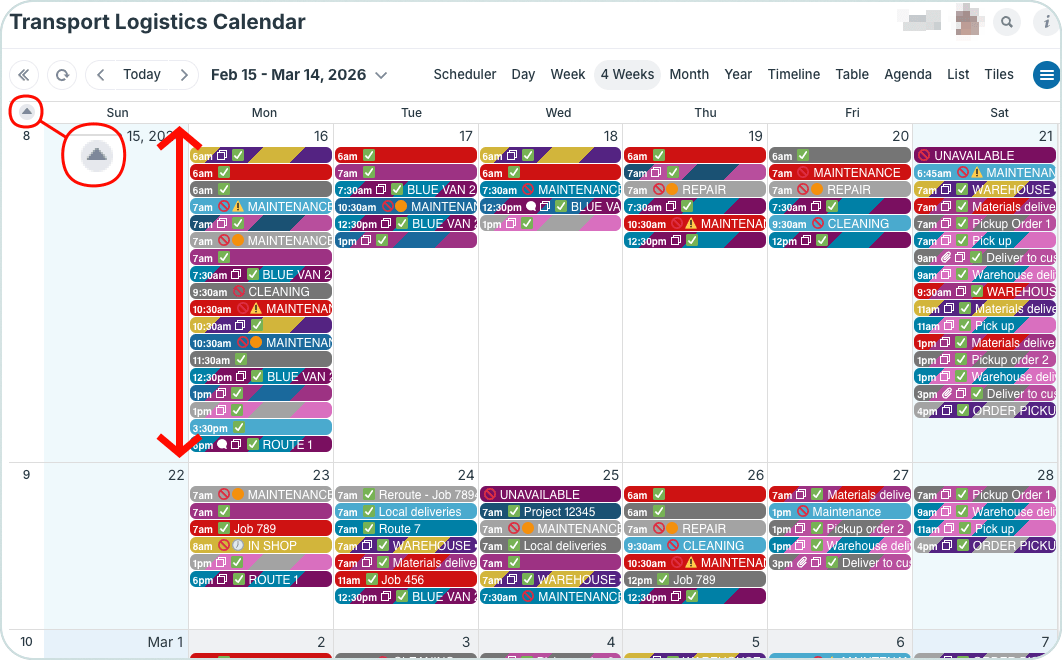
Click to enlarge: The flexible grid expands to display all events across the weekly rows.
- Flexible grid: Daily blocks expand across the row to show all events for each day. Some weeks may be out of view due to the expanded row. There will be a single scroll bar on the right side of the grid. Use your mouse wheel or the scroll bar to move up and down over the weeks.
- Static grid: The daily blocks will not expand to accommodate many events. Some events may be hidden. When you switch to static grid, the scroll bar will adjust automatically to individual scroll bars for each row (week). Use your mouse wheel or the scroll bar to see any hidden events on a weekly row.
To switch between static and flexible grids, use the arrow in the top left, above the week number.
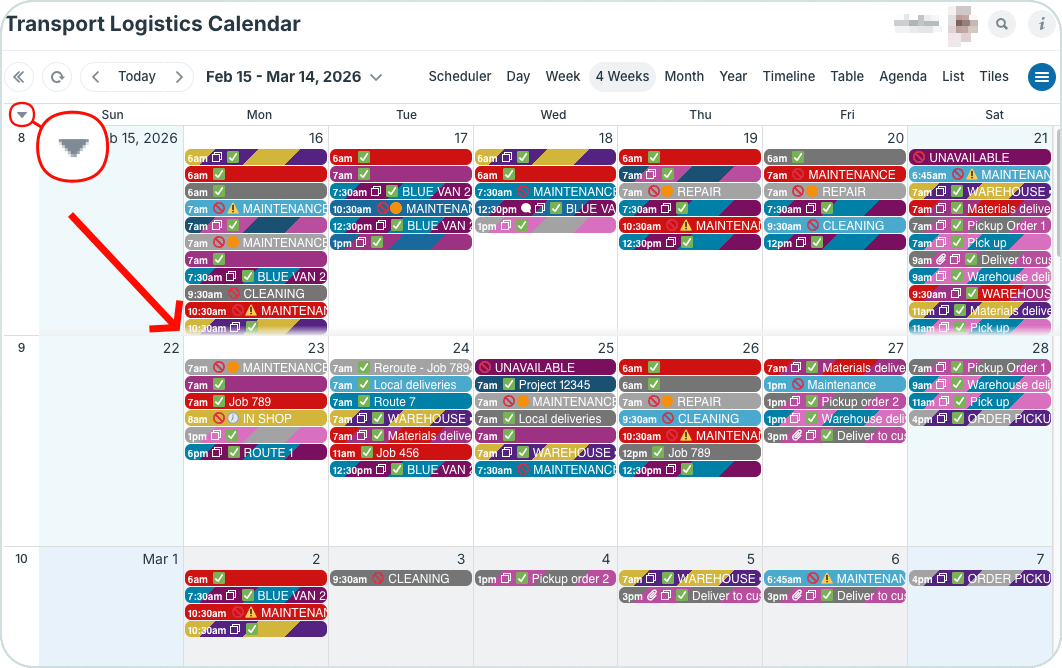
Click to enlarge: The static grid prevents daily blocks from expanding; some events may be hidden. Hover and scroll over a week row to see hidden events.
Scroll through weeks and months
Multi-week view can show up to 53 weeks for a full year of calendar events. This allows you to view events across each week, organized in months, while scrolling and planning over an entire year.
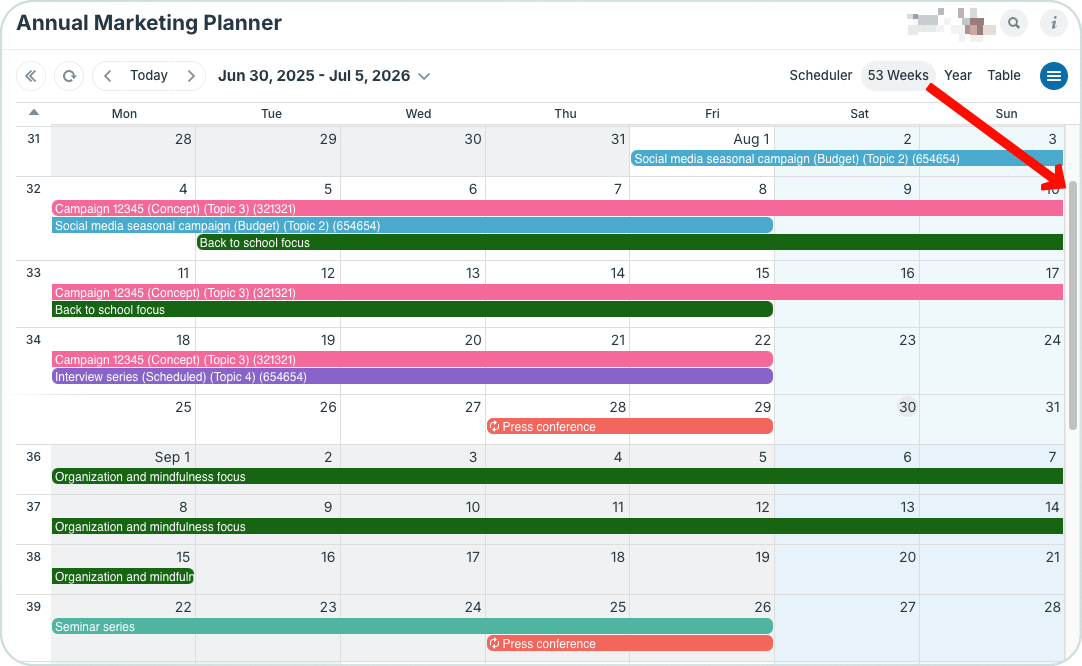
Click to enlarge: Set the visible weeks to 53 and use the scroll bar or mouse wheel to scroll over an entire year of events organized by week.
In Month view, it’s not possible to scroll between months: You need to use the arrows at the top to switch between months. In Multi-week view, you can scroll through all the displayed weeks. Alternate shading shows you where one month ends and another begins.