When you set up change notifications, you can choose the notification type. If you’re using comments to enable status updates or real-time notes from the field, you may want to be notified whenever a comment is added events on certain sub-calendars. Notifications for comments make sure you don’t miss a key update. Here’s how to set it up.
About change notifications

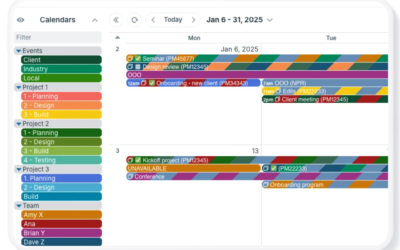
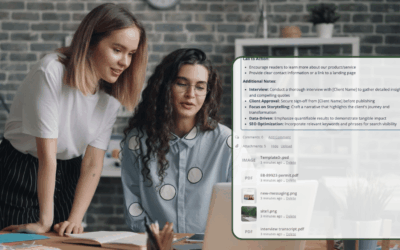
Click to enlarge: Stay updated with fleet driver updates, tour guide notes, and room readiness status with change notifications for comments.
Teamup account users can set up change notifications, which allow calendar users to be notified when changes are made to events on the calendar. Change notifications can be delivered as email notifications or as push notifications. You can get push notifications to a browser or to a mobile device. Whether sent via email or push, there are different change notification types:
- None
- New events
- Important changes
- All changes
- Comments
When to get notified about comments
 If you choose Comments type, a notification will be triggered specifically when a user adds a comment. That’s really helpful in situation where you’re letting field crew or staff member use comments to provide real-time updates or notes:
- When crew members add a note for field documentation.
- When facility staff update the status on a meeting room.
- When tour guides add notes or photos from a tour.
- When fleet drivers share key details of a vehicle issue or timing change.
You can set it up individually, for only the sub-calendars where comments are important (or for all sub-calendars, if that’s better). You’ll automatically get pinged every time someone adds a comment only to events on those selected sub-calendars. These targeted notifications let you stay informed about key updates without worrying you’ll miss something important.
How to set it up
Follow the steps linked below to set up notifications. Be sure to select Comments as the notification type for each relevant sub-calendar (or for all sub-calendars).
- To set up push notifications for comments on the Teamup app: Follow these steps.
- To set up push notifications for comments on a browser: Follow these steps.
- To set up email notifications for comments: Follow these steps.