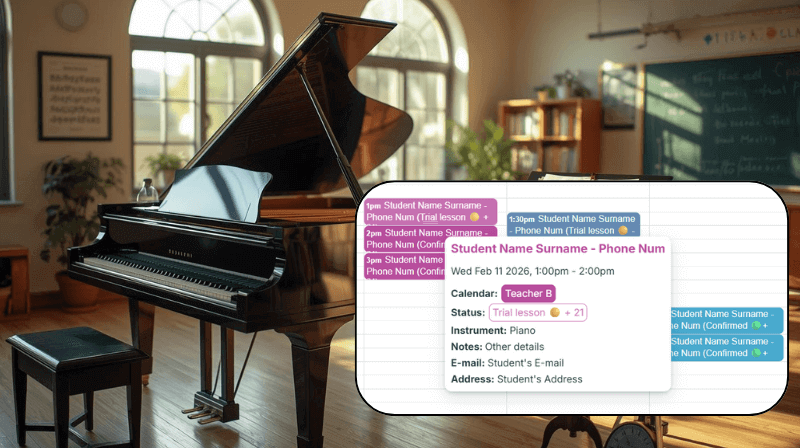
In a music school, scheduling isn’t just about adding lessons, it’s about coordinating across multiple teachers, students, rooms and time slots. Teamup makes it easy to keep everything in one place, so you can see who’s teaching when, avoid conflicts, and update schedules efficiently.
Beyond scheduling, admin details matter too. You need to track student contact information, lesson type or status, and notes. When that information is organized and easy to access, it becomes much easier to handle changes, including reschedules, cancellations, and last-minute updates.
The need: One clear overview of what’s happening across multiple teacher schedules, with all lesson details kept organized and easy to access whenever needed.
The Teamup solution: Teamup makes it easy to keep everything in one shared calendar: You can instantly see who’s teaching when, avoid scheduling conflicts, and update lessons efficiently as plans change. Each teacher gets the right level of access, so that they can see just what matters to them. At the same time, you can track teaching hours and billable lessons for smoother admin and reporting.
Start with the right structure: One master calendar with the right sub-calendars
The simplest way to stay organized is to use one master calendar for your entire school schedule, and structure it with sub-calendars. This keeps everything in one place, while still separating information clearly.
Create one sub-calendar per teacher
For a clear and scalable structure, create one sub-calendar per teacher, or multiple calendars in one folder per teacher. This keeps each teacher’s schedule separate, but still connected inside the same unified system, so you can view individual schedules or the full overview anytime.
Add shared sub-calendars for school-wide events
In addition to teacher sub-calendars, it’s helpful to create shared sub-calendars such as:
- Holidays and closures
- Maintenance and unavailable rooms
- Other internal events that affect scheduling.
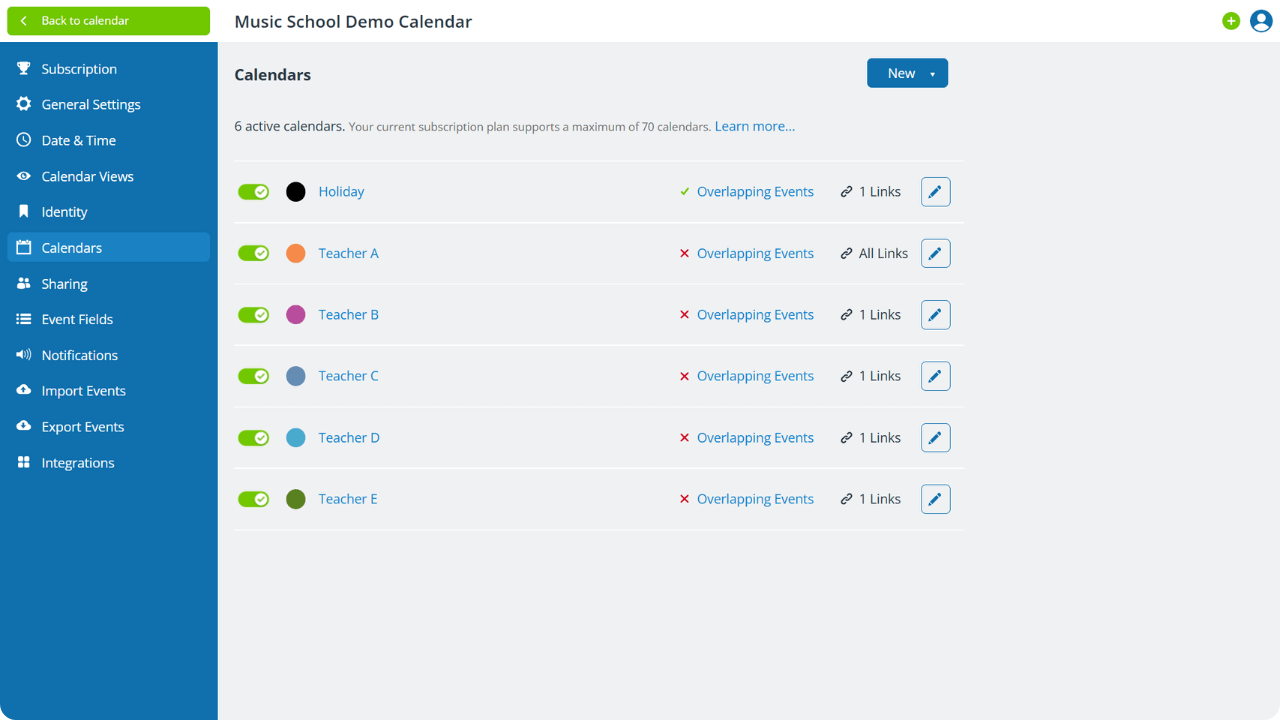
Create a sub-calendar for each teacher in Calendar Settings > Calendars
Capture the right lesson details with custom fields
Teamup offers a variety of custom fields you can use to attach important information directly to each event. Here are a few custom fields you can create in your calendar:
- Lesson type (trial, regular, kids, adults, etc.)
- Lesson status (confirmed, not confirmed, rescheduled, etc.)
- Instrument
- Student contact details
- Notes
Pro tip: To keep the data consistent, use a choice custom field for lesson type, status and instrument. This ensures to select from the same predefined options, so your information stays clean, reliable, and easy to filter later. To track billable hours, use a number custom field.
Why custom fields help
Custom fields allow you to:
- Track key lesson details attached to each event.
- Standardize what information gets captured.
- Reduce errors and missing or incomplete details.
This keeps important context available whenever you need it, without relying on separate notes or spreadsheets.
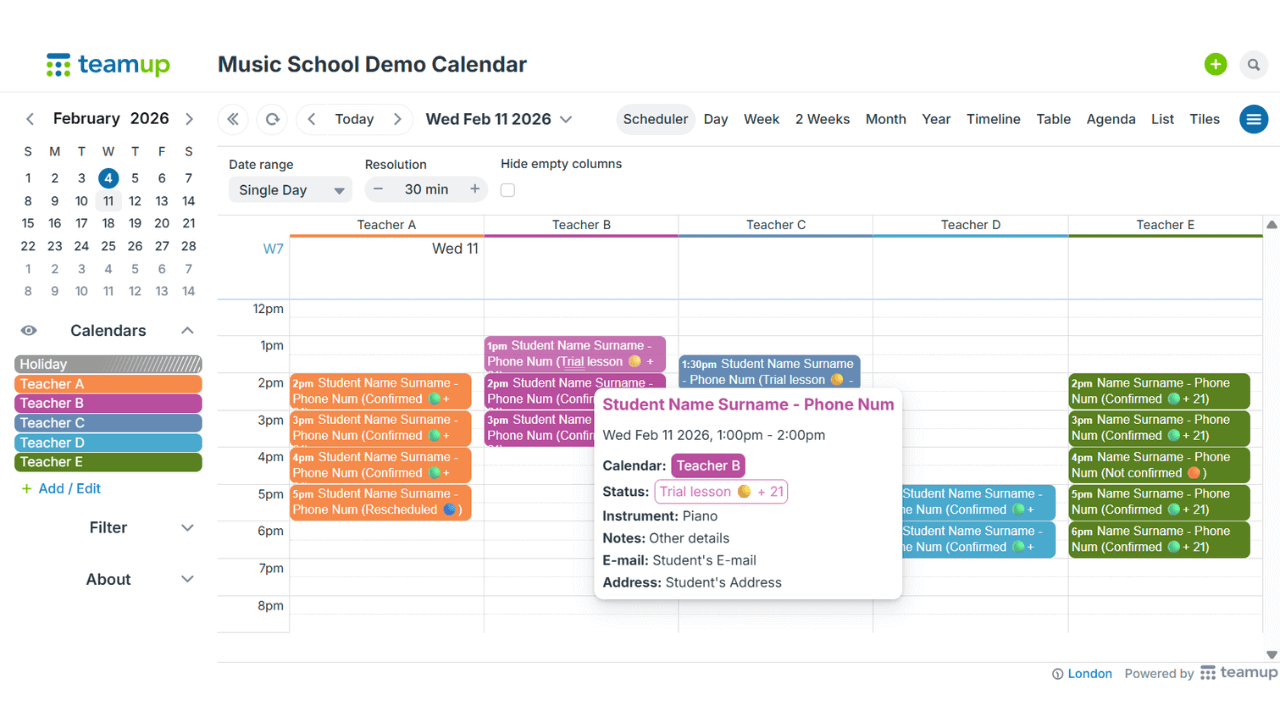
Click to enlarge: Capture and organize all information using custom fields.
Copy or repeat lesson events
If you teach recurring lessons or work with the same students every week, you don’t need to enter all details from scratch each time. Instead, you can:
Create a repeating event: For weekly lessons with the same student, set the event to repeat (e.g., every Monday at 4 PM). All custom fields — lesson type, instrument, contact details, notes — will automatically carry over to each occurrence. You only need to update exceptions, like a reschedule or cancellation.
Copy an existing event: If the lesson structure is similar but not recurring (for example, different days or slightly different times), simply copy an existing event.
Give teacher access to their own schedule
With Teamup’s advanced access permissions, you can decide exactly what each teacher can see and do. For example, you can set it up so each teacher can view their own sub-calendar, or you can also allow teachers to add leave or time-off on a shared Holidays sub-calendar.
Access control lets you decide who can view vs. edit, give teachers access only to what they need and reduce accidental changes and protect sensitive details. And because everything is managed inside one master calendar, it’s easy to add or remove teachers as your team changes — simply invite new users when someone starts, or revoke access when someone leaves.
Get instant visibility across schedules and bookings
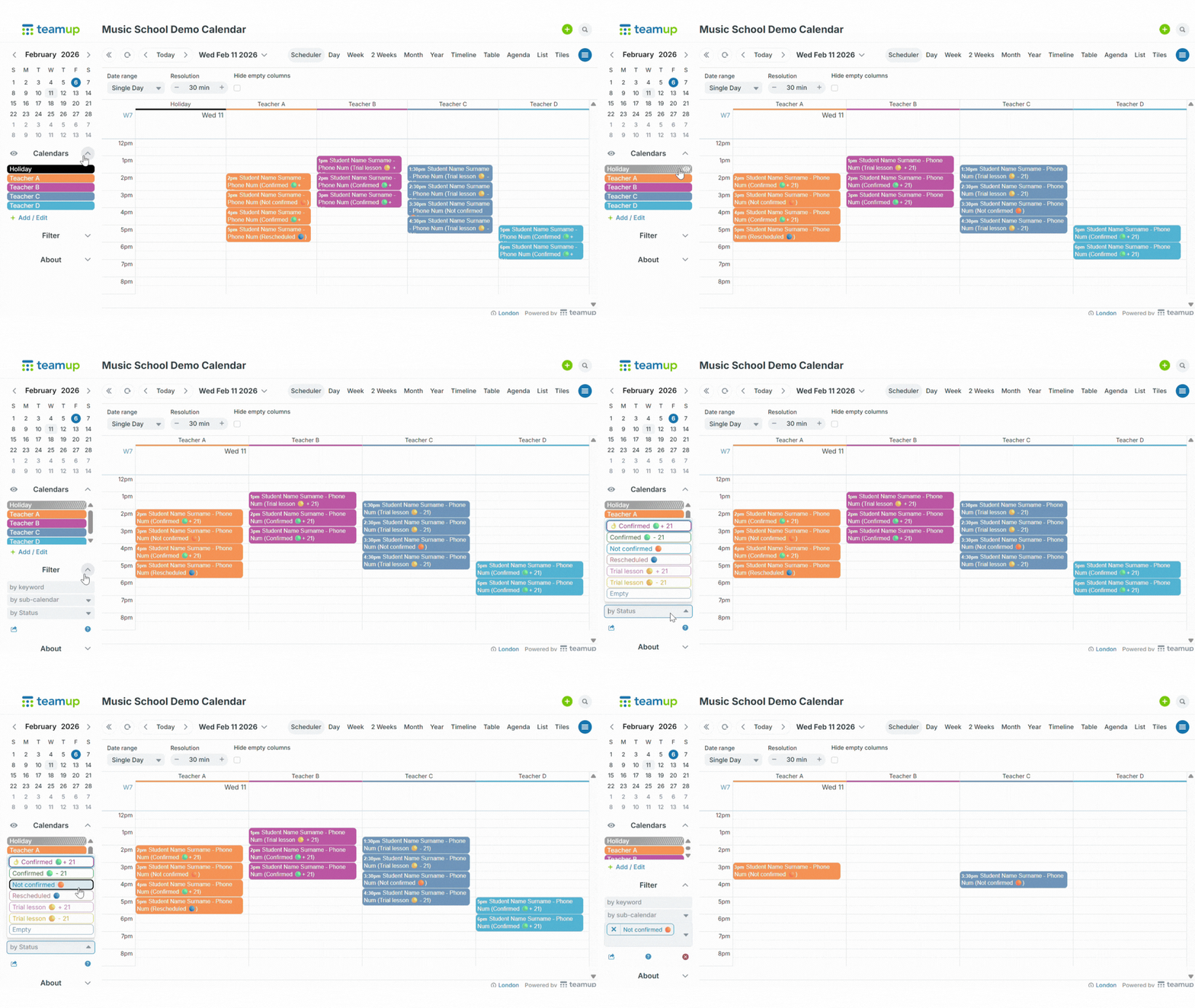
Once your master calendar is structured, the Scheduler view lets you see what’s happening at a glance. Each teacher’s sub-calendar can be displayed side-by-side, so you can see each teacher’s schedule clearly, and spot open slots quickly.
With filters and sub-calendar toggles, you can show only the information that’s relevant at any time, and keep the calendar readable even when it’s busy.
Handle admin work faster with Table view and CSV export
Teamup’s Table View is a spreadsheet-style overview of events, especially useful for admin work like billing lessons and tracking teaching hours. You can quickly review lesson status, spot missing information, and sort lessons for faster follow-up.
When you need to process information outside the calendar, you can also export your schedule as a CSV file. This allows you to export event details and custom field data, which is useful for reporting and record-keeping and processing data in other tools or workflows.
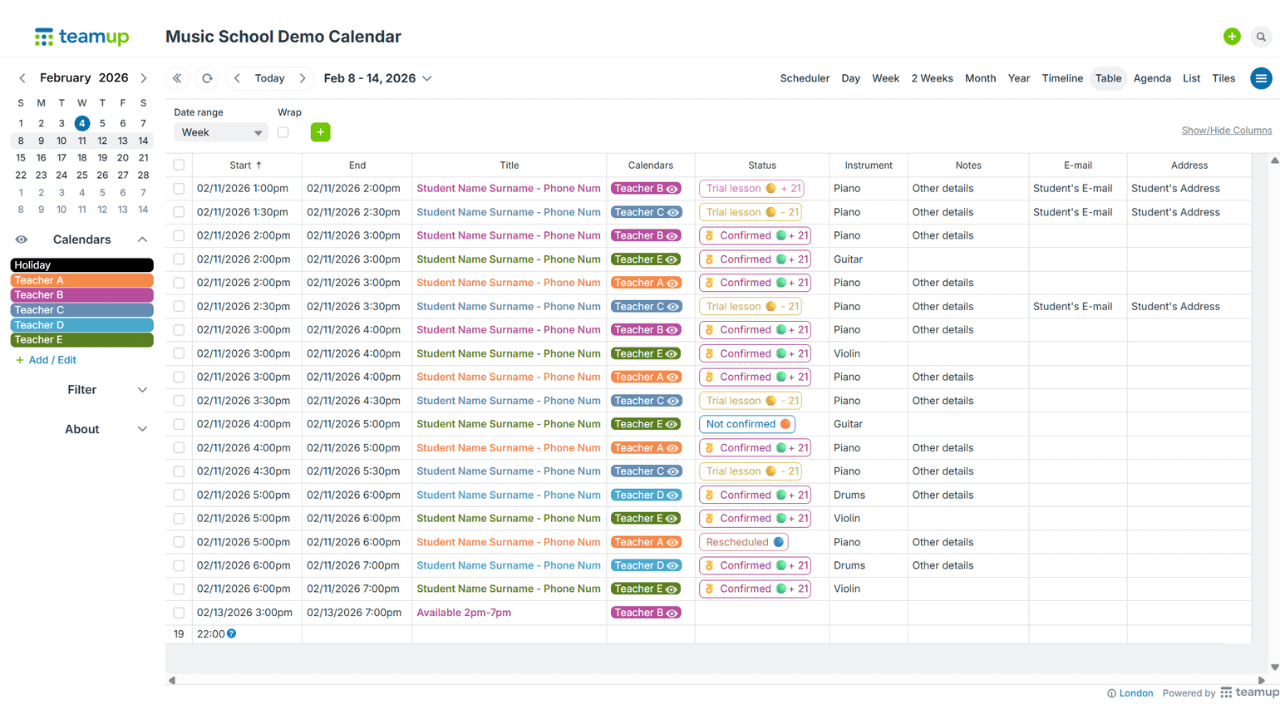
Click to enlarge: The Table View gives you a spreadsheet-like overview.
▶️ Ready to try a unified calendar for your school? Explore our live demos or create your own Teamup calendar.