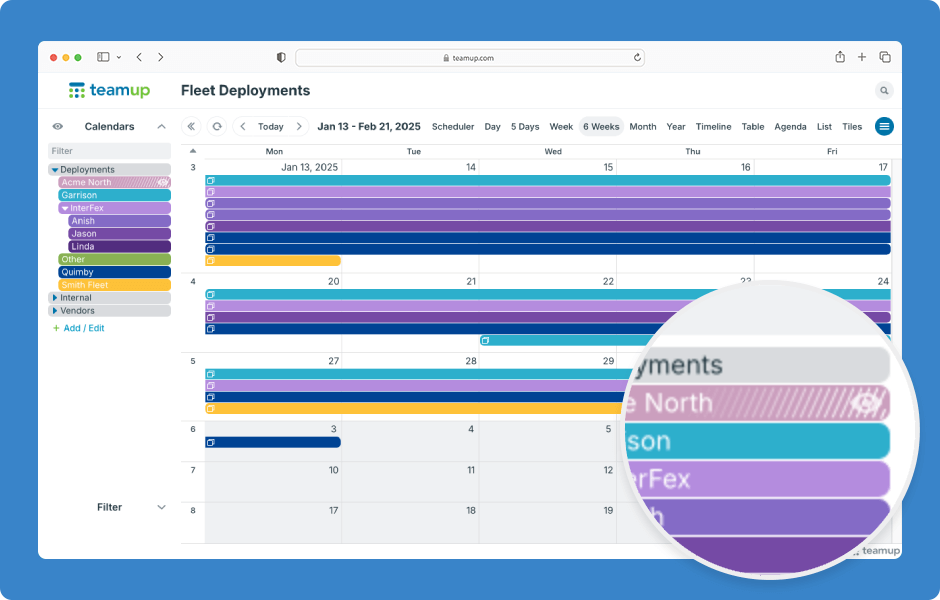
You can toggle sub-calendar visibility to show or hide their events. Sub-calendars that are toggled “off” have white lines on their title bar, so you can see at a glance which sub-calendars hidden and which are currently shown.
How to toggle calendars on and off from view
- Click on a sub-calendar title bar to toggle between showing and hiding that sub-calendar.
- Hover to show the Eye icon at the right end of a calendar’s title bar. Click the Eye icon to show only that sub-calendar.
- Click on another sub-calendar title bar to show it as well.
- Click on a folder title bar to toggle between showing and hiding all the calendars in that folder.
- Click the Eye icon on a folder title bar to show only the calendars in that folder.
- Click the arrow on a folder title bar to collapse that folder and hide all its calendars. Click the arrow again to expand.
- See more about working with folders.
- Click on All above the calendar list to bring all calendars back into view. Click again to hide all sub-calendars.
- When all sub-calendars are hidden, click on any sub-calendar name bar to add it to the display one by one.
ℹ️ Learn more