Event comments can serve many purposes: sharing preferences and feedback, documenting work, saving on-the-go thoughts and photos, or providing status updates, or sharing real-time notes. For help using comments on the Teamup app, see this article.
Access level required: All users
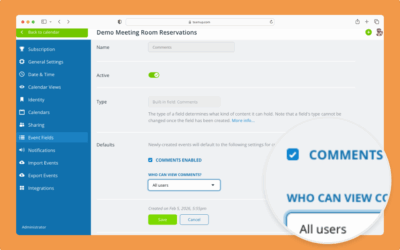
If the administrator has enabled comments for all users, any user will be able to leave a comment and view comments left by others.
- Open Teamup in a browser.
- Click an event to view it.
- Scroll to the Comments field.
- Click Add Comment.
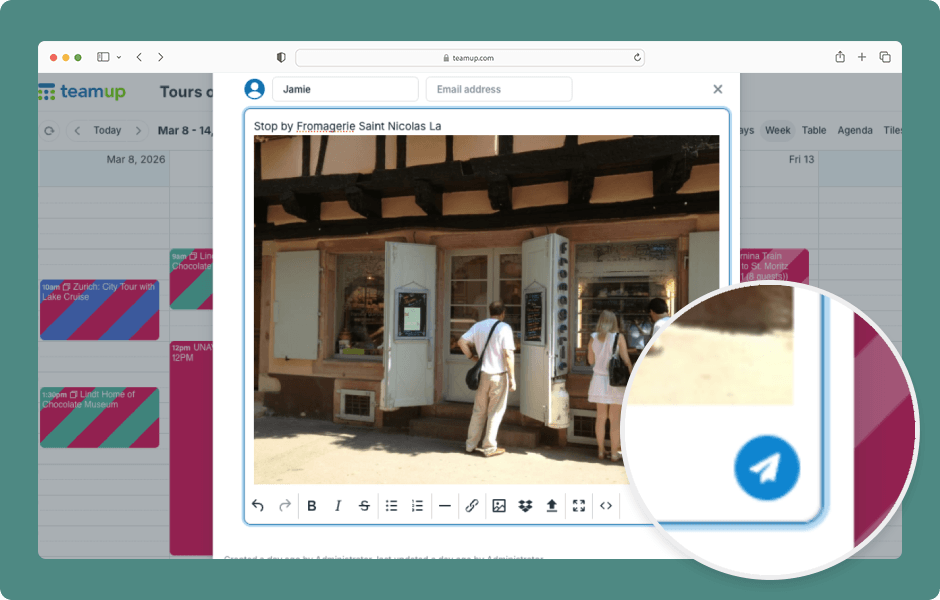
- Click into the Comment field and type in text.
- Use the toolbar to format text.
- To upload an image or file, click the Upload button.
- You can also link to a file or insert a file from Dropbox.
- When ready, click the blue Send button.
- Hover over a timestamp to see the exact date/time a comment was made.
- If comments are enabled for all users, they will also be shown on read-only views and event pages.
- People with the event page link can view and add comments, even if they do not have calendar access.
ℹ️ Learn more