
Many teams still rely on copy-paste workflows to keep tools and calendars aligned. A date from a spreadsheet, a task from a chat, and a milestone from a project board all get pasted somewhere else for others to see. It’s not a big deal for a one-time update, but that’s usually not the situation. The same manual steps happen week after week. Simple tasks take more time than they should. And every copy-paste creates an opportunity for errors and version conflicts. Fortunately, there is a better approach.
Copy-paste consequences: Wasted time, less efficiency
When there’s no shared, real-time calendar, small mistakes add up. Details get lost in messages or stuck in old spreadsheets. Someone updates a date in chat, but the calendar doesn’t change. Another team adjusts a schedule, but no one else sees it. Before long, each group is working from a different version of the plan, and every update takes more time to confirm.
A unified calendar replaces the manual work of transferring data between tools. Here are some examples of how Teamup makes that possible.
How Teamup replaces copy-paste workflows
1. Project milestones from spreadsheets
The problem: Teams plan timelines in Excel or Google Sheets, then manually paste key dates into shared calendars so others can see them.
How Teamup helps: You can import spreadsheet data directly into Teamup or create linked sub-calendars for each project. Milestones and deadlines stay visible to everyone without re-entering data.
2. Newsroom assignments and updates
The problem: Action items and assignment details discussed in meetings get copied into different systems.
How Teamup helps: Notes, decisions, files and updates can all be added to the relevant calendar event, keeping communication and scheduling information together in one place.
3. Marketing and launch schedules
The problem: Marketing or product teams track launches in their own tool but still paste dates into Google Calendar so everyone else can see what’s coming.
How Teamup helps: Bring multiple calendars together for combined visibility or set up automatic syncing with iCal feeds. Everyone sees the same schedule without duplicating work across tools.
4. Shift and crew assignments
The problem: Managers often maintain shift or crew schedules in spreadsheets, then paste them into individual calendars for each team.
How Teamup helps: Teamup supports sub-calendars within one account, so each team or location can have its own schedule while supervisors work from a single master view, removing the need to copy and paste.
5. Field updates and reports
The problem: Field staff email or text daily updates from different job sites that someone then pastes into a master schedule or report.
How Teamup helps: Field techs can add updates or photos directly to the relevant job using event comments, creating a time-stamped accurate record without extra data entry.
One shared calendar as the source of truth
A live, shared calendar replaces scattered files and duplicate systems with a single reference point. Each event or job becomes its own living record. Links, images, notes, documents, and assignments are all in one place.
Instead of re-entering the same information in multiple tools, you simply update the calendar event. Everyone who needs access sees the change immediately. No extra messages, no version confusion.
How to set it up (using Teamup)
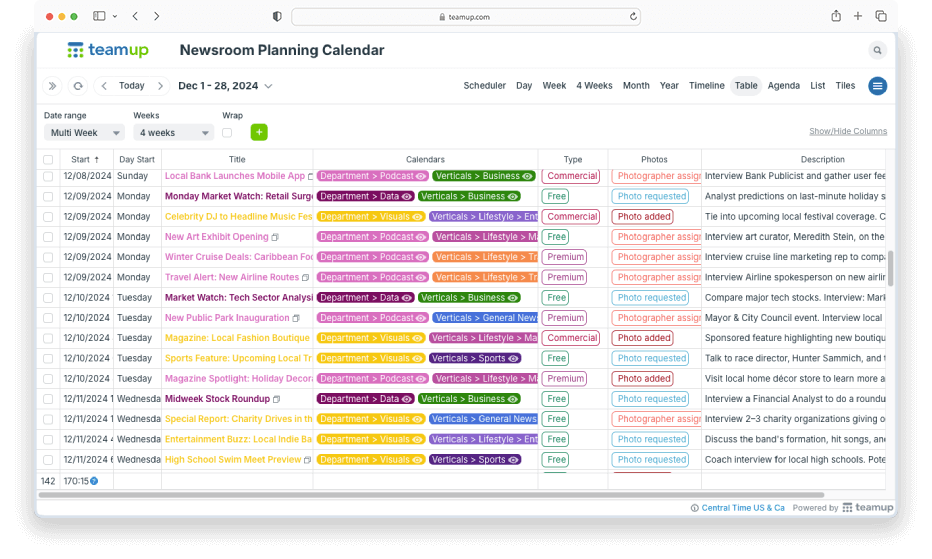
Use this quick setup to create a streamlined workflow that keeps everyone updated and information secure. No more copying data between tools.
⚙️ Mini-guide: Set up a shared, structured calendar
- Create one shared calendar with a flexible, scaleable structure.
Organize sub-calendars in folders so each team or area is distinct. - Add custom fields to capture all the information and track scheduling factors.
Keep every key detail inside the event and use built-in filters to quickly find specific info. - Keep all the information in one place.
Attach files (briefs, checklists, photos). Keep links and references on the event so there’s a complete record. - Set up customized access with granular permissions.
Each person sees only what’s relevant for their roles. Limit access to specific sub-calendars with appropriate permission levels. - Work efficiently with toggles, filters, and calendar views.
Toggle sub-calendars on and off from view; filter by field or keyword; switch between calendar views for the best perspective. - Keep everyone synced and updated.
Have field teams use the app for on-the-go scheduling updates and job details.
The result: Efficient, streamlined workflows
Once everything connects through one calendar, you update once and it’s correct everywhere. No more copy-paste updates needed. Everyone has the right information instantly, and all those important details stay where they can be found.
End result: fewer errors, cleaner workflows, and more time for actual work instead of maintenance. Ready to upgrade your workflow? Create your own Teamup calendar today.