When an employee leaves your business, or a group member exits an organization, it’s important to keep the calendar secure and operational. Here’s how.
When an employee leaves, there are important steps to take to prevent disruption and protect sensitive information. Calendar off-boarding is a crucial part of the broader employee off-boarding process.
🔒 Security checklist: What to do when an employee leaves
⚠️ If the employee leaving the organization is the calendar administrator, it’s very important to make these changes swiftly and correctly. Follow these instructions to change the calendar administrator and maintain security for your calendar and data.
Remove the employee as a user
You may have added the employee as a calendar user via email (with account-based access) or by sharing a link. In both situations, you need to remove the employee as a calendar user so they can no longer access the calendar and its data. This is a simple process:
- Open your calendar in a browser with administrator access.
- Go to Settings > Sharing. You will see a list of users, groups, and links.
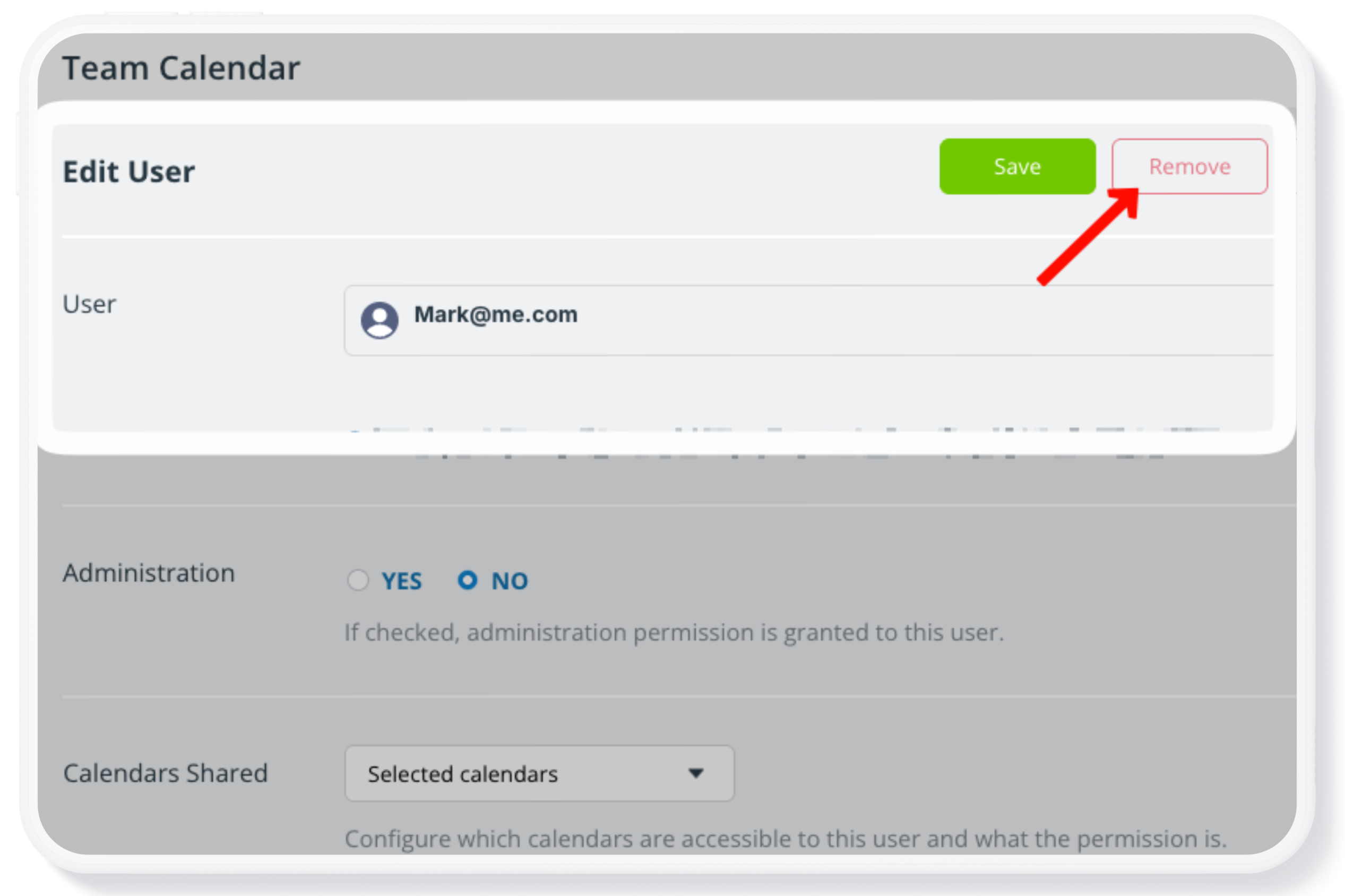
- Find the employee in the list. Click the edit icon.
- Click the red Remove (or Delete) button to remove a user.
Note that removing a user does not delete any data that user added to the calendar. Here’s how to handle employee data.
Secure any compromised calendar links
If the employee had access to any shareable calendar links, delete or deactivate those links. Be sure to consider whether links might have been shared for projects or teams the employee was on or in company emails. Even if these links have read-only access, the employee can use them to view information they should no longer see. The safest move is to delete any links that the employee may have accessed. Replace links with account-based access (preferred, and more secure), or with new calendar links, if appropriate.
If the employee had administrator access, all links are compromised since administrators can access the settings and view all calendar links. In that case, those links should be considered exposed. Delete them and replace them with account-based access or, if appropriate, with newly generated links.
Replace links with account-based access
To minimize future risk, switch to account-based user access instead of relying on shared calendar links.
Account-based access provides greater control, makes it easier to revoke permissions for individual users, and reduces the likelihood of unintended access. User accounts also have many other benefits. Switching is simple and provides greater security and convenience. Delete or deactivate calendar link(s), then follow the steps below for each individual who needs calendar access.
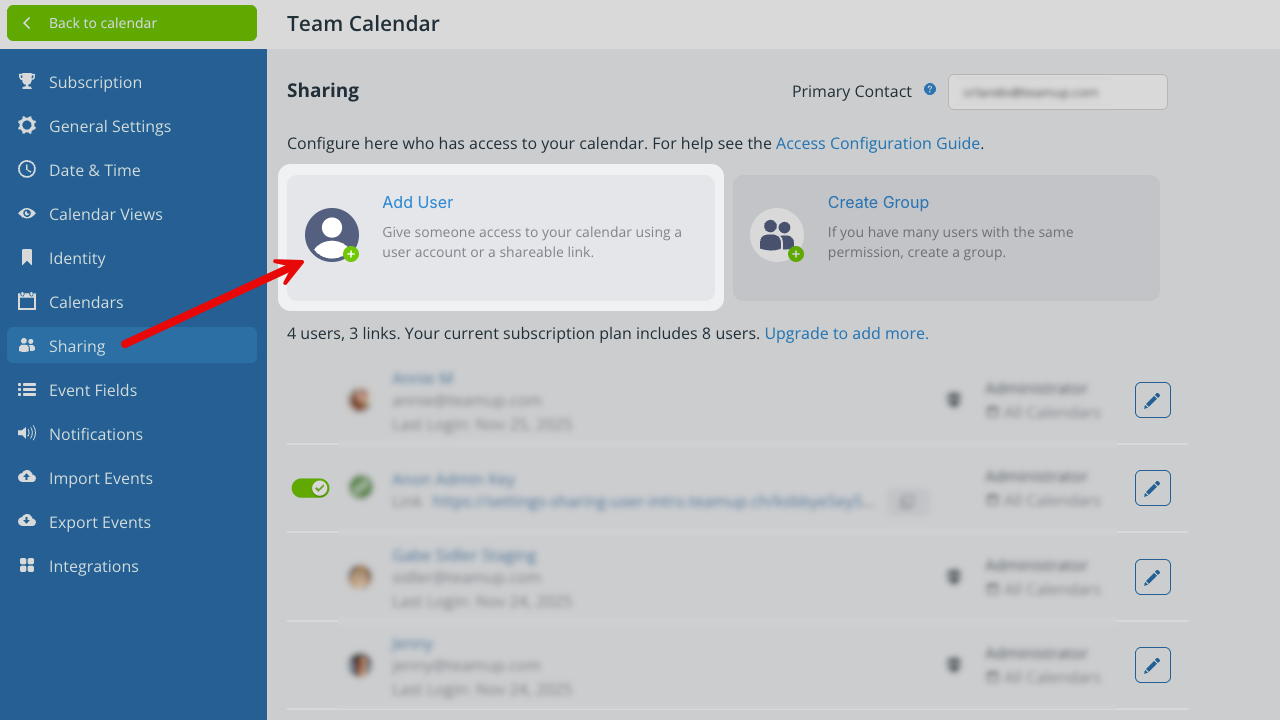
- Open Teamup in a browser and go to Settings > Sharing.
- Click Add User.
- Enter the person’s email address.
- Click Add User.
- Type in the email address of the user.
- Click Add.
- Enter the user’s name if the Name field is blank.
- Scroll to the Calendars Shared section.
- Configure the permissions for this user.
- Save.
The new user will receive an email invitation to activate their account and access the calendar through their user dashboard.
Turn off the employee’s notifications
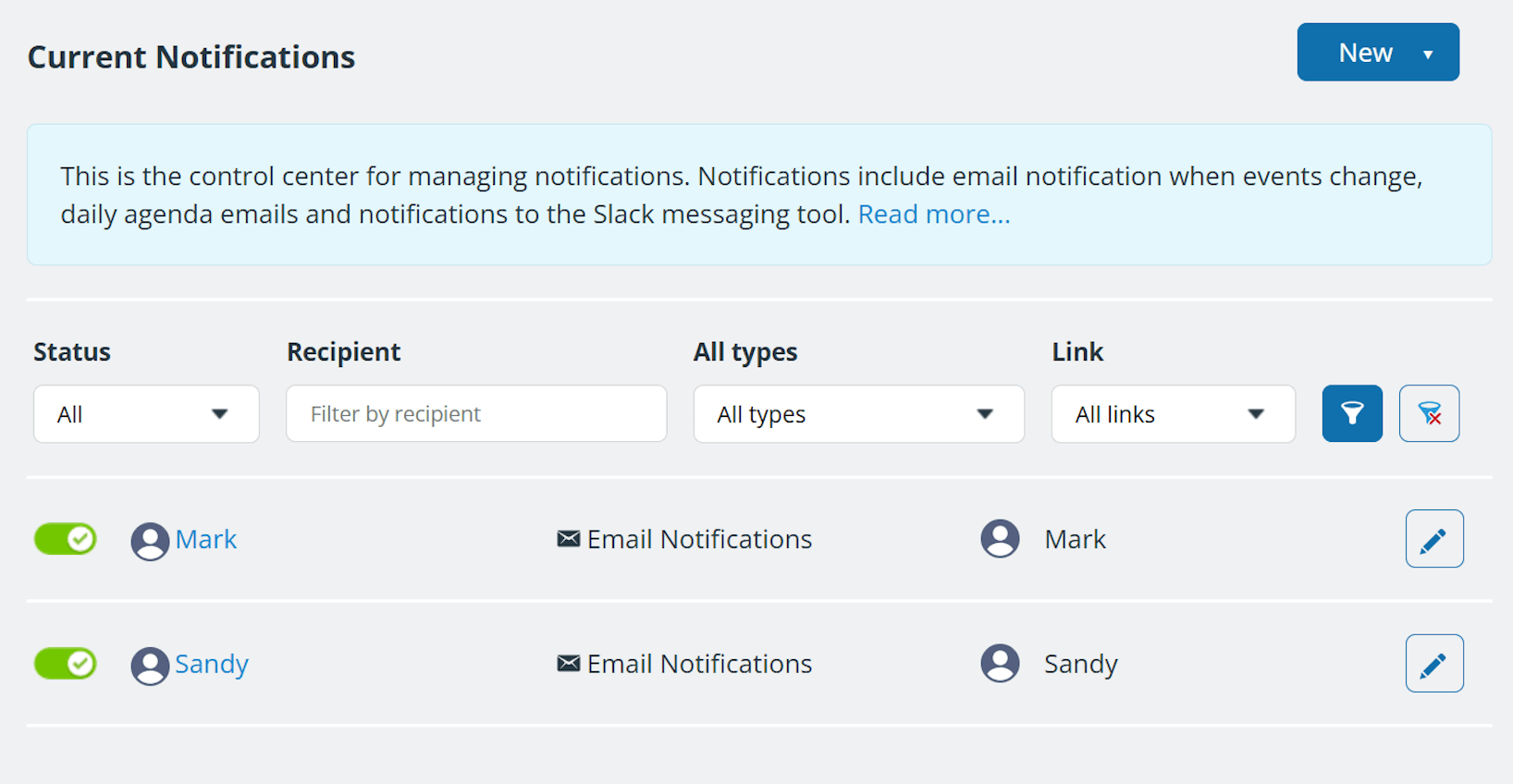
Notifications in Teamup include email notifications, Slack notifications, and Daily Agenda emails. As the calendar administrator, you have full visibility of all active notifications in the calendar settings. Review all existing notification subscriptions and deactivate or delete any that belonged to the former employee.
If you’re unsure about a specific notification subscription and prefer not to delete it immediately, you can deactivate it temporarily. Slide the toggle to the left of a calendar link to deactivate it: When the toggle is red, the link is deactivated. You can reactivate the notification once you’ve determined that it is usable.
Maintain security going forward
There are several steps you can take to keep your calendar secure and make administration more efficient:
-
Use account-based access for regular users.
Add employees or anyone who needs regular calendar access as account-based users. User account access provides greater security, clearer permission control, and makes it easy to revoke access instantly when roles change. - Have users manage their own notifications.
Users with account-based access can set up their own notification subscriptions. As an administrator, you retain visibility and control: You can review and manage these subscriptions at any time. -
Review calendar access periodically.
Conduct regular audits: Review user access on a regular basis. Delete out-dated links, modify permissions, or remove users who should no longer have access.
🔒 Essential Guides: Calendar access + security
- How to Set Up Your Calendar Securely
- Share a Calendar with Customized Access Permissions
- Keep Calendar Access Secure and Up to Date
- When and How to Safely Use Shareable Calendar Links
- Secure Your Teamup Calendar When an Employee Leaves
- What You Need to Know About Administrator Access
- ▶️ Review and Modify User Access
- Calendar Administrator Access Explained
- Replace Calendar Links with Account Access