Built-in filters are tools which allow you to view events that match certain criteria. Teamup supports filtering by keywords, by sub-calendars, and by custom event fields.
Event filters work in a browser and the Teamup app.
Access level required: All users
- Open your Teamup calendar in a browser.
- Click the double arrow (top left) if the left sidebar is not visible.
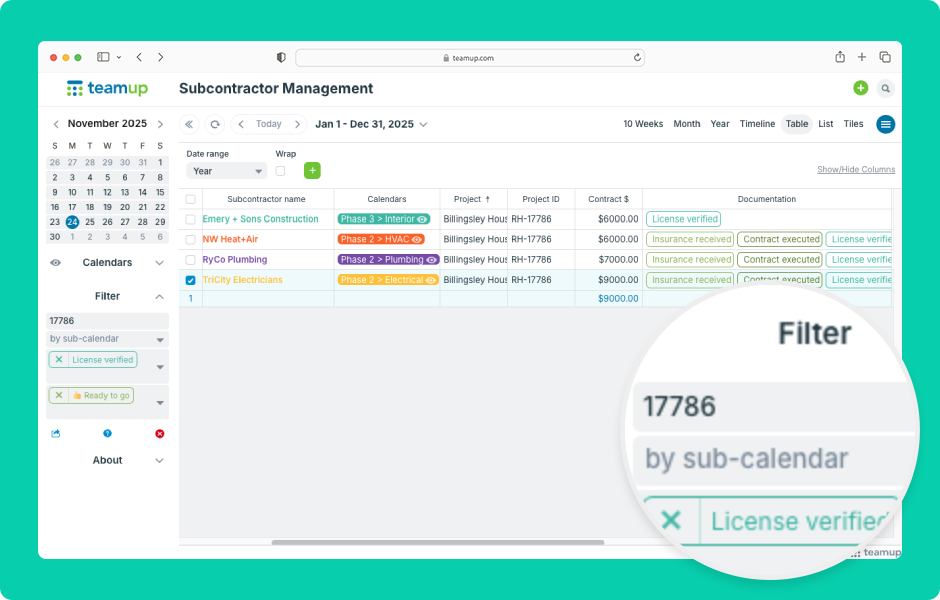
- Click the arrow by the Filter section to expand it.
- Filters will return events within the selected date range and visible sub-calendars. Adjust the date range and toggle calendars to see different results.
- To use the keyword filter, type in a word or number. Only events that match that word or number will be shown.
- When using multiple keywords, OR logic is used, meaning the results will contain either one of the keywords or both.
- Use search operators like + with keywords to refine the filter. More details here.
- Select a sub-calendar to display only events assigned to it.
- You can filter by multiple calendars.
- Results will use OR logic, so events assigned to any of the selected calendars will be shown.
- To filter by multiple calendars using AND logic, combine toggling folders/calendars with the sub-calendar filter.
- If you have a custom choice field, a filter for the choice options will be available below the sub-calendar filter.
- To filter by choice field, select the desired option from the filter.
- Repeat to filter for multiple choices.
- Select the Empty option to filter for events without a selected option in that choice field.
- You can use multiple filters together. When using multiple filters, the results will display only events matching the criteria for all active filters.
ℹ️ Learn more