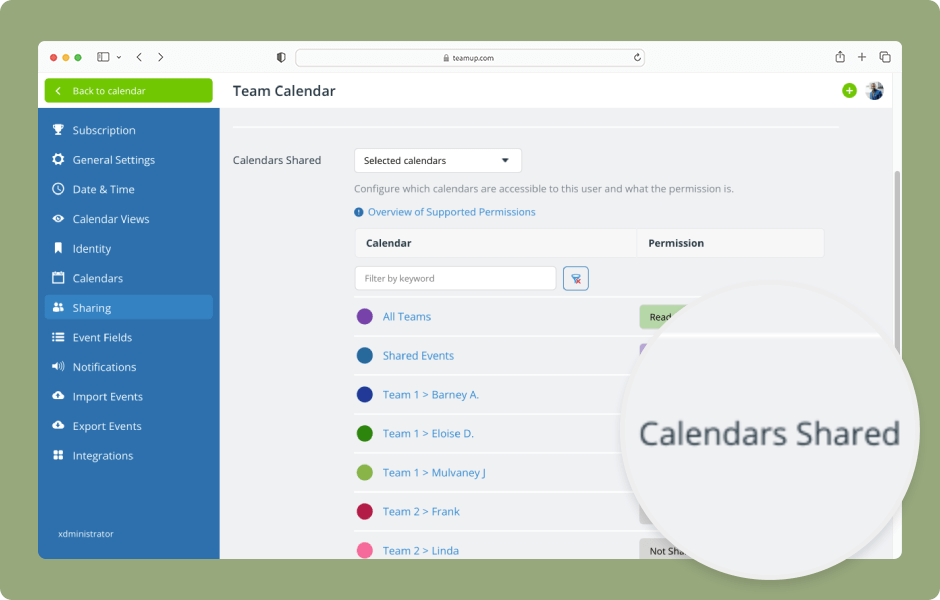
The calendar administrator can review users with access and modify the sub-calendars shared and permission levels as needed.
Access level required: Administrator
- Open Teamup in a browser.
- Open the blue menu (top right).
- Select Settings.
- Go to the Sharing tab.
- The Sharing screen shows a list of all users.
- Click a user’s name to review their calendar access.
- On the Edit User screen, scroll to the Calendars Shared section.
- This section shows which calendars the user can access and the permission level assigned for each one.
- Click the Permission menu next to a calendar name to adjust the user’s permission level for that calendar.
- Set to Not Shared to revoke the user’s access to a calendar.
- Under Default permission, select the permission give to this user for any new sub-calendars.
- Click Reset all subcalendars to apply the default permission to all calendars immediately.
- Be sure to Save any changes.
- If a user has one permission applied to All calendars, the individual sub-calendars will not be listed.
- Use the drop-down menu to change the user’s permission level for all calendars.
- Or change to Selected calendars to set the permission for each sub-calendar individually.
- Be sure to Save any changes.
ℹ️ Learn more