The calendar administrator can set defaults for event signups including a signup deadline and maximum number.
Access level required: Administrator
- Open Teamup in a browser.
- Open the blue menu (top right).
- Select Settings.
- Go to the Event Fields tab.
- Find the Signups field in the list of event fields.
- Use the toggle to deactivate (red/✕) or activate (green/✓) the Signups field for all events.
- If Signups are deactivated in the calendar settings, they will not be shown in the event editor.
- Click the edit icon to view and adjust default settings for the Signups field.
- The default settings will apply automatically, but can be changed for individual events.
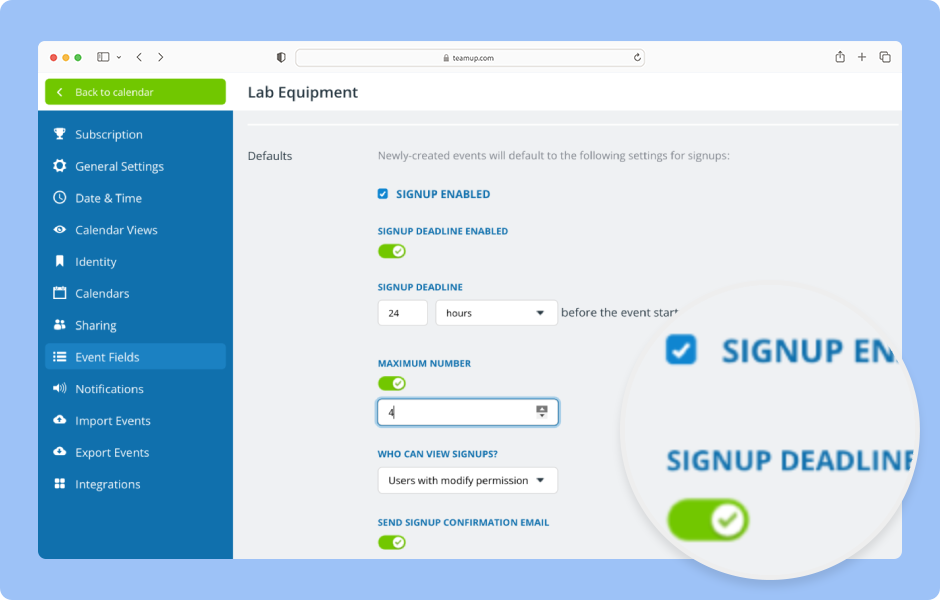
- Check Signup Enabled to enable signups by default on all events.
- Toggle Signup Deadline on (green/✓) to have a default deadline for signups.
- Adjust to the desired number of hours or days for the default deadline.
- Toggle Maximum Number on (green/✓) to have a default maximum for signups.
- Adjust the default maximum number as desired.
- Under Who can view signups? choose whether All users or only Users with modify permission can view the list of participants who have signed up.
- Choose whether or not a Signup Confirmation Email is sent to Teamup account users.
- Click Save.
- The default settings will be applied automatically. They can be adjusted for each individual event as needed.
ℹ️ Learn more