Administrator access is the highest level of control in a Teamup calendar. A calendar administrator can manage everything, from users and permissions to the calendar’s structure and settings. To safeguard calendar security, limit administrator access to one or two authorized individuals only.
🔒 Security checklist: Understand and protect administrator access
What can administrators do?
In addition to having full control over all events on the calendar, administrators can access the calendar settings. The calendar settings are the control center of the calendar. Administrators have full control over sub-calendars, custom fields, access, and more, and are able to:
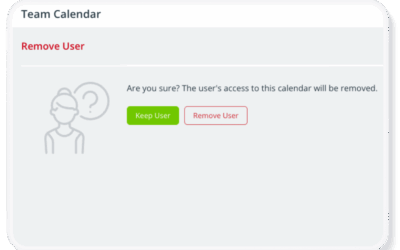
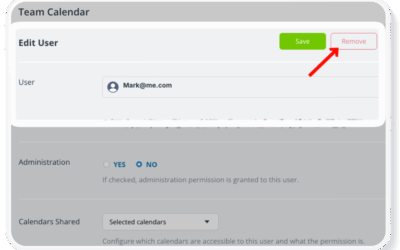
- Add users or remove them, granting or revoking access to the Teamup Calendar.
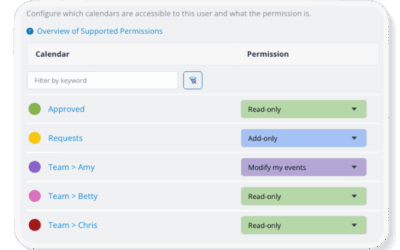
- Change access permissions for the users.
- Create, modify, and delete calendar links.
- Create and delete sub-calendars.
- Control integrations, imports, and exports of data.
- Set up and manage notifications.
- Change subscription plans.
- Delete the entire calendar.
Best practices for administrator access
When you create a calendar, you automatically receive administrator access. You can also grant access to other users. By default, assign the lowest permission level needed for each person.
Carefully limit administrator access
Only assign administrator access to an individual who is authorized to manage all calendar data, settings, subscription, etc. In most cases, only one or two individuals should have administrator access, and only if they have specific responsibilities that require access to the calendar settings:
- Set up or restructure the calendar.
- Manage users and permissions.
- Configure access permissions.
- Adjust global settings or integrations.
⚠️ Key security considerations
- Only give administrator access to people who actually need to control the calendar settings.
- Do not use a group email (e.g. info@ or marketing@) for administrator access, especially if multiple people have access to that email address.
- Make sure administrators understand their role and how to manage the calendar securely: Getting Started Guide for Administrators.
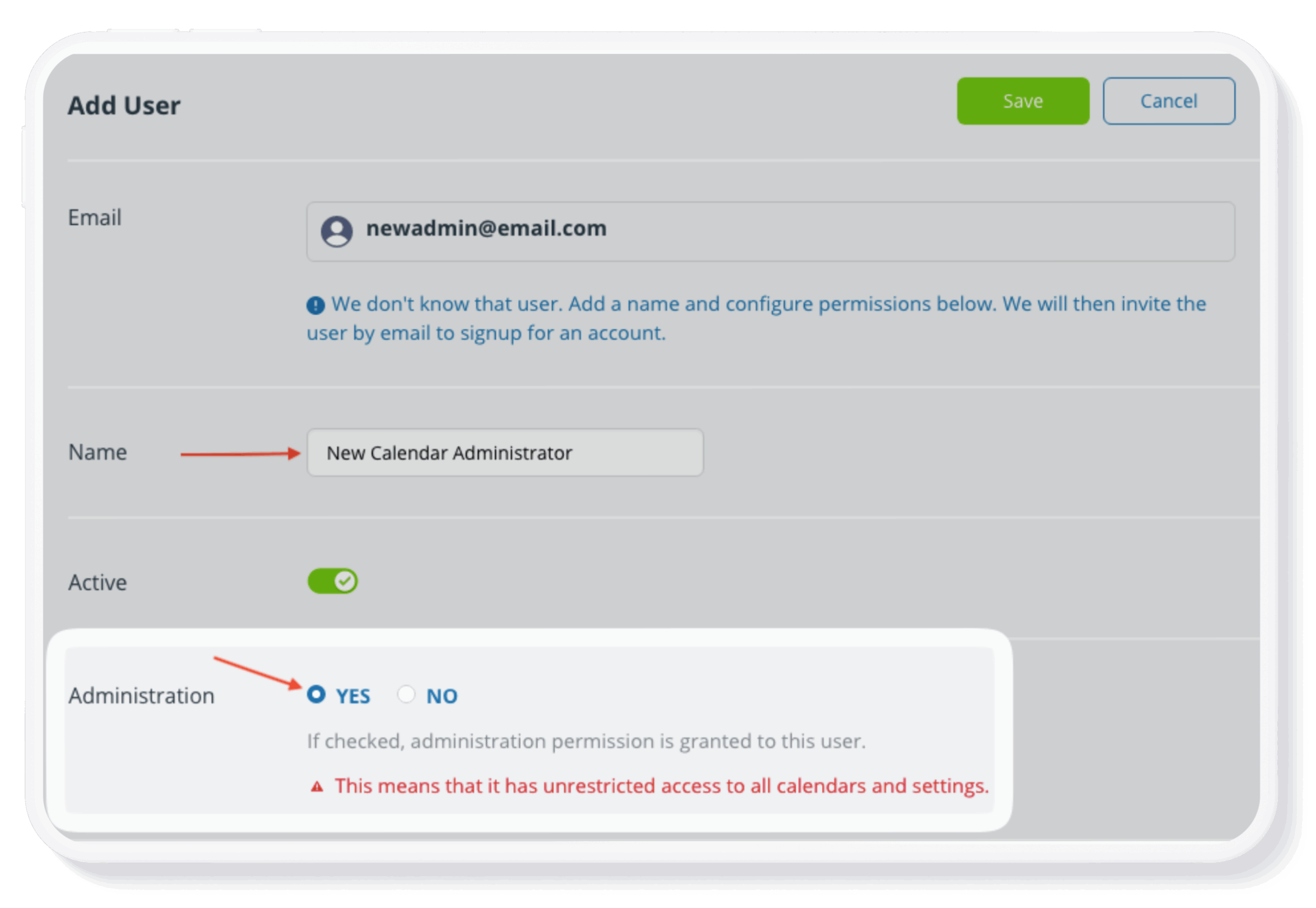
- To grant administrator access, follow these steps.
- If you are changing the calendar administrator, follow these steps as well.
Assign the right permission level
If someone needs full control over calendar events, modify access is usually sufficient. Modify access permission level is the most powerful level after administrator access. Someone who needs manage all events on the calendar can be given modify permission to all sub-calendars. This allows them to add, update, and delete events but does not give them access to the calendar settings. You can also give someone modify permission to selected sub-calendars, and a lower level of access to other sub-calendars.
Here’s a brief overview of how permission levels are typically assigned:
- Team members who schedule events need Modify or Modify-my-events access.
- Team members who only need to create events can use Add-only access.
- Viewers or stakeholders need Read-only access.
Review access regularly
As teams change, access should too. Periodically review all users to check and modify the assigned permission levels as needed. Remove access completely for inactive users. If anyone has administrator access, adjust their permissions to a more appropriate level unless they are authorized to be a calendar administrator. If anyone is using a calendar link with administrator access, it’s important to immediately switch this user to account-based access (with an appropriate permission level), and delete the link. Follow these steps.
Lost your administrator access?
If you have accidentally lost your access as calendar administrator, there are a few ways to recover access:
- Check your user dashboard.
- Ask another administrator to add you as a user with administrator access.
- If you are using a legacy administrator link, check your inbox for the original link.
- Note that administrator links are no longer supported. If you are still using one, switch to account-based access for better security.
- Contact Teamup support if needed.